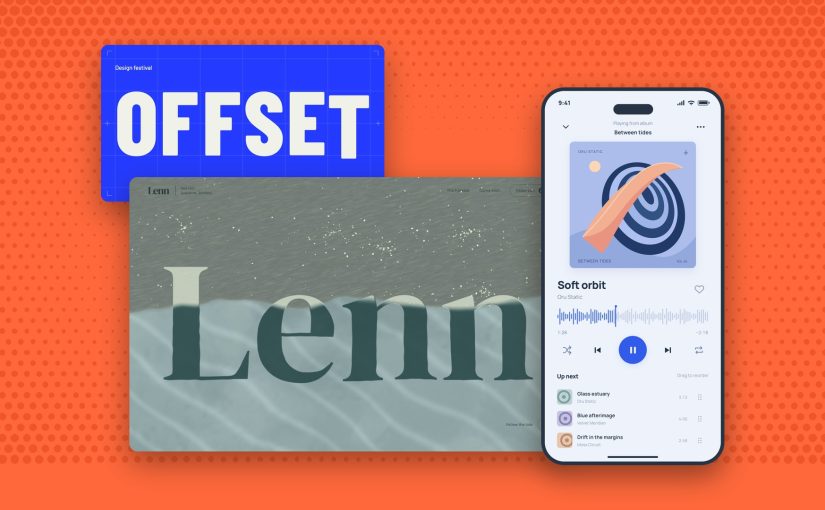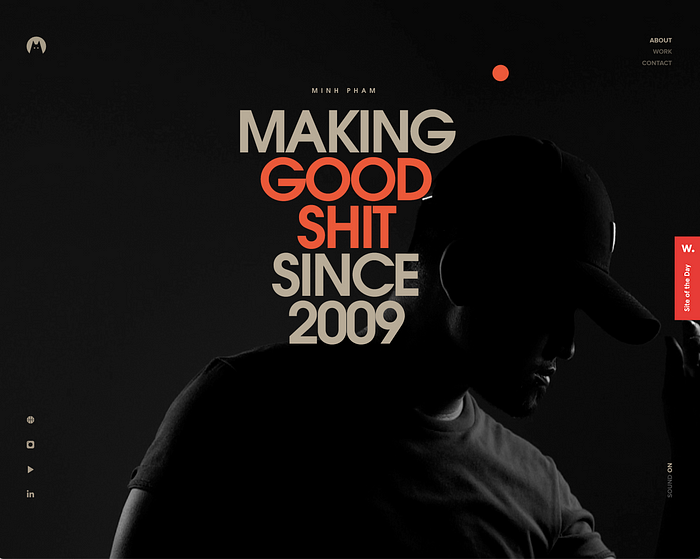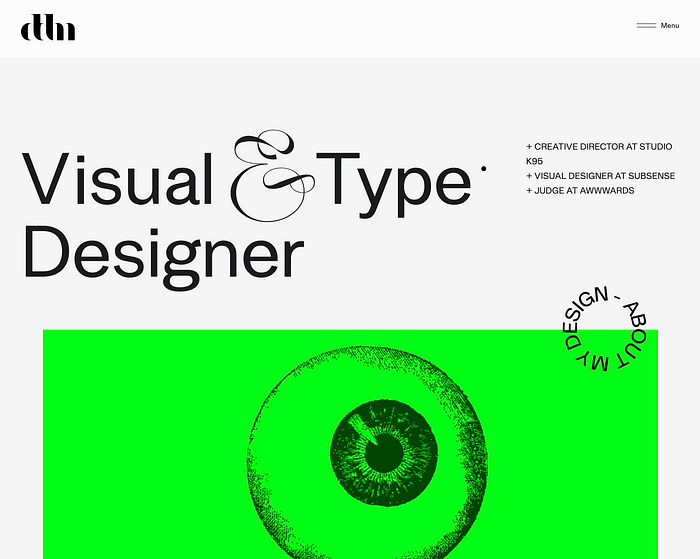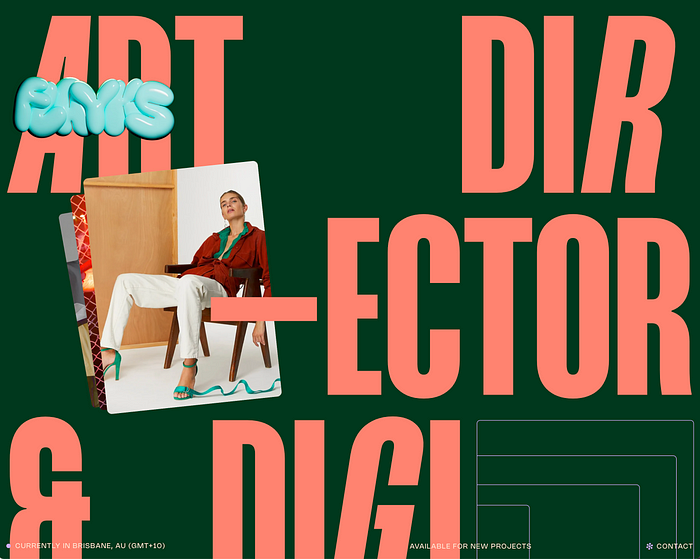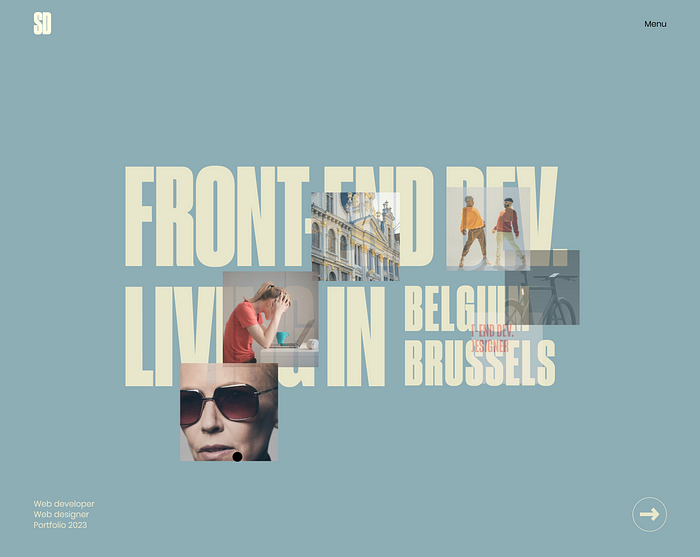
Font pairings 2026: we checked the fonts on 2,190 websites designers loved. Most of them used just one.

TL;DR

  • 🔍 We counted instead of guessing. 2,190 websites featured on Awwwards, SiteInspire, Land-book and 21 other galleries this year, each loaded in a browser that reported the font every line of text is drawn in. Plus 1,466 Fonts In Use entries for print and branding.
  • 1️⃣ The most popular pairing is one font. 60% of sites set the headline and the body in the same family. The contrast moved from the typeface to the size.
  • 🥇 Inter is still number one. It’s on 13% of the sites, and on 24% of Framer sites, where it’s the default. PP Neue Montreal is the paid favourite. Roboto, Open Sans and Montserrat barely show up.
  • 🤝 When designers do pair, nobody copies anybody. 871 paired sites, 811 different pairs. The classic listicle pairs, Montserrat + Lora and friends, appeared zero times.
  • ⌨️ The third font is a mono. 23% of sites add a monospace for labels and small print. Geist Mono leads.
  • 📏 How they set it. Headlines at regular weight, tracked a little tight, four times the body size. Body at 16 pixels with a 1.4 to 1.5 line height.
  • 🆓 You can copy most of it for free. A live playground, AI prompts and CSS at the end, with free stand-ins for the paid favourites.

A long one, with charts, real examples and a playground. Every TL;DR point jumps to its section, so go straight to the part you came for.

Every January the internet publishes the same article. “25 perfect font pairings for the new year.” Montserrat with Lora. Playfair Display with Source Sans. Oswald with Roboto.

The Muzli blog ran one too, back in 2024. Montserrat and Lora were number one.

These lists almost never check whether designers actually use the pairs. So this year I did.

I checked 2,190 websites that design galleries featured in 2026 and asked the browser which font every piece of text is drawn in. Montserrat + Lora showed up zero times. Playfair + Source Sans, Raleway + Open Sans, Oswald + Roboto: zero, zero, zero.

What designers did instead is more interesting, and a lot easier to copy than a list. Here’s what they used, how they set it, and how to steal it for your next project.

How we counted

Every day the Muzli feed pulls in the websites design galleries feature: Awwwards, CSS Design Awards, SiteInspire, Land-book, One Page Love and 19 more, plus our own Muzli Picks. From January 1 to October 20 that came to 7,079 gallery posts, or 4,176 unique websites once you count each site once.

I loaded 2,506 of them, spread across the whole year, in headless Chrome. That’s a real browser with no window, driven by a script. For every line of text on each page I asked two things. How big is it? And which font is Chrome actually drawing it in?

That second question matters more than it sounds. CSS asks for a font and lists fallbacks, and sites rename their fonts all the time: “primary”, “brand-sans”, “custom_131815”. The browser knows which font file it really used, so that’s what we counted.

Each site then got two roles:

  • Headline font. The family of the big type: the main h1 if there is one, otherwise the largest text on the page.
  • Body font. The family with the most characters at paragraph sizes, 12 to 22 pixels.

If the two match, the site uses one family. If they differ, that’s a pairing.

316 sites didn’t count. They were offline, blocked the visit, or drew their text on a canvas or as images, which a browser can’t read back as text. That leaves 2,190 websites.

For everything that isn’t a website, I used Fonts In Use, the archive where type nerds document typefaces in the wild. 2,715 of its entries came through the Muzli feed this year, and 1,466 of them show work made in 2025 or 2026.

Sixty seconds of vocabulary

  • Typeface, font, family. A typeface is the design (Inter). A font is one style of it (Inter Bold). A family is all the styles together. This article counts families.
  • Grotesk. The plain, no-nonsense sans-serif family tree Helvetica belongs to. Most of the fonts below are grotesks.
  • Serif. Letters with the little feet at the end of the strokes. Think newspapers and book covers.
  • Mono. Short for monospace. Every letter takes the same width, like code.
  • Variable font. One file that holds every weight, so you can pick 450 instead of choosing between 400 and 500.
  • Foundry. A studio that designs and sells typefaces, like Pangram Pangram or Dinamo. Free fonts mostly come from Google Fonts and Fontshare.

OK. Let’s see what designers picked.

The most popular pairing is one font

60% of the sites set the headline and the body in the same family. No pairing at all.
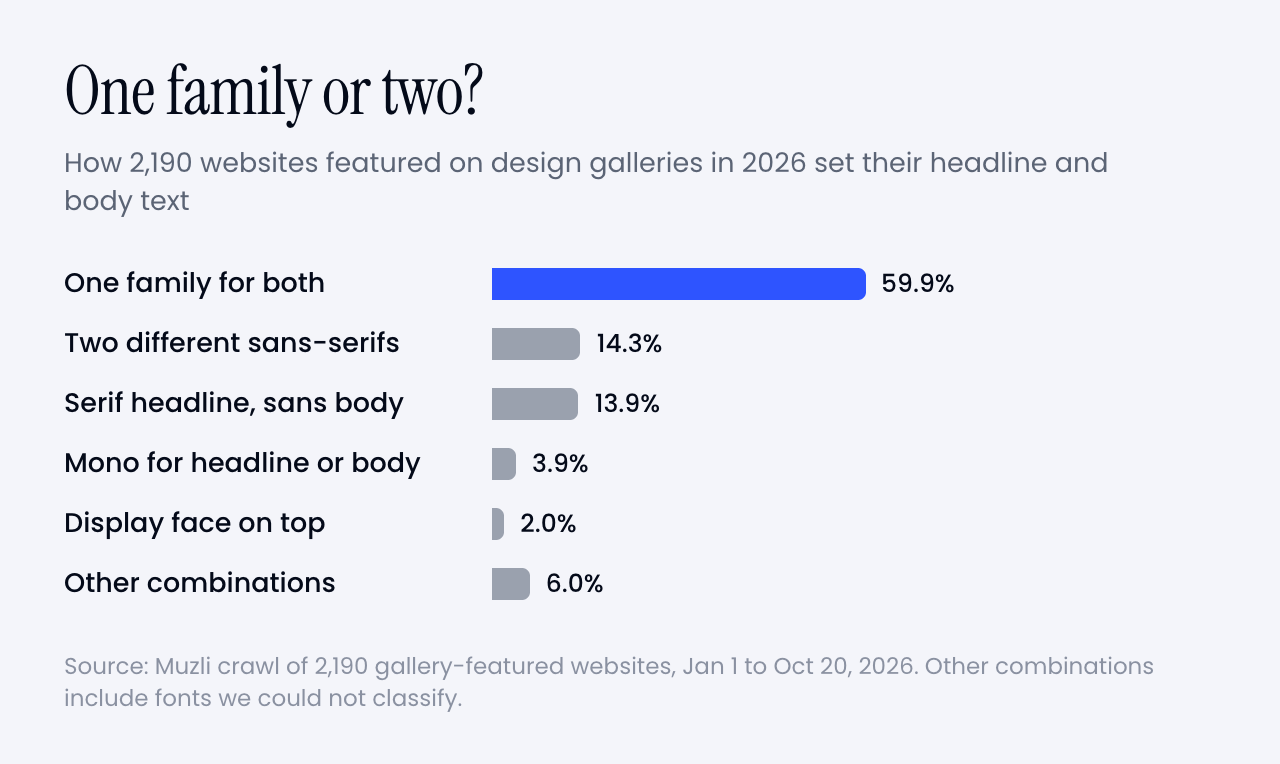
Bar chart. 60% of sites use one family for headline and body. Serif headline over a sans body, two different sans-serifs, a display face on top and mono combinations make up the rest.
Six in ten sites never pair at all. Shares of 2,190 sites, weighted by month.

That doesn’t mean the pages look flat. The contrast just moved.

The headline is now four times the body size. The median headline on these sites is 64 pixels over 16-pixel body text. At that scale, the jump in size does the job a second typeface used to do.

Modern families also bring their own contrast. Inter has optical sizes that run from text to display, so big headlines get tighter, crisper letters. Neue Haas Grotesk comes in Display and Text versions. A variable font gives you every weight in between. You get a headline that feels different from the body without inviting a second personality to the party.

Think of a good suit. One fabric, cut differently for the jacket and the trousers, instead of a tweed jacket with jeans.
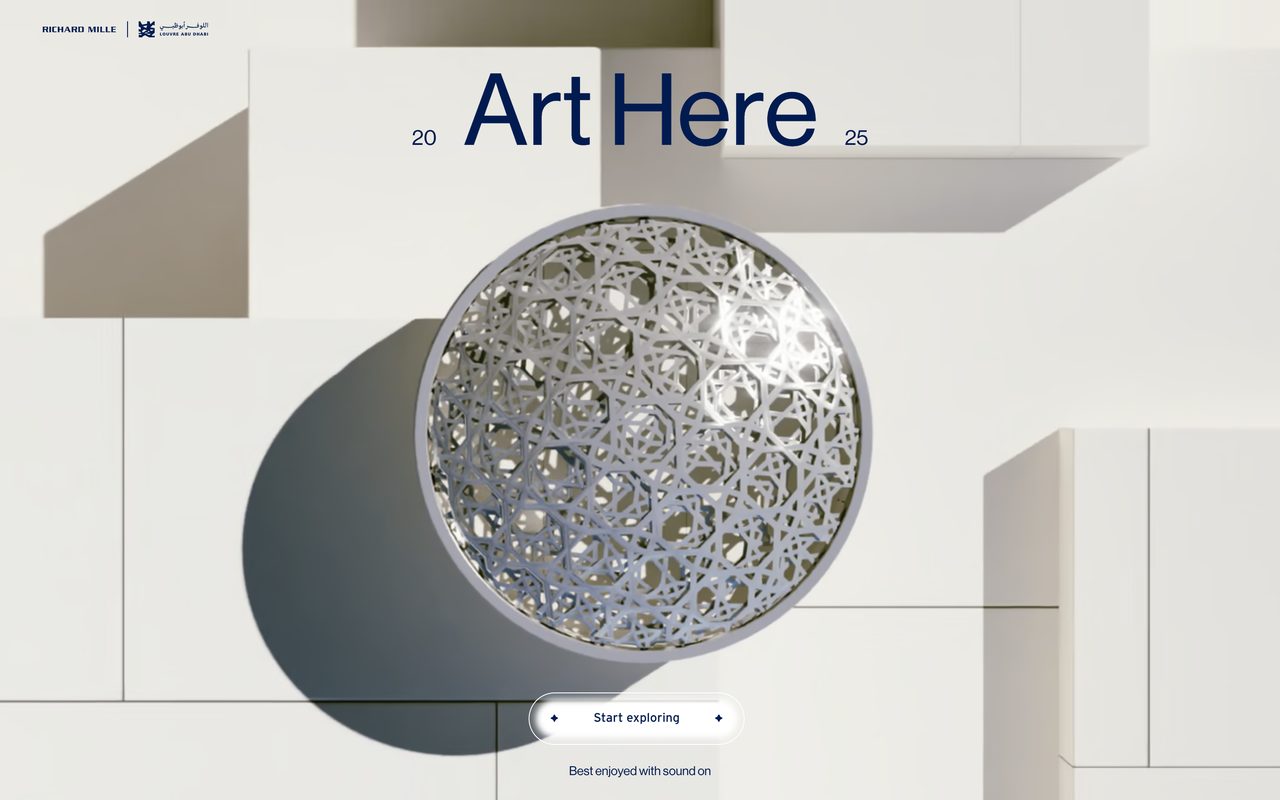
The Richard Mille Art Prize 2025 site, with a large blue Neue Haas Grotesk headline over a sculpture
One family, two sizes. The Richard Mille Art Prize 2025 site sets everything in Neue Haas Grotesk. Image: artprize-shadows.com
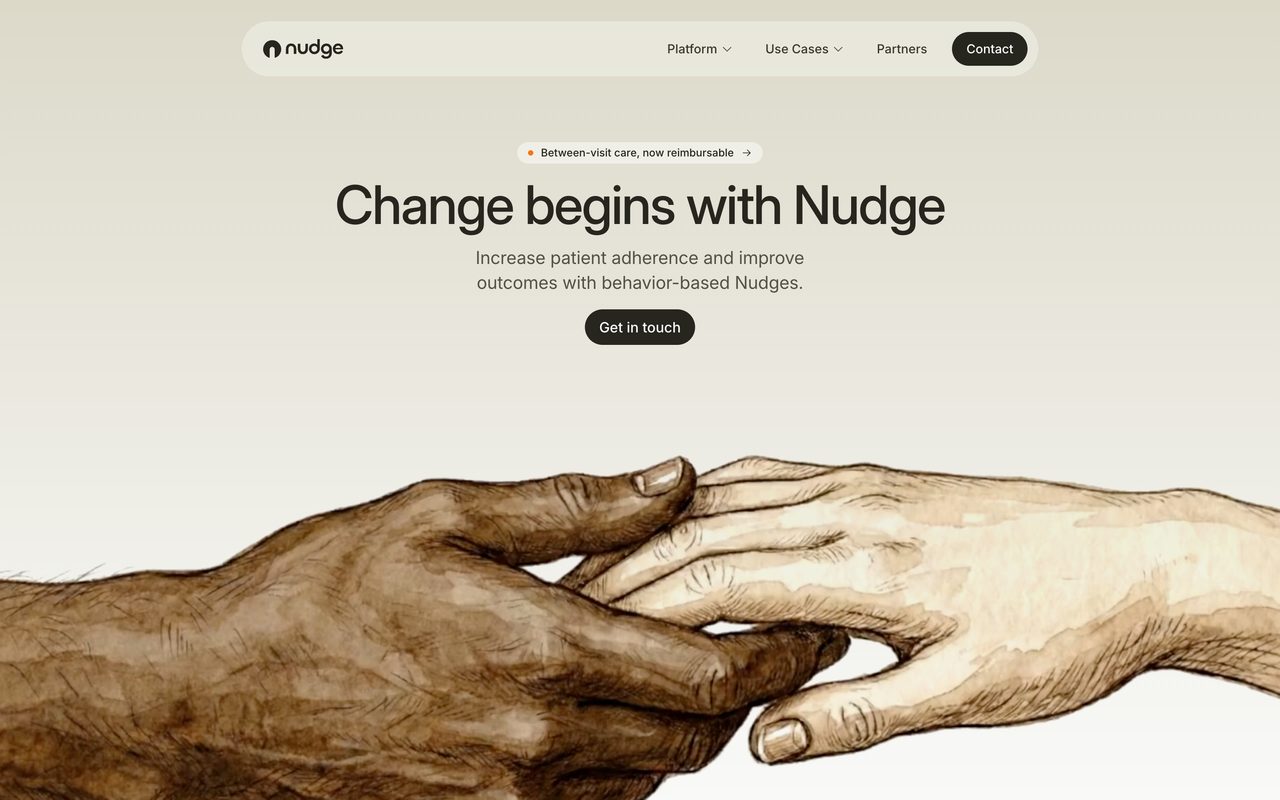
The Nudge homepage, with a centred Inter headline and a short Inter paragraph above an illustration of two hands
Nudge does the same with Inter: headline, paragraph and button in one family. Image: getnudge.info

Matthew Butterick put it bluntly: “Most documents can tolerate a second font. Few can tolerate a third.” In 2026 most sites skipped the second one as well.

So the honest answer to “what should I pair with Inter?” is, more often than not, more Inter.

Which fonts are all these one-family sites using? That’s where the list gets surprisingly short.

The typefaces designers used the most
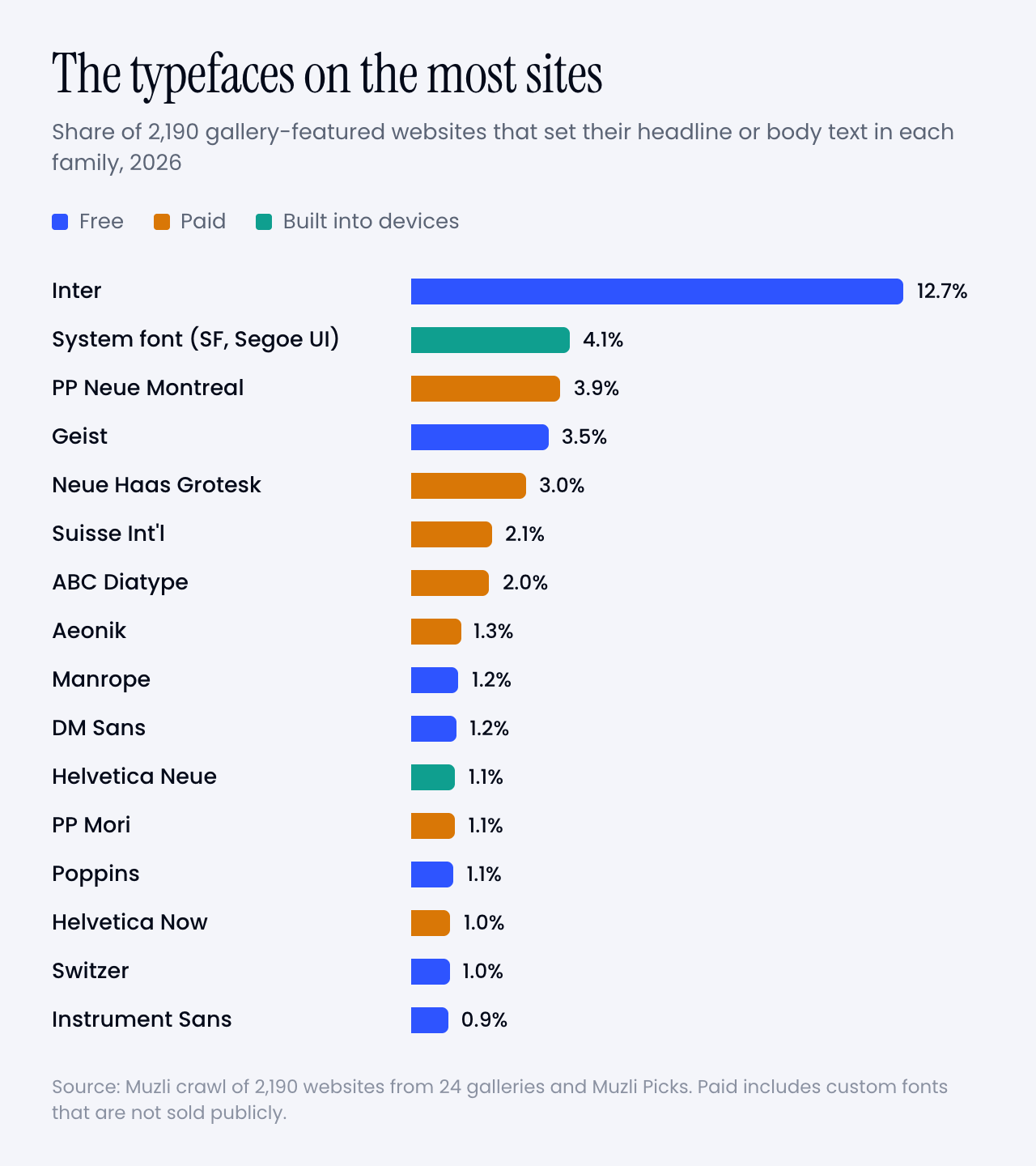
Bar chart of the typefaces used for headline or body text. Inter leads by far, followed by the system font, Geist, PP Neue Montreal, Neue Haas Grotesk, ABC Diatype, Suisse Int'l and Aeonik.
Inter is on 13% of the sites. Nothing else reaches 5%. Blue is free, amber is paid or custom, green comes with your device.

🥇 Inter

Inter sets the headline or the body on 13% of the sites, more than three times as often as PP Neue Montreal, the next family down. It’s free and open source, and Rasmus Andersson built it as a workhorse for everything from dense interfaces to signage.

It also has a secret weapon. It’s the default. Framer’s help pages say new text blocks start in Inter and Inter Display, and on the Framer sites in this crawl 24% use Inter. On Webflow sites it’s 10%. Never underestimate a default.

And when designers do pair, Inter is everybody’s favourite partner. It’s the body font under 15% of all pairings, quietly carrying the paragraphs while a serif or a display face takes the headline.

🍏 No web font at all

Second place goes to no web font at all. 4% of the sites set their headline or body in the system font, the one your device already has: San Francisco on a Mac or iPhone, Segoe UI on Windows, Roboto on Android. It loads instantly, costs nothing and looks native everywhere.

Count Helvetica, Helvetica Neue, Arial and Times New Roman straight from the operating system too, and 7% of these designer sites set a headline or body without loading a single font file for it.

💸 PP Neue Montreal and the paid grotesks

The most used paid family is PP Neue Montreal from Pangram Pangram, on 3.9% of the sites. Behind it sits a tight cluster of paid grotesks: Neue Haas Grotesk (3.0%), Suisse Int’l (2.1%), ABC Diatype from Dinamo (2.0%), Aeonik (1.3%) and Helvetica Now (1.0%).

Put them side by side and they’re cousins. Neutral, a little tight, at their best at big sizes. The designer look of 2026 is a well-made grotesk, set large.

▲ Geist

Geist is Vercel’s free family, on 3.5% of the sites. It lives mostly on product sites: 59% of the Geist sites came from SaaS landing-page galleries like Land-book and Saaspo. Its sibling Geist Mono is even more common, on 4.1%, which is a clue to the third font.

🌍 Meanwhile, on the rest of the web

The Web Almanac 2025, which measures millions of sites, finds Roboto on about 10% of pages, Poppins on 6%, Open Sans on 5% and Montserrat on 3 to 4%. Inter sits at 1.4%.

On the sites designers put in galleries, it’s the other way round. Roboto sets the headline or the body on 0.7% of them. Open Sans on 0.3%, Montserrat on 0.5%, Poppins on 1.1%. Inter, meanwhile, is about 9 times as common here as on the web at large.

The fonts the web uses most are the fonts designers avoid. If you want a page to look designed in 2026, that’s the cheapest tip in this article.

When designers pair, nobody copies anybody

40% of the sites do use two families. Here’s the twist: 871 paired sites, 811 different pairs. 94% of the pairs appear on exactly one site, and the most repeated one appears on 4.

Fonts converge, pairs don’t. Everyone shops in the same small store and leaves with a different outfit.

The handful of pairs that did repeat, none of them on more than 4 sites:

  • Oswald over Inter: 4 sites
  • Playfair Display over Inter: 4 sites
  • Fraunces over Inter: 3 sites
  • Instrument Serif over DM Sans: 3 sites
  • PP Editorial New over PP Neue Montreal: 3 sites
  • PP Editorial New over Inter: 3 sites
  • Instrument Serif over Inter: 3 sites
  • Instrument Sans over Inter: 3 sites
  • GT Alpina over Season Sans: 3 sites
  • STK Bureau Serif over STK Bureau Sans: 3 sites

Yes, Playfair Display made the list. Just not over Source Sans.

Fonts In Use tells the same story about print and branding. Of its 623 recent designs that use exactly two typefaces, 565 use a pair no other entry uses. Yet the single fonts repeat. Inter, Neue Haas Grotesk, Suisse Int’l, Helvetica and Neue Montreal top that list too.

So stop hunting for “the pairing of the year”. It doesn’t exist. What repeats is the pattern, and there are only a handful.

📰 Serif headline, grotesk body

About a third of the pairs (35%) put a serif on top of a sans, and that sans is Inter more often than anything else.

The serifs vary far more than the sans. Instrument Serif leads, then Displaay’s Season Mix, GT Alpina, PP Editorial New, Fraunces and Commercial Type’s Feature. Nearly all of them are high-contrast display serifs, set big at regular weight, often with one word in italic for flavour.
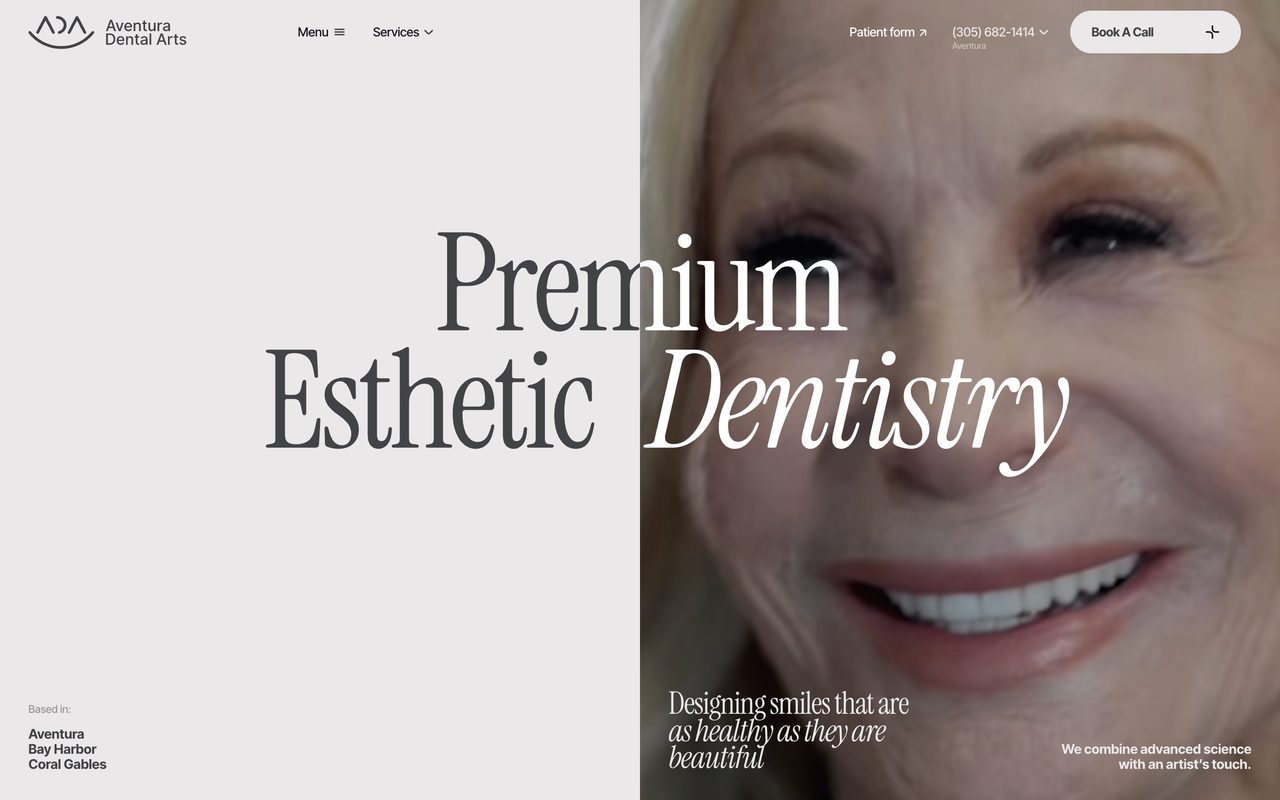
Aventura Dental Arts homepage with the headline Premium Esthetic Dentistry in Instrument Serif, the last word in italic
Instrument Serif over Inter Tight, with one italic word doing the emotional work. Image: aventuradentalarts.com
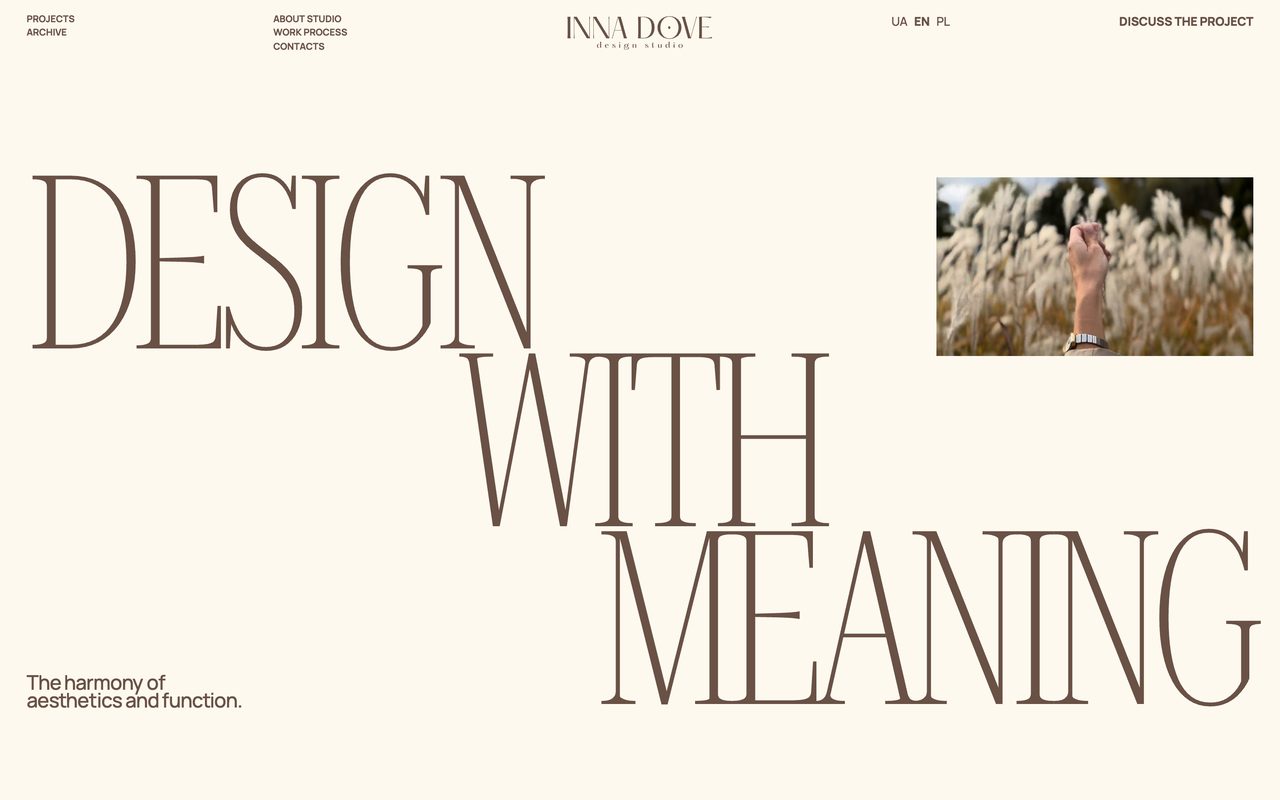
Inna Dove's homepage with a tall condensed serif headline, Design with meaning, over a small sans caption
A tall, condensed Roboto Serif headline over Manrope. Image: innadove.com

A word on Instrument Serif. It’s free on Google Fonts, it’s the top-ranked serif in Google Fonts’ own popularity sort, and last November Creative Bloq reported designers complaining it’s “starting to look lazy”. In our crawl it’s on 0.9% of sites. Popular, sure. Everywhere, not yet.

🧱 Two grotesks, one loud, one quiet

Another third (36%) are two sans-serifs. That sounds like a contradiction until you look at them. A grotesk with character on top, a neutral workhorse underneath: Neue Haas Grotesk over PP Neue Montreal on Sutera, Aeonik over Inter on ToDesktop, Archivo over Manrope on the Museum of Money.

The contrast is in personality, not in category. If the two look like siblings, use one.

👯 Same designer, two styles

Butterick’s one rule of thumb for mixing fonts is to “combine fonts by the same font designer”. A small group of sites follows it: Klim’s Martina Plantijn over Founders Grotesk, PP Editorial New with PP Neue Montreal, Untitled Serif with Untitled Sans, Displaay’s Season Mix with Season Sans. 5% of the pairs come from a single foundry.
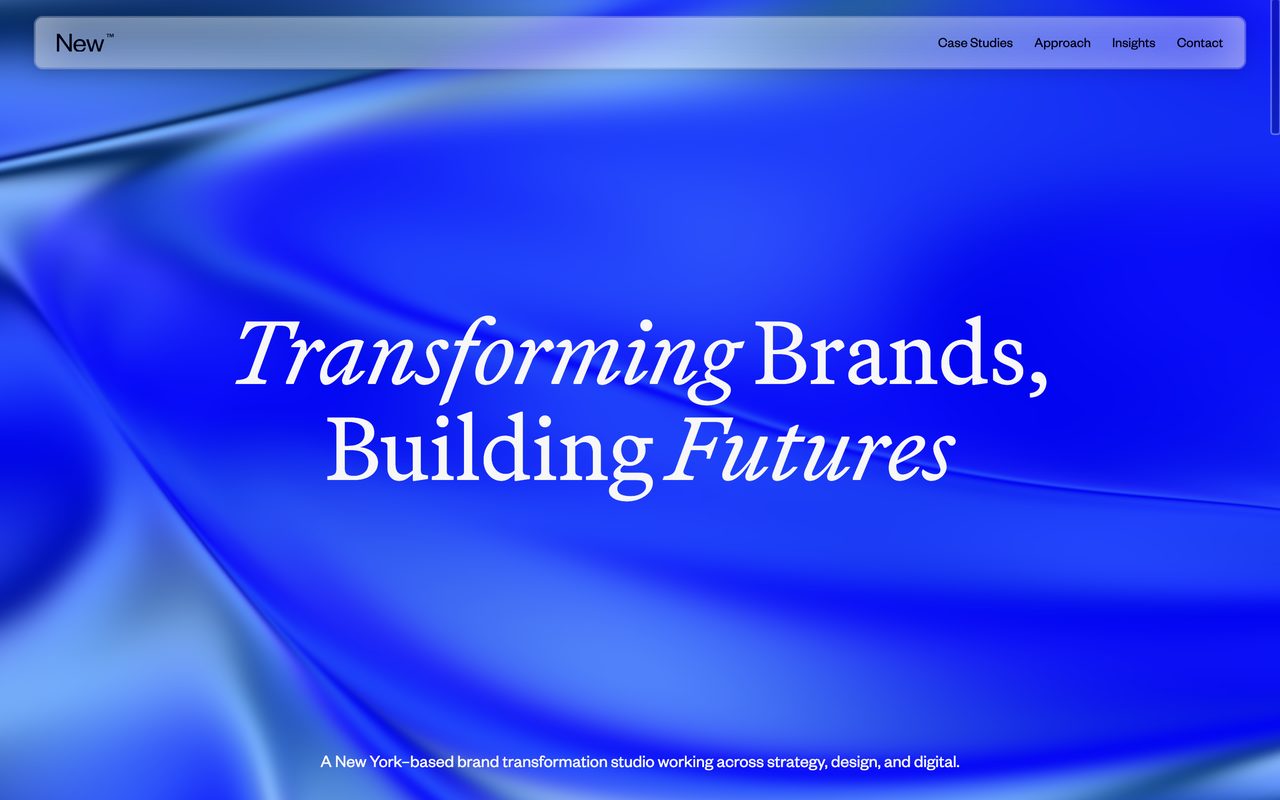
New Studio's homepage with the headline Transforming Brands, Building Futures in Martina Plantijn on a blue gradient
Martina Plantijn for the headline and Founders Grotesk for the rest, both from Klim. Image: new.studio

It’s the safest way to pair two very different typefaces. The same hand drew both, so the proportions already agree.

📣 A display face on top

The loudest pattern and one of the rarest. 5% of the pairs put a display face like Anton, Oswald, Bebas Neue or Unbounded on top. It works when the headline is a poster, and almost nowhere else.
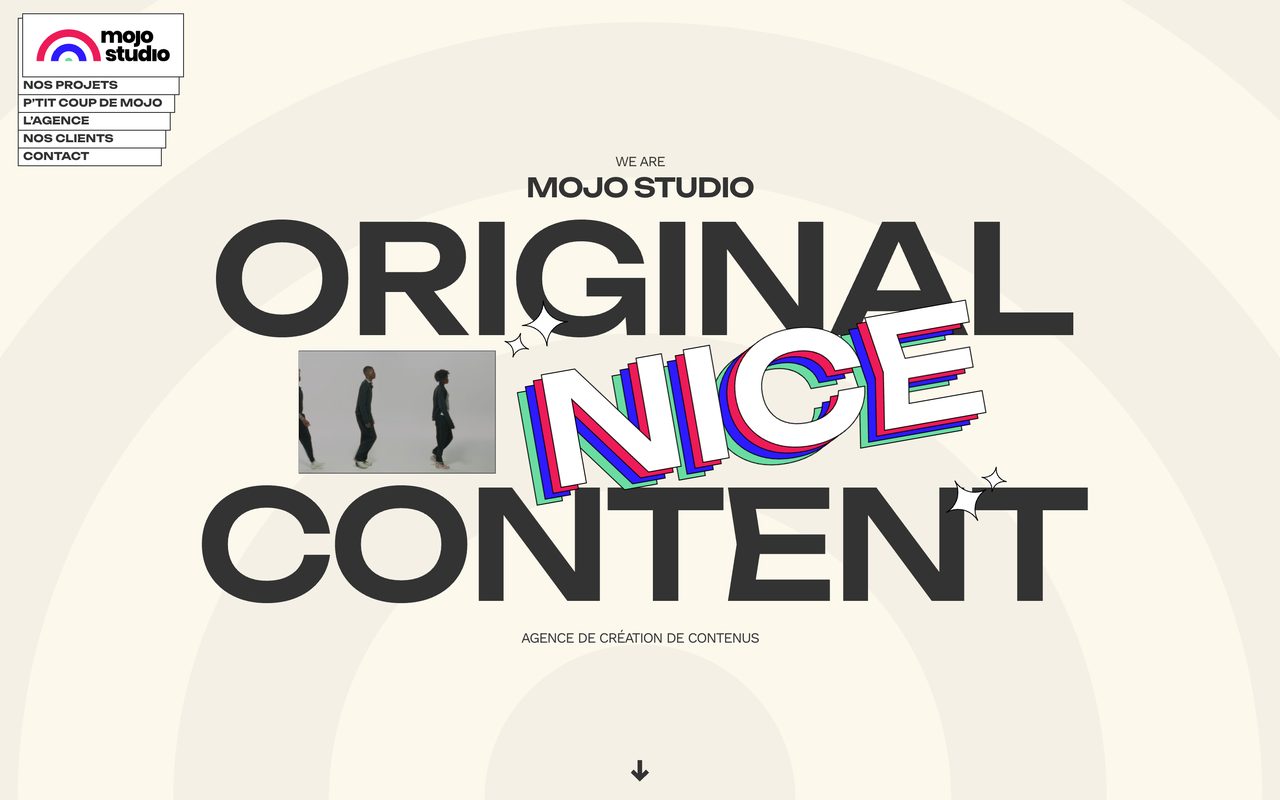
Mojo Studio's homepage with Original Nice Content set huge in Unbounded
Unbounded for the shout, Work Sans for everything else. Image: mojostudio.co

The third font is a mono

23% of the sites use a monospace somewhere, and hardly ever for code. It’s for the small stuff: navigation, labels, dates, prices, the “Est. 2026” line.

Geist Mono is the favourite, then IBM Plex Mono and JetBrains Mono, then DM Mono, Roboto Mono and Space Mono, plus plenty of sites that simply use the system’s own mono. The usual move is a grotesk with its own mono sibling (Geist with Geist Mono, Diatype with Diatype Mono) or with a free mono from Google Fonts.
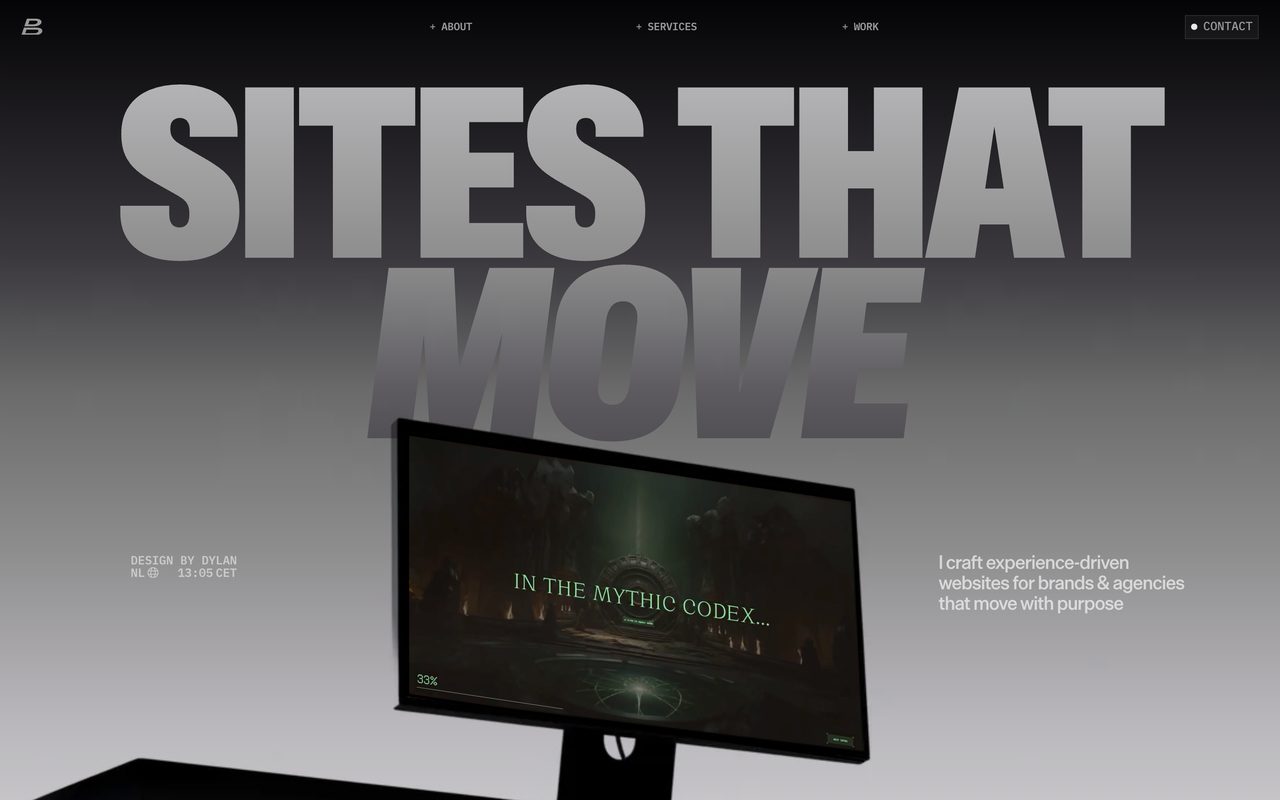
Dylan Brouwer's portfolio with Sites that move in a huge grotesk and small monospace labels around it
Die Grotesk for the headline, IBM Plex Mono for every small label. Image: dylanbrouwer.design

Why it works: a mono label says “precise, technical, considered” in eleven pixels. It’s the typographic version of a lab coat. If your one-family page needs a little extra, add a mono before you add a second sans or serif.

How they set it

The browser also reports how each headline is set, so here are the numbers designers actually ship.

headline: weight 400 · tracking −1.4% · line height 1.0 · 64px

body: 16px ¡ line height 1.4 ¡ weight 400

Headlines are regular, not bold. 42% of them are set at weight 400 and another 16% at 500. Only 17% go bold or heavier. When the type is four times bigger than the body, weight stops being the thing that makes it a headline.

58% of headlines are tracked tighter than default, mostly by 1 to 3%, and the median line height is 1.0. Big type set at its default spacing looks loose. Tighten it until the words hold together as one shape.

The favourites each have their own habits:

  • Inter: weight 600 ¡ tracking −2.5% ¡ line height 1.05
  • PP Neue Montreal: weight 500 ¡ tracking 0% ¡ line height 1.0
  • Neue Haas Grotesk: weight 400 ¡ tracking 0% ¡ line height 1.0 ¡ uppercase on 20% of sites
  • Geist: weight 500 ¡ tracking −2.5% ¡ line height 1.0
  • Instrument Serif: weight 400 ¡ tracking −2.0% ¡ line height 1.0

Paid or free

Here’s the uncomfortable bit. 67% of the headline fonts on these sites are paid or custom-made, and so are 56% of the body fonts. Free fonts cover 29% of headlines and 37% of body text, and system fonts the rest.

That’s a big part of the gap between a gallery site and a template. If you can’t license the favourites, these free fonts get you into the same neighbourhood:

  • PP Neue Montreal → Switzer from Fontshare, or Inter
  • Neue Haas Grotesk, Helvetica Now, Suisse Int’l → Inter, with its display optical size for headlines
  • ABC Diatype → Geist
  • PP Editorial New → Instrument Serif

They’re not clones, and a trained eye will spot the difference. But scale, spacing and restraint carry most of the look, and those cost nothing.

Try it this week

Start with the playground. Every recipe in it uses free fonts and the settings we measured, so you can see the patterns from this article with your own words in them. Click the text to edit it, switch recipes, and hit Get CSS when one clicks.

Seven free recipes built from the crawl. Best at full width, so open it in a new tab if your screen is small.

Three ways in, depending on how you build.

🎨 No code, 15 minutes.

  1. Open three sites you admire, from Muzli or Awwwards. Check their fonts with Inspect → Computed → Rendered Fonts. Count how many families each one uses. My bet: one or two.
  2. Take your current project and set everything in one family. Make the headline four times the body size, drop it to a regular or medium weight, and tighten the tracking a little. Only add a second font if the page still feels flat.
  3. Try the recipes in the playground above, with your own headline typed in.

🤖 With AI tools. Paste one of these into Claude, Lovable, v0 or Framer AI. They name the font, the source and the measured settings, which is what stops the model falling back to its favourite default.

Set this page in ONE typeface family: Inter from Google
Fonts. Headlines: weight 600, letter-spacing -0.025em,
line-height 1.05, about 4x the body size
(clamp(40px, 7vw, 64px)). Body: 16px, weight 400,
line-height 1.5. Build hierarchy with size and weight
only. Do not add a second typeface.
Pair a serif headline with a sans body. Headlines:
Instrument Serif (Google Fonts), weight 400,
letter-spacing -0.02em, line-height 1.0, about 4.5x the
body size. Body: Inter 16px/1.5. Small labels: Inter 500,
12px, uppercase, letter-spacing 0.08em. Keep everything
else in Inter.
Use Geist for headings and body text and Geist Mono for
labels, navigation, dates and numbers (12px, uppercase,
letter-spacing 0.02em). Headlines: Geist 500,
letter-spacing -0.025em, line-height 1.0. Both fonts are
free from Google Fonts.

💻 Writing the code yourself. The playground’s “Get CSS” button gives you any recipe as a ready snippet. Here’s the most common setup on the sites we checked, in its free version:

@import url("https://fonts.googleapis.com/css2?family=Inter:opsz,wght@14..32,100..900&display=swap");

body {
  font-family: "Inter", system-ui, sans-serif;
  font-size: 16px;
  line-height: 1.5;
}

h1 {
  font-size: clamp(40px, 7vw, 64px);
  font-weight: 600;
  letter-spacing: -0.025em;
  line-height: 1.05;
  font-optical-sizing: auto; /* big sizes get Inter Display */
}

Where taste comes from

Yes, this is the ad break. But it’s a relevant one.

Every website in this study reached me the same way it can reach you: through the Muzli feed. Muzli turns your browser’s new tab into a stream of the best design from more than 200 sources, including the galleries above, plus the Picks that Eyal Zuri, our Co-Founder and Creative Director, chooses by hand. More than 900,000 people have signed up.

That matters for type because taste in typography is mostly mileage. You learn what “tight but not cramped” looks like by seeing a few thousand headlines, not by reading a pairing chart. Open a new tab twenty times a day and you get those miles for free.

And when a site stops you, do what my crawler did. Right-click the headline, choose Inspect, open the Computed tab and scroll to the bottom. Under “Rendered Fonts” Chrome tells you exactly which font it’s drawing, even when the CSS calls it “primary-font”.

Get Muzli for your browser, it’s free.

Worth bookmarking

🆓 The free ones from this list

  • Inter. The designer’s own page. Free, open source, with optical sizes from text to display.
  • Geist and Geist Mono. Vercel’s family, free, and the most used mono on these sites.
  • Instrument Serif. The serif of the moment. Use it before everyone calls it lazy.
  • Fontshare. “Quality fonts. Free.” Satoshi and Switzer live here.

💸 The paid favourites

🔎 Check for yourself

  • Fonts In Use. Every entry names its typefaces. Search a font, see who used it with what.
  • Typewolf’s usage lists. Another count from curated sites, with a different method and a lot of overlap.

📚 Go deeper

The verdict

The font pairing, the way the listicles sell it, is mostly dead on designer websites. 60% use one family, the rest invent their own pairs, and nobody is setting Montserrat over Lora.

What’s alive is craft inside one family: scale, weight, tracking, an optical size, maybe a mono for the small print.

One thing to watch: the serif headline. It’s the pattern most likely to tip into clichĂŠ next year, and Instrument Serif is the font most likely to take the blame.

So here’s your homework. Open your current project, delete the second font and make the headline four times the body size. If the page still needs something, you’ve earned your pairing.

Pick one family. Make the second one earn its place.


Sources: Muzli crawl of 2,190 websites featured on 24 galleries and Muzli Picks between January 1 and October 20, 2026, with shares weighted by month; Fonts In Use; HTTP Archive Web Almanac 2025, Fonts; Framer Help; Butterick’s Practical Typography. Images: the sites named in each caption.
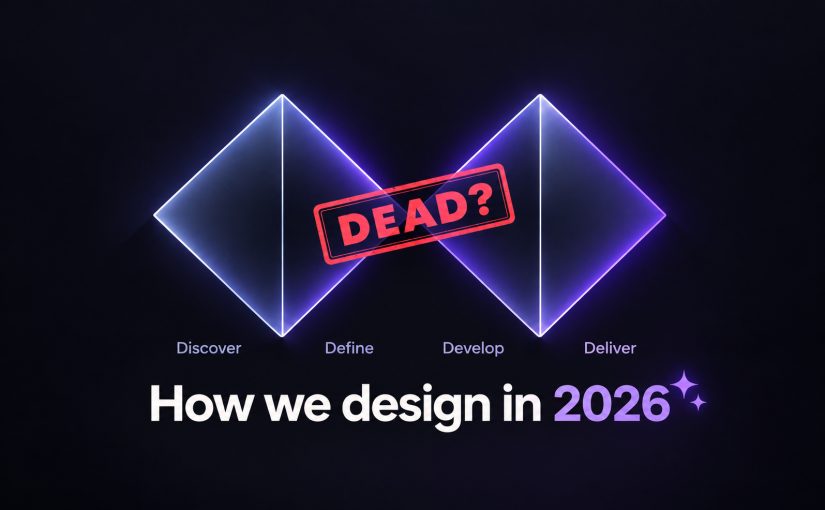
AI didn’t kill the design process. It made being dirt cheap. The new workflow, the tools, and what you should do today.

Grab a coffee, this one is long. Design process is a big subject and I have opinions about it. The TL;DR below doubles as a menu, so tap the part you came for.

TL;DR

OK. Let’s start by remembering what designers have actually been doing all these years.

If you have worked in design for longer than a week, you have seen the picture. Two diamonds, side by side.

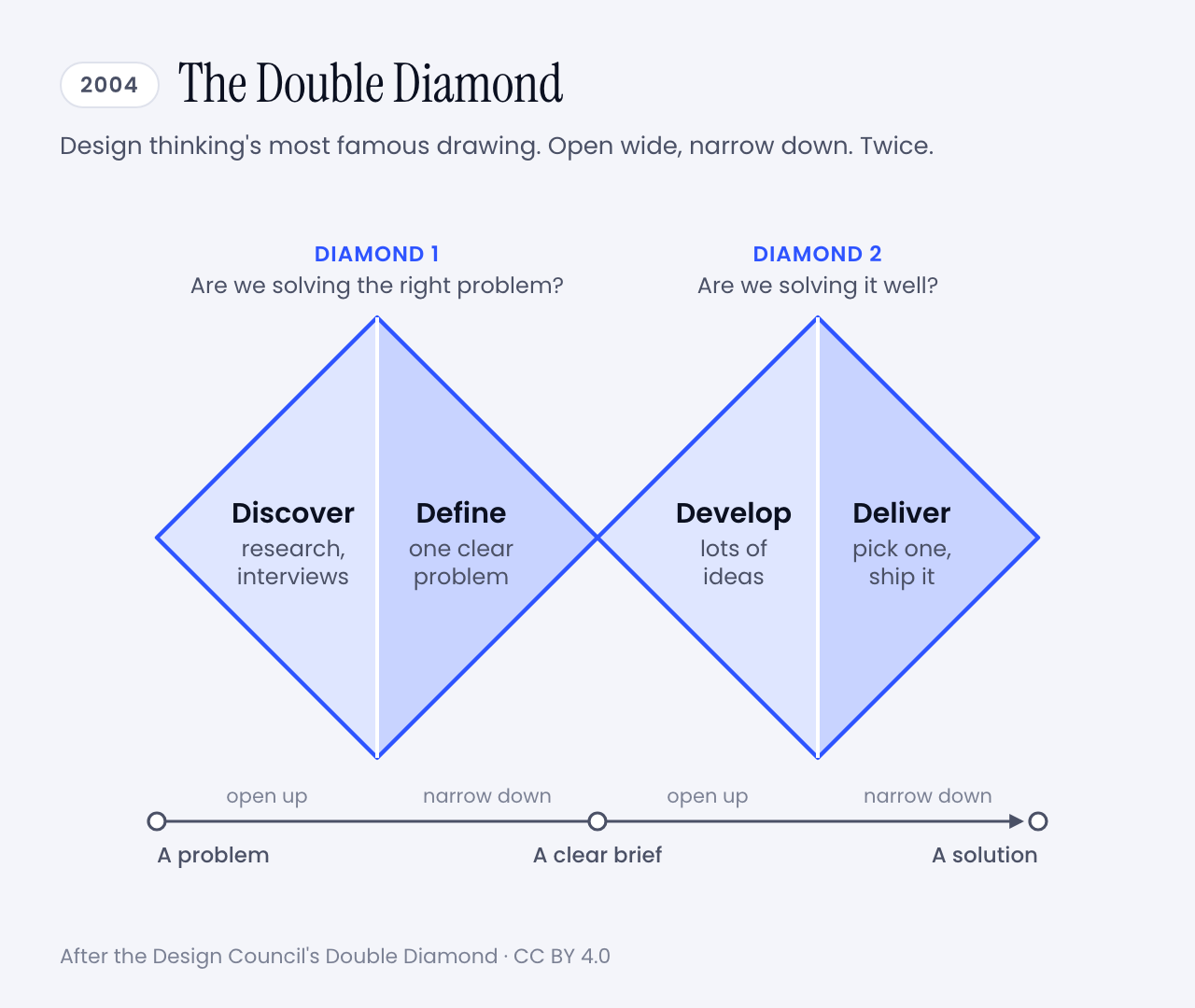
It is called the Double Diamond, and it is the best-known drawing of how design is supposed to happen. It has four steps, and all four start with a D:

  • Discover. Go and research the problem. Talk to people.
  • Define. Boil that research down to one clear problem.
  • Develop. Come up with lots of possible answers.
  • Deliver. Pick one, finish it, ship it.

Each diamond opens wide and then narrows. First you collect, then you choose. You do that once for the problem and once for the solution.

The Double Diamond: two diamonds side by side. The first covers Discover and Define and asks whether we are solving the right problem. The second covers Develop and Deliver and asks whether we are solving it well.
The whole method on one napkin. Image: Muzli, after the Design Council’s Double Diamond (CC BY 4.0)

This is design thinking in its most famous form, the method most of us were taught and have been using for years. I certainly have. Research first, sticky notes second, pixels much later. If your portfolio has a slide with personas on it, you know the family.

And it worked. For twenty years this was how we explained ourselves, planned projects and won budgets.

Then, one afternoon, a product manager typed a paragraph into a box and had a working prototype before the meeting ended. Nobody discovered or defined anything. The diamonds never came up.

I did not invent that scene. In Anthropic’s launch post for Claude Design, a product manager at Datadog says the team now goes from a rough idea to a working prototype before anyone leaves the room.

No wonder the question got loud. In March, Lenny’s Podcast, an interview show for people who build software products, gave an episode the title The design process is dead.

So is it? And is design thinking going down with it?

I have been designing and building software for more than twenty years, and I have seen a few tectonic shifts in that time. Flash died. Phones ate the desktop. Photoshop gave way to Sketch, and Sketch to Figma.

Each one felt like the end of the craft for about six months. Then it was simply how we worked.

So my short answer is no. The useful answer is longer, and it comes with a plot twist. The man who led the team that drew those diamonds stopped defending them three years ago.

Here is the route. First where the process came from and what broke it. Then how good designers work now, a new diagram to replace the old one, and how we do it at Muzli. Then advice, in two letters. One is for beginners and one is for people who remember slicing PSDs. Tools and prompts wait at the end.

Sixty seconds of vocabulary

One pit stop before the story, so nobody gets lost later.

  • Design thinking. The workshop method that IDEO and Stanford’s d.school spread in the 2000s: empathize, reframe the problem, brainstorm, prototype, test, implement. The one with the Post-its.
  • Mock and prototype. A mock is a picture of a screen. A prototype is something you can click. A code prototype is the real thing, unfinished.
  • Agent. An AI that takes steps on its own instead of only answering. It opens files, writes code, runs it, looks at the result and tries again.
  • Vibe coding. Building software by describing what you want to an AI and running the code it writes without reading every line.
  • Brief. What you hand the AI. The same thing you would hand a freelancer, and just as decisive.
  • Rules file. A plain text file that holds your design rules, so the AI reads them every time. You will meet it as CLAUDE.md, DESIGN.md or a skill.
  • Design system. The shared kit a product is built from: colours, type, spacing, components.
  • A/B test. Show version A to half of your users and version B to the other half, then see which half does better.
  • Telemetry. Counters built into a product that tell its makers what people did with it.

That is the whole glossary. Back to the diamonds.

💎 What changed: the diagram lost its author first

The origin story matters here, so bear with me for a minute.

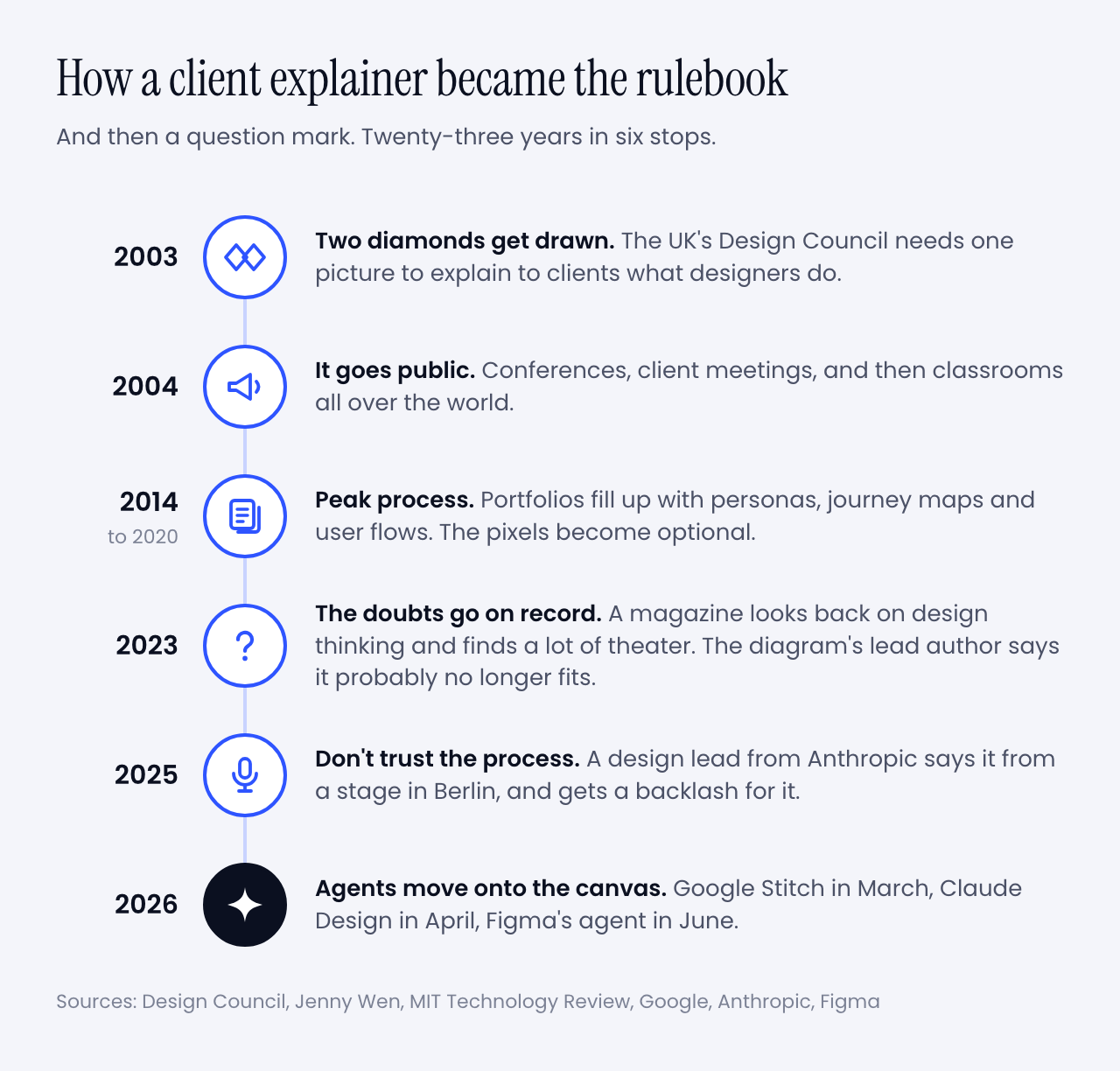
In 2003 the UK’s Design Council had an awkward problem. It was telling businesses to take design seriously, and it had no standard way to describe what designers do.

Its new director of design and innovation was Richard Eisermann, a designer who had worked with Ettore Sottsass in Milan and then at IDEO and Whirlpool. He put the question to his team. They reviewed their own projects, borrowed from forty years of earlier models, and came back with two diamonds and four words picked to be easy to remember.

Now look at what it was for. Eisermann has written that the goal was a framework to help clients understand the work. It had to be quick to get through and easy to remember, and nobody was supposed to get precious about it.

Then the explanation became the job.

A timeline in six stops. 2003: two diamonds get drawn. 2004: the diagram goes public. 2014 to 2020: peak process. 2023: the doubts go on record. 2025: the Don't trust the process keynote. 2026: agents move onto the canvas.
From a team meeting to a question mark. Image: Muzli

I lived through the middle of that timeline. You probably did too.

Jenny Wen led design for Claude at Anthropic and ran the FigJam and Slides teams at Figma before that. In an essay from 2024 she dates the peak to 2014 through 2020. Portfolios stopped showing the product and started showing journeys, flows, personas and user stories. Proof that someone had followed the process. The pixels became the unserious part.

Design thinking was getting the same treatment. In February 2023, before any of today’s design agents existed, MIT Technology Review looked back on two decades of it. It found agencies that ran the workshops, handed over recommendations and left before anything shipped. It also had a name for box-ticking that changes nothing: innovation theater.

And now the twist I promised.

Three months later, for the diagram’s twentieth anniversary, the Design Council published a piece by Eisermann himself, asking whether the Double Diamond was still fit for purpose. His answer took two words: “probably not”.

His reasons read like a forecast. The diagram is a straight line. It has no step for measuring whether the design worked. And generative tools, he wrote, let you begin anywhere, by putting a finished-looking thing on the table and asking what if.

The tools he had in mind were ChatGPT and Midjourney, which tells you how long ago 2023 was. This year alone, Google Stitch became a design canvas with an agent in it, Anthropic shipped Claude Design, and Figma put an agent into every paid plan.

My favourite detail is in Google’s announcement for Stitch. It says you can skip the wireframe and start from the business goal and the feeling you are after. A company that size is now selling the reversed order as a feature.

So the diamonds were wobbling long before AI. Why did AI finish the job? Follow the money.

💸 The process was a price tag

Measure twice, cut once is good advice when wood is expensive. The Double Diamond is that advice with better typography.

You spent weeks discovering and defining because building was the costly part, and building the wrong thing meant months gone. The process was insurance.

Simon Willison did the arithmetic after watching Wen’s talk. A wrong direction used to waste months of development. With AI doing the building it wastes days, so you can afford more risk and more exploring.

For a first version, even days is out of date. I know because I timed it.

In September I wrote three briefs, the kind a studio gets from a client: a product website, a title sequence and a gesture prototype. Claude Opus 5.5 built each one in 50 to 81 minutes. A week later GPT-6.1 Sol built the same three in 17, 8 and 11 minutes, for $1.88 in total. Nobody at Muzli edited the results.

Here is one of them. Go on, scroll it.

Running live in this frame. One written brief, 81 minutes, no edits from me. Built by Claude Opus 5.5.

Vendors tell the same story through their customers. That Datadog product manager says a week of briefs, mockups and review rounds turned into a single conversation. It is a testimonial in a launch post, so season to taste. My stopwatch agrees with it anyway.

When the cut is nearly free, you stop measuring twice. You cut five times and keep the best one.

That is the whole change. Everything else in this article follows from it.

One caution before I get carried away. The wood got cheap, and the room it has to fit in stayed the same size. A user’s attention costs what it always did. So does the trust you burn by shipping something half right. I’ll come back to that, because it is the reason design thinking is not going anywhere.

But first, the fun part. What does a designer’s week look like now?

🔁 How people design now

Let’s start with one person’s week, because she was kind enough to put numbers on it.

Wen told Lenny’s Podcast that a few years ago 60 to 70% of her time went to mocking and prototyping. Now it is 30 to 40%. Another 30 to 40% goes to sitting with engineers while they build. And a new slice is writing code herself, the last-mile polish designers used to file tickets about.

Then: mocks 60-70% ¡ with engineers ~20% ¡ meetings ~10%

Now: mocks 30-40% ¡ with engineers 30-40% ¡ plus her own code

The rest of her picture is just as interesting:

  • Vision shrank. The two-to-ten-year vision deck became a direction for the next three to six months, often delivered as a prototype.
  • Research stayed. Her team has a researcher running studies and surveys, and everyone reads them. She still prototypes and still mocks. The proportions changed.
  • Figma stayed too. She uses it to lay eight or ten directions side by side. A coding tool pulls you down one path and you get attached to it.
  • Shipping moved earlier. Her team releases things early, labels them as previews and repairs them in public. She is blunt about the condition. It only works if the fixes keep coming.

She also says the classic process, the one designers were taught to trust, is basically dead, and that it was dying before AI arrived.

You could say that is one unusual team at an AI lab, and you would be partly right. So let’s look at everybody else.

Figma’s 2026 AI report draws on three years of surveys of designers, developers and product managers. In the last year the share of designers taking part in development doubled, to 41%. Developers doing design work went from 44% to 60%. Two years ago 7% said AI had meaningfully changed how their team works together. Now 41% say so.

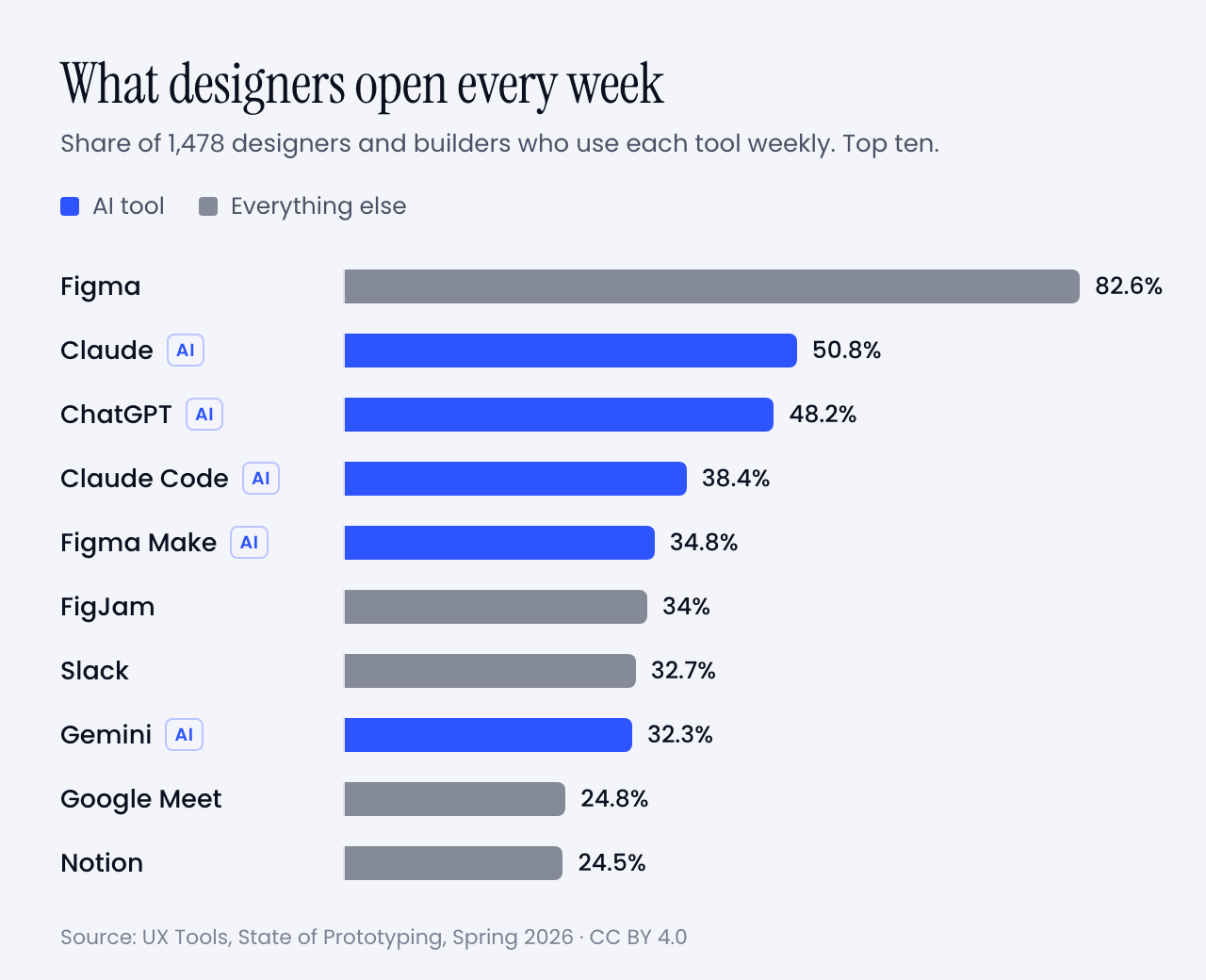
Then there is the question of what designers open every week. UX Tools asked 1,478 of them this spring.

Bar chart of weekly tool use among designers: Figma 82.6%, Claude 50.8%, ChatGPT 48.2%, Claude Code 38.4%, Figma Make 34.8%, FigJam 34%, Slack 32.7%, Gemini 32.3%, Google Meet 24.8%, Notion 24.5%
Share of designers who use each tool every week. Five of the top ten are AI. Data: UX Tools, State of Prototyping, Spring 2026 (CC BY 4.0). Chart: Muzli

Read that sample with care. It came through a tools newsletter and its sponsors, several of which sell AI prototyping, so it leans toward the curious. Even so, a few numbers made me sit up:

  • 59.1% built their own tool or app with AI in the previous six months.
  • 71.1% added AI to their workflow or made it central in the same period.
  • 1.4% trust AI output with no oversight. The largest group, 34.2%, treats it as a first draft to edit heavily.
  • 37.7% have not started. Same companies, same Slack channels.

It is also messier than any of this sounds, and I would rather say so. Wen says keeping up is hard, for designers and engineers alike. In the same survey the top obstacle was time to learn the tools, at 55.7%. Too many tools came next at 53%, then the quality of what AI produces at 52.2%.

So the old diagram is retired and the new way of working is a bit of a blur. That felt like a job for a new diagram.

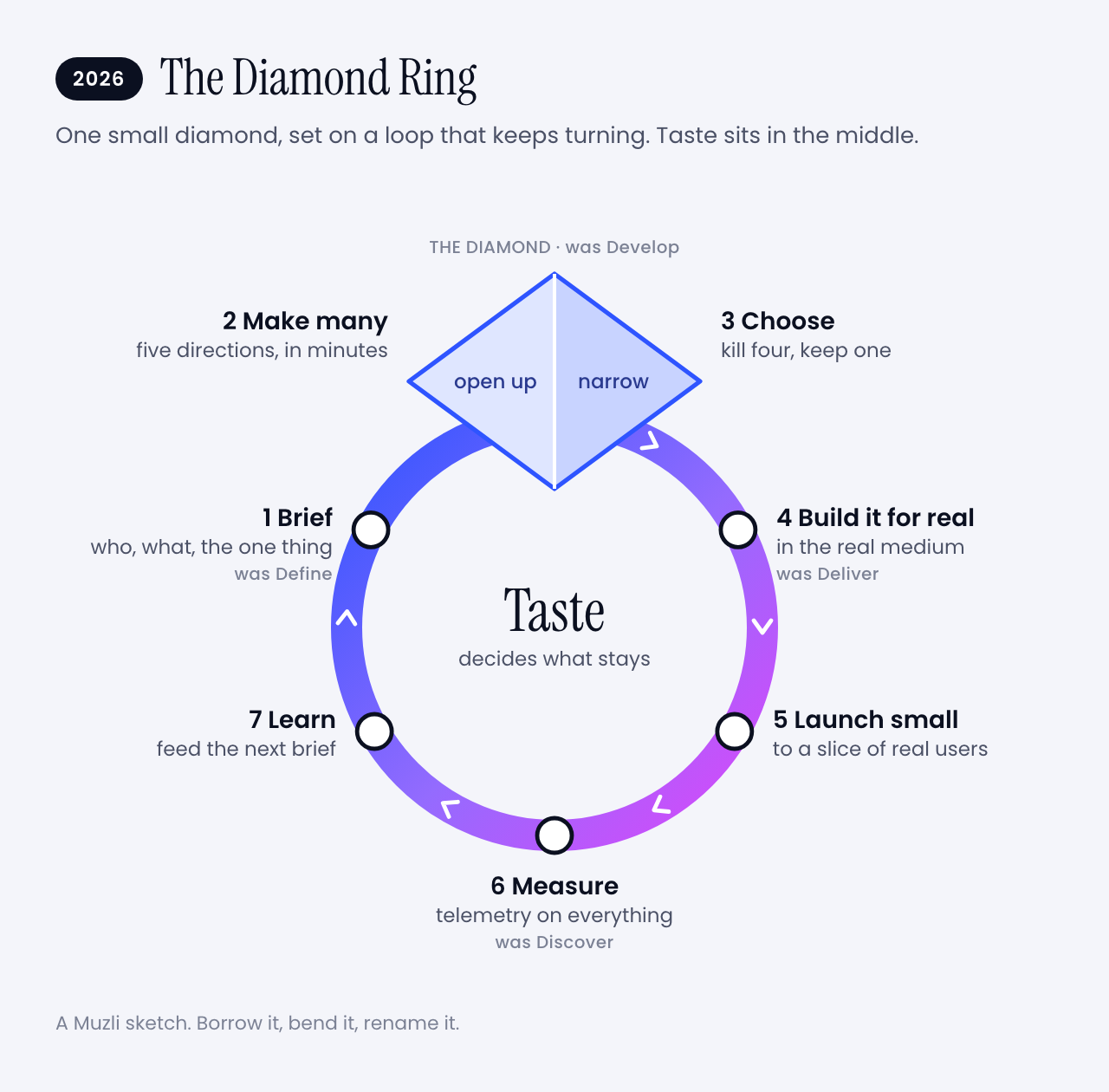
💍 So I drew a new one: the Diamond Ring

The Double Diamond got famous because it had a shape you could draw on a napkin and a name you could say in a meeting. The new way of working deserves the same courtesy. Here is my attempt.

The Diamond Ring: a loop with seven stops. Brief, then a small diamond where you make many and choose one, then build it for real, launch small, measure and learn, and back to the brief. Taste sits in the middle.
After twenty years of two diamonds, design finally got a ring. Image: Muzli

I kept one diamond, because opening wide and then narrowing down is still how good ideas happen. I made it small, because it now takes an hour instead of weeks. And I set it on a ring, because the work never reaches the right-hand edge of the page any more. It goes round.

The four old words are all still in there. They changed places. Let’s walk the ring.

✍️ 1. Brief

You write down who it is for, what it has to do, the one thing people should remember and what you refuse to ship. Twenty minutes, one page. This used to be called Define and it came second. Now it comes first, and everything after it is only as good as this page.

🌀 2. Make many

Ask for five directions that disagree with each other. Then five more. This is the opening half of the diamond, and it used to be the part budgets killed. Anthropic pitches Claude Design on exactly this. Designers usually explore two or three directions because that is all the schedule allows.

✂️ 3. Choose

Kill four out of five. Wen’s thesis is that once making is open to everybody, the skill is in choosing and curating. Nobody can do this part for you, and it is where the design happens. The old diagram never drew it.

🔧 4. Build it for real

Take the survivor into the real medium. Fix the spacing yourself. Tune the motion in code. The handoff ceremony goes away because you are already standing in the code.

🚀 5. Launch small

Ship it to some of your users, with a label that says it is early. Wen’s team does this in public and keeps the fixes coming. At Muzli we show a new thing to half of new users and keep the other half as they were. More on that in a minute.

📏 6. Measure

Count what people do with it. This is the step Eisermann said his own diagram forgot.

🔍 7. Learn

This is Discover, moved from the first step to the last, and it never stops. The Design Council’s own updated guidance allows for it. Early ideas can be built and tested as a way of discovering. For AI products there is no alternative. Wen points out that you can’t mock every state of something that answers differently each time.

You still talk to people first when you know nothing about them. What stopped is waiting for the research to finish before anyone is allowed to make something.

Then you go round again, with a better brief.

And the middle of the ring? That is taste. It decides which of the five directions survives, which fix matters and when a thing is good enough to show. Hold on to that word. I am going to try to sell you something with it later.

It is a sketch, of course. Borrow it, bend it, rename it. Just please don’t turn it into a certification programme.

🏗️ How we build things at Muzli

That was the theory. Here is what it looks like in an ordinary week at Muzli, because we would feel like frauds selling you a ring we don’t wear ourselves.

1. We prototype in the real thing. Big changes still start in Figma. Small ones start as a working build, usually on the day the idea turns up, with Claude Code doing most of the typing. We review what runs. We rarely review a picture of it.

2. We launch to half. The Trending row in the Muzli new tab went from an idea to a live test in one day. Half of the people who installed Muzli after that got it. The other half did not, and they are our control group.

3. We test small things on purpose. Which category is ticked by default when you set up Muzli. Whether a row sits on the left or the right. Which store an install button opens. Usually a few of these run at the same time, and they are built so they don’t trip over each other.

4. Telemetry goes in before the feature does. Every experiment gets its own label in our analytics before the build ships. Every step of onboarding reports in. Every click knows which row and slot it came from. If we can’t measure a thing, it is not ready to launch.

5. We read the results like pessimists. Before a test starts, we work out how many people it needs and write down the date we will look. When a release seems to have helped, we run the same comparison on dates when nothing shipped. Embarrassingly often, nothing also gets a lift.

6. We let a flat result be an answer. One of our tests looked like a clear win after two weeks. Then we split it by install date, and the whole win came from three days of installs. It is still running. Plenty of tests simply come back flat, and that is fine. A flat result is a decision in three weeks instead of an argument for three months.

7. Where there is too little traffic for a test, we use judgment. Some pages will never get enough visitors. There we ship on taste, write down the numbers from before, and compare after.

None of this needs a big team. It needs the habit of asking what would prove you wrong before you get attached.

Which is, when you think about it, exactly what the two diamonds were trying to teach us.

🧠 Is design thinking still viable?

Time for the question in the headline. Yes, as a way to think. No, as a list of deliverables.

Being wrong got cheap in the prototype. It is as expensive as ever in production.

A wrong prototype costs you an afternoon. A wrong product still costs you users and their trust. NN/g, which is nobody’s idea of a hype shop, expects trust to be a major design problem for AI products this year, because people who were let down by one AI feature are slow to try the next.

That keeps the two questions at the centre of the diamonds alive. The first diamond asks whether you are solving the right problem. The second asks whether you solved it well. No tool has made either one optional.

What is dying is the paperwork around them:

  • The persona with a stock photo and an alliterative name. Goodbye, Busy Brenda.
  • The journey map made to be presented, then never opened again.
  • The rule that nothing starts until discovery is finished.
  • The handoff as a ceremony.
  • The five-year vision deck.

Now for the part I find funny. The two loudest camps in this argument agree with each other.

Wen’s talk is called Don’t Trust the Process, and the conference that hosted it describes it as no rejection of research or strategy. NN/g’s State of UX 2026 says the jobs that remain will ask for judgment and range more than deliverables, warns against performing the rituals of design without results, and calls research more important than before.

One side says the process is dead. The other says design deeper. Both are telling you to stop producing proof of process and start producing judgment.

Why judgment in particular? Because everyone now gets the same first draft.

  • Researchers have measured it. A study in Science Advances had 293 people write short stories, some of them with AI-generated ideas. Readers rated the AI-assisted stories higher, and the weakest writers gained the most, enough to catch up with the strongest. The strongest gained nothing. The AI-assisted stories were also more alike. It was stories, and interfaces may behave differently. The pattern will still look familiar.
  • I saw it in my own tests. Opus 5.5 and GPT-6.1 Sol got the same title-sequence brief a week apart. An easing curve is the shape of an animation’s acceleration, and both models named one of theirs shunt. Both read the festival’s name, Offset, as a printing term. Neither had seen the other’s work.
  • NN/g expects the same of interfaces. Before long, anybody will be able to produce one that looks fine until you get close.

AI raised the floor and left the ceiling where it was.

That is why 90% of the people Figma surveyed say design matters at least as much as it did before AI, and nearly six in ten say more.

One warning, from the person best placed to give it. Wen thinks AI will get better at taste, and that designers may be leaning on that word too hard. What she expects to stay human is narrower. Someone has to decide what gets built, and someone has to answer for it.

So don’t build a career on the claim that machines have no taste. Build it on being the one who decides.

Which raises a fair question. Where do you get the taste to decide with?

🏆 Where taste comes from (yes, this is where I sell you Muzli)

I have now used the word taste a dozen times, so let me be useful about it.

Taste is mileage. You get it by looking at a lot of good work, noticing why it is good, and doing the same again tomorrow. Nobody is born knowing why one landing page works and its neighbour does not.

That happens to be what Muzli has been doing for twelve years.

Muzli is a browser extension that puts design worth seeing into every new tab you open. It draws on Dribbble, Behance, Awwwards and hundreds of other sources, and people sort it every day. More than 900,000 people have signed up for it.

The sorting is the point. In 90 days this summer, 190,636 things came through Muzli’s pipes. Eyal Zuri, Muzli’s co-founder and creative director, gave 114 of them a Pick. The flood is the argument for the filter.

Put it next to the ring above. A model can make you fifty landing pages before lunch. Knowing which of the fifty is good is the part in the middle, and you train it one new tab at a time.

So yes, this is the ad break. It is also my honest answer to the question above.

Get Muzli, it is free. And when all these tools help you make something you are proud of, share it on Muzli Me and nominate it for a Pick. I care about the work far more than about which tool wrote the code.

Right. Two letters now. The first is for people at the start of the road.

🌱 If you are starting out

The market first, without sugar. NN/g says entry-level openings are still rare and hard to land, and that people hoping to get into UX will keep outnumbering them. It adds that if your work is assembling components from a design system, AI can already do it.

Now the good half of the story. Wen says most companies hire only seniors these days, and she thinks they are missing something. A newcomer who is humble, eager and has no rituals to unlearn is one of the three kinds of designer she most wants.

You have less to throw away than anyone else in the building.

Here is what I would do with that:

  1. Build real things and put them online. This is Wen’s whole advice to young designers: make a lot, share it, find people who do the same. A project that runs beats a case study about a project.
  2. Don’t let the tool do your learning. Ask it why, every time, and rebuild one thing by hand each week. The evidence for this one is below the list.
  3. Learn the fundamentals the tool can’t judge for you. Type, hierarchy, spacing, colour, accessibility. You can’t direct what you can’t name. If you can’t say why a layout feels off, all you can type is make it better, and so can everyone else.
  4. Look at great work every day. See the ad break above. I mean it, though.
  5. Learn the old process anyway, as questions. Know the Double Diamond. Run one real test with people who aren’t your friends. You will need the vocabulary in every interview, and the habit of asking who this is for never expires.
  6. Show the cuts. In your portfolio, show the five directions you killed and say why. Choosing is the skill nobody can generate. Keep the brief and the rejects.
  7. Go deep in one thing before you go wide. Wen’s other two profiles are the strong generalist and the deep specialist. Nobody starts as the first. Pick type, motion, illustration, research or code, get good enough that people notice, then widen.

About number 2. Anthropic ran a controlled experiment with 52 mostly junior engineers learning a new code library. The group with AI help scored 17% lower on a quiz about what they had just built, 50% against 67%.

The exception matters more than the average. People who used the AI to ask why and to get explanations averaged 65% or more. People who handed the whole task over averaged under 40%. Those groups were small, and the researchers call it a pattern rather than proof.

The trial also used code, so the jump to design is my bet. I would still make it. A gym only works if you lift the weight yourself.

One last number, and it is an encouraging one. In the UX Tools survey, students and people between jobs were the group least likely to call AI central to how they work, at 21.7%. At startups it was 38.8%. It is a small group in the sample, so hold it loosely. But the people competing for the scarcest jobs appear to be using the tools least, and that is a gap you can close in a month.

And now the second letter, for my own generation.

🎖️ If you have been doing this for twenty years

First, the irritation is reasonable. Wen says her talk drew a backlash from people whose careers rest on the old process. NN/g lists being told you will be replaced unless you vibe code among the things practitioners are tired of hearing. Both are fair. Neither changes the arithmetic.

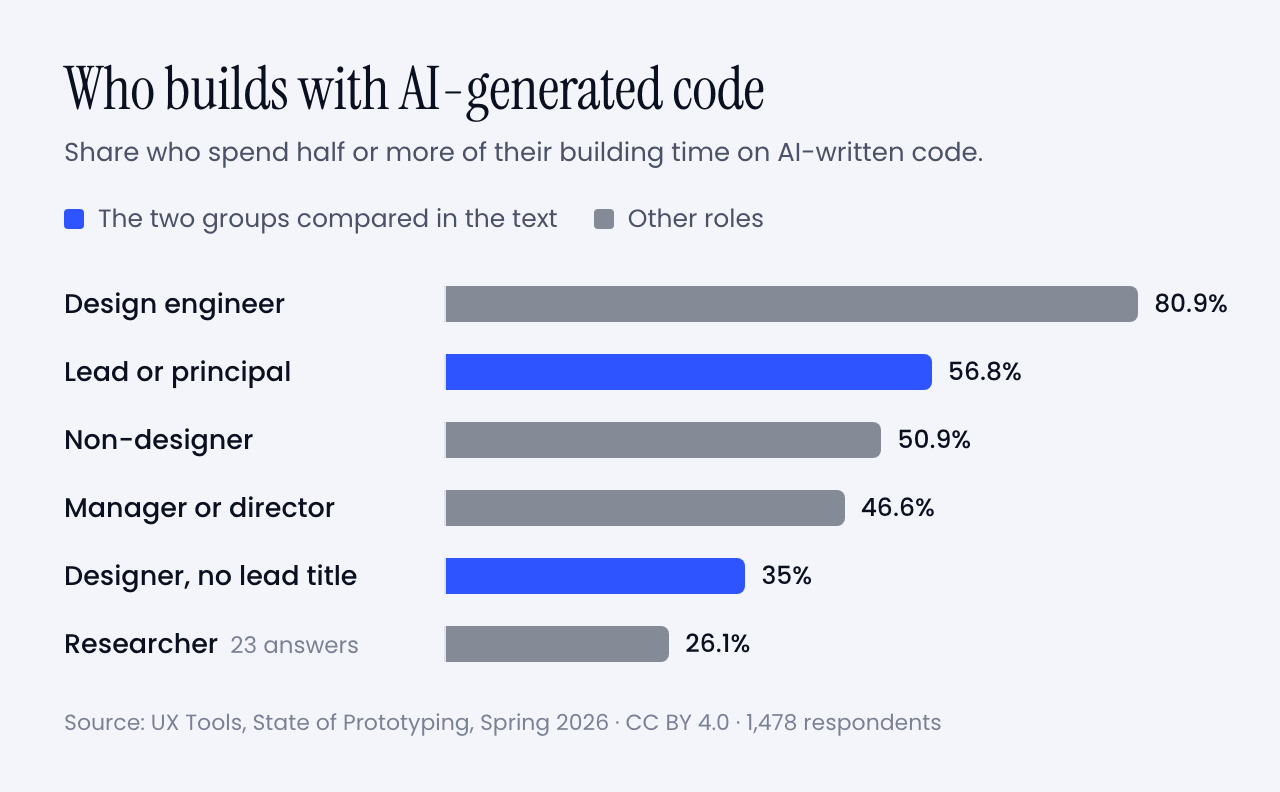
Happily, the arithmetic is kinder than the mood. Seniority is no obstacle. In the UX Tools survey, 56.8% of leads and principals spend half or more of their building time on AI-generated code. Among designers without a lead title it is 35%. Managers sit at 46.6%.

Bar chart of the share who spend half or more of their building time on AI-generated code, by role: design engineer 80.9%, lead or principal 56.8%, non-designer 50.9%, manager or director 46.6%, designer without a lead title 35%, researcher 26.1%
Share who spend half or more of their building time on AI-generated code, by role. Only 23 researchers answered, so treat that bar as a hint. Data: UX Tools, State of Prototyping, Spring 2026 (CC BY 4.0). Chart: Muzli

So the old dogs are learning the trick faster than the young ones. And look at what you already own that just went up in value:

  • A library of what good looks like, built from thousands of decisions.
  • The reflex to ask who it is for before asking what it looks like.
  • Scars. You know which pretty ideas die in production, and why.
  • The standing to say no in a room, and to answer for it afterwards.

What to put down: the handoff, the gate, the deck, and the belief that pixels in code are someone else’s job.

And what to pick up:

  1. Don’t learn React. Learn the tools. That is Wen’s advice to senior designers. You don’t need to build from scratch. You need the coding tools in your kit. Start with the last mile. Fix the spacing yourself and see what happens to your Tuesday.
  2. Write your taste down. Your instincts are an asset only when the machine and the team can read them. Put them in a rules file. Twenty years of opinions, finally in a format something will obey.
  3. Become the editor. You used to review one direction on Friday. Review ten on Monday morning. Critique is the skill you have practised longest, and the one the new workflow is shortest of.
  4. Keep one research habit and speed it up. A prototype in the morning, three users in the afternoon. You know how to run that session. Most people generating prototypes don’t.
  5. Hire the beginner. They bring no habits to unlearn. You bring the judgment. It is the fairest trade on the market right now, and Wen says most companies are passing it up.
  6. Buy yourself the time. The biggest obstacle in the survey was time to learn the tools. Block two hours a week and defend them like a client meeting.

That is the pep talk done. Let’s get practical.

🧰 Tools and hints

You don’t need twelve tools. Too many tools was the second-biggest complaint in the survey. You need one for each job on the ring.

🎨 For making many and choosing: Figma

Figma agent ¡ open beta on all paid plans since 24 June 2026 ¡ code layers on a waitlist

Still the weekly tool for 82.6% of the survey. The agent can draft and rework designs inside your file, take over the repetitive chores and critique what is there. You can give it your own files and rules to work from.

Open it when you need ten options side by side. The Muzli blog covered what the agent does inside a file in May.

🧪 For a first working version: Claude Design or Google Stitch

Claude Design ¡ included in all paid Claude plans

Stitch ¡ from Google Labs ¡ exports your rules as DESIGN.md

Describe the thing, get a first version, then comment on it the way you would comment on a junior’s work. Claude Design can read your codebase and design files to build a design system, so the output stays on brand. Stitch lets you talk to the canvas out loud.

Open one when the question is whether an idea deserves a second hour. The Muzli blog has a getting started guide and a one-week follow-up for Claude Design.

🛠️ For building it for real: Claude Code, Codex or v0

Claude Code ¡ included in Claude Pro, $20 a month ¡ runs in a terminal, a code editor, Slack or the desktop app

For the last mile, and for prototypes that have to behave like the product. Codex is OpenAI’s version of the same idea. v0 gives you a hosted app from a prompt with nothing to install.

Open one when a static frame can’t show what you mean. The setup is in my Opus 5.5 piece, start to finish.

🗣️ For thinking out loud: the assistant you already pay for

Claude and ChatGPT are the second and third most-used tools in the survey. Use one to pull themes out of interview notes, to argue against your concept, or to draft a test script.

Then do the interviews yourself.

Nine habits that matter more than the tool

1. Brief like a studio. Who it is for, the mood in three words, the one memorable thing, what moves. The full template is in my Opus 5.5 piece.

2. Ask for directions before you ask for a design. This is the fix for the one-path problem Wen describes.

Before designing anything, give me five different
directions for [what] for [who]. Make them disagree
with each other. For each one: a name, the idea it is
built on, who would love it and who would hate it.
Do not blend them. Wait for me to pick.

3. Ban the defaults by name. Left alone, a model falls back on a house style. List what you never want to see again, and add to the list every time it annoys you.

4. Put your taste in a file. Let the AI interview you for it.

Interview me to write my design rules. Ask ten
questions, one at a time, about type, spacing, colour,
motion, and what I never want to see. Push back when
I am vague. Then write the rules as a short file I can
give to any design or coding tool.

5. Make it look at its own work. In my model tests, this loop is the reason the builds worked.

Take screenshots at desktop and phone width. As an art
director, list the three weakest things you see and the
principle each one breaks. Fix only those. Then tell me
what you would still not show a client.

6. Ask why, every time. This is the habit that separated the people who learned from the people who didn’t in Anthropic’s trial.

Explain the five decisions in this design that a senior
designer would question. For each one: the principle,
why it matters here, and how I can check it myself next
time. Do not fix anything yet.

7. Test the real thing the same day.

Here is my prototype: [link or description]. Write a
20-minute test for three people who match [audience].
Five tasks, no leading questions, what to watch for in
each, and the result that would prove my idea wrong.

8. Decide what would prove you wrong before you ship. Write down the number or the behaviour that says it worked. Then go and look on the date you promised yourself.

9. Keep the receipts. Save the brief, the rejects and the reason for each kill. That is your case study now.

Try it this week

🌱 If you are new

  1. Pick one small real problem: a friend’s shop, a club’s sign-up page, your own portfolio. Write the one-page brief.
  2. Run the directions prompt in any tool above. Kill four. Write one sentence on each kill.
  3. Run the why prompt on the survivor. Then rebuild one section by hand in Figma, and put both versions online.

🎖️ If you are experienced

  1. Run the interview prompt and save the rules file it writes.
  2. Take one open ticket you would normally spec. Build it instead, with the rules file loaded.
  3. Sit with one engineer for an hour and finish the last mile together.

👥 If you run a team

  1. Replace one status meeting with a review of five generated directions.
  2. Give everyone two protected hours a week to learn one tool. One.
  3. Pick one thing you are about to ship to everyone. Ship it to half instead, and write down what you expect to see.

Worth bookmarking

📚 The argument, from the people making it

📊 The numbers

🧰 The tools

🧪 From Muzli

The landing

That was a lot, so let me land it.

My verdict: the design process is alive, and in better shape than it has been for years. It lost the paperwork and kept the thinking.

The detail I am watching is the word taste. It has become the profession’s safe room. The person who led design on Claude says the machines will get better at that too. That leaves a skill that is narrower and harder: deciding what gets made, and putting your name on the decision.

So skip the deck this week. Take the next thing you would normally spec. Before you write the spec, build three versions of it. Show them to one person who would use it. Then write two lines on which ones you killed and why.

Those two lines are your process now. And if anyone asks which method you follow these days, tell them you are engaged.

The diamonds were how we explained the work to the people paying for it. Now you can show them the work.


Sources: Design Council, Richard Eisermann, Jenny Wen, Lenny’s Podcast, Simon Willison, MIT Technology Review, Figma, NN/g, UX Tools, Anthropic, Google, Science Advances. Charts and diagrams: Muzli. Survey data: UX Tools (CC BY 4.0). Double Diamond: Design Council (CC BY 4.0).

GPT-6.1 Sol built our 3 Opus 5.5 briefs for $1.88. Here are the live demos, the prompts and what else OpenAI’s DevDay gave designers.

This is a long one. Every point in the TL;DR links to its section, so skip to the part you came for.

TL;DR


A developer keynote has a script. A model gets cheaper. A model gets faster. A live demo misbehaves and somebody types instead.

OpenAI’s DevDay hit all three in about 50 minutes, and opened with a plush blob in a beret.

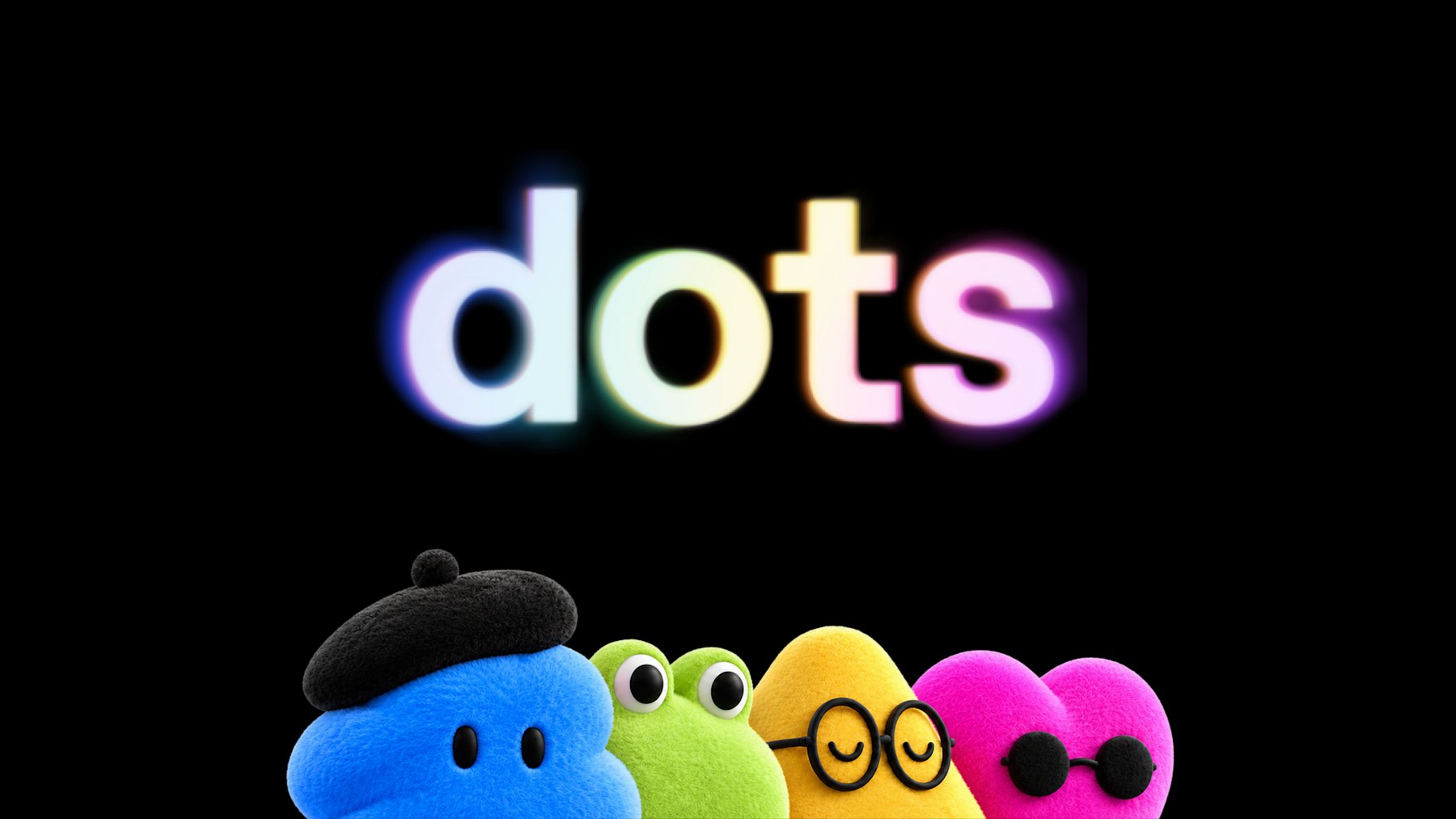
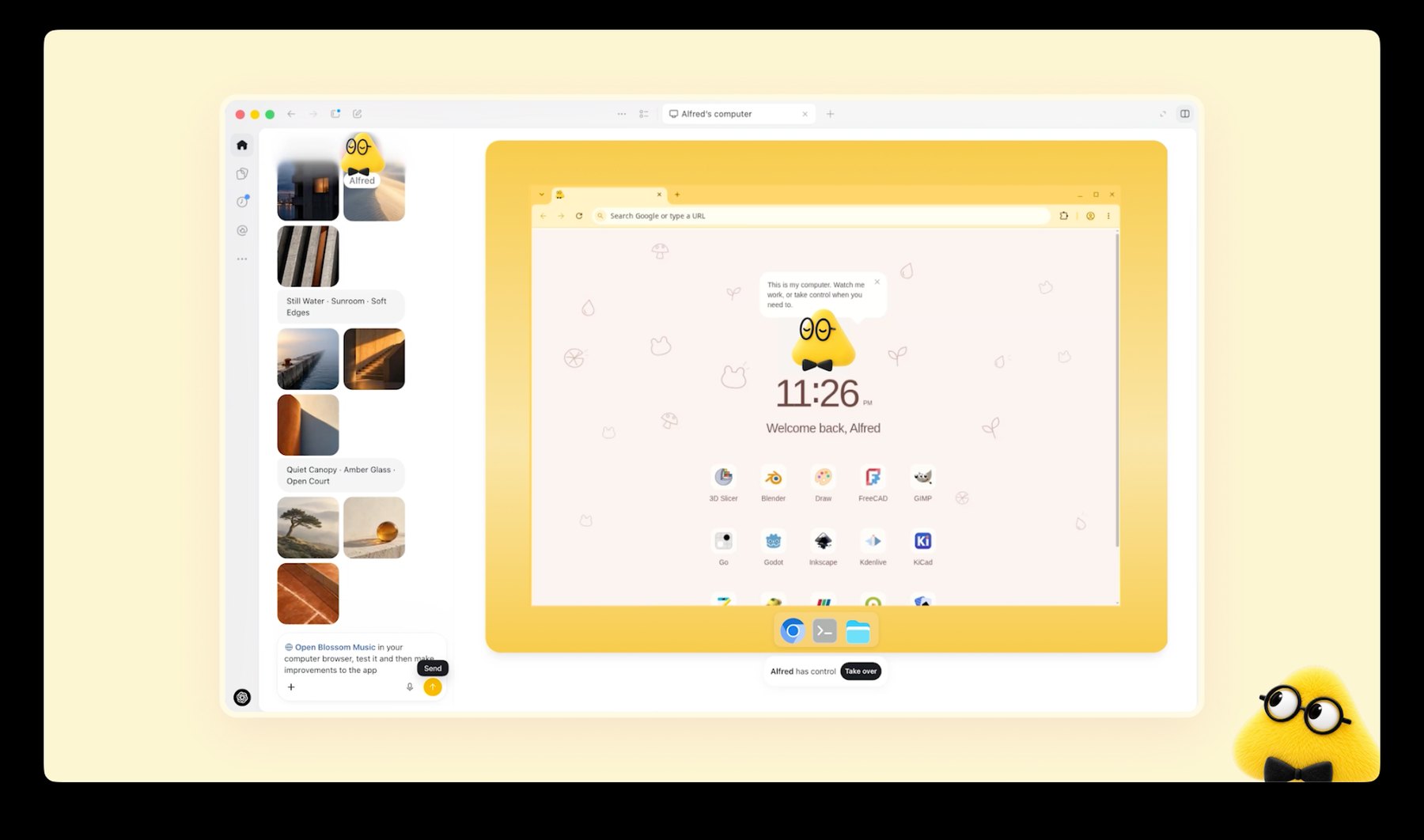
It is called a dot. It is an AI agent with its own computer that keeps working after you close your laptop, and OpenAI drew it as a soft toy. TechCrunch’s headline settled on “bubbly agentic avatar”.

Four plush characters under a glowing dots wordmark: a blue one in a beret, a green frog, a yellow one in round glasses and a pink heart in sunglasses
The four dots from OpenAI’s launch art. Each stands for an agent with its own cloud computer. Image: OpenAI

Most of the day was not for us. OpenAI counted more than 20 launches, and its post about the new model never uses the words design, interface or visual.

Six of them matter anyway. One is that model, GPT-6.1 Sol, which costs half of what Opus 5.5 does. Last week we wrote three briefs to find out what Opus 5.5 could design, and published what came back. We still had the briefs.

So we ran them again. Below is what Sol built, live, next to the Opus versions, with the time and the bill.

After that comes the rest of DevDay, starting with my favourite launch. It’s a sign-in button. Stay with me.

Sixty seconds of vocabulary

  • GPT-6.1 Sol. OpenAI’s new mid-priced model. GPT-6 is the generation. Astra is the flagship, Sol sits under it, Luna is the small fast one.
  • Opus 5.5. Anthropic’s model from last week’s piece. The one we measure Sol against here.
  • ChatGPT Work. The part of ChatGPT that does tasks instead of chatting: documents, decks, sites. Sol lives there. It is not in the regular chat yet.
  • Codex. OpenAI’s coding agent, its answer to Claude Code. It now sits inside the ChatGPT desktop app.
  • Sites. ChatGPT’s own hosting. It builds a web page and gives you a link.
  • Dot. An agent that keeps running on its own computer in the cloud and messages you when it needs a decision.
  • Plugin. A connector between ChatGPT and another app, like Figma. A plugin extension lets that app show its own interface inside ChatGPT.
  • Tokens. The unit AI is billed in. Everything the model reads and writes costs tokens.
  • Effort. How long the model thinks before it answers. Sol defaults to medium. We ran it on high.
  • GSAP and Lenis. Two free libraries our briefs ask for by name. One animates, the other smooths scrolling.

That is the whole glossary.

🤖 The model: GPT-6.1 Sol

Released 29 September 2026 ¡ $2 in, $10 out per million tokens ¡ ChatGPT Work and Codex, Plus plan and up ¡ API name gpt-6.1-sol

OpenAI’s pitch fits in a heading: “Near-Astra intelligence for a fifth of the price”. Astra is the flagship, at $10 and $50. Sol is what the Plus plan gets.

Opus 5.5 costs $4 and $20, so Sol is half that. It is also exactly what Anthropic charges for Sonnet 5.5, the cheaper tier we told you to watch last week. That one shipped the day before DevDay. We have not run these briefs on it.

A cheaper model only matters once it is good enough that you stop rationing attempts.

The launch post will not tell you whether it is. It is charts about code, PDFs, business workflows and science. As with Opus last week, the evidence has to come from building things.

One tester got there before us. Ramanpal Singh at PromptsLove built five apps and gave his only perfect score to a watch page with a 3D model that comes apart as you scroll.

On motion he was blunt: “It struggled when I asked for cinematic motion design.” Our second brief is a title sequence. Good.

🧪 Same three briefs, different model

Each brief went to Sol once, word for word. It got the setup Opus had: the same design guidance file, a real browser it could drive and take screenshots with, and the standing instruction to check its work there and fix what it saw, at least twice. We told it the page would be embedded here, about 720 pixels wide.

The guidance file is Anthropic’s frontend-design skill. Yes, we handed OpenAI’s model its rival’s house rules. It is a text file. It worked.

Opus ran inside Claude Code. Sol ran through OpenAI’s API, the pay-per-use route developers use, in a small rig we wrote to give it the same abilities: read a file, write one, edit it, and use the browser. We set effort to high.

No references, no notes from us, one attempt each, and no person touched the files afterwards. One of our own tools hung during the title-sequence run. We fixed the tool, replayed that single check and left the stalled minutes out of its time.

🎨 A website: sea salt, and a hero made of water

The client every studio turns down, again. Two people, a great story, no budget.

Build a one-page website for Lenn, a two-person sea salt
harvest on the salt marshes of GuĂŠrande, in Brittany.
Visitors are chefs and food lovers who might order a tin
or come and visit.

Mood: quiet, tidal, tactile. Grey Atlantic light, not
beach kitsch. Pick distinctive type, one or two families.

The one memorable thing: the hero is water. A real-time
WebGL water surface fills the screen and ripples where the
cursor moves, with the Lenn wordmark under the surface,
refracting. As you scroll, the tide drains away and salt
crystals appear on the clay.

After that: how the salt is raked by hand (a short
scroll-driven story in three moments), the three salts and
what to cook with each, visiting the marsh, and ordering.

Motion: one orchestrated page load, then scroll-linked
scenes with GSAP ScrollTrigger and Lenis. No fade-up on
every section. Respect prefers-reduced-motion. It must work
on a phone. Quality bar: a site we would feature on Muzli
Picks. Single HTML file, libraries from a CDN.

GPT-6.1 Sol ¡ 17 minutes ¡ 3 fix passes ¡ 51 KB ¡ $0.98

Live demo. Move your cursor over the water, then scroll inside the frame. It holds on to your scroll wheel, so move the cursor out of the frame to keep reading. Open full screen, or open the Opus 5.5 version of the same brief. Built by GPT-6.1 Sol from the prompt above.
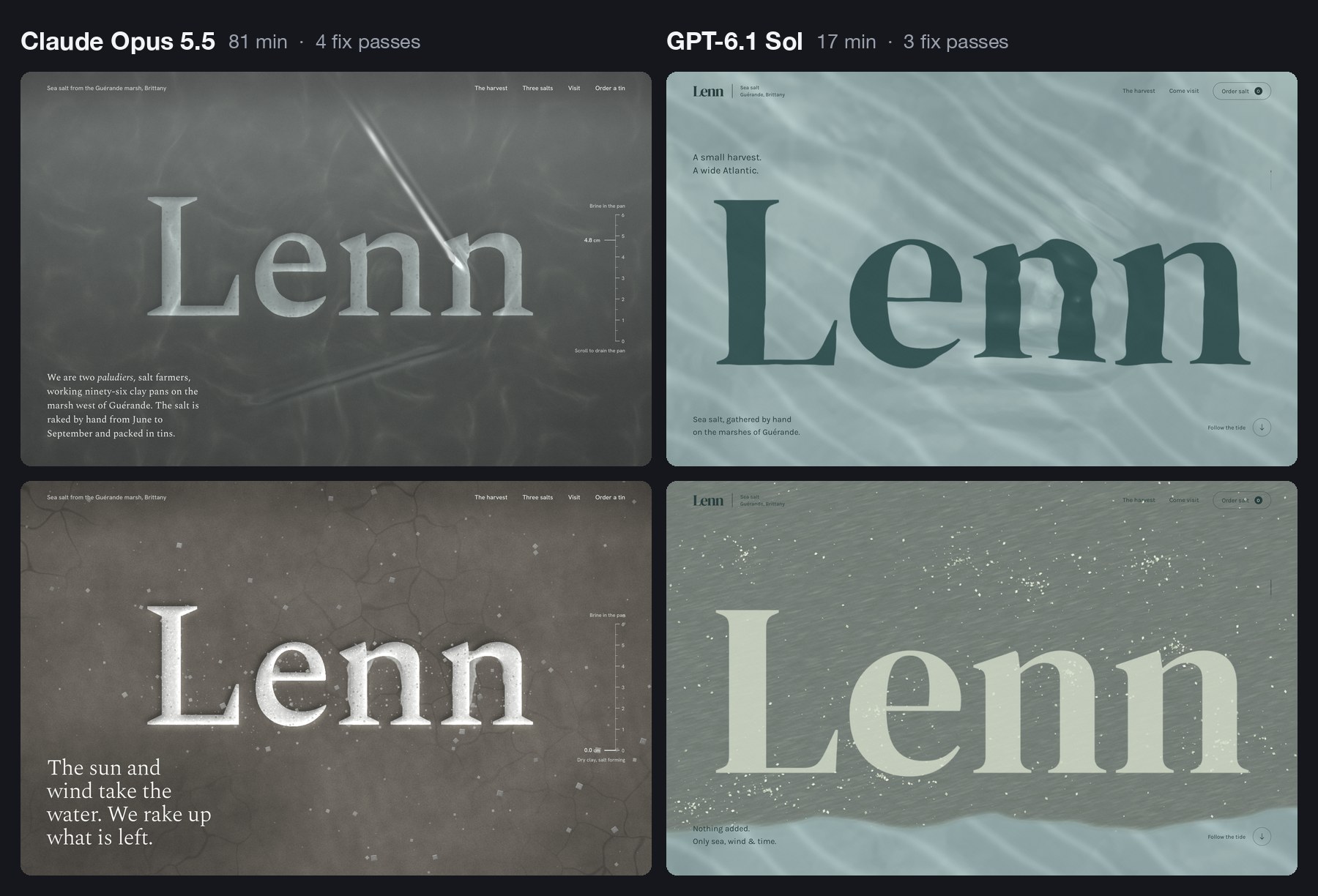
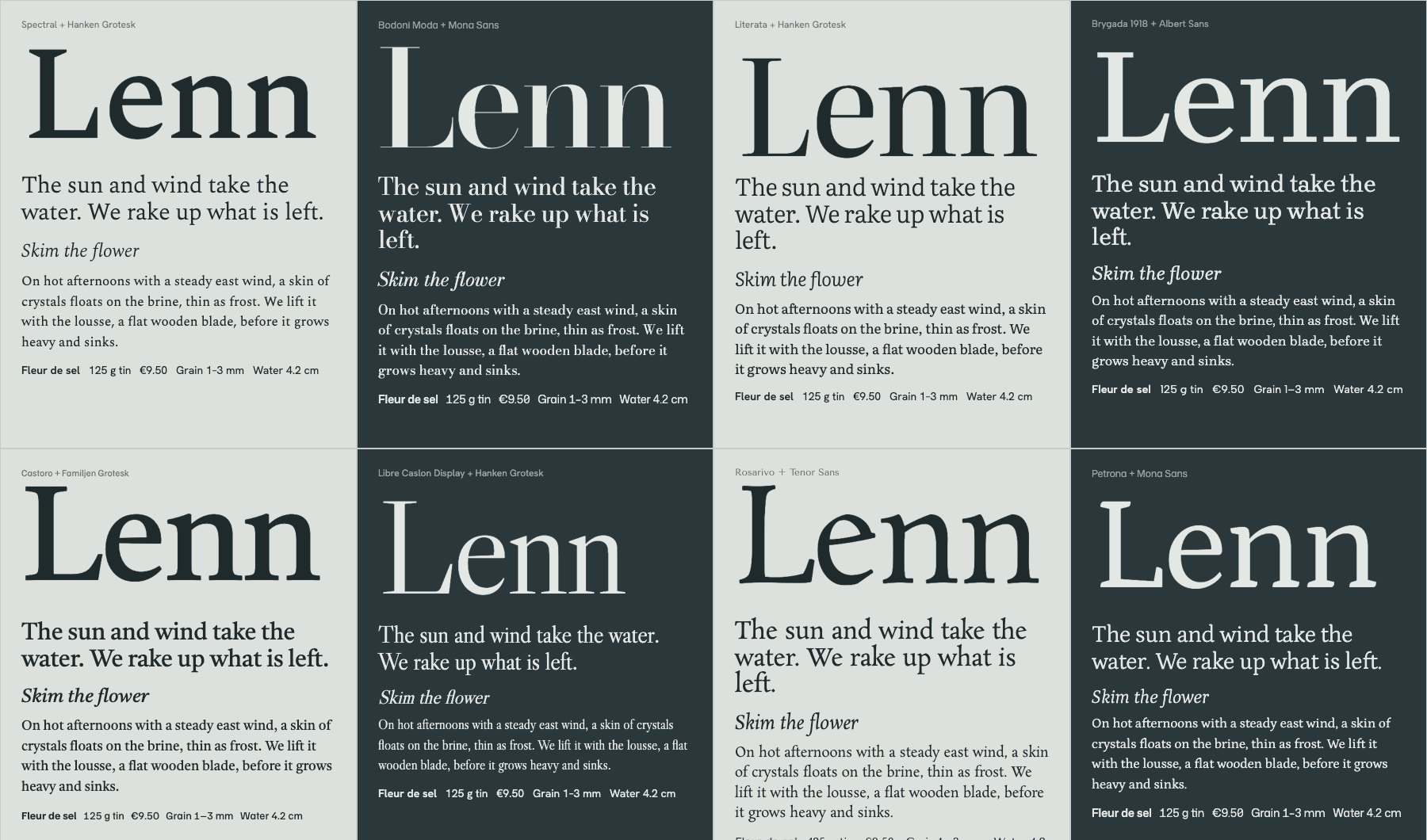
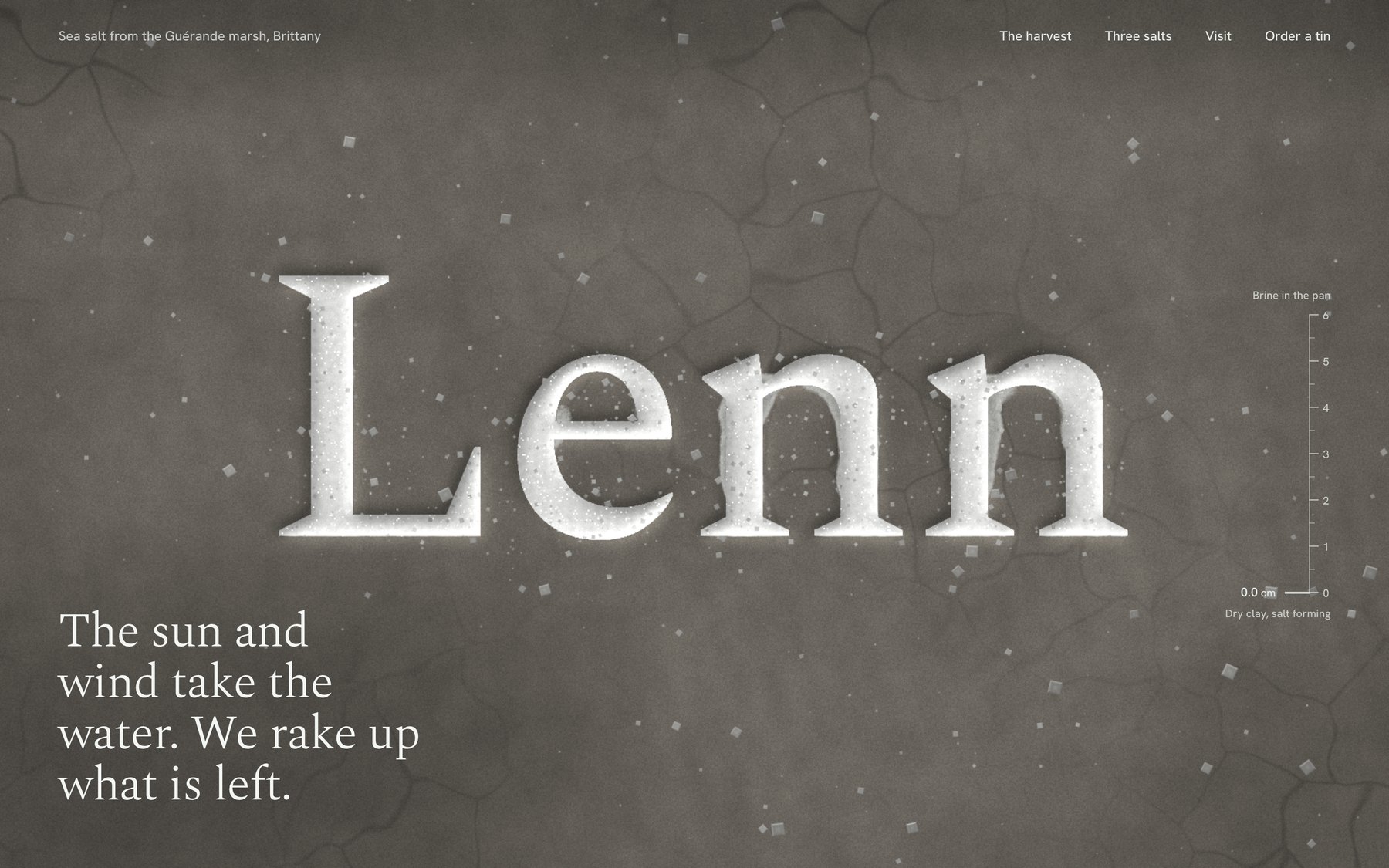
Two versions of the Lenn website side by side. On the left, by Claude Opus 5.5, a pale wordmark carved into dark grey clay under water, with a tide gauge. On the right, by GPT-6.1 Sol, a dark green wordmark under pale sea-green water. Below each, the same hero after scrolling, drained and scattered with salt
Same brief, two models. Top row, the hero under water. Bottom row, after you scroll. Image: Muzli, built with Claude Opus 5.5 and GPT-6.1 Sol

It did everything on the list. The hero is live water, drawn on the graphics card, with the wordmark lying under it. Move the cursor and the letters bend.

Scroll and a tide line travels down the screen. Above it the wordmark dries pale on grey clay while salt gathers in clusters.

Below the hero there is a pinned harvest story in three steps, drawn as the pans seen from above. Then three tins drawn in code and a map of the marsh. The type is DM Serif Display and Karla.

Nobody asked for the next part. The order form adds up and saves a summary, and a small planner lets you pick a month for a visit. Sol’s extras are practical ones.

Its notes show it read the same warnings Opus read. Before building, it wrote: “I’m avoiding the usual cream-and-terracotta craft-food look and photographic placeholders.” On the second pass it wanted the salt to “gather in natural clusters rather than read as scattered confetti”.

On its first look, the water was a black rectangle. A shader, the small program that draws the water, had failed to compile. Sol read the browser’s error log, fixed it and moved on. That loop is the reason any of this works.

Now put it next to the Opus version. Opus carved the wordmark into the clay, added a tide gauge that falls from 4.8 cm to zero, and wrote the harvest in the marsh’s own vocabulary. It took 81 minutes. Sol took 17 and made the site a client signs off. Opus made the one you screenshot.

One real flaw, and you may have just met it. Inside a frame like the one above, Sol’s page keeps your scroll wheel even when it has nothing left to scroll, so the article around it stops moving.

Opus hit the same trap last week, noted that “a blog reader could get stuck”, and handed the wheel back to the page. Sol checked that its page scrolls inside a frame. It did not check what happens at the end.

What it tells you: at 17 minutes and under a dollar, you stop asking for one site. You ask for three directions and pick.

🎬 Motion: a title sequence you can scrub

This is the brief I expected it to fumble.

Make a 12-second looping title sequence for a fictional
design festival called Offset, as a web page.

Think opening titles, not a website: kinetic type on a
strict grid. Letters slide in along the grid, the grid
itself rotates and stretches, colours swap in hard cuts on
the beat, and it resolves into the Offset lockup with the
dates (14-16 May, Vilnius) before looping cleanly.

Build it on one GSAP timeline. Add a small After Effects
style transport bar at the bottom: play/pause, a scrubber I
can drag, the current time, and 0.25x / 1x speed. Easing
should feel designed, so name the curves you use in a code
comment. Single HTML file. No stock fade-ins.

GPT-6.1 Sol ¡ 8 minutes ¡ 2 fix passes ¡ 16 KB ¡ $0.36

Live demo. Press play, drag the scrubber, switch to 0.25x. Open full screen, or open the Opus 5.5 version of the same brief. Built by GPT-6.1 Sol from the prompt above.
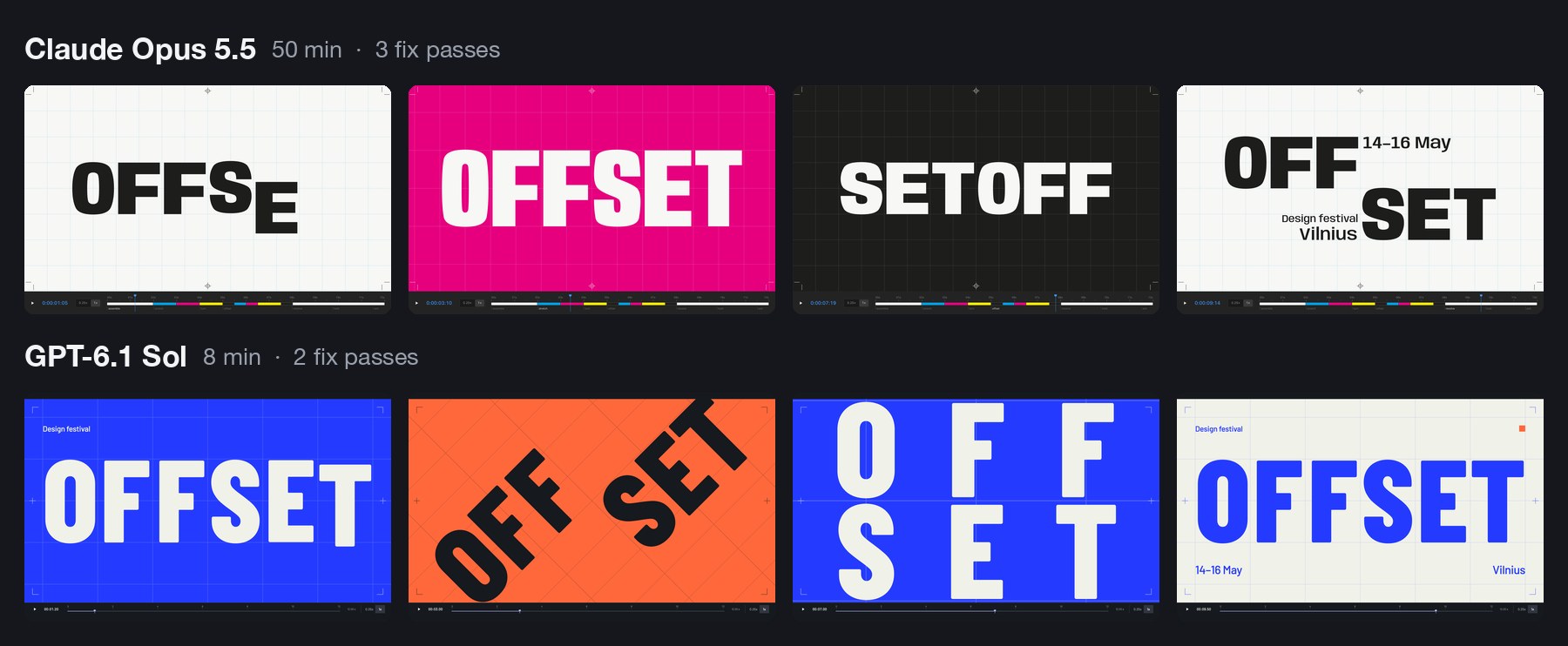
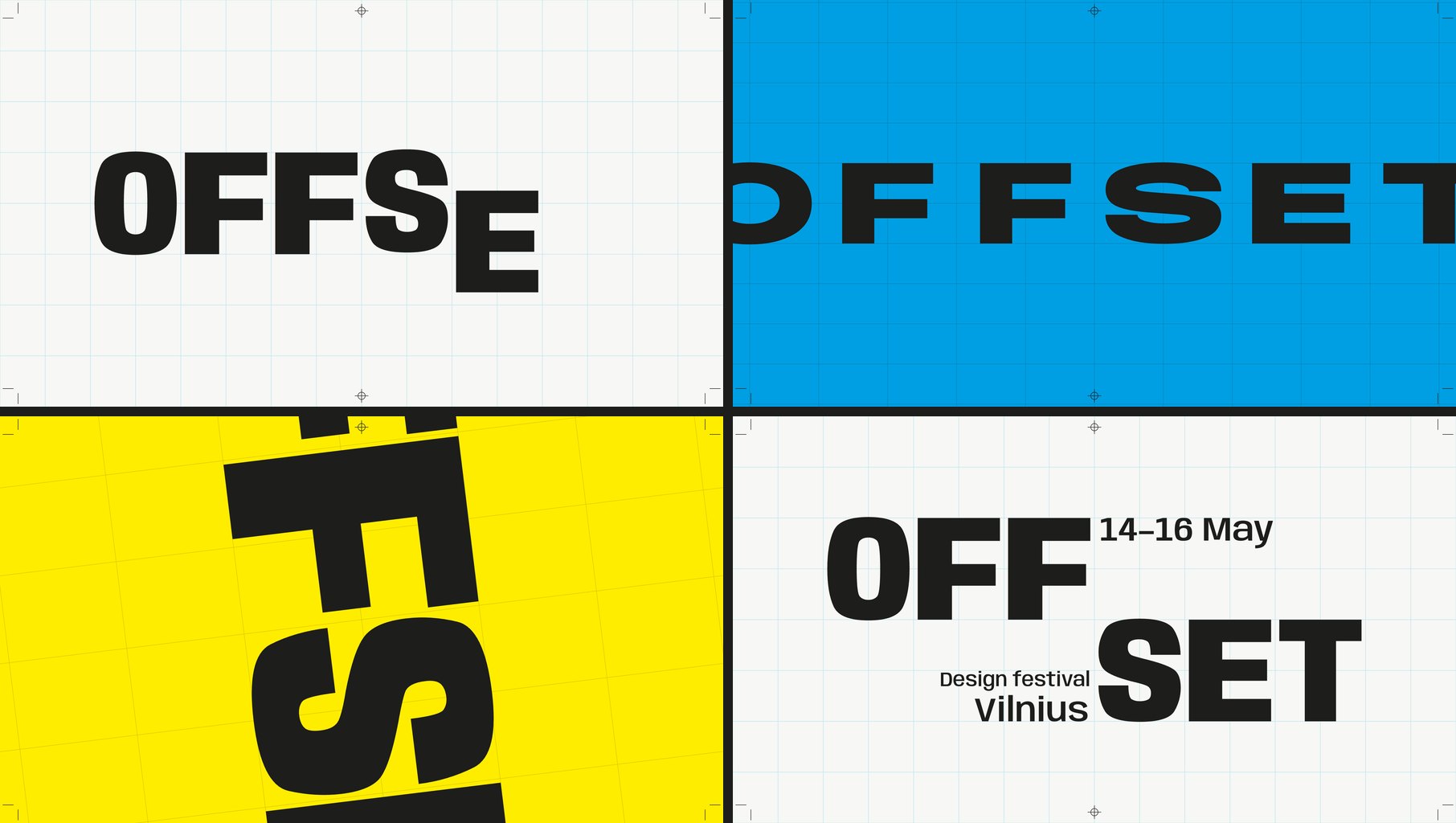
Two rows of four frames. Top, by Claude Opus 5.5: the word Offset on paper, magenta and black, reading SETOFF in one frame, then a stacked OFF SET lockup. Bottom, by GPT-6.1 Sol: Offset in white on ultramarine, tilted on orange, split into two rows, then a blue lockup on paper with 14-16 May and Vilnius
Four moments from each loop. Image: Muzli, built with Claude Opus 5.5 and GPT-6.1 Sol

It did not fumble. Twelve seconds on one GSAP timeline, and a last frame that matches the first. Barlow Condensed in ultramarine, paper, ink and orange.

The letters ride in on six columns. The whole grid swings through a quarter turn, the word blows up past the edges of the frame, splits into two rows and lands on the lockup with the dates. The colours change in hard cuts.

It named its curves, as asked:

register  (.16, 1, .30, 1)   a fast rail move, precisely
                             arrested.
torque    (.76, 0, .24, 1)   heavy symmetric acceleration
                             for grid pivots.
shunt     (.83, 0, .17, 1)   a short hold, then a decisive
                             regrouping.

Here is the strange part. Last week Opus named its curves rail, shunt and crank. Two models from two companies read one sentence about letters sliding along a grid, and both thought of a railway yard. Both called a curve “shunt”. The word is not in the brief or in the guidance file, and neither model saw the other’s work.

They also both read the festival’s name as a printing term. Sol planned “a moving print-registration system” and put crop marks in the corners. Opus went the whole way: four ink plates, a print run, and the word reeling round until it read SETOFF, which in printing is another word for offset.

That is the gap in one example. Sol used the idea as trim. Opus built the whole sequence out of it.

One requirement slipped. The brief wanted cuts “on the beat”. Sol’s cuts land at 2, 3, 4.5, 6, 7.65 and 11.5 seconds, which is nobody’s idea of a beat. Opus set a tempo of 120 BPM and cut on it.

What it tells you: bring the concept and Sol executes it in eight minutes. If you want the concept supplied, that is still the slower, more expensive model.

👆 Interaction: a player you can catch mid-spring

A Figma prototype shows where a screen ends up. It cannot show how it feels to throw it there.

Prototype the mini player to full player transition of a
music app, in a phone frame, as a web page I can use with
a mouse or a finger.

The mini player sits above a tab bar. Drag it up and the
album art grows out of it into the full player, following
my finger 1:1, then settles with a spring. Fling it down to
dismiss; the release speed decides whether it closes. In
the full player: a waveform I can scrub, a like button with
a small burst, and a queue I can reorder by dragging.

Everything must be interruptible: grab it mid-animation and
it stops where it is. Add a "slow motion" switch that runs
all motion at 10% speed so I can review the curves.
Draw the album art in code. Single HTML file.

GPT-6.1 Sol ¡ 11 minutes ¡ 3 fix passes ¡ 38 KB ¡ $0.53

Live demo. Drag the mini player up, fling it down, grab it halfway. Turn on slow motion. On a phone it fills the screen. Open full screen, or open the Opus 5.5 version of the same brief. Built by GPT-6.1 Sol from the prompt above.
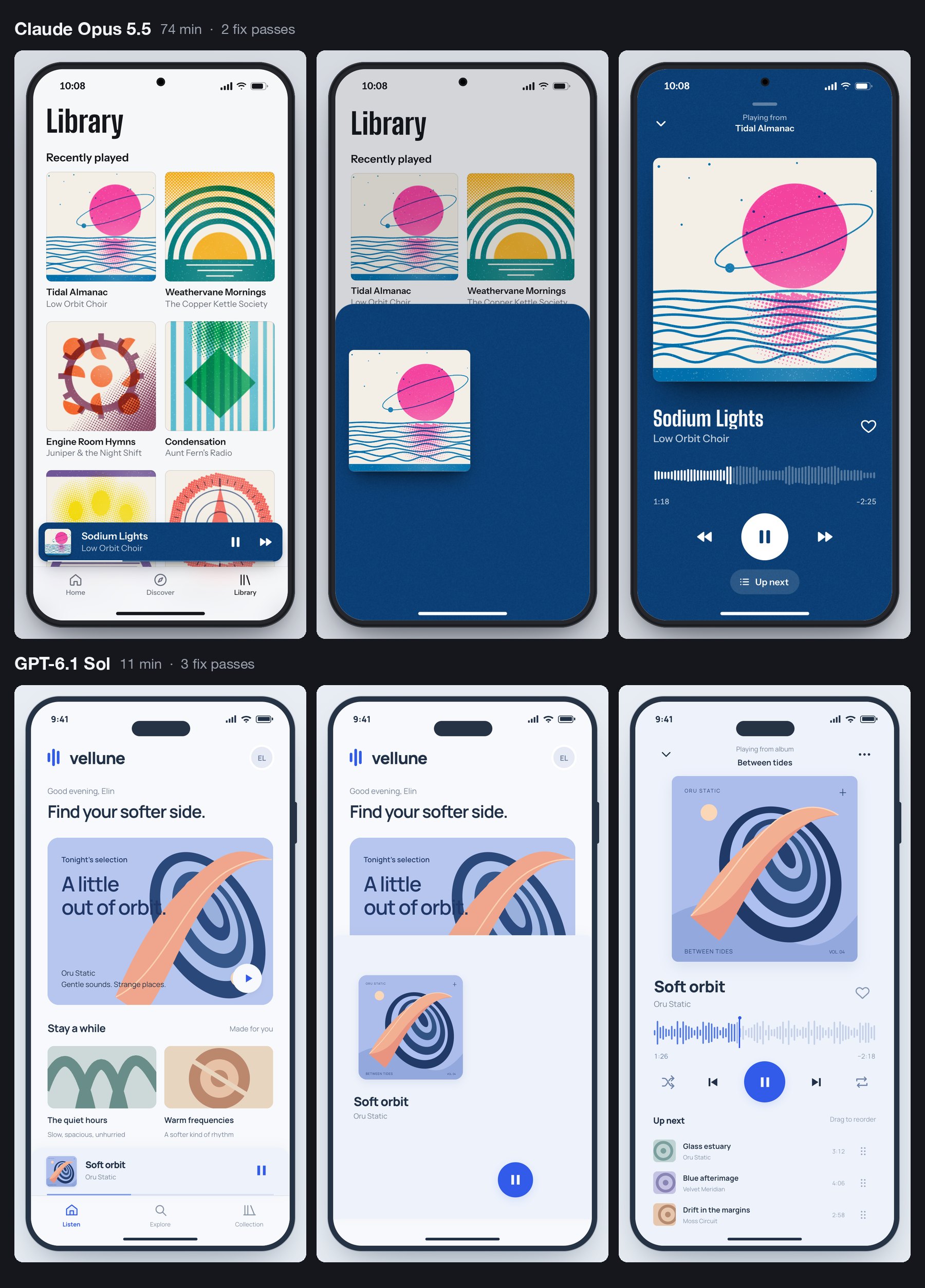
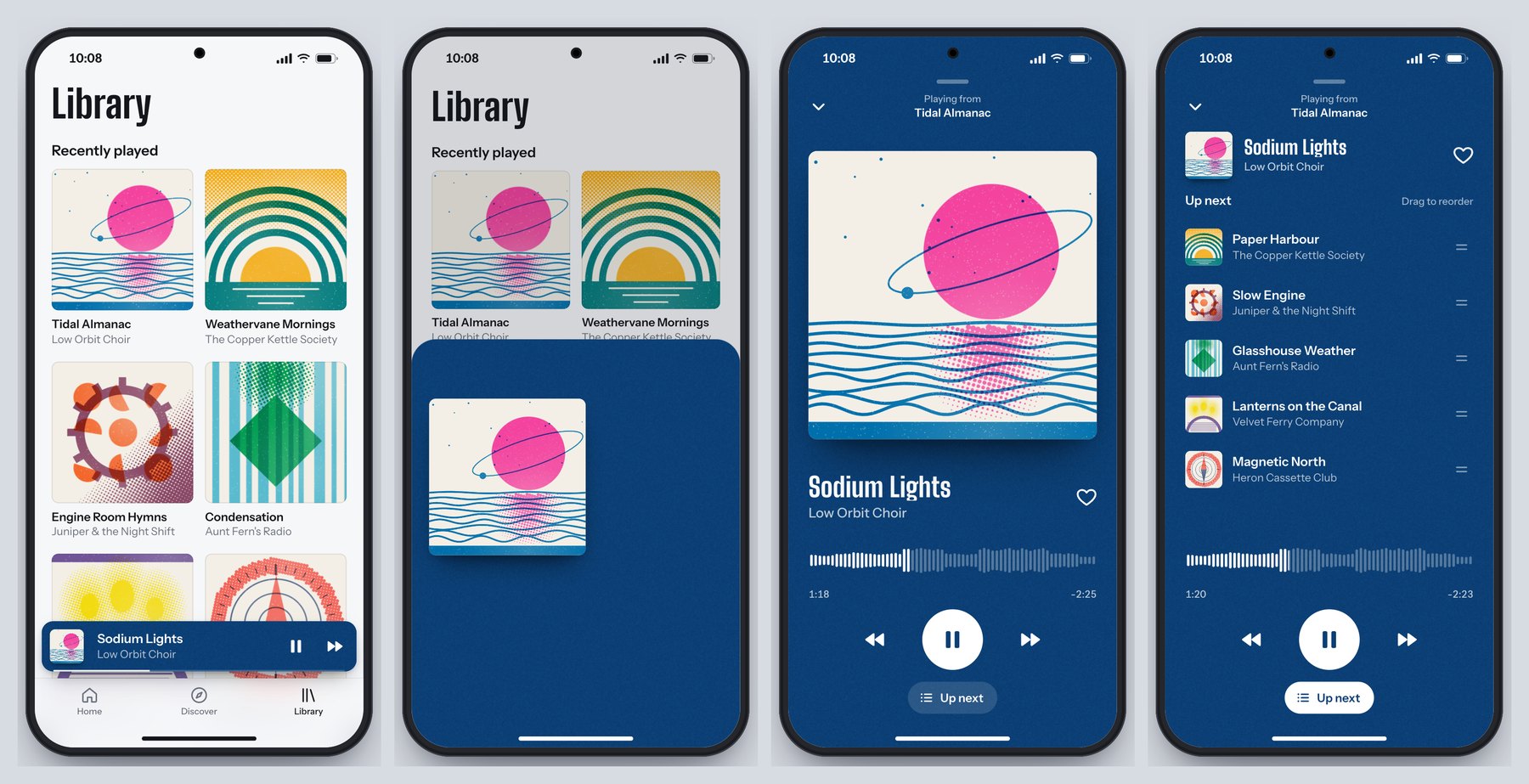
Six phone screens in two rows. Top, by Claude Opus 5.5: a library of risograph-style album covers, the cover growing mid-drag on a deep blue sheet, and the full player. Bottom, by GPT-6.1 Sol: a pale blue home screen, a small cover mid-drag, and a full player with a waveform and an Up next queue
Home, mid-drag and full player, from each model. Image: Muzli, built with Claude Opus 5.5 and GPT-6.1 Sol

Sol invented an app called vellune and one album, drew the cover in code, and built the whole transition around that one piece of art travelling from the mini bar to the full player.

The requirements hold. The sheet follows the pointer one to one, and Sol measured it: “a 33 px pointer move produced 33 px of sheet movement”. Let go and a spring takes over, written by hand with no library, at stiffness 230 and damping 25.

Fling down fast and it closes. Drag the same distance slowly and it springs back open. We tried both. The waveform scrubs, the heart throws a small burst, the queue reorders, and the slow-motion switch runs everything at a tenth of the speed. Grab the player mid-flight and it stops where it is.

It found its own bugs in the screenshots: a play button in the wrong place, the mini player covering the tab bar, a title colliding with the cover halfway through a drag.

It missed one. A press that does not move counts as a tap, and a tap toggles the player. So touching the album art in the open player closes it. The Opus version stays open.

A person finds that in ten seconds. A screenshot never will.

Against the Opus version, the difference is appetite again. Opus drew six albums as two-colour risograph prints and let the player take its colours from the cover. Sol drew one album cover, two simple playlist tiles and a clean pale-blue interface that could belong to any streaming app. Both would do their job in a design review. Only one gives the room something to talk about afterwards.

What it tells you: “does this gesture feel right” now costs 53 cents and eleven minutes to answer.

⚖️ What three runs add up to

Three briefs is a small test. One attempt each, in a rig we built, outside OpenAI’s own apps. Trust the pattern more than the decimals.

  • Speed changes the method. Sol needed about 35 minutes for all three. Opus needed about 205. When a build takes 80 minutes, you write one brief and wait. When it takes ten, you run three directions before lunch and give notes on the one that deserves them.
  • It builds the drawing. Sol is the builder who delivers exactly what is on the plan, plus a sensible extra socket. Opus is the one who phones at nine to say he had an idea about the staircase. Which one you want depends on the week.
  • It checks what it thinks of checking. Both models look at screenshots and fix what they see. Neither can feel a spring. Sol let two things through that Opus did not: the scroll trap and the tap that closes the player.
  • Good guidance travels. Anthropic wrote the skill file for Claude. Sol read it and avoided the same clichĂŠs by name. What you learned about briefing last week still applies.
  • Price is no longer a reason to skip the test. $1.88 bought three working builds, each about half the file size of its Opus twin. We can’t give you the same bill for Opus, because it ran on a Claude Code subscription and no invoice exists. On list price it costs twice as much per token, and it worked about six times as long.

All six builds are live, in pairs, further down.

🗓️ The rest of DevDay, sorted for designers

OpenAI’s recap runs to 25 entries. Besides the model, five are worth your time.

The first is the one I’m most excited about, and the one you can do least with this week. The other four follow in the order I would open them.

🔑 Sign in with ChatGPT: the one I’m most excited about

Sign-in: everyone ¡ spending your plan in other apps: Plus and Pro ¡ 16 launch partners, including Notion, Vercel and Devin ¡ other apps: a waitlist

An app with an AI feature pays the AI company for every request you make. So it eats the cost, asks you to paste in a developer key, or sells you its own credits on top of its subscription. Grant Harvey at The Neuron called these the “three ugly choices”.
Sign in with ChatGPT adds a fourth. The button itself has been on a few partner sites since July.

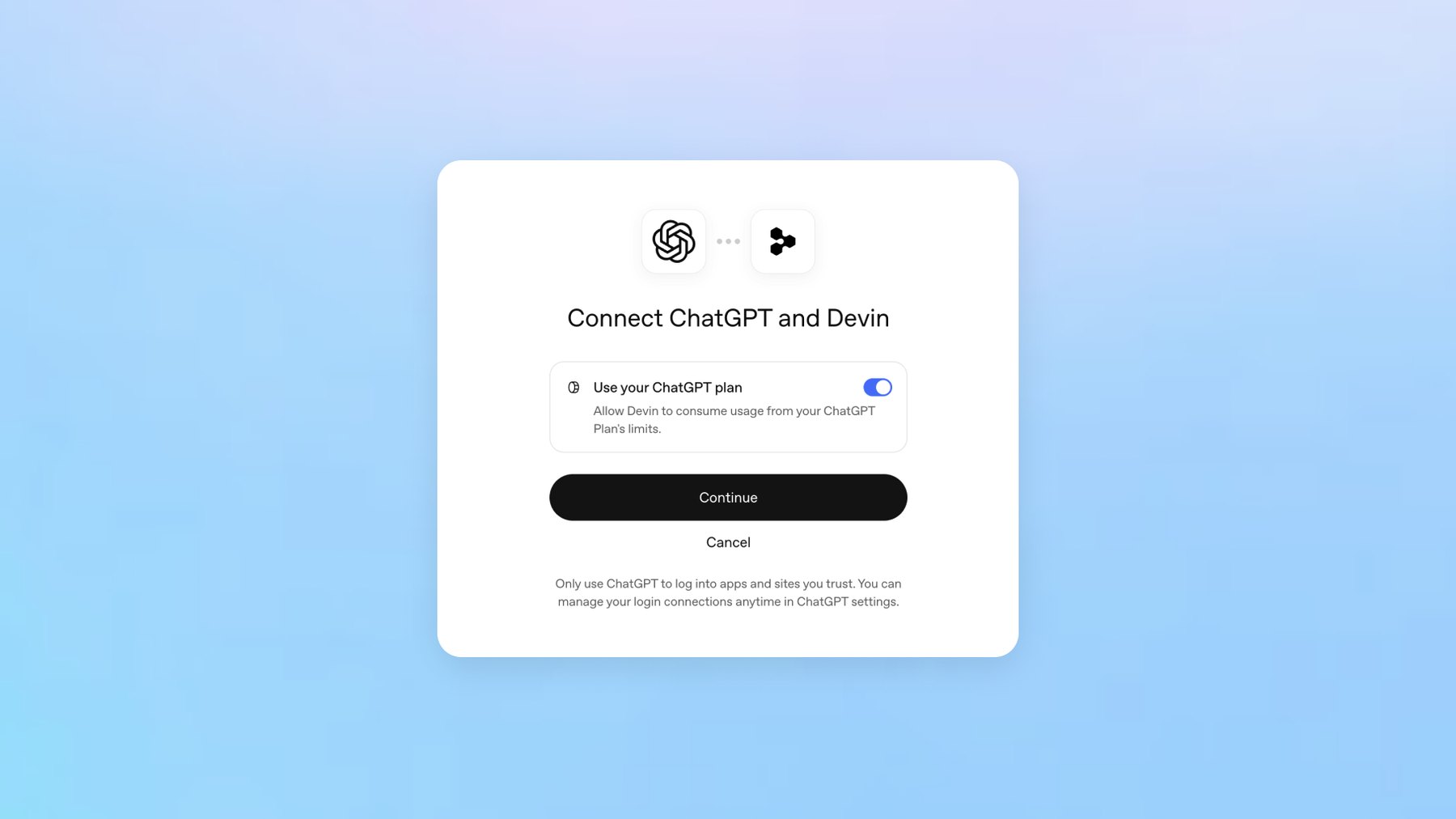
What DevDay added is the second step. After signing in, you can let the app spend from your ChatGPT plan. The consent screen has one toggle, labelled “Use your ChatGPT plan”.

It is bring-your-own-bottle for AI. The app provides the table, you bring the tokens, and the house may still charge corkage. OpenAI’s help page says the same in plainer words: the app “may charge separately for its subscription, infrastructure, services, or premium features”.

A consent dialog titled Connect ChatGPT and Devin, with one toggle labelled Use your ChatGPT plan, a Continue button and a Cancel link
One toggle decides whether an app may spend from your ChatGPT plan. Image: OpenAI

You decide how much each app may pour. In ChatGPT’s settings you give it a weekly share of your plan, from 10% to all of it. Sharing your plan does not show the app your chats.

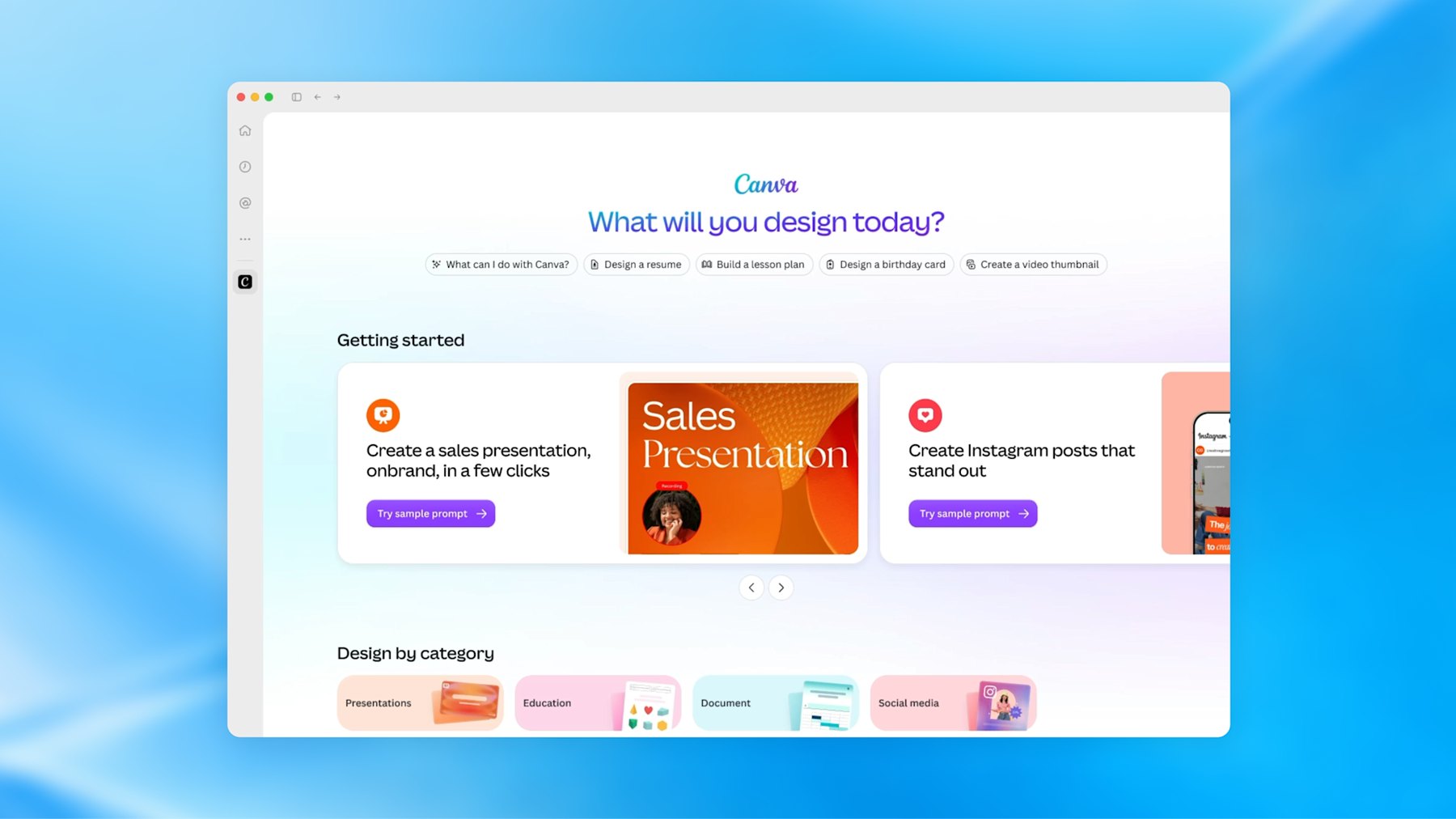
For now the partners are mostly developer tools. Notion is on the list, Lovable is coming, and Canva takes only the sign-in.

My excitement is partly selfish. At Muzli we use a few AI design tools in-house that we have never shipped to you.

This button would let them run on your plan instead of our bill, inside a limit you set. I’m adding it to Muzli as soon as OpenAI lets us in.

That is the catch. Plan sharing is open to open-source tools and a few selected companies. Every other app, Muzli included, joins a waitlist.

And for now a plan cannot pay for image generation, which design tools will notice.

I also hope it doesn’t stay an OpenAI feature. Every’s DevDay review called OpenAI “the first major lab to take this step”. Anthropic’s help page still tells anyone building a product for others to “use API key authentication”.

I want this button from every AI company, so you pay once for the model you like and take it into every tool you open.

What it unlocks: AI features your company does not pay the model bill for, and fewer AI subscriptions for everyone using them. The screens it needs are below.

🌐 Sites: ChatGPT hosts what it builds

Public beta ¡ Plus, Pro, Business, Enterprise and Edu ¡ a chatgpt.site address or your own domain

You have a prototype in a chat window. Getting it to a link you can send a client still means a hosting account and a favour from a developer.

Sites removes that step. Ask ChatGPT for a website, or type @Sites. It builds, shows you a private preview, and publishes when you say so.

You pick who can open it: selected people, your workspace, or everyone. You can point your own domain at it.

It is not new. At the DevDay session, Simon Willison noted that it “launched earlier this year and is already hosting 8m sites”. What DevDay added is the layer around it: scheduled tasks that keep a Site current, Sites that read each visitor’s own connected apps on business plans, and shareable profiles.

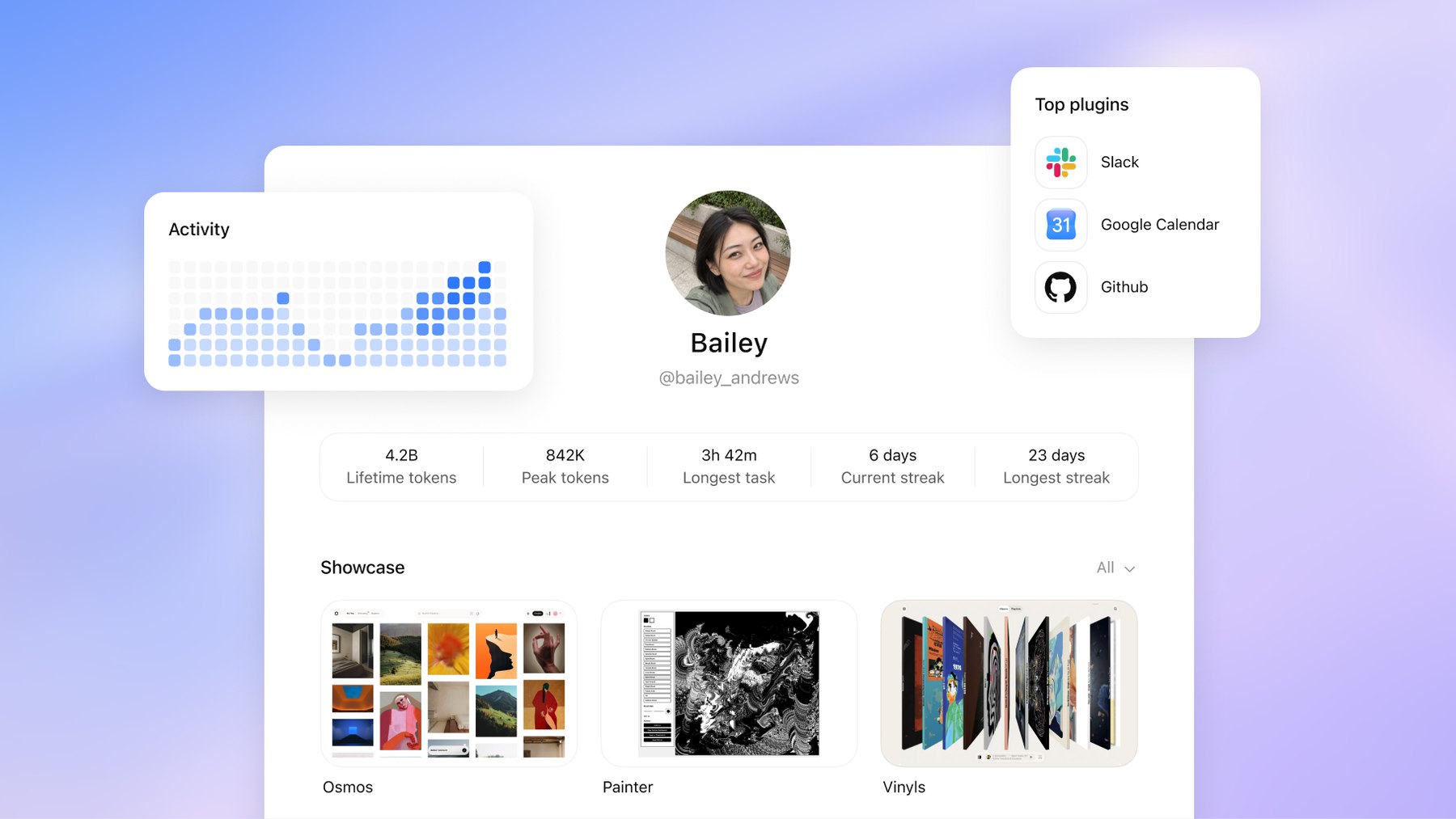
A profile is a page at chatgpt.com/u/your-name that shows up to 12 of your Sites. OpenAI’s mock-up also shows an activity grid and a count of lifetime tokens, which makes it the first portfolio I have seen that reports how hard you worked the machine. The catch is that people have to be signed in to ChatGPT to see it.

A mock-up of a ChatGPT profile page for a user called Bailey, with an activity grid, counters for lifetime tokens and streaks, a list of top plugins and a showcase of three Sites
OpenAI’s mock-up of a shareable profile: activity, token counts and a showcase of Sites. Image: OpenAI

OpenAI also publishes a showcase of Sites with the full prompts that built them. What those prompts teach is further down.

We did not publish through Sites for this piece. Our demos sit on our own server, so this section comes from OpenAI’s documentation. We have not used it ourselves.
What it unlocks: a brief becomes a link in one sitting, on the $20 Plus plan, which is €23 here in the EU. A pitch microsite. A case study with a working prototype in it. A client review that needs no deploy.

🧩 Plugin extensions: your tools move into the chat window

All plans, per OpenAI ¡ on the web, "coming soon" for Free and Go ¡ Figma mentions need the desktop app

Until now an app inside ChatGPT was a connector. The chat could fetch things from Figma, and that was all. An extension gives the app its own interface in three places: an entry in the sidebar that opens it full screen, a panel beside the conversation, and a viewer that opens when you click a file the app owns.

OpenAI’s three launch examples are all design tools:

  • Canva builds and previews designs in a sidebar tab.
  • Figma lets you search for your files and mention them from the message box.
  • Adobe opens files for editing “with Acrobat and Photoshop directly in ChatGPT”.
The ChatGPT desktop app with Canva open as a full-screen sidebar app, showing the heading What will you design today and cards for presentations and Instagram posts
Canva running as a sidebar app inside ChatGPT. Image: OpenAI

Think of a brand’s corner inside a department store. You get the footfall. They own the floor plan.

What it unlocks: for you as a user, fewer trips between a chat and a canvas. For you as a designer of products, a new place to design for, with someone else’s rules. If your company ships a plugin, somebody has to design the version of your product that lives in a narrow panel beside a conversation.
🫧 Dots: the mascot and the agent

Rolling out now ¡ Pro and Business Premium ¡ on Pro, not in the European Economic Area, Switzerland or the UK ¡ runs on GPT-6 Astra

A dot is one never-ending conversation with an agent that has its own computer in the cloud. You give it a goal. It keeps going while your laptop is shut and messages you, in ChatGPT, Slack or Teams, when it needs a decision.
Think of a colleague who never closes the laptop and has read all your email. That is the promise, and also the worry.

OpenAI’s own example for our trade: “A new design arrives, and dots turn it into a working app while the team focuses on customer feedback.” Look closely at the launch screenshot and the desktop of the dot’s computer holds Blender, GIMP, Inkscape and Kdenlive.

The ChatGPT app showing a dot called Alfred and its own computer: a browser window on a yellow desktop with icons for Blender, GIMP, Inkscape, Kdenlive and other apps
A dot’s own computer, from OpenAI’s launch post. Blender, GIMP and Inkscape are on its desktop. Image: OpenAI

Now the small print. Dots need a Pro plan, which starts at $100 a month, or Business Premium. On Pro, OpenAI does not offer them in the European Economic Area, Switzerland or the UK. If you are a designer in Europe on a personal plan, a dot is a screenshot for now.

And the one long hands-on review says wait. Dan Shipper at Every tested a dot for days. It “has become the main way I use ChatGPT”, he wrote, and it was “too buggy for me to recommend now”. His advice is to give it a week or two.

The design story is the blob itself. Meta’s Muse did it, Grok Bots did it, and now dots. The always-on agent keeps arriving as a soft toy.

TechCrunch called it “the latest example of a company attempting to make AI more relatable”. I would put it less kindly. The more access a product asks for, the softer its mascot gets.

What it unlocks: handing over the watching. The feedback channel. The launch whose scope keeps moving. Just not this month, and not in Europe.

📄 Space, Pages and slides

Space and Pages: Pro, Business and Enterprise ¡ slides: "in the coming weeks"

Space is where ChatGPT now keeps your files, shared with your team and its agents. A Page is a document that people and AI edit together. OpenAI’s list of uses includes turning “a teammate’s design into engineering tasks”.

The part for us is slides. OpenAI says you will “create interactive slides with ChatGPT and your team, from a conversation or your own template”, then present them in ChatGPT or “export to PowerPoint or Google Slides with formatting intact”.

What it unlocks: read “your own template” twice. When an agent builds the deck, the template is the only thing holding the brand in place. Name the layouts and lock the colours.

Last week Every watched Opus 5.5 turn its green into purple in a deck built from its own template. Nobody has shown this one doing better yet, so try it on a deck that does not matter.

The rest is plumbing and pricing. Ultrafast makes Astra write up to eight times faster for people on the new $500 plan. Codex runs in the cloud and takes orders by voice.
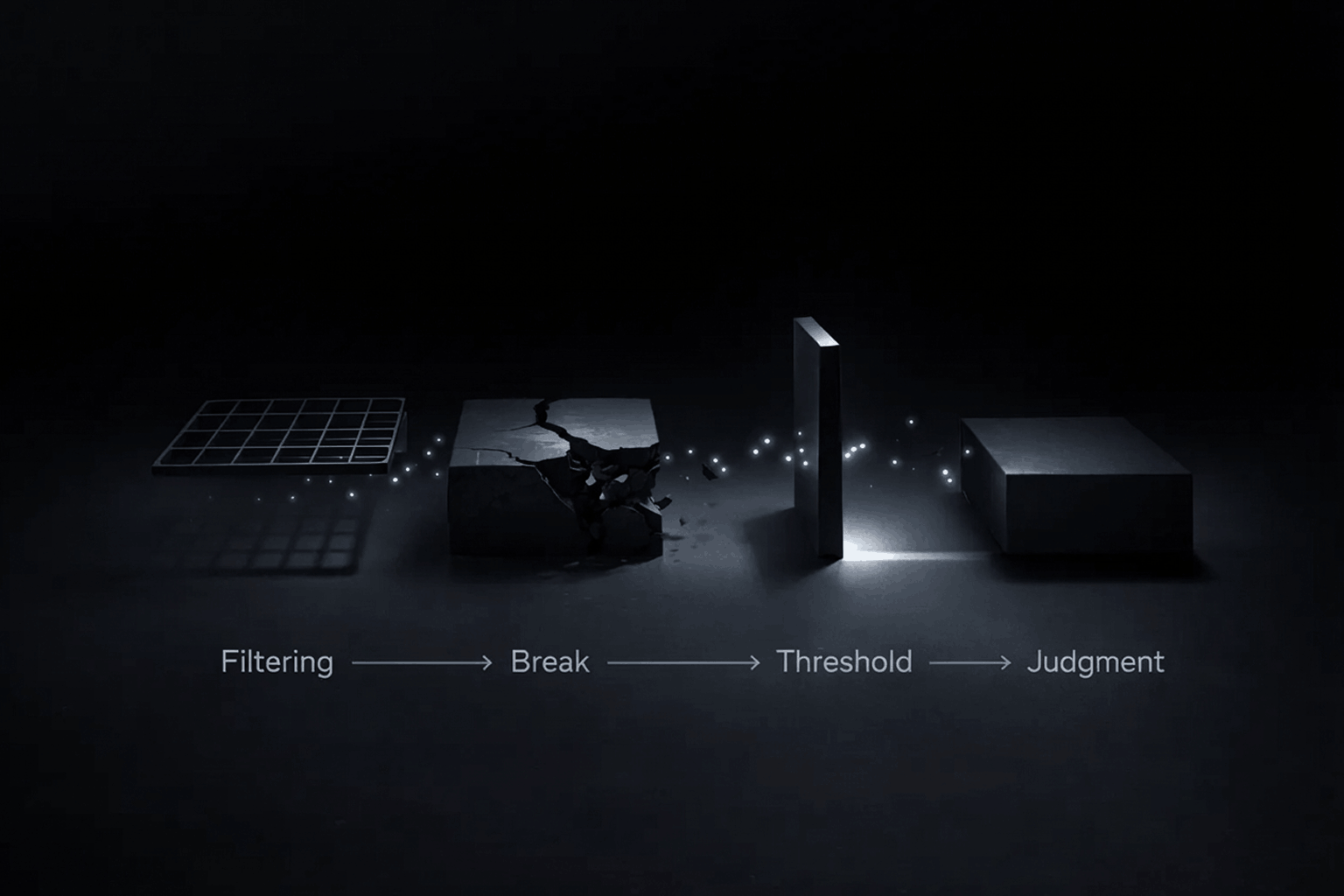
If none of that raised your pulse, you read it correctly.

What the room made of it

  • Read it as one move. Grant Harvey at The Neuron: “OpenAI spent DevDay assembling the pieces of an operating layer for AI agents.”
  • Impressive, and tiring. Dan Shipper closed Every’s review with: “I’d be even more excited if the next time I opened ChatGPT, there was less for me to figure out.”
  • Some of it was overdue. Simon Willison live-blogged from the room, failed demos included. On Sites getting sharing controls: “(I admit I thought they had that feature already.)” On signing in with ChatGPT: “I’ve wanted this one for years!” Sam Altman said as much in the closing session: “we should have done it a long time ago”.
  • The safety argument has not gone away. Axios noted that OpenAI said the same week it would hold back its newest flagship, GPT-6.1 Astra, over security concerns.

🧭 What changes in your work

  • Design the lending moment. If your product has AI features, someone will ask for “Sign in with ChatGPT”. OpenAI’s guidelines already sketch the screens: a ChatGPT button as prominent as your other sign-in options, a one-time “You’re using your ChatGPT plan” note, a “Using ChatGPT plan” label by the message box, and a “Usage limit reached” state whose main button opens ChatGPT’s settings, with your own credits second. Your pricing page has to say which of your plans include it. All of it still needs your product’s voice.
  • Design the side-panel version. A plugin extension is your product in a panel beside a chat. Decide which three tasks deserve that panel. Everything else stays a link.
  • Make screens an agent can read. Dots operate software by looking at it, the way our rig’s browser did. Icon-only buttons, hover-only actions and unlabelled states were always bad for people. Now they also stall your customer’s assistant.
  • Test what screenshots can’t see. Our two bugs were a scroll that would not let go and a tap in the wrong place. Both are invisible in a still image. Put your hands on every build before it leaves the room.

Try it this week

🛠️ If you do not write code: the fifteen-minute tour

  • Open the six demos in pairs, full screen. Scroll both salt sites. Scrub both title sequences at 0.25x. Fling both players shut. Decide which one you would have signed off, and notice why.
  • Open Frame Studio or Type Field in OpenAI’s showcase. Press “Try it live”, then read the prompt under “Build process”. Count the lines that forbid something.
  • If you have the Plus plan, open ChatGPT, switch to Work, pick GPT-6.1 Sol and paste a brief with the word “website” in it. Look at the private preview before you publish anything.

🛠️ If you build with AI tools

OpenAI’s own showcase prompts forbid different things than ours do. Ours ban looks: no fade-up on every section, no beach kitsch. Theirs ban fakes.

The Type Field prompt says: “Do not claim to have designed an existing font, fabricate unsupported variable axes, or simulate width by merely stretching every glyph.” Frame Studio wants real animation, “not stock footage or a screenshot pretending to play”. A good brief needs both lists.

So last week’s template grows two lines. We have not run this one through Sites ourselves:

Build a website for [who]. @Sites
Visitors are [audience] who want to [job].

Mood: [three words]. Not [the clichĂŠ you fear].
Type: [families, or "pick distinctive type"].

The one memorable thing: [the moment people will
screenshot]. Everything else stays quiet.

Sections: [in order].

Motion: [the one orchestrated moment]. Respect
prefers-reduced-motion. Works on a phone.

Do not use: [the looks you are tired of].
Do not fake: logos, awards, reviews, or a form that
pretends to send.

Save a version and show me the preview. Do not
deploy until I say so.

That last line matters. OpenAI’s docs warn: “Every Sites deployment URL is a production deployment.”

A build is cheap now, so ask for directions first:

Before building, give me three directions for this
brief: three palettes, three type pairings and three
versions of the one memorable thing. One short
paragraph each. I will pick one, then you build.

After the first build, send the follow-up aimed at the two bugs our screenshots missed:

Now use it like a visitor, not a camera. Scroll to the
very end and keep scrolling. Tap every element once
without dragging. Open it inside an iframe on a longer
page. Tell me what surprised you, then fix it.

🛠️ If you write code

The model name is gpt-6.1-sol. A first call looks like this:

import OpenAI from "openai";
const client = new OpenAI();

const response = await client.responses.create({
  model: "gpt-6.1-sol",
  reasoning: { effort: "high" },
  input: "Your brief goes here.",
});
console.log(response.output_text);

In Codex it is one flag: codex -m gpt-6.1-sol.

One call writes a page. What made ours work was the loop around it. The model gets a browser tool, loads its own page, looks at the screenshot, reads the error log and edits the file. Our rig is about 700 lines of Python on top of Playwright.

If you give the model tools, use the Responses API. OpenAI’s docs say Chat Completions does not support function calling for this model.

If you already have a project, OpenAI’s docs supply the prompt:

Deploy this project with Sites. Check whether it is
compatible, make any required changes, and give me
the deployment URL.

🆚 Opus 5.5 and GPT-6.1 Sol, side by side

Here are all six, in pairs. My verdict: the Opus versions are more creative and more refined. Sol’s are faster and far cheaper, and every requirement but one works.

🎨 Lenn, the sea salt website

  • Opus 5.5, live. 81 minutes, 4 fix passes, 97 KB. A wordmark carved into the clay, a tide gauge that drains from 4.8 cm to zero, and copy in the marsh’s own words. The water is the grey the brief asked for, and the page hands your scroll wheel back when it ends.
  • GPT-6.1 Sol, live. 17 minutes, 3 fix passes, 51 KB, $0.98. A flat wordmark under sea-green water, plus practical extras: an order form that adds up and a visit planner. It keeps your scroll wheel inside the frame.

🎬 Offset, the title sequence

  • Opus 5.5, live. 50 minutes, 3 fix passes, 31 KB. Four ink plates, the word turning into SETOFF, and a lockup with the dates tucked between OFF and SET. It cuts on a 120 BPM beat, and the transport bar shows timecode to the frame, with its sections named like markers in After Effects.
  • GPT-6.1 Sol, live. 8 minutes, 2 fix passes, 16 KB, $0.36. A grid that swings a quarter turn and a word that splits into two rows. The cuts miss the beat, and the transport bar is a plain scrubber.

👆 The music player

  • Opus 5.5, live. 74 minutes, 2 fix passes, 66 KB. Six albums drawn as two-colour risograph prints, and a player that takes its colour from the cover as it grows. Tap the art and the player stays open.
  • GPT-6.1 Sol, live. 11 minutes, 3 fix passes, 38 KB, $0.53. One album cover, two simple playlist tiles and a clean pale-blue app, with a measured one-to-one drag and a hand-written spring. On the home screen the artwork cuts through the headline, and a tap on the art closes the player.

All three took Opus about 205 minutes. Sol needed about 35, for $1.88.

So split the work. Ask Sol for the quick directions, then give the one worth keeping to Opus for the version with your name on it.

Worth bookmarking

🤖 The model

🔑 Sign in with ChatGPT

🌐 Publish

🧩 Inside ChatGPT

🫧 Agents

🧰 Carried over from last week

🏆 Get picked

The landing

Here is my verdict. DevDay’s gift to designers was not the blob. It was a second model that can build a real brief, at a price where trying costs next to nothing.

Last week each build took Opus between 50 and 81 minutes. This week all three cost $1.88 and were done before the coffee went cold. The idea stays your job.

The thing I’m watching is who pays. Sol made a build cheap. Sign in with ChatGPT moves the cost onto a plan the user already pays for, inside a limit they set.

If every AI company copies it, any small team can ship AI features without a token bill hanging over it.

So do the cheap thing. Take one brief and ask for three directions. Build the one you would defend in a review, then use it like a visitor: scroll past the end, tap what should not be tapped. Fix what you find and nominate it.

When a build costs 36 cents, the brief is the only expensive thing left.


Sources: OpenAI, DevDay 2026 recap, Introducing GPT-6.1 Sol, Introducing dots, ChatGPT Sites, ChatGPT Space, help center, release notes, developer docs, Sign in with ChatGPT docs and showcase. Anthropic, Claude Sonnet 5.5 and help center. Simon Willison, Every, TechCrunch, The Neuron, Axios, RuntimeWire, Ben’s Bites, PromptsLove. Test runs, timings and costs: Muzli, 2 October 2026, billed through OpenRouter at OpenAI’s list price. Demos and comparison images: Muzli, built with GPT-6.1 Sol and Claude Opus 5.5. Other images: OpenAI.

Opus 5.5 builds Muzli Picks-level websites. Here are 3 live demos, the prompts and how to make your own.

This is a long article about my week with Opus 5.5. Every point in the TL;DR below links to its section, so skip straight to the part you’re most interested in.

TL;DR


Every model launch comes with the same promise about the front end. Better at UI. More taste.

Then you ask for a landing page and get a cream background, one italic word in the headline, “01 / 02 / 03” above every section and pill-shaped buttons.

That list is not my opinion, by the way. It comes from Anthropic’s own documentation for Opus 5.5, which warns that without design direction the model “falls back on a few default styles”. Last November, Anthropic’s blog described the previous uniform: “Inter fonts, purple gradients on white backgrounds, and minimal animations”.

The uniform changed. The habit did not.

So when Opus 5.5 landed, I skipped the benchmark charts. We wrote three briefs, the kind a studio gets from a client, and gave each one to Opus 5.5 once.

Here is what came back, live, with the prompts. Then how to use it in your own work, what to install, what to know before you prompt, and what it means for a career a lot of designers are suddenly questioning.

Sixty seconds of vocabulary

  • Opus 5.5. Anthropic’s new model. Claude is the assistant, Opus is its big everyday tier, 5.5 is the release.
  • Fable 5.1. The Anthropic model Opus 5.5 gets measured against.
  • Claude Code. The version of Claude that works on files on your computer. It writes the code, opens it in a browser, looks and fixes. It runs in a terminal, a desktop app, your code editor or the browser.
  • Skill. Written instructions Claude loads when a task calls for them. A brand book it actually reads.
  • Plugin. A bundle of skills and tools you install with one command.
  • MCP. A connector that lets Claude drive another app, like Figma or a browser.
  • Effort. How long the model thinks before it answers. Opus 5.5 defaults to medium, and you can turn it up.
  • WebGL and shaders. How a web page draws with the graphics card. Every liquid hero and glass blur you have saved is a shader.
  • GSAP. The animation library behind a large share of award sites. Free, plugins included.

That is the whole glossary.

🤖 What actually changed in Opus 5.5

Released 22 September 2026 ¡ $4 in, $20 out per million tokens ¡ 30% faster output ¡ Claude apps, Claude Code, API

Tokens are the meter AI is billed by. The price matters less than what it buys. The same budget now gets you more attempts, and Anthropic also raised the five-hour usage limits on the Pro, Max and Team plans, which is the wall most designers actually hit.

Read the launch post and you would think this is a model for migrating codebases. It is almost all code, cost and safety. There is exactly one sentence about visuals: “A different tester had several Claude models build a game from a single prompt; Opus 5.5 scored higher than any other model on the strength of its graphics and polish.”

One customer line matters more for design work than any benchmark. Column’s Mitch Fierro says it “checks its own work in creative ways”. For us that means it can screenshot a page, notice the headline breaking badly on a phone, and fix it before you see it.

🤖 What the testers found

Anthropic’s 230-page system card does not test design at all. No layout, no motion, no taste. So the evidence comes from people who built things.

  • Every liked it for visual work. Anthropic gave Every early access, and its Vibe Check says to reach for Opus 5.5 if “you build things you can look at”. Tyler Nishida, a designer there: “My jaw dropped at least five or six times this week.”
  • Every also found the limits. A deck built from Every’s own template “used the wrong logo, replaced Every’s green with dark purple, added its own background art”. It is better at looking right than at being right about your brand.
  • Motion is the big jump. Charlie Hills built 16 motion graphics with it and called motion “the biggest jump”, while admitting “it wasn’t one prompt. I needed the exact states, a good reference and a few rounds of fixes to get there.”
  • Effort matters, up to a point. On threejseval, where people vote blind on 3D scenes built from the same prompt, Opus 5.5 on high effort ranks first on the board and on the default medium ranks fourth. At max, Simon Willison‘s pelican test ran nearly 20 minutes, cost $2.56 a try and returned nothing.
  • The long builds are real. Ryan Sael built The Plane of Focus, a camera lens you rack through a miniature valley, in “1 hour 26 minutes in one shot, $25.66 API cost”, by his own account.

🧪 Three briefs, one prompt each

Each prompt went to Opus 5.5 in Claude Code, in a fresh session, with three things set up. Anthropic’s frontend-design skill. A browser it could take screenshots with. And one standing instruction to check its work in that browser and fix what it saw, at least twice. We also told it the page would be embedded here, about 720 pixels wide.

No references, no Figma file, no notes from us. What you see is what came back.

🎨 A website: sea salt, and a hero made of water

Picture the client every studio turns down. Two people with a great story and no budget. The brief:

Build a one-page website for Lenn, a two-person sea salt
harvest on the salt marshes of GuĂŠrande, in Brittany.
Visitors are chefs and food lovers who might order a tin
or come and visit.

Mood: quiet, tidal, tactile. Grey Atlantic light, not
beach kitsch. Pick distinctive type, one or two families.

The one memorable thing: the hero is water. A real-time
WebGL water surface fills the screen and ripples where the
cursor moves, with the Lenn wordmark under the surface,
refracting. As you scroll, the tide drains away and salt
crystals appear on the clay.

After that: how the salt is raked by hand (a short
scroll-driven story in three moments), the three salts and
what to cook with each, visiting the marsh, and ordering.

Motion: one orchestrated page load, then scroll-linked
scenes with GSAP ScrollTrigger and Lenis. No fade-up on
every section. Respect prefers-reduced-motion. It must work
on a phone. Quality bar: a site we would feature on Muzli
Picks. Single HTML file, libraries from a CDN.
Live demo. Move your cursor over the water, then scroll inside the frame to drain the pan. Open full screen. Built by Claude Opus 5.5 from the prompt above.

Before it wrote a line of the site, it did what a designer would do. It set the wordmark and real copy in eight type pairings, looked at them, ran a second round, and chose Spectral because its sharp serifs “echo salt crystals”.

A grid of eight type specimens, each setting the Lenn wordmark and a line of copy in a different serif and sans pairing
The specimen sheet Opus 5.5 made for itself before building. Nobody asked for it. Image: Muzli, built with Claude Opus 5.5

Then the hero. The water is a live simulation running on the graphics card. The wordmark sits under it, carved into the clay as grooves full of salt, and bends as the ripples pass. A tide gauge on the right reads 4.8 cm. Scroll and it falls to zero. The letters hold the last pools, then dry white while crystals grow out of them. The brief asked for one memorable thing, and it spent all its boldness there.

The Lenn hero after the tide has drained: the wordmark dried white in cracked grey clay, scattered salt crystals, and the line The sun and wind take the water. We rake up what is left.
The same hero after you scroll. The tide gauge reads 0.0 cm. Image: Muzli, built with Claude Opus 5.5

The harvest story is one pinned cross-section of the marsh, from the Atlantic through each basin to the pan, labelled with how salty the water gets. Then it zooms into a single pan for the two harvests. The vocabulary is real. Vasière, cobier, œillet, lousse, las, ladure: I checked every term against a GuĂŠrande salt maker’s own glossary.

It also caught what a reviewer would have caught. A tin it drew with two wavy lines “read as a beach logo”, the exact kitsch the brief banned, so it redrew it. In a blog embed its smooth scroll trapped the reader’s wheel, so now it hands the scroll back to the page.

It ran for about 80 minutes with nobody watching, through four rounds of screenshots and fixes, and listed what it could not check: how the scroll feels on a real phone, and how the water runs on an older laptop.

What it unlocks: the site you pitch with instead of a mood board. For a two-person brand, it might just be the site.

🎬 Motion: a title sequence you can scrub

Motion lives in After Effects, the product lives in the browser, and something always gets lost on the way. The brief:

Make a 12-second looping title sequence for a fictional
design festival called Offset, as a web page.

Think opening titles, not a website: kinetic type on a
strict grid. Letters slide in along the grid, the grid
itself rotates and stretches, colours swap in hard cuts on
the beat, and it resolves into the Offset lockup with the
dates (14-16 May, Vilnius) before looping cleanly.

Build it on one GSAP timeline. Add a small After Effects
style transport bar at the bottom: play/pause, a scrubber I
can drag, the current time, and 0.25x / 1x speed. Easing
should feel designed, so name the curves you use in a code
comment. Single HTML file. No stock fade-ins.
Live demo. Press play, drag the scrubber, switch to 0.25x. Open full screen. Built by Claude Opus 5.5 from the prompt above.
Four frames from the Offset loop: letters running in on a paper grid, the word stretched wide on cyan, a quarter turn on yellow, and the final OFF SET lockup with 14-16 May, Design festival, Vilnius
Four moments from the loop: paper, cyan, yellow and the lockup. Image: Muzli, built with Claude Opus 5.5

This is the part that made me sit up. It read the festival’s name and built a concept out of it. Offset is a printing method, so the loop became a print run. There is a paste-up board with crop and registration marks, and the hard cuts are the four ink plates, cyan, magenta, yellow and black. Halfway through, the word reels one letter per beat until it reads SETOFF, which in printing is another word for offset. None of that was in the brief.

The craft holds up. When the grid stretches, the letters are not squashed. It moves the width axis of Anybody, a variable font, so each letter is redrawn to fit its cell. The cuts sit on a 120 BPM grid, and the transport bar shows each ink plate as a coloured strip on the timeline.

It named its curves, as asked, at the top of the file:

rail   (0.16, 1, 0.30, 1)  arrivals. Leaves at full
                           speed, brakes hard into the
                           cell.
shunt  (0.80, 0, 0.12, 1)  lane changes. Heavy start,
                           fast middle, locked stop,
                           like a wagon being shunted.
crank  (0.72, 0, 0.18, 1)  grid rotation. Slow wind-up,
                           long mechanical settle.
cut    none                colour. Changes on the frame
                           of the beat.

That is a motion spec a developer can use. The numbers are the curve and the words are the intent.

One prompt, no notes. It ran three rounds of screenshots and fixes on its own and caught that the dates were still on screen when the loop jumped back to zero. It could not tell how the curves feel at full speed, and said so. That part is still your eyes.

What it unlocks: motion you design, review and hand off in one file. Scrub to the frame that bothers you, leave a note with the timecode, and the fix lands in the thing that ships.

👆 Interaction: a player you can catch mid-spring

A Figma prototype shows where a screen ends up. It cannot show how it feels to throw it there. The brief:

Prototype the mini player to full player transition of a
music app, in a phone frame, as a web page I can use with
a mouse or a finger.

The mini player sits above a tab bar. Drag it up and the
album art grows out of it into the full player, following
my finger 1:1, then settles with a spring. Fling it down to
dismiss; the release speed decides whether it closes. In
the full player: a waveform I can scrub, a like button with
a small burst, and a queue I can reorder by dragging.

Everything must be interruptible: grab it mid-animation and
it stops where it is. Add a "slow motion" switch that runs
all motion at 10% speed so I can review the curves.
Draw the album art in code. Single HTML file.
Live demo. Drag the mini player up, fling it down, grab it halfway. Turn on slow motion. On a phone it fills the screen. Open full screen. Built by Claude Opus 5.5 from the prompt above.
Four phone screens from the Hummock prototype: the library with the mini player, the album art growing mid-drag, the full player, and the Up next queue
Library, mid-drag, full player, queue. The second frame is a finger halfway up the screen. Image: Muzli, built with Claude Opus 5.5

It invented an app to prototype in. Hummock, six made-up bands, and album covers drawn in code as two-colour risograph prints, down to the slightly-off registration and the paper grain. The player takes its colours from the cover’s inks, and the mini bar and the full player are one surface, so the transition reads as one object growing instead of one screen replacing another.

The physics are real. It is a damped spring set by response and damping, the way SwiftUI describes springs: 0.52 seconds at 0.76 damping to open, about 2.5% overshoot. Your release speed comes from the last tenth of a second of movement. Everything runs on one clock, so grabbing it mid-flight freezes it exactly where it is, and slow motion slows every single thing at once.

It caught its own bugs, too. Fast flings sprang back open because its first speed estimate was fragile, so it rebuilt the estimate. Mid-drag, the player’s header faded in underneath the growing cover, so now the controls wait until the sheet is 62% open.

One prompt, no notes, two rounds of its own fixes. What it could not judge is how the spring feels in the hand. It had numbers, not a thumb.

What it unlocks: you stop writing “make it bouncy” in a ticket. You hand over a prototype and two numbers, and the developer builds the feel you signed off.

🧭 How to use it in your work

Forget “AI will design for you”. The useful question is which parts of your week just got cheaper. Six did.

  • Prototype what Figma can’t show. Springs, drag physics, scroll-linked scenes, a hover that reacts to speed. Send a link instead of a screen recording and a page of notes. Your developer gets a working reference, and your client gets something to touch.
  • Write motion specs that run. A timeline with named curves is a spec a developer can lift into the product. Review it at quarter speed and leave notes with timecodes.
  • Pitch the moment, not a mood board. Most concepts die at “imagine if the hero…”. Build the hero. One evening, one brief, and the room stops imagining.
  • Ship the portfolio you actually want. A lot of our recent Picks are personal portfolios, like Jesper Landberg, Mathis Biabiany and LĂŠo Parpeix. That level used to mean learning WebGL or hiring someone who knew it. The gap between a designer’s portfolio and a creative developer’s just got a lot smaller.
  • Build tools for yourself. A type tester with sliders, a grid generator, a palette explorer tuned to how you work. A stranger on Reddit makes this case better than I can, further down.
  • Keep your design system in charge. Claude Design reads your codebase and design files and builds a design system from them, so every prototype after that “uses your colors, typography, and components automatically”, per Anthropic’s launch post.

🧰 Skills, plugins and tools

You do not need all of it. Pick the row that fits how you work.

🧰 Where to work

  • Claude Design, if you never want to see code. You describe a visual, Claude builds a first version on a canvas, and you refine it by chat, comments or dragging things around. It exports PDF, PPTX and HTML and hands off to Claude Code when it is time to build. In beta on paid plans, and now it opens “from inside any conversation with Claude”.
  • The Claude Code desktop app, if you want real files. Claude Code “with a graphical interface”, in Anthropic’s words, so you can point it at a folder “without using a terminal”. Pro plan and up. Our demos were built in Claude Code.

🧰 Skills and plugins worth installing

Each is one command in Claude Code:

claude plugin install frontend-design@claude-plugins-official
claude plugin install playground@claude-plugins-official
npx skills add jakubkrehel/make-interfaces-feel-better
  • frontend-design, by Anthropic. The house rules against looking generated: a palette and type chosen for the subject, a plan before building, one bold moment, screenshots and self-critique. Over 1.1 million installs. Read the file even if you never install it. It is the best short brief on AI taste I have seen.
  • playground, by Anthropic. Builds single-file tools with controls on one side, a live preview on the other and a prompt you copy back out. It is the type tester the Reddit reply below describes.
  • make-interfaces-feel-better, by Jakub Krehel. The small stuff: concentric corner radii, optical alignment, press states, animation you can interrupt.

🧰 Give it eyes

  • Claude in Chrome. Start Claude Code with claude --chrome and it can open, click and screenshot pages in your own browser. Anthropic calls it “especially useful for design verification”, meaning a check of the Figma mock against the built page.
  • Chrome DevTools MCP, from Google’s Chrome team, does the same without the extension and adds console errors and performance traces: claude mcp add chrome-devtools --scope user npx chrome-devtools-mcp@latest.

🧰 Bring Figma in

  • The Figma MCP server lets Claude read your frames and, on a Full seat, write frames, components and variables back to the canvas. Install it with claude plugin install figma@claude-plugins-official.
  • Figma Motion, in open beta since June, adds a keyframe timeline to Figma. Through the MCP server, Claude gets your keyframes as ready CSS and motion.dev code, so the animation you designed is the one that ships.

🧰 Name these in your prompts

  • GSAP for scroll stories, pinned sections and kinetic type. It is “100% free for all users, thanks to Webflow’s support”, ScrollTrigger and SplitText included.
  • Motion for micro-interactions, layout animation and springs. Free and MIT licensed.
  • Three.js for 3D, particles and shaders. Our Three.js Conf piece covers what changed there this month.
  • Lenis for smooth scroll that keeps GSAP and WebGL in step.
  • Rive for interactive vector animation, and Remotion when the output is a video. Remotion is free for individuals and companies of up to three people.

🧠 What to know before you prompt

The model got better. Most bad results still come from a five-word prompt. This is what kept our demos out of the house style.

  • Write a brief, not a wish. Who the visitors are, the mood, the one memorable thing, the sections, how things move, and the quality floor: phone layout, reduced motion, keyboard focus. Each of our prompts is under 200 words, and every line is a decision.
  • Ban the defaults by name. Anthropic’s docs say a general “avoid a generic AI look” “mostly swaps one default for another”. Naming patterns works. Their frontend-design skill has a longer list that reads like a design critique: a warm cream background with a serif and a terracotta accent, near-black with one acid-green accent, identical rounded cards with “the same soft grey shadow”. Paste the ones you hate into your brief. When the first result finds a new default, add that too.
  • Ask for options, then pick. Nate Parrott, the Anthropic designer who built Claude Design, says to “ask for ten options, then remix. Most of them won’t be good, and that’s fine; one or two will be.” Our salt site did this unprompted with its type specimen.
  • Spend your boldness in one place. In the same skill’s words, a single orchestrated moment “lands better than scattered effects”. Fade-up on every section is the tell.
  • Name the tools. “Scroll-linked scenes with GSAP ScrollTrigger and Lenis” gets you a scroll story. “Make it animated” gets you fade-ups.
  • Let it look, then look slower. Connect a browser so it can screenshot its own page at desktop and phone size, because “a picture is worth 1000 tokens”, as Anthropic’s skill puts it. Then do what Jakub Krehel’s skill tells the model to do, and “replay motion at 10% speed”. That is why our player has a slow-motion switch.
  • Turn effort up, not to max. For the one hero you care about, type /effort high in Claude Code. Anthropic’s docs say to “reserve xhigh and max for work where you’ve measured a quality gain”, and Simon Willison’s empty max run shows why.
  • Tell it when to stop. Every’s advice is to “define what ‘done’ and ‘enough’ mean, set a budget, and impose a stopping point”. Left alone it keeps polishing on your usage.
  • Give notes like an art director. “The wordmark refracts too much at rest, halve it” works. “Make it pop” does not. A screenshot with an arrow on it beats three adjectives.
  • Check what you are shipping. GSAP and Motion are free for commercial work. Remotion needs a paid licence once your company has four people. Ask the model to list every font and library it pulled in.

😬 “Well, it’s awesome, but… I’m seriously questioning my whole career”

Five days after launch, someone posted the Claude logo to r/Design. No text, just a title: “Jokes aside, I’m seriously questioning my whole career as a designer!”

It is a fair question, and the demos above do not make it go away. Production work, turning a finished Figma file into a working page, just got cheap. If that was the whole job, the job changed this month.

The top reply is the best career advice I read all week. “Designer is unfortunately now a role that incorporates AI heavily. That’s why you’re seeing so much slop everywhere these days. On the other end of that is all of the pro designers using ai to build tools for themselves and clients that are actually useful and don’t look like ai slop.”

Then the practical part: “try vibe coding a tool (it is very easy) to let you play with type in a way you can’t with illustrator and then once you land on something cool in the tool you made, try recreating the effect in illustrator, the hard skills aren’t going away at all.”

Now look at what our three demos needed from a person. It was never the code. It was the decisions.

Every brief above is a stack of them. That the hero of a salt company is the sea. That the tide drains as you scroll. That titles cut on the beat instead of fading. That a prototype needs a slow-motion switch so you can judge the curve. Then someone had to look at what came back and decide it was good enough to show you.

Anthropic says as much, in its own way. In the system card’s section on the model’s character, it writes that Opus 5.5 “somewhat lags behind other models on measures like humor and creative mastery”. The people who built it are telling you the creative part is not where it leads.

And look at our side of the table. In the last 90 days, 190,636 items came through Muzli. Our editors picked 114.

The model can build the site. Deciding which site is worth building is still yours, and so is deciding which one deserves an audience.

🏆 Made something good? Nominate it

We love this stuff. In the last 30 days, 25 of our 40 Muzli Picks came from designers who shared their own work on Muzli Me. We do not care which tool wrote the code. We care whether it makes us stop scrolling and send it to someone.

Getting it in front of us takes three steps:

  1. Put it online. Drag the file or its folder onto Netlify Drop and you get a live link, no account needed. GitHub Pages is free for public projects.
  2. Share it on Muzli Me. Paste the link. If your site allows embedding, it comes in as the live site, not a screenshot, so people can scroll it right there.
  3. Nominate it for Muzli Picks at me.muz.li/nominate. Free accounts get one nomination, PRO accounts get three a month, and our team usually reviews within 24 hours.

Picks go into the Muzli new tab. Tell us how you made it in the description. The prompt is part of the craft now.

Try it this week

🛠️ If you do not write code: the fifteen-minute tour

  • Open the three demos above full screen. Scroll the salt site slowly, then fast. Set the titles to 0.25x and scrub. Grab the player halfway through its spring.
  • Open your current project and find one moment you explained with words or a screen recording because a static frame could not show it. A transition, a hover, a scroll.
  • Write it up like our briefs: who it is for, the mood, the one memorable thing, what moves and how. Paste it into Claude Design, which opens from any Claude conversation on a paid plan.
  • Judge the result the way you would judge a junior’s first pass. Then give it notes.

🛠️ If you build with AI tools

Install the three plugins above, start Claude Code with claude --chrome so it can see its work, and paste one of our prompts to see where you land. Then write your own. Fill the brackets and delete what you do not need:

Build [what] for [who].
Visitors are [audience] who want to [job].

Mood: [three words]. Not [the clichĂŠ you fear].
Type: [families, or "pick distinctive type"].

The one memorable thing: [the moment people will
screenshot]. Everything else stays quiet.

Sections: [in order].

Motion: [the one orchestrated moment, and the library,
e.g. GSAP ScrollTrigger]. Respect prefers-reduced-motion.
Works on a phone.

Do not use: [cream background, italic accent words,
01/02/03 labels, monospace labels, pill buttons, plus
anything the first attempt did that you hated].
Single HTML file, libraries from a CDN.

The follow-up that does most of the work:

Take screenshots at 1440 and 390 pixels wide and at
three scroll depths. List the three weakest things you
see, as an art director would, then fix them. Do not
touch anything I have not mentioned.

🛠️ If you write code

Put your taste where every session will read it. Claude Code loads a CLAUDE.md file from your project at the start of every session, so rules you write once stop being rules you repeat:

## Design rules
- Display: [family]. Text: [family]. Scale 1.25.
- Motion: one orchestrated moment per page. Entrances
  expo.out, 600ms max. Anything the user drags uses a
  velocity-aware spring and can be interrupted.
- Never: fade-up on every section, ALL-CAPS eyebrows,
  identical card grids, arrows appended to buttons.
- Always: prefers-reduced-motion, a 390px layout,
  visible focus. Screenshot at 1440 and 390 before
  calling anything done.

If you ask for GSAP and Lenis together, check it wired them the way the Lenis docs do, or smooth scroll and scroll triggers fight each other:

const lenis = new Lenis();
lenis.on('scroll', ScrollTrigger.update);
gsap.ticker.add((time) => lenis.raf(time * 1000));
gsap.ticker.lagSmoothing(0);

Worth bookmarking

🤖 The model

🧰 Install

🎬 Motion and graphics

  • GSAP. Timelines, scroll and text animation.
  • Motion. Springs, gestures and layout animation.
  • Figma Motion. Keyframes in Figma that hand off as code.
  • Lenis. Smooth scroll that plays well with the rest.

🏆 Get picked

The landing

Here is my verdict. Opus 5.5 is the first model I would hand a real brief. Not a wish. A brief with an audience and one idea worth building. What came back belongs in the same feed as the sites we pick every day.

The thing to watch is Sonnet 5.5, the cheaper tier, due “in the coming weeks” with “many of the same improvements”. When this level of build gets cheap, expect far more of these sites, most of them in the same cream-and-serif uniform. The ones that stand out will come from better briefs.

So do not wait for it. Take the idea you cut from your last project because nobody would build it. Write it up like our briefs. Run it tonight, give it two rounds of notes, and nominate it tomorrow.

Anyone can build a Pick now. Picking is still the job.


Sources: Anthropic, Introducing Claude Opus 5.5, Prompting Claude Opus 5.5, Claude Opus 5.5 system card, Anthropic, Improving frontend design through Skills, Every, Vibe Check, Charlie Hills, Simon Willison, threejseval, Ryan Sael, Anthropic, Claude Design, Nate Parrott, anthropics/skills, Figma, GSAP, Remotion, Les Artisans du Sel, r/Design. Muzli Picks figures from Muzli’s own data, 28 September 2026. Demos and images: Muzli, built with Claude Opus 5.5.

How to Build a Personal Brand as a Designer (Without Being Cringe)

A practical guide to building your personal brand as a designer in 2026. No hashtag strategies. No influencer playbooks. Just a system that works without making you hate yourself.

Let’s get the uncomfortable part out of the way. Most personal branding advice is terrible. It’s written by people whose entire personal brand is “giving personal branding advice.” It involves posting daily, building an “audience,” and using words like “thought leader” without irony. If that makes your skin crawl, good. You’re the target audience for this article.

Here’s the thing though: the concept behind personal branding is sound. It’s just been hijacked by LinkedIn gurus. Stripped to its core, personal branding is this: when someone mentions your name in a Slack channel, what do the people who’ve never met you think? That’s your brand. You already have one. The question is whether you’re shaping it intentionally or letting it form by accident.

For designers specifically, this matters more than ever. The 2026 job market is competitive. Freelance clients have options. Conference organizers have options. The designers who get opportunities aren’t always the most talented. They’re the ones people think of first. That’s not a talent problem. It’s a visibility problem. And it’s solvable without becoming someone you’d unfollow.

Why Designers Need a Brand (Not Just a Portfolio)

Your portfolio shows your work. Your brand shows your thinking.

A portfolio is reactive. Someone searches, finds you, reviews your cases studies. That’s a job application model. It depends on being discovered at the exact moment someone is looking.

A brand is proactive. It creates familiarity before anyone needs to hire you. When a design director hears your name, they already have an impression: “She’s the one who writes those sharp critiques of SaaS onboarding flows” or “He’s the design systems person who posts those Figma teardowns.” That impression was built over time, not in a single portfolio visit.

We covered this territory in Beyond the Pixel, exploring why your portfolio needs more than great work. This article picks up where that one left off, with the practical system for building visibility without losing your integrity.

The gap between “great designer with no presence” and “good designer with strong presence” usually favors the second person. Not because the world is unfair (it is, but that’s not the point). Because people hire, recommend, and collaborate with people they feel they already know.

The DNA Framework: What Makes You Recognizable

Personal branding for designers breaks down into three elements. Call it the DNA Framework:

D: Design Philosophy. What do you believe about design that not everyone agrees with? This isn’t your bio (“I’m passionate about creating meaningful experiences”). It’s your actual point of view. “I think most design systems are over-engineered.” “I believe prototyping in code is faster than prototyping in Figma for most teams.” “I think designers should own their product metrics, not just their mockups.” A philosophy gives people something to agree or disagree with. Both responses build recognition.

N: Niche Focus. What’s the specific domain or skill where you go deeper than most? “UX design” is not a niche. “Enterprise data visualization for financial products” is. “Mobile design” is not a niche. “Gesture-based navigation patterns for health apps” is. Niche doesn’t mean narrow. It means specific enough that when someone has that exact problem, your name comes up.

A: Artifacts You Produce. What do you put into the world beyond client work? Artifacts are the evidence of your thinking. They can be LinkedIn posts, case study breakdowns, Figma community files, short tutorials, conference talks, or even well-crafted replies in design communities. The format matters less than the consistency. One artifact per week, every week, for six months will build more recognition than a viral post that people forget in 48 hours.

Most designers have strong D. Some have clear N. Almost none produce regular A. That’s the bottleneck.

Platform Strategy: Where to Show Up (And Where Not To)

The biggest personal branding mistake designers make is trying to be everywhere. You don’t need to be everywhere. You need to be consistent somewhere.

LinkedIn: Yes, seriously. The design community’s relationship with LinkedIn is complicated. The platform feels corporate. The content can be performative. But in 2026, it’s where hiring managers, recruiters, and potential collaborators actually spend time. A well-crafted LinkedIn post about a design decision you made reaches more relevant people than a polished Dribbble shot. Focus on: process breakdowns, tool opinions, lessons from real projects, short design critiques. Skip: motivational quotes, “I’m humbled to announce” posts, anything with the word “journey.”

Your personal site. Non-negotiable. Not just as a portfolio, but as a home base that connects everything. Your site should answer: who are you, what do you care about, what’s your work, how to reach you. Keep it simple. Update it quarterly, not daily. The best designer personal sites in 2026 feel like a well-organized room, not a content platform.

Twitter/X: Optional but powerful. If you enjoy short-form, opinionated writing, Twitter is where design conversations happen in real time. The format rewards sharp takes, quick reactions to new tools or trends, and genuine engagement with other designers. If you don’t enjoy it, don’t force it. A miserable Twitter presence is worse than no Twitter presence.

Dribbble/Behance: Declining for brand-building. These platforms still work for discovery (someone searching for “dashboard design” might find your work). But they’re not where relationships form. If you’re actively looking for freelance clients or agency work, keep your profiles updated. If you’re building a long-term brand, invest that time in LinkedIn or your own site instead.

Substack/Medium: If you write long-form. If you enjoy writing 1,000+ word articles about design, these platforms give you distribution. But writing is a commitment. A blog with three posts from 2024 looks worse than no blog at all. Only start if you can commit to at least two pieces per month for six months.

The rule: pick two platforms. One primary (where you create), one secondary (where you engage). Do those two well for a year before adding a third.

Content That Builds Authority (Without Sounding Like a Thought Leader)

The word “content” makes designers cringe because it implies performing for an audience. Reframe it: content is just sharing your thinking in public. You do this in Slack channels and team meetings every day. The only difference is writing it down for a wider audience.

Five content formats that work for designers:

1. Process breakdowns. Take a design decision you made this week and explain your reasoning. Not the whole project. One decision. “We chose a bottom sheet over a modal for this settings panel, and here’s why.” This takes 15 minutes to write and demonstrates real-world judgment.

2. Tool opinions. “I switched from X to Y and here’s what happened.” Designers love hearing how other designers work. These posts get engagement because everyone has an opinion about tools. Be honest. Say what didn’t work too.

3. Design critiques. Pick a public product (an app, a website, a feature launch) and break down what works and what doesn’t. Be specific, be fair, and always explain what you’d do differently. This shows taste and reasoning simultaneously.

4. Micro-tutorials. Quick “here’s how to do this one thing in Figma” posts. They’re useful, shareable, and position you as someone who helps others. The bar is low: a 4-image carousel showing how to set up auto layout for a specific pattern can outperform hours of written content.

5. Honest reflections. What failed this quarter. What you learned from a bad client experience. What you’d tell yourself two years ago. Vulnerability done well (specific, not performative) builds trust faster than expertise alone.

What doesn’t work: generic design “tips” that everyone already knows, hot takes with no substance, humblebrags disguised as lessons, and anything that starts with “Most designers don’t know this.”

Visual Consistency Across Platforms

You’re a designer. Your profiles should look like you care. This doesn’t mean a full brand identity with a logo and a style guide. It means coherence.

Quick wins that take less than an hour:

  • Same profile photo everywhere. Recent. Professional enough. Not a logo, not an avatar, not a photo from 2019.
  • Consistent name formatting. If you’re “Sarah Chen” on LinkedIn, don’t be “s.chen.design” on Twitter. People should recognize your name across platforms.
  • One color. Pick a single accent color and use it in your banner images, portfolio, and social graphics. This sounds minor. It’s not. Visual consistency across platforms creates subconscious recognition.
  • One typeface for graphics. When you make social posts with text overlays, use the same font. Every time. This is the cheapest brand consistency you can buy.
  • Bio alignment. Your one-line description should be recognizably the same everywhere, adapted for format but consistent in positioning. “Product designer specializing in complex B2B interfaces” should be the thread, not “creative thinker / pixel pusher / coffee addict” on one platform and “Senior UX Designer at Company” on another.

The goal isn’t perfection. It’s recognition. Someone who sees your LinkedIn post and then visits your portfolio should feel like they’re meeting the same person.

The Cringe Test: How to Know If You’ve Gone Too Far

Personal branding goes wrong when it stops being about your work and starts being about your brand. Here are the warning signs:

  • You spend more time on your LinkedIn post about a project than you spent on the project itself.
  • You describe yourself as a “thought leader” in your bio. (If you have to say it, you’re not one.)
  • You use the phrase “personal brand” in conversation with other designers. Just say “my work” or “my presence.” The terminology reveals the performance.
  • You optimize content for engagement metrics rather than genuine usefulness. A post that 500 people liked but nobody learned from is noise.
  • You avoid sharing opinions that might lose followers. If everyone agrees with everything you post, you’re not saying anything interesting.
  • You repost your own content with “In case you missed this.” Nobody missed it. They scrolled past it.

The litmus test: would you share this post if nobody could see how many likes it got? If yes, share it. If no, reconsider.

From Portfolio to Platform: Building Your Creative Identity

Your portfolio shows what you’ve done. Your personal brand shows how you think. But where does it all live?

The fragmentation problem is real. Your work is on your portfolio. Your opinions are on LinkedIn. Your visual style is on Dribbble. Your code experiments are on GitHub. A recruiter or potential collaborator has to visit four different URLs to understand who you are. That’s four chances for them to get distracted, lose interest, or form an incomplete picture.

This is exactly the problem that tools like Muzli Me are designed to solve: a single place where your creative identity comes together. Your work, your influences, your expertise, your point of view, all connected in one coherent profile. Think of it as the connective tissue between your portfolio, your social presence, and your professional reputation.

The principle behind it is simple: make it easy for someone to understand you. The easier you are to understand, the more likely you are to be remembered. And being remembered is the entire point of having a personal brand.

Personal branding isn’t about being loud. It’s about being findable, recognizable, and clear about what you bring to the table. Do that consistently, and the opportunities find you.

Discover more design career resources and build your creative identity at Muzli

……

💡 Stay inspired every day with Muzli!

Follow us for a daily stream of design, creativity, and innovation.
Linkedin | Instagram | Twitter

How to Make Your UI Accessible: A Practical Checklist for 2026

A practical accessibility checklist for UI designers in 2026. No theory lectures. Real checks you can run on your designs today, organized by what matters most.

Accessibility guidelines were written for auditors. This article is written for designers.

The WCAG documentation is 150+ pages of criteria, exceptions, and conformance levels. Most designers read the first three paragraphs, feel overwhelmed, and go back to designing without thinking about it. That’s not a character flaw. It’s a documentation failure. The information exists, but it’s buried under a vocabulary that assumes you already know what “programmatically determined” means.

Here’s the reality: you don’t need to memorize WCAG to design accessible interfaces. You need a checklist that covers the 20 things that catch 90% of accessibility issues. That’s what this article is. Run through it once per project, and you’ll be ahead of most designers and most products shipping today.

Why 2026 Is the Year This Becomes Non-Negotiable

Two things happened that changed the math.

First, the legal landscape tightened. The US Department of Justice finalized rules requiring WCAG 2.1 Level AA compliance for state and local government websites by April 2026. The European Accessibility Act takes full effect in June 2025, affecting any digital product sold in the EU. Private lawsuits haven’t slowed either. Over 4,000 ADA-related digital accessibility lawsuits were filed in 2025. If your company serves the public, accessibility is no longer optional.

Second, the tools got better. Figma plugins like Stark and axe for Designers can catch contrast failures, missing labels, and focus order issues in seconds. Two years ago, accessibility testing required dedicated QA time. Now you can check the basics without leaving your design file.

The standard to aim for: WCAG 2.1 Level AA. Not AAA (that’s aspirational for most teams). Not 2.0 (that’s outdated). 2.1 AA is the legal and practical baseline in 2026.

Color and Contrast: The Foundation

Color contrast is the most common accessibility failure on the web. It’s also the easiest to fix.

The rules:

  • ✓ Normal text (under 18px or under 14px bold): minimum 4.5:1 contrast ratio against background
  • ✓ Large text (18px+ or 14px+ bold): minimum 3:1 contrast ratio
  • ✓ UI components (buttons, inputs, icons that convey meaning): minimum 3:1 contrast ratio against adjacent colors
  • ✓ Focus indicators: minimum 3:1 contrast against the background they appear on
  • ✓ Never use color as the only way to convey information (red for error, green for success). Always pair with text, icons, or patterns

The context most designers miss: 8% of men and 0.5% of women have some form of color vision deficiency. That’s not a small edge case. In a product with 100,000 users, roughly 4,000 of them see your color choices differently than you do. Red/green color blindness is most common, which means your red error states and green success states look identical to a significant portion of your users.

How to check: Install Stark or Contrast in Figma. Run a contrast check on every text/background combination in your design. It takes five minutes. For a deeper look at color tools and accessible palette generators, check our color palette tools guide.

Quick fix that handles most cases: Build your color system with accessibility baked in. Define your grays, backgrounds, and text colors with contrast ratios verified from the start. If the system is accessible, every component using it is automatically accessible.

Typography and Readability

Bad typography isn’t just ugly. It’s exclusionary.

The rules:

  • ✓ Body text: minimum 16px. Not 14px. Not 12px. 16px is the floor for comfortable reading on screens
  • ✓ Line height: minimum 1.5x the font size for body text. Tighter line heights are acceptable for headings only
  • ✓ Line width: maximum 80 characters per line (roughly 600–700px for body text). Lines wider than this cause tracking errors when the reader’s eye jumps back to the next line
  • ✓ Paragraph spacing: at least 1.5x the line height between paragraphs. Dense text walls discourage reading
  • ✓ No all-caps for sentences or paragraphs. All-caps is acceptable for short labels (buttons, tabs, badges) but reduces reading speed by 13–20% for longer text
  • ✓ Font choice: avoid decorative fonts for body text. Choose typefaces with clear letterform distinction (easy to tell I/l/1 apart, clear difference between O/0)

The context: 15% of the global population has some form of dyslexia. Readable typography isn’t just a design preference. The combination of adequate size, generous spacing, and clear typefaces makes text accessible to the broadest possible audience.

How to check: Read your designs on an actual phone. Not a Figma preview on your 27-inch monitor. If you squint at any text on a phone screen, it’s too small or too tight.

Interactive Elements: Buttons, Links, Forms

This is where accessibility failures hurt the most, because inaccessible interactive elements mean users literally cannot complete tasks.

The rules:

  • ✓ Touch targets: minimum 44×44px. This applies to buttons, links, icons, toggle switches, and any tappable element. 24×24px icons are fine visually, but the tappable area around them must be at least 44×44px
  • ✓ Focus states: every interactive element must have a visible focus indicator. The default browser outline works. A custom focus state works better. No focus state at all fails accessibility
  • ✓ Form labels: always visible. Never use placeholder text as the only label
  • ✓ Error messages: specific and actionable. “Something went wrong” is not accessible. “Email address must include an @ symbol” is
  • ✓ Error identification: connect error messages to the specific field
  • ✓ Link text: descriptive. “Click here” tells screen reader users nothing. “Read our accessibility guide” tells them everything
  • ✓ Button labels: describe the action. “Submit your application” is clearer than “Go”

The context: 2.5% of the global population has significant motor impairments that affect how they interact with touch screens and pointing devices. Small touch targets, imprecise hit areas, and tiny close buttons aren’t just annoying for everyone. They’re barriers for people with tremors, limited dexterity, or alternative input devices.

How to check: Navigate your entire design using only Tab, Enter, Escape, and Arrow keys. Can you reach every interactive element? Can you see where focus is at all times? Can you complete every task? If not, those are accessibility failures.

Motion and Animation

Animation is a design tool, not a decoration. When it’s used without restraint, it becomes an accessibility hazard.

The rules:

  • ✓ Respect the prefers-reduced-motion system setting. Users who turn on “reduce motion” in their OS settings have a reason. Your animation preferences don’t override theirs.
  • ✓ No auto-playing video with sound. Ever. Auto-play without sound is acceptable if there’s a visible pause control.
  • ✓ Nothing flashes more than 3 times per second. This is a seizure risk for people with photosensitive epilepsy. It’s not a guideline. It’s a medical safety requirement.
  • ✓ Provide pause, stop, or hide controls for any content that moves, blinks, or scrolls automatically (carousels, ticker tapes, animated backgrounds).
  • ✓ Animations should be less than 5 seconds or have user control. Infinite loops without a stop mechanism are disorienting for users with vestibular disorders.

The context: Approximately 5% of adults experience vestibular disorders (dizziness, nausea, or disorientation from visual motion). Parallax scrolling, zoom transitions, and sliding panels that move fast enough can trigger physical symptoms. This isn’t about preference. It’s about preventing harm.

How to check: Turn on “reduce motion” in your OS accessibility settings and use your product. Does everything still work? Is information still conveyed? If an animation carries meaning (not just decoration), make sure that meaning is preserved when the animation is disabled.

Navigation and Structure

Good structure is invisible when it works. When it doesn’t, users get lost.

The rules:

  • ✓ Heading hierarchy: H1, then H2s, then H3s. Never skip levels (don’t jump from H1 to H3). Screen readers use headings as a navigation shortcut. Broken hierarchy breaks that shortcut.
  • ✓ Keyboard navigation: every interactive element reachable via keyboard in a logical order. Tab moves forward, Shift+Tab moves backward. The focus order should match the visual reading order.
  • ✓ Skip navigation: a “Skip to main content” link at the top of the page that lets keyboard users bypass repeated navigation. It can be visually hidden until focused.
  • ✓ Consistent navigation patterns: the main navigation should be in the same position on every page. If a feature exists in the header on one page, it should be in the header on every page.
  • ✓ Breadcrumbs: for sites with more than two levels of hierarchy, breadcrumbs help users understand and navigate the structure.
  • ✓ Page titles: every page needs a unique, descriptive title. “Dashboard” is better than “Home.” “Order History: Last 30 Days” is better than “Page 2.”

How to check: Use your product with a screen reader for five minutes. On Mac, turn on VoiceOver (Cmd + F5). Navigate through your page. Do the headings make sense in order? Can you find the main content quickly? Is the focus order logical? Five minutes of screen reader testing reveals more accessibility issues than an hour of visual inspection.

Testing Your Designs (Without Being an Expert)

You don’t need to be an accessibility specialist. You need to run five tests.

Test 1: Contrast check. Install Stark or Contrast in Figma. Run it on your design. Fix everything that fails AA. Time: 5 minutes.

Test 2: Keyboard navigation. Tab through your live interface (or prototype). Can you reach everything? Can you see where you are? Can you go back? Time: 10 minutes.

Test 3: Screen reader scan. Turn on VoiceOver (Mac) or TalkBack (Android). Listen to your page being read aloud. Does it make sense? Are images described? Are buttons labeled? Time: 10 minutes.

Test 4: Zoom to 200%. In your browser, zoom to 200%. Does the layout break? Is text still readable? Can you still use the navigation? WCAG requires content to be usable at 200% zoom. Time: 3 minutes.

Test 5: The squint test. Squint at your design until it’s blurry. Can you still see the visual hierarchy? Can you distinguish primary actions from secondary ones? If everything blurs into the same level of visual weight, your hierarchy isn’t strong enough for users with low vision. Time: 1 minute.

Total testing time: under 30 minutes. That’s less time than most designers spend choosing a hero image.

The Quick-Start Checklist

Bookmark this. Run through it before every handoff.

Color and Contrast:

  • All body text meets 4.5:1 contrast ratio
  • All large text meets 3:1 contrast ratio
  • All UI components meet 3:1 contrast ratio
  • Color is never the only indicator of meaning
  • Color blindness simulation reviewed

Typography:

  • Body text is 16px minimum
  • Line height is 1.5x minimum
  • Line width is 80 characters maximum
  • No all-caps paragraphs

Interactive Elements:

  • All touch targets are 44x44px minimum
  • All elements have visible focus states
  • All form fields have visible labels (not just placeholders)
  • Error messages are specific and next to the field
  • Link text is descriptive

Motion:

  • prefers-reduced-motion is respected
  • No content flashes more than 3 times per second
  • All auto-playing content has pause controls

Navigation:

  • Heading hierarchy is logical (no skipped levels)
  • Keyboard navigation works in logical order
  • Skip-to-content link exists
  • Page titles are unique and descriptive

Testing:

  • Contrast check passed
  • Keyboard navigation tested
  • Screen reader scan completed
  • 200% zoom tested

Common Pitfalls (What Designers Get Wrong)

Even well-intentioned designers make these mistakes:

  • Modal dialogs that trap focus. When a modal opens, focus should move to it. When it closes, focus should return to the element that opened it. Broken focus trapping means keyboard users can get stuck behind an invisible wall.
  • Infinite scroll without keyboard access. If new content loads as the user scrolls, keyboard users need a way to reach that content too. Provide a “Load more” button as a keyboard-accessible alternative.
  • Custom components without ARIA labels. If you build a custom dropdown, slider, or toggle, it needs ARIA roles and labels to be readable by assistive technology. Native HTML elements come with accessibility built in. Custom ones don’t.
  • Icons without text labels. A magnifying glass icon means “search” to sighted users. To a screen reader, it’s nothing unless it has an aria-label. Every icon that functions as a button needs a text alternative.
  • Hiding content visually but not from screen readers (or vice versa). display: none hides from everyone. visibility: hidden hides from everyone. .sr-only (visually hidden but screen-reader accessible) is what you want for text alternatives.
  • Assuming hover states are enough. Hover doesn’t exist on touch devices. Every hover interaction needs a tap-based equivalent.
  • Forgetting about dark mode contrast. Your light theme passes contrast checks. Does your dark theme? Check both.

Accessibility isn’t a feature you add at the end. It’s a quality standard you maintain from the start. The checklist above takes 30 minutes to run. The cost of fixing accessibility issues after launch takes weeks.

Start with the checklist. Run it once. Fix what fails. Then do it again on the next project. That’s how accessibility becomes a habit, not a project.

Explore more design resources and tools at Muzli

……

💡 Stay inspired every day with Muzli!

Follow us for a daily stream of design, creativity, and innovation.
Linkedin | Instagram | Twitter

How to Build a Design System in Figma: A Practical Guide (2026)

Most design systems become component graveyards. This guide shows how to build one in Figma that teams actually adopt: from tokens to theming to ship-ready components.

Here’s a pattern you’ve probably seen: a design team spends three months building a component library. It’s beautiful. The spacing is perfect. The variants are thorough. Six months later, nobody uses it. Designers detach components “because it’s faster.” Engineers build their own versions because “the Figma one doesn’t match the code.” The system exists in Figma. The product exists somewhere else.

This happens because most design system guides focus on what to build. The hard part was never building components. The hard part is building components that survive contact with real projects, real deadlines, and real people who didn’t design them.

This guide starts from the real problem.

Why Most Design Systems Fail

They fail at adoption, not at craft.

A design system succeeds when three things are true: designers use it by default (not by mandate), engineers trust it enough to not rebuild it, and it updates without breaking things. Everything else: the beautiful documentation site, the component showcase, the naming convention debate: is secondary.

The most common failure modes:

  • The museum problem. The system is perfect but untouchable. Making a change requires three approvals, so designers work around it instead.
  • The translation gap. Figma components don’t match code components. Names are different, properties are different, states are different. Two systems pretending to be one.
  • The coverage trap. The system tries to cover every edge case before shipping. It takes so long that the product evolves past it.
  • The style guide disguise. What’s called a design system is actually a color palette and a font choice. There’s no structure underneath.

If you’ve been through any of these, this guide is for you.

The Foundation Layer: Tokens Before Components

A 3D visual diagram in a transparent glass style showing the chain of values in a design system: Raw, Core, Semantic, and Component, ending with a teal "Add to cart" button.

Don’t start with buttons. Start with decisions.

Design tokens are the atomic decisions that everything else is built from. Before you draw a single component, define the values that your entire system shares.

The three-tier token architecture:

Tier 1: Primitive tokens, the raw values.

An open black professional display case containing neatly organized rows of material and color samples in smooth cube shapes, including textures of marble, wood, metal, and colored glass.


These are your actual numbers and colors. They answer the question “what exists?”

  • color-blue-500: #0835fb
  • spacing-4: 16px
  • radius-sm: 4px
  • font-family-sans: Inter

You never apply these directly to designs. They’re the ingredient list.

Tier 2: Semantic tokens, the purpose layer.

A translucent blue glass cube placed on a dark fabric next to a note reading “color-primary: color-blue-500

These reference primitives but add meaning. They answer “how should this be used?”

  • color-primary: color-blue-500
  • color-text-muted: color-gray-400
  • spacing-section: spacing-8
  • radius-input: radius-sm

This is what you apply to designs most of the time.

Tier 3: Component tokens, the specific layer.

A high-quality 3D render of a rounded, rectangular translucent blue glass button with a shopping cart icon and the word "button" in white sans-serif typography.

These reference semantic tokens and map to exact component properties. They answer “where exactly does this go?”

  • button-primary-bg: color-primary
  • input-border-color: color-border-default
  • card-padding: spacing-section

You only need this tier if you’re building at enterprise scale. For most teams, semantic tokens are enough.

Setting this up in Figma:

Create three Variable Collections:

  1. Primitives, all raw color, spacing, and radius values
  2. Semantic, purpose-driven aliases that reference primitives
  3. Components (optional), component-specific aliases

Name them clearly. Add descriptions to every variable. Future-you will thank present-you.

Figma Variables in 2026: What Actually Changed

Figma’s variable system has grown significantly. Here’s what matters for your design system:

Extended variable types. Beyond Color and Number, you now have String for labels and paths, Boolean for toggles and states, and the new Composite type for grouped values like shadows and borders. This means fewer workarounds and more of your system lives in variables instead of loose styles.

Modes got more powerful. More modes per collection means your Light and Dark themes, brand variations, and density options can all live in one structured system. Before, you’d create separate components for each theme. Now, one component switches modes.

Variable import and export. This is the big one for teams. You can now sync tokens between Figma and your code repository. Changed a color in Figma? Export it. Your CI/CD pipeline picks up the change. This makes single source of truth an actual reality instead of a slide in a presentation.

Component Slots. These let designers customize specific areas of a component instance without detaching it. Instead of building 15 variants of a card component for different content arrangements, you build one card with slots.

AI features that help. Figma’s Check Designs catches inconsistencies, for example a text layer using Inter Regular 15px when your system defines 16px. Visual Search finds duplicate components hiding in your file. These are maintenance tools, not generation tools. They keep your system clean.

MCP integration. Figma’s Model Context Protocol lets AI tools like Claude and Cursor read your design system directly. This means code generation tools can reference your actual tokens and components, not guess at them. If you use variable fonts in your system, MCP ensures the code inherits the right font settings.

Building Components That Survive Real Projects

Three rules. Every component should follow all three.

Rule 1: Start with the states, not the default.

Most designers build the default state first, then add hover, active, disabled, error, and loading as afterthoughts. Reverse this. Map out every state a component needs before you design any of them. If you start with the default and add states later, the structure breaks.

States to define for every interactive component:

  • Default
  • Hover
  • Active or Pressed
  • Focused
  • Disabled
  • Loading
  • Error
  • Success

Rule 2: Auto Layout everything.

If a component doesn’t use Auto Layout, it will break the moment someone adds content that’s longer than your placeholder. Every single time.

Auto Layout rules:

  • All spacing is defined by variables, not magic numbers
  • Padding uses semantic spacing tokens
  • Fill container for flexible-width elements, hug contents for fixed elements
  • Nested Auto Layouts for complex arrangements such as header, body, and footer

Rule 3: Name it like a developer reads it.

Your Figma layer names should match your code component names. If your button’s primary variant is called Type=Primary, Size=Medium, State=Default in Figma, that should map to <Button variant="primary" size="md" /> in code.

Naming matters more than aesthetics in a design system. It’s the bridge between design and engineering.

Component architecture tips:

  • Base components are private (prefixed with . or _). They contain the raw structure.
  • Composed components are public. They combine base components into what designers actually use.
  • Use component properties for simple variations (on/off icon, text content). Use variants for visual changes (primary/secondary/ghost).
  • The detach test: have someone unfamiliar with your system try to use it. If they detach a component to make it work, your system failed at that point. Fix the component, not the person.

Theming: Light, Dark, and Multi-Brand

A large translucent cube illuminated by a diagonal beam of light, casting soft gradients on its surface in a dark room.

With Figma Modes, theming is finally structured instead of hacky.

Setting up your first Light/Dark theme:

  1. In your Semantic color collection, create two modes: Light and Dark
  2. Map each semantic token to different primitives per mode:
  • color-bg-primary → Light: white, Dark: gray-900
  • color-text-primary → Light: gray-900, Dark: white
  • color-border-default → Light: gray-200, Dark: gray-700

3. Apply semantic tokens to all components: not primitives

4. Switch modes on any frame to see the theme change instantly

The swap test: select any component instance, change the mode from Light to Dark. If anything breaks: wrong contrast, invisible borders, text that disappears: your token mapping has a gap. Fix it now.

Multi-brand theming:

For multi-brand systems, create a separate collection for brand tokens:

  • brand-primary, brand-secondary, brand-font-heading
  • Each brand gets its own mode in this collection
  • Semantic tokens reference brand tokens, which resolve to the correct brand values

This lets one Figma file serve multiple brands. The structure is the same. The values change.

The Adoption Problem (And How to Solve It)

A top-down view of a dark workbench featuring a precise arrangement of physical tools like screwdrivers and a hammer alongside digital UI components made of blue glass and geometric material samples.

You’ve built the system. Now comes the part nobody writes about: getting people to use it.

The 3-minute test. Sit a designer who’s never seen your system down in front of it. Time them. Can they find a button, place it, and configure it correctly in 3 minutes? If not, your system is too complex. Simplify the entry point.

Documentation that people actually read:

  • One page per component, not one document for everything
  • Visual examples first, rules second
  • When to use and when not to use, the negative guidance is often more useful
  • Keep it inside Figma if possible. External docs get forgotten

Getting buy-in from engineers. Speak their language:

  • Tokens equal CSS variables
  • Component properties equal props
  • Modes equal themes
  • If an engineer can look at your Figma system and immediately understand the code equivalent, adoption is almost guaranteed

The one metric that matters: component usage rate. Track how many component instances versus detached components exist across your team’s files. If the detach rate is above 20 percent, something in your system isn’t meeting real needs. Find out what and fix it.

According to Figma’s data, teams with mature component libraries see a 34 percent improvement in task completion speed. The ROI is real, but only if the system is actually used.

The Ship-It Checklist

Before you call it v1, make sure:

  • Token architecture defined, Primitive to Semantic at minimum
  • Core colors, spacing, radius, and typography as Figma Variables
  • Light and Dark modes working and tested
  • 10 core components built: Button, Input, Select, Checkbox, Radio, Card, Modal, Badge, Avatar, Toast
  • Every component uses Auto Layout
  • Naming convention documented on one page
  • At least one full page built using only system components
  • Engineer handoff tested, one developer can build from your system
  • Usage guidelines written, under 500 words per component
  • The detach test passed with a designer outside your team

What not to do for v1:

  • Don’t build every component. Ship 10, learn, then build more
  • Don’t write perfect documentation. Write good-enough documentation and improve it based on real questions
  • Don’t wait for consensus on naming. Pick a convention, document it, move on

A shipped system that covers 60 percent of cases beats a perfect system that covers 100 percent of cases but lives in a branch nobody merges.

Design systems aren’t products you launch. They’re gardens you maintain. Start small, grow what works, prune what doesn’t. The teams that treat their system as a living thing, versioned, measured, iterated, are the ones whose systems survive year two.

Looking for design system references and component libraries? Explore curated resources on Muzli.

……

💡 Stay inspired every day with Muzli!

Follow us for a daily stream of design, creativity, and innovation.
Linkedin | Instagram | Twitter

15 AI Design Tools That Actually Change How You Work in 2026

The most useful AI design tools for product designers in 2026 fall into four categories: UI generation (Lovable, v0, Bolt), image and asset creation (Midjourney, Firefly), design workflow automation (Figma AI, Magician), and code-to-design bridging (Claude Code to Canvas). This list covers 15 tools tested in real production contexts.

A curated list of AI design tools that actually hold up in production UI/UX work. Tested, compared, and filtered for 2026.

Every week there’s a new “AI design tool” on Product Hunt. Most of them disappear within three months. Some of them were never really design tools. They were demos wearing a landing page.

This list is different. We filtered for tools that real teams are using in real workflows. The test was simple: does it save time without creating more cleanup work? If the answer was “sort of,” it didn’t make the cut.

Here’s what survived.

AI for UI Generation

A futuristic illustration of a humanoid robot interacting with a digital control panel, pressing a highlighted interface element, with the text “AI for UI Generation” overlaid on a bold red and purple background.

Figma AI / Make:

Figma’s native AI layer that generates designs inside your existing workflow. Best for teams already deep in Figma.

  • Works within your design system, respects your tokens and components
  • First Draft and Auto Layout suggestions reduce blank-canvas paralysis
  • The “Check Designs” linter catches inconsistencies before handoff
  • Skip if: you’re looking for wild creative exploration. It’s systematic, not generative art.

UX Pilot:

Generates complete screens from text prompts with built-in research validation. Best for product designers who want generation + testing in one tool.

  • Describe a screen, get multiple layout variations instantly
  • Predictive heatmaps show where users will look before you build anything
  • Figma plugin for export and design system import
  • Pricing starts free (7 screens), $19/mo for Standard

Uizard:

Turns sketches, screenshots, and text into editable UI. Best for non-designers and rapid wireframing.

  • Hand-drawn sketch to digital wireframe in seconds
  • Screenshot-to-editable-design works better than expected
  • Acquired by Miro in 2024, still actively developed
  • Skip if: you’re a senior designer. It’s built for speed, not craft.

Flowstep:

Conversational UI generation on an infinite canvas. Best for product managers and designers who think in words first.

  • Describe what you need, it generates editable vector screens (not PNGs)
  • Copy straight into Figma with ⌘C/⌘V, no plugin needed
  • Code export to React, TypeScript, and Tailwind CSS
  • Recently raised $2.6M seed round. Still early, but the interaction model is interesting.

AI for Prototyping and Code

A stylized illustration of a human hand adjusting controls on a futuristic machine panel with glowing indicators, set against a purple interface background, with the text “AI for Prototyping and Code” overlaid.

Cursor:

AI-powered code editor that understands design intent. Best for designers who ship code (or want to start).

  • Reads your codebase and suggests changes in context
  • Pair it with a Figma MCP connection and it builds from your design tokens
  • The closest thing to “designer-friendly coding” that actually works
  • We wrote about this workflow in detail in The Complete Vibe Coding Guide for Designers (2026).

Lovable:

Text-to-full-app builder. Best for MVPs and quick functional prototypes.

  • Generates working React apps from descriptions
  • Surprisingly good at forms, dashboards, and CRUD interfaces
  • Skip if: you need custom animation or complex interactions. It handles structure, not motion.

v0 by Vercel:

Generates UI components from prompts using shadcn/ui. Best for frontend-aware designers building component libraries.

  • Clean, production-grade React/Next.js output
  • Components match modern design system conventions
  • Skip if: you don’t work in React. It’s framework-specific.

Emergent:

Full-stack AI builder with visual and code views side by side. Best for designer-developers who want to see both layers.

  • Multi-agent architecture: a Planner breaks down your prompt, a Coder writes it, a Tester verifies
  • Edit the UI visually while the code updates underneath
  • One-click deployment to a live URL
  • Supports React and Next.js with Supabase, Stripe, and GitHub integrations

AI for Research and Testing

A detailed illustration of a person examining and adjusting the internal components of a humanoid robot, with exposed mechanical parts and circuitry, set against a purple background, with the text “AI for Research and Testing” overlaid.

Maze:

AI-powered usability testing and research analysis. Best for product designers running user tests.

  • Automated test report generation from recorded sessions
  • Smart audience targeting and question suggestions
  • Skip if: you need deep qualitative insights. It’s fast, not deep.

Attention Insight:

Predicts where users will look before you test. Best for landing page and ad design validation.

  • Heatmap predictions trained on 5.5 million eye-tracking fixations (90-96% accuracy)
  • Figma, Adobe XD, Photoshop, and Sketch plugins
  • Fast enough to test 10 layout variations in the time one user test takes
  • Skip if: you need behavioral data. Predicted attention is not confirmed attention.

AI for Visual Assets

A stylized illustration of a person seated in a large room filled with rows of computers, facing a screen displaying a robotic figure, with a red and purple color palette, and the text “AI for Visual Assets” overlaid.

Midjourney:

The reference standard for concept art, mood boards, and visual exploration. Best for creative direction and ideation.

  • Consistent aesthetic quality that other generators haven’t matched
  • v6 handles typography and composition better than earlier versions
  • Skip if: you need exact, editable outputs. It’s inspiration fuel, not a production tool.

Adobe Firefly:

AI generation inside the Adobe ecosystem. Best for teams standardized on Creative Cloud.

  • Trained on licensed content, safer for commercial use
  • Generative Fill and Expand in Photoshop are genuinely useful daily tools
  • The “commercially safe” angle matters if your legal team is involved

Runway:

AI video generation and editing. Best for motion designers and teams creating short-form video content.

  • Gen-3 produces usable video clips from text and image inputs
  • Motion Brush lets you animate specific elements in still images
  • Skip if: you need long-form or narrative video. It’s great for clips, not stories.

AI for Writing and Content

A stylized illustration of a person typing on a futuristic workstation with a large console and screen, surrounded by tools and equipment, rendered in bold pink and purple tones, with the text “AI for Writing and Content” overlaid.

Frontitude:

AI-powered UX writing tool with a Figma plugin. Best for product designers writing microcopy and interface text.

  • Generates contextual copy variations for buttons, errors, and empty states
  • Respects character limits and design context (not just a generic text generator)
  • Developer Pack for automating UX content handoff to CI/CD pipelines
  • Product Hunt #1 Product of the Day. Pricing: free tier available, paid plans for teams.

Khroma:

AI that learns your color preferences and generates palettes. Best for designers who know what they like but can’t articulate why.

  • Train it by choosing 50 colors you’re drawn to
  • Generates infinite palettes, gradients, and type pairings based on your taste profile
  • Skip if: you need precise brand work. It’s exploratory, not systematic.

How to Build Your AI Design Stack

A stylized illustration of a humanoid robot and a human figure facing each other in profile, both wearing futuristic headgear, set against a vivid blue sky with pink clouds, with the text “How to Build Your AI Design Stack” overlaid.

Not every tool belongs in your workflow. Here’s a decision framework:

If you’re a solo product designer:

Start with Figma AI + Cursor. You get generation, iteration, and code output without leaving your core tools.

If you lead a design team:

Add Maze for research and Frontitude for copy consistency. Your leverage is in the compound effect across the whole team.

If you’re a creative director:

Midjourney + Firefly for visual exploration, UX Pilot for rapid concept screens. Your job is to explore more directions faster.

If you’re a designer who codes:

Cursor + v0 + your design system. The stack is small because the integration is tight.

One rule applies to all stacks: if a tool creates more review work than it saves production work, drop it.

Key Patterns

Looking across all the tools that made this list, a few things stand out:

  • Integration beats isolation. The best tools work inside Figma, inside your editor, inside your existing workflow. Standalone AI tools that require copy-pasting between tabs are dying.
  • “Good enough fast” is the product. None of these tools produce perfect output. All of them produce 70-80% output in 10% of the time. The designers who benefit most are the ones comfortable with that tradeoff.
  • Research AI is behind generation AI. Generating screens is easier than understanding users. The research tools are useful but require more human judgment on top.
  • The code gap is closing. Two years ago, “designer to code” was a fantasy. Now Cursor + Figma MCP + a good design system gets you surprisingly close. This is the trend with the most momentum.
  • Commercial safety matters now. Adobe’s “trained on licensed content” pitch sounded like marketing in 2024. In 2026, with actual lawsuits settled, it’s a real differentiator.

Discover more tools like these on Muzli. Curated design resources, updated daily.

Portfolio Mistakes Designers Still Make in 2026

Most designers’ portfolios don’t fail because the work isn’t good.
They fail because reviewers can’t quickly understand what the designer actually did.

In 2026, product and UX portfolios are reviewed under real constraints: limited time, too many candidates, and constant visual noise. Good-looking design is no longer rare. What’s rare is being able to quickly tell whether there’s sound judgment behind it.

What keeps coming up in hiring conversations and portfolio reviews is a clear gap between two different stages:

Visuals open the door. Clarity and judgment determine whether you stay in the room.

Minimal abstract diagram showing a four-stage portfolio evaluation process, from visual filtering and break points to a trust threshold and final judgment.

The first threshold: attention

Before anything else, a portfolio has to clear a basic bar:
it needs to look good enough for someone to even open it.

There’s no way around this.

When a project doesn’t look strong visually, reviewers often don’t read, don’t dig deeper, and don’t look for context. They move on. In that sense, strong visuals absolutely open doors. They buy you time, patience, and the benefit of the doubt.

But that’s only the first step.

Minimal abstract image showing a conceptual threshold or gate, symbolizing a shift in how portfolios are evaluated.

The second threshold: trust

Once the door is open, the criteria change.

At this stage, good-looking screens are no longer enough. Reviewers start trying to understand:

  • what the designer actually did
  • which decisions they owned
  • and how they operated when things weren’t clear or perfect

This is where many portfolios break down.

In 2026, portfolios aren’t just evaluated as collections of screens. They’re read as signals of how a designer thinks, adapts, and operates over time.

We explored this broader change in more depth in 
Beyond the Pixel: Why Your 2026 Portfolio Needs a DNA


No context, no story, no signal

This is one of the most common issues.

Many portfolios present polished outputs with very little explanation. The reviewer sees the result, but not the responsibility behind it. There’s no clear sense of what problem was being solved, what the designer owned, or which constraints shaped the work.

Screens don’t show judgment. They don’t show how someone thinks when trade-offs are required, when options are limited, or when something has to be cut.

When it’s unclear:

  • what you were responsible for
  • what decisions you made versus executed
  • and how you arrived there

it’s hard to build trust, even if the visuals are excellent.


Treating the portfolio like a gallery, not a product

Minimal abstract image showing a polished, gallery-like presentation that appears visually impressive but lacks functional context.

Another recurring pattern is portfolios that feel designed for show.

Large hero images, perfect grids, endless sequences of screens, and very little explanation. It looks impressive, but at the trust stage it often works against the designer.

At this point, reviewers aren’t looking for inspiration. They’re trying to understand whether this person:

  • thinks clearly
  • can explain decisions
  • and can operate within real constraints

A portfolio that prioritizes aesthetics over understanding increases perceived risk, even when it looks great.

Treating the portfolio as a product means designing it for a very specific user: someone busy, scanning quickly, and deciding whether it’s worth investing more time.

That usually means leading with context and decisions, not just visuals.


Showing too many projects

Many designers assume that showing more work improves their chances.

In practice, it often signals a lack of focus.

Portfolios packed with projects from unrelated industries, uneven quality levels, or conflicting styles make it harder to understand where the designer is actually strong and where they fit.

What tends to work better, again and again, is the opposite:

  • fewer case studies, tightly curated
  • the most relevant work upfront
  • anything that doesn’t support the story is removed

This isn’t hiding work. It’s editing for clarity.


No outcome, no change

Another pattern that keeps coming up is describing activity without showing what changed.

Some case studies include a lot of work, a lot of screens, and a lot of process, but never answer a simple question:
 what was different after this shipped?

At the trust stage, reviewers want to understand whether the work moved something, even if there aren’t perfect metrics:

  • user behavior
  • product flow
  • team decision-making

Hard numbers help, but they’re not required.
 A clear outcome is.

When there’s no sense of change at all, the work tends to feel superficial, regardless of how polished it looks.


The portfolio itself makes reviewing harder

Another recurring issue is portfolios that are difficult to use.

Slow loading, confusing navigation, broken links, hidden contact details. Small things, but when time is limited, they add up quickly.

Your portfolio is your first product.
 And like any product, it’s judged on usability as much as content.

What consistently works is basic, not flashy:

  • fast load times
  • clear structure
  • visible contact information
  • no unnecessary friction

What clears both thresholds

Minimal abstract image representing balance and clarity in portfolio evaluation after passing both review thresholds.

When a portfolio works, it’s almost always because it clears both stages.

At the first threshold, it looks good enough to earn attention.
 At the second, it’s clear enough to build trust in the thinking behind the work.

Strong portfolios don’t try to impress everyone. They communicate clearly who the designer is, what they’re good at, and how they operate when things aren’t ideal.

In 2026, a good portfolio isn’t measured only by how polished it looks.
 It’s measured by how quickly someone can understand what you did, why you did it, and what changed because of it.

When that’s clear, the chances of moving to a real conversation go up significantly.
 When it isn’t, even great visuals don’t always carry you far enough.

……

💡 Stay inspired every day with Muzli!

Follow us for a daily stream of design, creativity, and innovation.
Linkedin | Instagram | Twitter

From Design to Code Without Losing Context: An MCP-First Workflow

Looking for a seamless way to turn AI-generated code into real design assets? Continue with our follow-up guide, Claude Code to Figma: How the New “Code to Canvas” Integration Works, and see how the MCP-first workflow evolves into a fully visual pipeline.


A practical example of preserving design context across AI and development tools

AI tools are now involved in every stage of product development, but most workflows still break at the handoff points. This article presents a practical example of an MCP-first design to development workflow, showing how design, AI, and development tools can work together as one continuous system.

The process described here is one example among many. Its purpose is not to define a single correct workflow, but to demonstrate how shared context and clean handoffs can turn disconnected tools into a coherent product process.


Why this matters now

Over the past year, AI has quietly entered almost every part of the product lifecycle.

Design teams experiment with AI inside design tools.
Developers rely on AI-assisted coding environments.
Product teams look for ways to speed things up across the board.

And yet, the biggest problem has not been capability.

It has been fragmentation.

Design intent gets lost between tools.
AI reinterprets decisions instead of continuing them.
Development often starts with partial context and missing assumptions.

This is where an MCP-first approach becomes useful.


MCP as a connective principle

MCP, Model Context Protocol, is not a specific product or platform.

It is a way of thinking about how context moves between tools.

Instead of each tool starting from scratch, MCP enables tools to share structured context such as:

  • component structure
  • naming conventions
  • design rules
  • system constraints
  • decisions already made

The goal is not more automation.
The goal is continuity.

Each step should continue the previous one, not reinterpret it.


Starting point: a finalized design in Figma

This workflow begins after exploration and discovery.

At this stage, there is a finalized Figma file that represents real product decisions:

  • defined components
  • a connected design system
  • design tokens
  • a clear hierarchy
  • states and behaviors

Figma acts here as a source of intent.

Not only how the interface looks, but how it is meant to behave, scale, and remain consistent.

For an MCP-based workflow to work well, the design needs to be reasonably structured and system-aware.
AI does not fix messy foundations. It amplifies them.


Connecting Figma to a language model via MCP

The next step is creating an MCP connection between Figma and a language model.

The model does not receive screenshots or flattened exports.
It receives structured design context:

  • component names
  • hierarchy
  • relationships
  • tokens
  • references to the design system

Claude is used here as an example, but it is not a requirement.
The same approach can be applied with other language models, including internal or open-source ones.

What matters is the model’s ability to read structured context, reason about design decisions, and produce precise, execution-oriented output.


The language model as a design interpreter

In this workflow, the language model is not acting as a designer.

Its role is to interpret the existing design and translate it into explicit instructions.

Using a dedicated skill or structured process, the model produces a specification that describes:

  • component structure
  • rules and constraints
  • token usage
  • interactions and states

This is not a creative prompt.
It is a specification.

This step is the core of the workflow.
It turns visual intent into something downstream tools can execute reliably.


Creating a prototype in Figma Make using the specification

Figma Make is used next, but not in isolation.

It is already connected to:

  • the design system
  • the token setup
  • the same naming conventions used in the design

The specification produced by the language model is provided as input.

This means the prototype is not generated directly from the design file itself, but from a clear interpretation of it.

The result is a prototype that is consistent, aligned with prior decisions, and suitable as a foundation for further development.


Moving the result into GitHub

Once the prototype is created, it needs to become part of the broader product workflow.

With a single push, the output of Figma Make is moved into GitHub as part of the existing project.

The key idea here is the transition itself.

What was created in a design-driven environment becomes a shared technical baseline that development tools can work with and build upon.

GitHub serves as the meeting point between design, AI, and development, and allows the work to continue without losing context.


Continuing development in Cursor

From GitHub, the workflow continues in Cursor.

Cursor does not start from a blank state.
It works with an existing structure that already reflects:

  • design intent
  • system rules
  • previous decisions

At this stage, teams can add logic, connect data, refine interactions, and move closer to a production-ready product.

AI here is not inventing the product.
It is continuing it.

MCP setup between GitHub and Cursor

Pulling a project from GitHub into Cursor


The workflow at a glance

At a high level, this MCP-first design to development workflow looks like this:

  • Figma defines intent
  • a language model interprets that intent
  • a structured specification bridges design and execution
  • Figma Make generates a prototype
  • GitHub becomes the shared baseline
  • Cursor continues development

MCP is what keeps this chain intact.


Why this approach works in real teams

The value of this workflow is not speed.

It is alignment.

Design decisions are preserved instead of reinterpreted.
AI works with context rather than guessing.
Development continues from a shared understanding instead of reconstructing intent.

Each step hands over context, not just output.

The tools can change.
The order can evolve.
The models can be replaced.

What should remain is the principle that tools should continue each other, not reinterpret each other.

That is the difference between experimenting with AI and actually building products with it.

……

💡 Stay inspired every day with Muzli!

Follow us for a daily stream of design, creativity, and innovation.
Linkedin | Instagram | Twitter

How to Build a 2026 Design Portfolio: Why You Need More Than Just Pixels

In 2026, a portfolio is no longer just a folder of “my best screens.”
It’s proof of how you think, how you build, how you adapt, and whether you can actually operate in the real world.

And yes, let’s put this on the table: great-looking design is still important.
Strong visuals open doors, create an instant first impression, and they will always help you stand out.

But in 2026, that’s only step one.

Today, clients and recruiters want to see beyond the screens: how you make decisions, how you move fast without losing quality, and what it looks like when your work has to function in real life, not just in a polished portfolio grid.

Because here’s the shift no one can ignore:
AI is making “good-looking UI” cheaper and more accessible.
So the market moved up the stack.

Teams aren’t only hiring pixel-perfect executors anymore. They’re looking for Full Stack Creatives, people who can design, write, prototype, prompt, and connect product goals to real user needs.

In other words:
They’re looking for your professional DNA.


Why Your Personal Website Might Be a Content Graveyard

A personal website can still be a great home base.
But for most designers in 2026, it quietly turns into a museum.

Not because the work isn’t good.
But because nobody sees it.

Designers spend weeks crafting custom portfolio sites, only to launch into silence:

  • No traffic
  • No shares
  • No real discovery

Discoverability is currency now, and most hiring managers aren’t Googling your name. They’re scouting talent inside communities, in living feeds, where you can instantly see who’s active, who’s building, and who’s consistently delivering quality.

In 2026, a strong portfolio isn’t judged only by how it looks. It’s judged by how well it proves real working ability: product thinking, communication, AI collaboration, fast prototyping, and the ability to build consistency through a real design system, including day-to-day design system management and long-term maintenance across design and development.

A portfolio without distribution is like a great product without a launch.


The Anatomy of a Winning 2026 Portfolio: Your DNA Checklist

The Anatomy of a Winning 2026 Portfolio: Your DNA Checklist

A strong portfolio today is layered.
It shows outcomes, but it also shows the system behind the outcomes.

Here are the four layers that turn “nice work” into “we should hire this person.”


The Thinking Layer

The Thinking Layer

Why it matters in 2026

Great execution gets attention.
Strong thinking gets you hired.

Today, it’s not enough to show beautiful UI. Teams want to see if you can think like someone building real products:

  • Can you frame real problems?
  • Can you separate “looks good” from “works well”?
  • Can you prioritize under constraints?
  • Do you understand usability, data, and business impact?

This is where methodologies become a real advantage: Discovery, Synthesis, Usability Testing, Heuristic Evaluation, working with JTBD, funnel thinking, and even concepts like a North Star Metric.

How to show it on Muzli Me

Give your screens a story.

Upload case studies that explain the problem, the constraints, and the reasoning behind your decisions, not just the final visuals. If you write on Medium or Substack, sync it and let your writing carry your strategic depth.

A simple structure that works every time:

What was the challenge?
What did you know (and what didn’t you know yet)?
What options did you explore?
What did you choose, and why?
What changed after it shipped?


The AI Layer

The AI Layer

Why it matters in 2026

AI alone won’t impress anyone.
But knowing how to work with it well absolutely will.

Hiring teams don’t ask if you “use AI.” They look for whether you can produce high-quality work faster, without losing clarity, originality, or taste.

That often means being comfortable working inside modern workflows and tools like Figma Make, Cursor, Lovable, Bolt, Replit, v0 and using ChatGPT, Gemini and Claude as a real partner for research, ideation, writing, and rapid iteration.

The point isn’t the tool.
The point is leverage.

How to show it on Muzli Me

Don’t post “I used AI.”
Show what it enabled you to do.

Examples that actually work:

  • Short iteration clips (before and after)
  • AI-assisted research followed by a clear human decision
  • Small product experiments that turned into something real

The goal is simple: show leverage, not gimmicks.


The Live Layer

The Live Layer

Why it matters in 2026

Static images don’t prove functionality.

A UI can look perfect in a screenshot and still fall apart the moment someone clicks. Teams want to see that you can build complete experiences:

  • interaction
  • responsiveness
  • motion
  • flow
  • micro-interactions
  • mobile-first thinking

How to show it on Muzli Me

Link to live websites and interactive prototypes (Framer, Webflow, Figma), and upload short screen recordings that show real flows in action.

Sometimes a 20-second video builds more trust than ten polished mockups, because it proves the work actually works.


The Community Layer

The Community Layer

Why it matters in 2026

Trust is built through signals, not claims.

When you’re active inside a real design community, it tells people a lot:

  • you’re not working in isolation
  • you’re exposed to feedback
  • you’re improving in public
  • you’re connected to what’s happening right now

It’s one of the fastest paths from “unknown designer” to “someone worth talking to.”

How to show it on Muzli Me

When you build your presence inside Muzli Me, your work doesn’t just sit somewhere online. It becomes part of a growing ecosystem where designers, teams, and decision makers actually browse.

You’re not only uploading a portfolio.
You’re placing yourself where discovery happens.


The Advantage of Joining Early (And Growing With the Platform)

In 2026, most major platforms feel like huge crowded cities.
There’s a lot of talent, but also a lot of noise, a lot of competition, and a lot of great work that disappears in minutes.

That doesn’t mean those platforms aren’t good.
It just means they’ve reached a stage where it’s harder to stand out.

Muzli Me is in a different phase.

It’s a young, growing platform, and that changes the game:
there’s more space for new names to rise, get discovered, and build momentum faster.

When an ecosystem is still growing, great work has more room to breathe. A profile can become something people genuinely discover, not because it’s from “the biggest creator,” but because the work is simply strong.

And the feed experience itself is built to give creators a fairer chance, not just the people who already have years of advantage. Our algorithm is designed to balance exposure across creators, styles, and content types, so strong work can reach the right people earlier.

One of our early members described it perfectly:

“Your platform is working great, I just got a client from it! I once tried using â€Śâ€Ś.. , but it required me to sign up for a Pro account just to boost my visibility. Before I knew it, I had already spent over $165 and did not land a single client after more than 6 months. Your platform, on the other hand, feels much fairer for newcomers.”

That’s the early advantage.
You’re not arriving into a world that’s already divided between stars.
You’re growing with the platform.


Bottom Line: Don’t Be a Tool, Be a Brand

The designers who win in 2026 won’t be defined by the software they use.
They’ll be defined by what they consistently produce:

  • how they think
  • how they communicate
  • how they execute
  • how they evolve

Muzli Me lets you pull all of that into one place:
your shots, your stories, your live work, your experiments, your voice, and your momentum.

And if you’re building your identity in a new space, timing matters.

The earlier you show up, the easier it is to claim your name before it gets crowded.

Check if your professional username is still available, and start building your DNA today.

https://muzli.me

Muzli Me Profile

Elevate marketing and sales by using Immersive Web experiences


Noomo Agency
A boutique design agency specializing in creating interactive digital experiences


Creating a deep connection with the audience, differentiating from competitors, and crafting memorable experiences are crucial for brands today to capture users’ attention. We are on the brink of the extended reality world, where it’s more important than ever for brands to be prepared to meet their users where they are.

Mixed reality, AR experiences, and 3D immersive websites help brands to move one step closer to the future and to their audiences.

Brand storytelling websites.

Immersive brand storytelling websites use rich media, like video, 3D animation, and AR, to tell compelling brand stories, significantly enhancing user engagement and emotional connection.

Immersive 3D web experiences significantly impact user engagement and conversion metrics across various platforms. Such experiences can effectively hold visitors’ attention, making content more memorable and engaging through storytelling, personalization, and interactive features.

  1. Increased User Engagement: Immersive 3D content on websites can increase user engagement time by up to 70%, keeping users on the site longer as they interact with the content.
  2. Higher Conversion Rates: 3D experiences have been shown to lead to higher conversion rates. For example, personalized 3D product builders can facilitate a more engaging shopping experience, directly influencing customers’ buying decisions. Websites incorporating 3D experiences have seen conversion rates improve by up to 40%. Read more How 3D configurators help brands increase engagement and improve user experience.
  3. Reduced Bounce Rates: Enhanced interactive and 3D content can reduce bounce rates by up to 20–30%. The engaging nature of 3D content makes users more likely to explore further rather than leaving after viewing just one page​
  4. Enhanced User Satisfaction: The innovative use of 3D and interactive content meets users’ growing expectations for dynamic and responsive web experiences. This not only satisfies users but often exceeds their expectations, enhancing overall satisfaction and promoting positive user experiences.
  5. Repeat Visits: Implementing immersive 3D elements can increase repeat visits by 25%, as users return to re-engage with the dynamic content

Microsites for a brand activation

Using microsites for a brand activation can significantly enhance user engagement and conversion metrics compared to more conventional marketing methods.

Check this immersive example.

Microsites create a focused and immersive environment tailored to specific campaigns or product launches, leading to various measurable benefits:

  1. Increased Engagement: Microsites typically achieve higher engagement rates, with users spending an average of 50% more time on microsites compared to traditional web pages. This is due to the focused and interactive content that keeps users engaged longer.
  2. Higher Conversion Rates: Due to their targeted nature, microsites often see higher conversion rates as they are optimized for specific actions, whether it’s signing up for an event, downloading a resource, or making a purchase. The streamlined user journey on microsites minimizes distractions, directing visitors toward conversion goals more efficiently. Campaign-focused microsites can see conversion improvements of up to 35–40% compared to standard pages.
  3. Improved Lead Generation: For microsites aimed at lead generation, conversion rates from visitor to lead can often double that of general websites. This is particularly true when microsites are used for specific events or product launches, where they can convert up to 20% of visitors into leads.
  4. Enhanced Brand Awareness and Reach: Microsites designed for brand campaigns can increase visitor numbers by up to 300% during the campaign period. This spike is often fueled by the novelty and uniqueness of the microsite experience, which encourages sharing across social platforms.
  5. Metrics Tracking and Optimization: Microsites allow for precise tracking of engagement metrics, from page views and session duration to user interactions and conversion rates. This data can be instrumental in optimizing marketing strategies and improving future campaigns based on real user feedback and behavior.

Interactive experiences for activation campaigns

Interactive experiences in activation campaigns, especially at events such as booths and exhibitions, significantly enhance engagement and improve campaign metrics. These activations are designed to not only attract attention but also deeply involve the audience, leading to:

Increased Booth Traffic: Interactive booths typically see higher foot traffic compared to standard booths. Studies have shown that booths with interactive elements can increase visitor numbers by 30–50%, as they offer a more engaging and dynamic experience.

  1. Enhanced Engagement: The interactivity of such booths significantly increases user engagement. Engagement metrics, such as time spent at the booth and interactions per visitor, often double when compared to less interactive setups.
  2. Higher Lead Generation: With increased engagement, the lead generation rates also see a substantial boost. Interactive booths can achieve a 40–60% increase in lead capture, as they often involve some form of data exchange as part of the interaction, such as scanning a QR code or entering details on a touchscreen.
  3. Improved Conversion Rates: The direct involvement and personalized experience provided by interactive experiences often lead to higher conversion rates post-event. Follow-up sales or inquiries can increase by up to 20–30% from leads generated at interactive booths.
  4. Greater Brand Recall and Loyalty: Interactive experiences are memorable and can significantly enhance brand recall. Participants are more likely to remember the brand and have a positive association, which can increase customer loyalty and advocacy.
  5. Valuable Feedback and Data Collection: Interactive experiences provide a unique opportunity to gather real-time feedback and data about customer preferences and behaviors. This data is invaluable for refining marketing strategies and tailoring future campaigns to better meet the needs of the target audience.

Using Interactive Websites for Product or Service Presentation

The way in which a product or service is presented has a direct influence on sales. Microsites that present the product are much more effective than videos or PowerPoint presentations for several reasons:

  1. Increased Engagement: Interactive presentations can lead to much higher engagement rates. By incorporating elements such as live polls, quizzes, and interactive diagrams, these presentations keep the audience actively participating rather than passively listening. Typically, interactive presentations see an engagement increase of 40–60%, as they require and encourage audience interaction throughout the session.
  2. Enhanced Retention: The interactive aspect of these presentations significantly improves information retention. Studies show that interactive learning environments can increase retention rates by up to 75%, compared to traditional presentation methods where retention rates hover around 20–30%. This is largely due to the “learning by doing” approach that interactive presentations offer.
  3. Reduced Drop-offs: In settings where presentations are critical to conversion, such as webinars or professional workshops, interactive elements can reduce attendee drop-offs by up to 35%. The interactive nature helps maintain interest and motivation throughout the session, keeping participants from leaving early.
  4. Improved Satisfaction: Satisfaction levels among participants are notably higher in interactive presentations. This is due to the personalized nature of the learning experience, where participants can influence the direction and focus of the presentation based on their responses and interests.
  5. Through hands-on product demos, customers gain a more profound understanding of products, enhancing their confidence in purchase decisions.

AR experiences for brand activation campaigns

AR experiences leverage immersive technology to enhance user engagement, increase conversions, and provide entertaining interactions, making them invaluable in digital marketing strategies. They create more interactive and memorable connections with customers, leading to increased brand loyalty and sales.

Enhanced Engagement: AR campaigns typically increase user engagement by as much as 70–80%. Users spend more time interacting with AR features due to the novelty and immersive nature of the technology.

  1. Improved Brand Recall: Studies have shown that AR experiences can boost brand recall by up to 70%. This is significantly higher compared to traditional digital advertisements or non-AR interactive experiences.
  2. Increased Conversion Rates: Brands utilizing AR for product demonstrations and interactions report increases in conversion rates ranging from 20–40%. The interactive, lifelike experience provided by AR helps reduce the uncertainty in online shopping environments.
  3. Viral Potential: AR activations have a high potential for viral sharing, with some campaigns seeing share rates increase by more than 50% when compared to non-AR content. The unique and engaging nature of AR content makes it more likely to be shared across social networks.
  4. Data Collection and Insights: Brands leveraging AR can achieve deeper insights into customer behavior, with metrics on user interactions improving the accuracy of customer engagement data by up to 30%. This helps in fine-tuning marketing strategies and improving future AR experiences.

These advantages make immersive 3D websites and interactive experiences superior choices for activation campaigns, product or service presentations, and marketing websites. They not only provide a richer user experience but also significantly enhance the understanding and appeal of the product, delivering significant improvements in engagement and conversion metrics.


Want even more inspiration?
Follow Muzli on social media for your daily dose of design, innovation, and creativity right in your feed!
Linkedin | Instagram | Twitter

Accordion UI Design: Best Practices, Examples and Common Mistakes

Unlock the Power of Interactive, Flexible, and Stylish Accordion


An accordion is a vertically stacked list of headers that reveal or hide associated sections of content. Accordion components are great for displaying content in a collapsible format, making them ideal for managing large amounts of information in a compact way. They typically consist of a series of expandable sections or panels.


Ravi Kumar
Product Designer with a decade of expertise in creating research-driven designs for enterprise applications.


Accordion Anatomy

The accordion component is composed of several key elements:

Header: The Header is the clickable area that users interact with to expand or collapse the accordion. It typically includes a title and may also feature additional elements like icons (e.g., chevron, status indicators, or settings icons) to provide context or functionality. The header ensures proper alignment and spacing of its elements for a clean and organized layout.

Chevron Icon: A directional icon located at the end of the header, indicating the current state of the accordion (collapsed or expanded). It points down when collapsed and up when expanded.

Additional Icon: An optional icon near the title within the header container, providing further context or functionality (e.g., a user avatar, status indicator, or settings gear).

Content Panel/Container: The section that holds the detailed content of the accordion, revealed or hidden when the header is clicked. It ensures proper layout and organization of the content for clarity and readability.

Divider: A visual separator between different accordion sections or headers, often a line or space that helps delineate sections and improve readability.

Badge: A small visual indicator, typically placed near the header, showing additional information like counts or status. This enhances usability by providing extra data at a glance.

Box: The outer container that surrounds the entire accordion component, including the header and content panel. It provides a structural framework and may include styling like borders, shadows, or background colors.

These elements work in tandem to provide an organized, visually appealing, and interactive user experience, allowing users to manage large amounts of information in a compact and efficient format.

Accordion States & Behavior

accordion design, accordion interactions, accordion states, expand and collapse states, accordion hover, focus

The accordion component has several key states that define its interaction.

Collapsed State

Default (Collapsed)

Appearance and Behavior: The accordion header is visible with no content displayed. It typically features a collapsed icon (e.g., downward-facing arrow or plus sign) and is styled to indicate it can be interacted with.

Hover (Collapsed)

Appearance and Behavior: When the user hovers over the collapsed header, it visually changes (e.g., background color shift or border highlight) to indicate that it can be expanded.

Pressed (Collapsed)

Appearance and Behavior: The header shows a pressed effect (e.g., darker shade or inset shadow) when clicked, indicating that the section is in the process of expanding.

Focused (Collapsed)

Appearance and Behavior: The header features a focus ring or outline to indicate keyboard focus, helping users understand that the section can be expanded with a key press.

Expanded State

Default (Expanded)

Appearance and Behavior: The header is visible along with the expanded content. The icon (e.g., upward-facing arrow or minus sign) indicates the section is open and the content is fully displayed.

Hover (Expanded)

Appearance and Behavior: When hovering over the expanded header, visual feedback is provided (e.g., background color or shadow effect), indicating that the section can be collapsed.

Pressed (Expanded)

Appearance and Behavior: The header appears pressed when clicked, showing that the section is in the process of collapsing. The icon transitions to indicate the change.

Focused (Expanded)

Appearance and Behavior: The expanded header has a focus ring or outline, similar to the collapsed focus state, helping users navigate via keyboard while keeping the content visible.

Disabled Accordion

A disabled accordion cannot be interacted with, expanded, or collapsed. It appears visually distinct, often grayed out, and does not respond to clicks or keyboard navigation. Its content and toggle icon are hidden, and it does not receive focus during navigation.

Accordion Variations

Accordions come in various styles to suit different user needs and content types. Here’s an overview of different accordion designs

Text Accordion

default accordion, basic accordion, standard accordion, Text accordion

A text accordion, also known as a default, basic or standard accordion, features sections with text-based headers that users can click to expand or collapse. Each header is clearly labeled with text, making it easy for users to understand the content of each section. This design helps organize information efficiently and enhances readability by allowing users to view only the sections they are interested in.

Icon Accordion

avatar accordion, image accordion, profile accordion, accordion design, icon accordion, icon

An icon accordion includes icons alongside the text or header of each section. The icons represent the content or function of the section, enhancing visual recognition. The accordion expands or collapses content as needed, with icons helping users quickly identify and navigate between sections. This design improves usability and provides a more engaging and intuitive interface.

Image Accordion

avatar accordion, image accordion, profile accordion, accordion design, logo accordion,

An image accordion features images within the header of each section, visually representing the content or purpose. This design is particularly useful for user profiles, team directories, or messaging apps where visual identification enhances the user experience. By making headers more engaging and easier to identify, it provides a more intuitive way for users to navigate and interact with the content.

Accordion Enhancements

Expand Indicator Icon

accordion design, plus/minus icon, caret icons, chevron icon, arrow icon

The expand indicator icon in an accordion automatically rotates to show the state of the section — down when collapsed and up when expanded. This icon is crucial for signaling whether content can be revealed or hidden. Common types of icons used include arrows (e.g., chevrons), plus/minus icons, and caret icons, each providing a clear visual cue about the accordion’s current state.

Expand Indicator Icon Position

The expand indicator icon in an accordion can be positioned in several ways depending on the design and layout. It is often placed to the left of the header, making it immediately visible when the section header is clicked. Alternatively, it may be positioned to the right of the header, providing a clear visual cue after the header text. In some designs, the icon is integrated within the header, aligning with or adjacent to the text for a more compact appearance.

Accordion Text Alignments

Accordion text alignments, Accordion alignments, Accordion text variations, header alignments,

In an accordion, text alignment within the header can vary to meet different design needs. Left-aligned text is placed at the left edge of the header, making it suitable for designs with icons or badges on the right. Center-aligned text is positioned in the middle of the header, ideal for minimalistic designs or short titles. Right-aligned text is aligned to the right edge, which works well for designs featuring icons or badges on the left and for supporting right-to-left language layouts.

Accordion with Title

Accordion text, Accordion title, Accordion theme, Accordion topic, FAQ Accordion, Accordion design

A main title for an accordion is the primary heading that defines the overall theme of the content. It helps users quickly understand the purpose of the sections below. Positioned at the top, it’s more prominent than section headers, providing a clear sense of what information or settings are contained in the expandable sections, such as “Frequently Asked Questions” or “User Account Overview.”

Accordion with Sub header

Accordion with Sub header, Accordion with Sub header, Accordion with label

A sub-header in an accordion provides additional context or information below the main header. This can help clarify the content of each section or offer more details without overwhelming the main header. If the sub-header text exceeds the width of the accordion, it may truncate and show a tooltip on hover for complete information.

Accordion Text Display

truncated accordion, wrapped text accordion, text configuration, text setting, text display

Accordion Text Display focuses on how text is managed and presented within accordion headers. Key techniques include:

A truncated accordion uses ellipses to shorten titles that exceed a set length, maintaining a compact design. Full titles can be revealed through interactions like hovering or expanding.

In a wrapped text accordion, long titles automatically wrap to the next line, adjusting the container’s height to fit the full text. This approach ensures readability and accommodates extended titles while keeping the design responsive.

Accordion with Show Number Prefix

Accordion with Show Number Prefix, bullet accordion, number accordion

A number accordion uses numbers as prefixes in the headers to organize and sequence sections. Each header starts with a number, such as “1. Introduction,” “2. Features,” and “3. FAQs,” helping users easily navigate and identify the order of sections within the accordion.

Accordion Spacing

accordion padding and margin, accordion spacing, modern accordion, clean accordion

Accordion Spacing involves adjusting the padding and margins within and around accordion components to achieve a clean and modern look. This includes setting section padding to keep content from touching the edges of each section, margins between individual accordion sections to ensure clear separation, and header spacing with adequate top, bottom, left, and right margins to enhance readability and prevent clutter. Proper spacing improves the visual appeal and usability of the accordion, creating a well-organized and balanced layout.

Accordion Fluid

Accordion Fluid, Accordion Fluid class, container fluid, responsive accordion

Accordion Fluid refers to an accordion design that adapts dynamically to fit its container, allowing it to resize fluidly based on available space. This approach ensures that the accordion maintains a responsive and flexible layout, adjusting both horizontally and vertically to accommodate varying screen sizes or container dimensions. Fluid accordions enhance usability by ensuring that content is always displayed effectively, regardless of changes in the viewing environment.

Accordion Sizes

Accordion Sizes, Accordion type, Accordion Size variations, Accordion small, medium and large

Accordion with Border

Accordion with Border, borderless accordion, rounded accordion

An accordion with a border features sections enclosed by a border around the box. This design provides a clear visual boundary for each section, enhancing organization and focus. The rounded border creates a softer, more modern look, making the accordion visually appealing and easy to distinguish from surrounding elements.

Floating Accordion

borderless accordion,  ghost accordion, bare accordion, floating accordion

A Floating Accordion, also known as “borderless,” “bare,” or “ghost,” removes background and borders, offering a clean, unobtrusive design. This style is ideal for modals or when space is limited, providing a sleek appearance that integrates seamlessly with the surrounding content.

Shadow on Accordion Box and Header

Shadow on Accordion Box and Header, accordion shadow, accordion UI enhancement

Shadows enhance an accordion component by adding depth and emphasis. Applying a shadow to the accordion box makes it stand out from the background, creating an elevated effect. A shadow on the accordion header highlights its prominence and improves its visual distinction. These effects help make the accordion more engaging and visually appealing.

Accordion Contextual Information

Badges, Alerts, Status, Metadata, and Progress on accordion, accordion badge and status, accordion advanced feature

Badges, Alerts, Status, Metadata, and Progress each enhance accordions by providing additional contextual information:

Badges: Small visual indicators that display counts, notifications, or quick information, such as the number of unread messages or pending tasks. They offer a concise way to convey key details at a glance.

Alerts: Visual or textual messages that highlight important notifications, warnings, or errors. Alerts are designed to draw attention to critical information, ensuring users are promptly aware of urgent issues or updates.

Status: Indicators that show the current state or condition of each section, such as “In Progress,” “Completed,” or “Pending.” They help users quickly understand the progress or state of various items within the accordion.

Unread Indicators: Highlight sections with unread or new content to help users quickly identify updates. Common indicators include badges with counts, background highlights, or small icons, enhancing usability by drawing attention to sections that need review.

Metadata: Additional contextual information about each section, such as timestamps, labels, or data points. Metadata provides extra detail that helps users better understand or categorize the content.

Progress: Displays progress indicators within each section, allowing users to track task completion or status. Common features include progress bars, progress circles, or status labels like “In Progress” or “Completed,” which help users monitor and manage ongoing tasks more effectively.

Combination: Badges, alerts, status, and metadata can be combined in an accordion to provide users with a comprehensive overview of information, improving clarity and interaction.

Accordion Interactions

Always Open

Always Open accordion, accordion interaction

In this behavior, multiple sections of the accordion can be expanded at once, allowing users to view several or all sections simultaneously. This provides greater flexibility for users who want to access large amounts of content without closing any sections.

Only One Expanded at a Time

one at a time, accordion interaction

In this interaction, only one section of the accordion can be open at a time. When the user expands a new section, the previously open section automatically collapses. This is ideal for keeping content organized and minimizing clutter, particularly when space is limited.

By Default, One Open

By Default One Open, accordion interaction, accordion design

When the page loads, one section is expanded by default. This can guide users by highlighting the most important or commonly accessed information first. Other sections remain collapsed until the user manually interacts with them.

Auto-Collapse

accordion animation, accordion interaction, accordion design, auto collapse

With this interaction, expanding one section automatically collapses all other open sections. It is similar to “one at a time” behavior but focuses on minimizing the need for user clicks by closing other sections immediately.

Sequential Expansion

accordion interaction, accordion design, auto collapse, accordion animation

Sequential Expansion requires users to complete accordion sections in a specific order, often used in multi-step forms or onboarding processes. This method ensures a logical flow, making sure users address each section sequentially before moving to the next. It is effective in scenarios where each section builds upon the previous one, such as in detailed forms, surveys, or step-by-step tutorials.

Accordion Control Button

Accordion Control Button, accordion interaction, accordion design, expand all button, collapse all button

The accordion control buttons include “Expand All” and “Collapse All”. The “Expand All” button, placed above the accordion, expands all sections to reveal all content. Conversely, the “Collapse All” button collapses all sections, hiding the content. Both buttons should be implemented with proper state management to ensure consistent and simultaneous expansion or collapse of all sections.

Accordion with Tooltip

truncated accordion, accordion tooltip, accordion interaction,

An accordion tooltip is a feature that provides additional context or information when a user hovers over or interacts with an accordion header or section. Tooltips can enhance the user experience by offering hints or explanations without cluttering the interface.

Advanced Features

Nested Accordion

Accordion nested, accordion design , advanced feature, accordion interaction,

A nested accordion includes an accordion within another accordion, allowing multiple layers of collapsible sections. This design helps organize complex, hierarchical content by expanding or collapsing top-level sections and revealing additional nested sections as needed.

Accordion Reorder

Accordion Reorder, accordion rearrange, advanced feature, accordion interaction,

Reordering Accordion allows users to rearrange accordion sections to better suit their needs. Users can drag and drop sections or use navigation buttons to adjust their order, enhancing flexibility and content organization. For example, in a project management dashboard, moving the “Urgent” section to the top helps prioritize critical tasks.

Accordion with Actions

Accordion with Actions button, accordion interaction, accordion button, accordion configuration

Accordion Actions refer to the interactive elements that allow users to manipulate and interact with accordion components. Key actions include:

Icon Button: Uses graphical icons to represent actions visually, such as a plus sign for “Create,” a pencil for “Update,” or a trash can for “Delete.” Icon buttons are compact and save space while conveying actions through universally recognized symbols.

Text Button: Utilizes textual labels like “Create,” “Update,” or “Delete” to clearly indicate the action. Text buttons are straightforward and easily understood, making them suitable for explicit commands.

Toggle Button: Provides an on/off switch to enable or disable features or settings within the accordion. It allows users to change the state of a section or its contents clearly.

Radio Button: Allows users to select one option from a set of mutually exclusive choices. This is useful for scenarios where only one option can be chosen from several available within the accordion.

Checkbox: Used for actions such as accepting terms or confirming selections. It allows users to toggle between checked and unchecked states to indicate agreement or completion.

Conclusion

Accordions are a powerful UI component for organizing and managing large volumes of information in a compact, user-friendly format. By allowing users to expand or collapse content sections as needed, accordions improve usability, reduce visual clutter, and enhance content discoverability. The design flexibility — ranging from simple text-based accordions to those featuring icons, images, and contextual information — ensures they can be adapted to suit various content types and user needs. By incorporating thoughtful design elements such as indicators, tooltips, and control buttons, and supporting various interaction patterns, accordions create an intuitive and engaging experience that helps users quickly find and focus on the information most relevant to them.

Credit

“While researching this topic, I was fortunate to receive valuable insights from Kusumit Goyal (Product Manager) and Shashanka Behera (UX Designer) , whose expertise in UX design & UX Research helped refine my understanding of user interfaces.”

Sources:

https://mui.com/material-ui/react-accordion

https://www.nngroup.com/articles/accordions-on-desktop

https://ant.design/components/collapse#collapse-demo-mix

https://rei.github.io/rei-cedar-docs/components/accordion

https://design.talend.com/?path=/docs/navigation-accordion–docsx

https://blade.razorpay.com/?path=/docs/components-accordion–docs

https://doc.wikimedia.org/codex/latest/components/demos/accordion.html


Want even more inspiration?
Follow Muzli on social media for your daily dose of design, innovation, and creativity right in your feed!
Linkedin | Instagram | Twitter

7 easy tips for creating website design for a small business

Usually, when we talk about website design at Muzli, we dive deep into details and discuss grand ideas like user design process, research, wireframing, content strategy, testing, and so on. But when it comes to website design for a small business, reality hits and the scope changes a bit. As budget and time limitations become very important factors, the brief becomes very simple: the company simply needs a nice website to inform our customers about what they do.

Today, we are going to take off our smart hats and focus on helping you make the website design process for small businesses as efficient as possible. Even if it means cutting a few corners here and there, the result can still be great.

1. Mindset: creating a perfect website is harder than you think

First of all, you should manage your expectations to prevent future disappointment. Even though it might not look like much to an untrained eye, creating a high-quality website is a long process that requires a lot of experience from at least a few professionals. People spend years studying best practices in design, development, and copywriting for a reason.

Forget the shiny webs of big corporations for a second. If you do not have an experienced team behind you or enough budget to hire one, you should focus on getting the optimal result — a solid ‘good enough’ website for your small business.

2. Make sure you start with the website content, not design

Once the mindset is intact, you should focus on creating content for your website. Often, less experienced small business owners who build their first website make this mistake: they focus on design first and only then on the content to ‘fill in the gaps.’ What you want to say and show should dictate how it’s going to be represented on the website, not the other way around.

3. Get the most of modern website builders

Website builders have become increasingly popular over the past decade. While at first business owners were sceptical about them, powerhouses such as Wix and Squarespace have seriously improved their game and now offer professional-looking websites for small business owners at a fraction of the price. They offer an all-in-one solution that not only deals with website design but also includes domains and hosting.

WIX Studio

4. Use the template that fits your business the best

All of the popular website builders offer many templates for most popular business areas. Car repair shop? Sure. Small bakery? Easy. Barbershop? They’ve got you covered! Try to find the template that is closest to your business area. Even though there are no perfect templates in the world, chances are that this way the structure and theme of the website will be closest to yours and will need the fewest changes.

5. Focus your effort on essential pages first

When a small business deals with limitations, prioritization becomes a crucial skill. It’s the same with websites. Start with the most important pages like Home, About, Contact, and Services or Products. Additional pages can be added later. The same applies to design elements. By keeping the design simple and functional, you will reduce the time spent on visual elements.

6. Use stock resources for images, icons and other visual elements

While it would be beneficial to have real photos of your business — showing real faces of real people is super valuable for small businesses — you can do without them. Use resources from sites like Adobe Stock or Shutterstock to buy and quickly add visuals to your site. Additionally, you can explore websites like Unsplash or Pexels, where the pictures are free to use. The same can be done for forms, buttons, and other UI elements.

https://unsplash.com

7. Outsource website creation tasks to focus on your business

Even though most website builders focus on simple drag-and-drop editing and most users can do it themselves, certain skills are still needed. And some good taste! If you are generally tech-savvy, creating a company website yourself should be no problem. If not, consider outsourcing it to professionals and focusing on what you know best — developing your business.

Is it hard to create a website for a small business?

While there’s value in creating large and complex websites for big companies, small businesses might not always require it, especially if the website itself doesn’t generate value. If it’s merely a place to showcase your previous work and provide potential clients with your contact information, a simple website could be completed in a day or two. We hope we’ve demonstrated that it can be done easily and effortlessly.

By following these tips, you can significantly reduce the time required to get a functional website up and running. You can spend picking right fonts or colors for your website. But don’t forget that focus is the key: create essential features first, and then iterate and improve the site as needed.

This approach will allow you to create your first MVP (minimum viable product). Afterward, you’ll officially be able to brag to your friends that you’re a web designer. Best of luck!


Want even more inspiration?
Follow Muzli on social media for your daily dose of design, innovation, and creativity right in your feed!
Linkedin | Instagram | Twitter

How to get a graphic design job? 6 tips + portfolio examples

A graphic design job is an excellent combination of the creativity that artistic professions offer and the perks of a stable career.

However, competition in the design field is always increasing, and the current economic situation is far from perfect. So, how can you stand out from the crowd and get your (first) graphic design job?

At Muzli, we have been working with designers in different fields for almost a decade and know a few industry secrets that we’re ready to share with you today to help you get your foot in the door and land your dream job.

Here’s what we’ll cover in this article:

    • What is the demand for graphic designers today?
    • What salaries graphic designers are earning?
    • Different types of design jobs: Graphic vs Web / UX / UI
    • How do you get experience as a graphic designer?
    • What’s better: work for an agency or work as a freelancer?
    • How to create a great design portfolio to get hired?
    • Designer job ads: Where do you look for job offers?

Impressive portfolio by Yeshi designs


What is the demand of graphic designers today?

While traditional designers from the era of print are in decline, the demand for digital-oriented designers is stronger than ever. For example, the US Bureau of Labor Statistics projects that by 2031, graphic design job openings will reach 271,800.

Since the digital world is expanding at a crazy pace, talented graphic designers are in high demand.

Additionally, emerging niches such as virtual reality and spatial computing, which heavily focus on visuals, will also see an increased need for new era of designers. Other fields of design, such as UI and UX design, are also experiencing significant growth.


Salaries of graphic designers

While salaries depend on many factors, such as geographical location and seniority, here are the general ranges of how much you can expect to make as a graphic designer.

Glassdoor reports that in the US, the average graphic designer salary ranges from USD 57K to USD 96K per year. In Europe, the situation is a bit different. For example, in Germany, the average annual salary for a designer is EUR 37K to EUR 54K.

Of course, you have to keep in mind that entry-level designer salaries can be drastically different from those of senior-level designers or more managerial roles, such as design directors or creative directors.


Reasons why graphic design is a good career

While things like salary and economic situation are always important, don’t forget that working as a designer has a lot of other benefits too:

    • It exercises your creativity
    • Rarely gets boring
    • You’re constantly learning
    • Has many paths for career growth

Also, your work gets seen by thousands of even millions of people. For example, on platforms like Muzli.


Different types of design jobs: Graphic Design vs Web / UX / UI Design

The perception of the designer profession is continually evolving. 20 years ago, design was primarily associated with print media. Today, the scope has expanded to include such exotic roles as metaverse designers. However, digital designers today mainly focuses on graphic design or UX/UI design.

Graphic design focuses on visual communication through the use of typography, imagery, color, and layout to create visually appealing and effective designs. This field covers branding, advertising, web design, and packaging.

UX (User Experience) design and UI (User Interface) design, on the other hand, concentrate on creating intuitive and engaging digital interfaces. It involves user research, wireframing, prototyping, and usability testing.

Web design project by Peter Tarka

How to get a graphic design job with no experience?

If you chose a career of graphic designer and are just starting out, you’ve probably encountered this age-old dilemma that has already turned into a meme:

To find a job you need experience, and to get experience you need a job.

But how to get real work experience as a graphic designer? If you are just taking your first steps, there are a few tips on how to improve your design skills and get seen by potential clients:


1. Volunteer to do free design work

Consider non-profit organizations, NGOs, schools, and other initiatives that could use some help. Maybe your local animal shelter needs help with branding, or a scout organization has a terribly outdated website.

Many organizations could benefit from higher-quality designs but usually have a very limited budget for it. If you present a solid offer to provide your time in exchange for the opportunity to learn and showcase your work, it becomes very hard for them to say no.


2. Pursue you own personal design projects

Do you have a hobby that you want to promote and that needs some design material? Why not use this opportunity to train and showcase your skills?

The best part is that there will be no strict deadlines or stakeholders, so you can work at your own pace. This approach works best if you have another full-time job and limited time to invest in growing as a designer.

Wade and Leta


3. Enroll into graphic design courses and get certifications

Certifications can also be a way to demonstrate a designer’s proficiency in specific tools and techniques, making them more competitive in the job market. For employers, certified designers are often seen as more reliable and knowledgeable, which can be crucial in securing clients and projects.


4. Find an internship at a design agency

Once you have the basic skills in place, you can try them out in the real world by working as an intern at a design agency or in a marketing department.

PRO TIP: Even if the agency you want to work at doesn’t have an active job advertisement that fits you, don’t be discouraged. Feel free to contact them and introduce yourself anyway. Many forward-thinking agencies are always on the lookout for rising talent, so it’s always beneficial to get your foot in the door and get noticed.


5. Do small design projects through online platforms

Make the best out of the gig economy and try out online platforms to find design work. While at first the payment might not be something to write home about, it’s a good way to find your first gigs for real clients. Examples like these stands out in your portfolio, because it shows your experience in a ‘real world’.

A few platforms for designers to find work:


6. Always showcase your design work online

There are many online sites where you can showcase your work, not just save your sketches on your hard drive. Sharing your work with the world can provide valuable feedback, help you find clients, or simply notify your network that you’re focusing on design work, ensuring you’re on their radar when opportunities arise.

You can use social media networks like Instagram or Pinterest, or platforms like Muzli, to submit your design work for exposure.

Anna Dunn


What’s better: working for an agency vs. working as a freelancer?

That’s another age-old dilemma, where it’s very hard to give a clear answer. But we can overview the pros and cons of these choices.


Benefits of working as a freelance graphic designer

    • Flexible time schedule and location
    • More autonomy
    • Diverse clients
    • Higher potential salary


Benefits of working as a graphic designer in-house

    • Stable income
    • Collaborative environment
    • Access to resources (software, knowledge)
    • Clear career development path


Designer job ads: Where do you look for job offers?

If after looking at these benefits you choose to work as an in-house graphic designer, check out these specific designer job ads:


How to create a great design portfolio to get hired?

As we mentioned before, probably the most important career tool of a great designer is their portfolio. We have handpicked a collection of portfolios from the world’s top designers that will help you get inspired and land your dream job as a designer.

Minh Pham — Multidisciplinary Designer


Danilo De Marco — Visual and Type Designer Desginer


Flayks — Art Director & Digital Designer


Sykovaris Dimitri — Portfolio


Emanuele Papale | Digital Art Director & Designer


Justine Soulié — Motion Designer & Illustrator based in Paris


Interested in exploring a more extensive list of inspiring portfolio websites? Check out the following article.

Top 60 Most Creative and Unique Portfolio Websites of 2023


Want even more inspiration?
Follow Muzli on social media for your daily dose of design, innovation, and creativity right in your feed!
Linkedin | Instagram | Twitter

10 Web Design Mistakes and How to Avoid Them

Creating a visually appealing and user-friendly website can be challenging. However, there are common mistakes that can detract from the user experience and negatively impact your site’s performance. Here are ten common web design mistakes and how to avoid them.

1. Ignoring Mobile Responsiveness

Mistake: Many designers focus solely on desktop versions of their websites, neglecting the growing number of mobile users.

Solution: Use responsive design techniques to ensure your website looks great on all devices. Tools like CSS media queries can help you create a flexible layout that adapts to different screen sizes.


2. Overloading with Content

Mistake: Crowding your pages with too much text and too many images can overwhelm visitors and obscure your message.

Solution: Keep your design clean and simple. Use whitespace strategically to give your content room to breathe, and focus on delivering concise, impactful information.


3. Poor Navigation

Mistake: Complicated or unclear navigation can frustrate users and make it difficult for them to find what they’re looking for.

Solution: Design an intuitive navigation system with clear labels and a logical hierarchy. Consider including a search bar for added convenience.


4. Slow Load Times

Mistake: Slow websites frustrate users and lead to high bounce rates.

Solution: Optimize images, use efficient coding practices, and leverage caching to improve your site’s load times. Tools like Google PageSpeed Insights can help identify areas for improvement.


5. Ignoring SEO Principles

Mistake: Neglecting SEO can make your website difficult to find through search engines.

Solution: Incorporate basic SEO principles, such as using descriptive titles, meta descriptions, and alt tags for images. Ensure your content is keyword-rich but natural-sounding.


6. Inconsistent Design Elements

Mistake: Using inconsistent fonts, colors, and styles can create a disjointed user experience.

Solution: Establish a style guide for your website and stick to it. Consistency in design helps build a cohesive and professional look.


7. Lack of Accessibility

Mistake: Failing to design for accessibility excludes users with disabilities.

Solution: Follow Web Content Accessibility Guidelines (WCAG) to make your site accessible to all users. Use features like alt text for images, keyboard navigation, and readable fonts.


8. Not Testing Across Browsers

Mistake: Designing for only one browser can lead to compatibility issues on others.

Solution: Test your website across multiple browsers to ensure a consistent experience. Tools like BrowserStack can help with cross-browser testing.


9. Overuse of Animations

Mistake: Excessive animations can distract users and slow down your site.

Solution: Use animations sparingly and ensure they serve a functional purpose. Avoid using heavy animations that can impact performance.


10. Ignoring User Feedback

Mistake: Not considering user feedback can result in a website that doesn’t meet user needs.

Solution: Collect and analyze user feedback to make informed design improvements. Use surveys, usability testing, and analytics to gather insights.


Want even more inspiration?
Follow Muzli on social media for your daily dose of design, innovation, and creativity right in your feed!
Linkedin | Instagram | Twitter

Top 22 Newsletter Designs Loved by Readers That Boost Conversions

Newsletter design often is a controversial topic. There are generally two kinds of people: those who think email is the best form of communication and those who despise it with all their hearts. Which one are you?

Love it or hate it, when it comes to marketing, research shows that email and newsletters remain some of the most effective channels. While most social media networks have engagement rates lower than 1%, a study by email marketing leader Mailchimp shows that the current average email open rate is 35.63%. Newsletter design is one of the key aspects in turning these opens into conversions.

Illustration by Statista

If effectiveness is out of equation, the remaining question is — how to design a newsletter that your readers will love?

In today’s post, we will cover:

  • Tips on designing effective newsletters that drive reader actions.
  • How to create actionable CTA buttons that users click.
  • Newsletter design inspiration from top designers in the industry.

Is newsletter design still worth the effort?

Let’s answer the big question first. People have been saying that email is dead for probably a decade now. However, in reality, it’s not going anywhere — statistics say that there are around 4.48 billion email users in the world.

Let that number sink in for a second. Half. Of. The. World.

It’s important to remember that designing for email marketing doesn’t mean just creating promotional newsletters. It also includes welcome emails, order updates, customer support messages, user surveys, and other communications that a brand conveys through email.

While aesthetics and creativity are always at the top of Muzli’s priority lists, the key mission for email designers is to maintain clarity and consistency across all the different types of material. Visual consistency is what contributes to developing your brand’s trust and credibility in the long run. Clarity is what helps you achieve your business goals.

Beautiful newsletter unsubscribe illustration by Lada Chizhoca

The secret ingredient good newsletter design is simplicity

We know that our audience reading this post is super creative, but we have to say this… newsletter design might not always be the best place to showcase fancy ideas. Our experience shows that black-on-white simplicity can often be a more effective choice when it comes to email marketing.

But no need to be discouraged; there’s also a bright side to it. While email design structure is pretty limited, it can serve as a helpful guideline to create simple yet effective campaigns. You know what they say — limitation breeds creativity.

Design-wise emails usually focus on clear hierarchy and a simple one-column design to be easily scrolled through on both desktop and mobile. Newsletter designers should remember that the main focus of a quality email should be conveying your message effectively.

Apple has always been a master of simplicity. This applies to their newsletters too.

A few tips to keep your newsletters simple and clear

  • Do not overwhelm your users with complicated design elements.
  • Ensure a clear focus on call-to-action buttons and make them stand out.
  • Stick to simple fonts. While elegant handwritten fonts might work well in other mediums, they generally don’t work well in emails, especially for mobile. Here’s what free fonts we recommend.
  • Choose colors carefully for the best readability. HINT: Red on green is not the best idea.
  • Stick to plain backgrounds. Avoid bright colors and patterns.

By the way, if you’re looking for perfectly matching colors and aren’t sure what would fit best, the free Muzli Color Palette Generator is is a great tool to help you discover your vibe.

Now let’s dive deeper into the main element of a killer newsletter design: creating an effective call to action that will drive your readers toward your desired goal.

Newsletter design is all about the right CTA buttons

We have to remember that first and foremost, newsletters are marketing and communication tools. It means that the main goal here is to convey a message or drive your users to another page — an external website, landing page, product page, signing up for a service, etc.

This is why designing compelling and clear call-to-action buttons is crucial for emails.

Illustration by Sean Fournier

What does a good CTA button look like?

  • It stands out visually. Use contrasting colors, button sizes, and fonts.
  • It uses catchy phrases. Think about the one thing users could benefit from the most and state it clearly. For example, “Read our report” or “Use this code to save.”
  • It has enough space to stand out from other content. This one is pretty self-explanatory — don’t bury your main item in a pile of content.

PRO TIP: While the temptation might be there, don’t forget that too many call-to-action buttons might have the opposite effect and distract the user from your primary goal. It’s recommended to focus each newsletter on a single goal.

While it doesn’t mean that your emails should only have one link, the hierarchy should be clear, and the main message should immediately stand out from the rest of the content.

An example of super-clear CTA button design in a newsletter by Absolut

Blocked images might ruin your emails

While the most common email service providers such as Google or Yahoo enable the images on newsletters that are not marked as spam by their filters by default, this might not always be the case.

If you are running a B2B campaign and a significant part of your email audience is using company email addresses, the images might get blocked, turning your meticulously designed newsletter into a bland mess.

Illustration by Yuran Choi

The good news is that with a few tricks, it’s pretty easy to avoid this inconvenience:

  • Make sure that your main message is written in a text format; avoid incorporating important text into an image.
  • Add ALT texts to your images describing what’s in the picture. If they get blocked, users will still understand the context.
  • Keep the text/image ratio oriented towards text. A general rule of thumb is 60/40.

Don’t forget to test different newsletter design ideas

Modern marketing is all about testing different approaches to find ideas that click with your audience. The same principle applies to email marketing. Most of the newsletter service providers today allow you to run A/B testing campaigns where you can test out different design solutions.

Illustration by Borjana

Key design elements you should test in your newsletter:

  • Call-to-action buttons. Try different sizes, different colors, and different CTA messages.
  • Above-the-fold content. Try experimenting with straightforward messages right at the top or try out more subtle messages incorporated into the email.
  • Length of the newsletter. Does your audience prefer short and straightforward emails or do they want to read longer personal stories? There’s only one way to find out.

PRO TIP: Don’t forget to send a test email to yourself or your colleagues after finishing your design to see the final result in the real world and real inboxes.

The best online tools to create your newsletter

Struggling to find ideas to make your newsletter design stand out? The good news is that your email service provider probably already has dozens of professionally designed templates. The bad news? Even though their demos look great, it almost never translates 100% to what you need in the real world.

Hubspot’s email builder

This means that you will have to manually adjust the provided templates to fit your goal. That’s why we recommend keeping this in mind when choosing your newsletter provider. A feature-rich and easy-to-use drag-and-drop editor could save you loads of time in the long run. Additionally, saving your custom templates will allow you to easily keep the visual consistency higher.

Here are a few platforms that offer flexible newsletter builders:

Newsletter design inspiration ideas from top creators

Finally, once the basics are in place, we can focus on creating the design itself. To get inspired to start, check out the favorite modern designs that we have picked.

1. Pixel newsletter from Google

Pixel newsletter from Google


2. Newsletter design my SMALLS

Newsletter design by SMALLS


3. Minimalistic design by Seed

Minimalistic design by Seed


4. Fjalraven product line showcase newsletter

Fjalraven product line showcase newsletter


5. Introduction mail by Canva

Introduction mail by Canva


6. User onboarding mail by Miro

User onboarding mail by Miro


7. Alltrails mental health tips newsletter

Alltrails mental health tips newsletter


8. Black Friday newsletter by Kidly

Black Friday newsletter by Kidly


9. Father’s day promotion by Italic

Father’s day promotion by Italic


10. New collection newsletter by Two Blind Brothers

New collection newsletter by Two Blind Brothers


11. Cart recovery email by Rael

Cart recovery email by Rael


12. Cart recovery email by Explore Cuisine

Cart recovery email by Explore Cuisine


13. Birthday newsletter by Readymag

Birthday newsletter by Readymag


14. Personalized email by Grammarly

Personalized email by Grammarly


15. Welcome email by Headspace

Welcome email by Headspace


16. Email voting contest by XumoTV
Email voting contest by XumoTV

17. Tubi awards newsletter

Tubi awards newsletter


18. User testimonial mail by Surreal

User testimonial mail by Surreal

19. Personalized mail by Netflix

Personalized mail by Netflix


20. Thank you email by Swan Dive

Thank you email by Swan Dive


21. Unsubscribe mail by Cuisinart

Unsubscribe mail by Cuisinart


22. Diablo IV announcement by Blizzard

Diablo IV announcement by Blizzard


Want even more inspiration?
Follow Muzli on social media for your daily dose of design, innovation, and creativity right in your feed!
Linkedin | Instagram | Twitter

How to design a timeless logo (+24 inspiring examples)

A logo is usually the first interaction a customer has with your business. Research shows that, on average, a person sees around 5,000 logos per day. Insane? Absolutely. But at the same time, the data is clear about one thing: the importance of a brand’s logo is higher than ever. User surveys show that a company’s branding is closely related to trust, conveys a brand’s personality, and can significantly impact buyers’ decisions.

With these findings in mind, only a couple of questions remain: how do we create a successful logo, and where do we start?

This situation is probably familiar to every designer, but no worries, we have your back. In this post, we will dive deeper into what makes a good logo, how to approach creating one, where to get design inspiration ideas, and showcase the best examples from top current logo designers.

Good luck trying to stand out in Times Square. Owen Barker Š


The importance of a good logo design

First, let’s dive deeper into the statistics. The good news is that, for once, the data is unanimous about something: the logo’s design is incredibly important. According to statistics, 73% of customers say they are more likely to trust and make a purchase from a brand they recognize. Furthermore, 42% of people feel that a brand’s personality can be understood from its logo.

This is great news for graphic designers. Once we know for a fact that logo design is important and worth investing in, it’s easier to communicate this value to our clients. But at the same time, the stakes are also higher, since a brand’s reputation is closely linked to its visual identity. This means one thing — it’s crucial to focus on quality.

Did you know that the first Apple logo featured Isaac Newton sitting under the apple tree?

What elements make a logo design memorable and timeless?

Of course, we all heard the stories of iconic logo examples by McDonald’s, Nike, Starbucks, Adidas, etc. Some of them were meticulously designed from the start, while others began as simple 20$ sketches that evolved over time until they were completely transformed. But what is the secret behind a logo design that might one day become a classic?

Here’s what our creative director Eyal has to say about:

*First, I strongly believe that a good logo should focus on simplicity, making it both memorable and versatile. A high quality logo looks great at any size, from a tiny website favicon to a large billboard.**Memorability is also key — unique designs help people easily remember the brand in a very visually busy world.**However, I’m not a huge fan of chasing the latest industry trends. By avoiding fast-changing fashions and staying true to your own ideas, a logo can remain more effective over time.*You can call it an unpopular opinion, but I don’t believe that a logo has to be conventionally beautiful to be effective. Many successful logos aren’t particularly attractive at first glance but excel in functionality and brand representation in the long run.

— Eyal Zuri, Creative Director of Muzli

Blue is by far the most popular colour choice for logos.

When the industry is saturated with logos, creating a fresh design becomes a challenging task. However, there are several approaches that could help you develop an initial concept if you’re feeling stuck. Here are some useful tips from industry leaders:

    • Delve into your brand history: Explore the founders’ motivations behind starting the business or brand. What specific tone of voice does the business use to communicate with customers? What feelings are associated with this brand? What are their ambitions for the future?
    • Analyze iconic logo examples: Take time to study what made the iconic logos we see today special. Was it the standout bright color? The distinctive and memorable shape? Or perhaps it was the incorporated relatable symbol?
    • Observe the world around you: Remember, design happens not only in your browser window. Look for inspiration in everyday surroundings. Perhaps there’s a line in car design that resonates with you? What about that famous building you pass by everyday? What about your clothing? Or nature? Inspiration is everywhere.
    • Seek inspiration from top graphic designers: Explore not only iconic logo designs from industry giants but also discover what current talent has to offer. Platforms like Muzli are excellent for finding inspiration and understanding the current state of the design field.


Once you have a clear idea what the brand wants to communicate, what their associations should be and what art direction you want to go, it’s time to go to the design itself. The standard logo creation process includes these steps:

Conceptualization: Freely explore the visual ideas that the research phase brought you. Sketch out rough concepts or create mood boards to explore different visual directions.

Design Development: Once a concept is chosen, designers should start refining the design. This involves creating digital mockups, experimentation with typography, colors, shapes, and symbols.

Feedback and Revision: Designers present the initial logo concepts to the client for feedback. Based on the feedback received, revisions are made.

Finalization: Once the final design is agreed upon, the final touches are made: creating different file formats, various color combinations for different applications. The finalized logo files are delivered to the client, who then implements the logo across various materials.

After completing these steps and using the logo in the ‘real world’ for some time, it’s very important not to forget to evaluate its effectiveness in achieving the brand’s goals.


Can I skip it all and use a logo generator instead?

As you can see, creating a logo design can become a tedious process that involves a lot of different steps. At the same time, today it’s easier than ever to generate a logo with just a few clicks by employing one of the dozens of logo generators. We know, it sounds too good to be true. But are they worth it?

The answer is not that simple. It depends. If you are just starting out in your business and do not have enough experience to create a quality logo yourself and no additional budget to invest for professional logo design services, then an online logo maker can be a quick and easy (even if pretty generic) solution. However, keep in mind that changing a logo and undergoing a rebranding in a later stage of the business might require more effort and be a pretty costly process. Also, online generators vary in quality and pricing, so don’t forget to do your research.

Alternatively, these generators could be used as an inspiration source for drafting your logo design ideas. It’s a very quick and efficient way to decide: Do you prefer your name in red or blue? Should the font be very clean and minimalistic or fancy and handwritten? Is it just your brand name, or do you want to include additional design elements, too?

We gave one of the generators a go. What do you think about the results?
Perfect? By no means. But it’s way easier to imagine the final result when you have a solid sketch in front of your eyes.


Logo design inspiration sources:

If, after reading these tips, you are still feeling stuck, we have handpicked the best modern logo design ideas from industry leaders to get your creativity flowing.

If you want even more, check out Muzli — a free browser extension that curates and showcases the best design content from all over the web.


25 fresh and modern logos for your inspiration:

Tired of big corporation logos mentioned in lists like this? Yup, we feel you, that’s why why picked some fresh logos from upcoming studios ant brands.

Wood Mood by No5 Istanbul


The Makers by Kommigraphics


Saga Noren by Samosoboy Branding


Mononova by Studio Commence


Tacos Del Alma by Haidart Design


Sao Gerald by Jean Create


Grin by Manarr Graphix


Joyful Woof by Derek Sieber


Curv Studio by 4040creative


Legg by SÊrgio Fonseca


Ballpark by Paul von Excite


University of the Arts Helsinki by Bond Agency


Kukuriku by Dan Alexander & Co.


Re:Wear by Studio MO


Blackbound by Ramsiino


The Frida Cinema by Cory Schmitz


Offe by Sipouquillium


Zapier by Athleticsnyc


Tilda by Luis Vask


Woove by Hugo Barbosa


Cubic by David


Squirrels by Supple Studio


Fluency by Elbu Studio


Mosaica by Benii Design


Jetter by Obrazur


Want even more inspiration?
Follow Muzli on social media for your daily dose of design, innovation, and creativity right in your feed!
Linkedin | Instagram | Twitter

Advanced Figma tips and tricks to save designers time

Article by Spaceberry – UI/UX Design Studio

Advanced Figma features can save designers hours of work. If you’re still dragging your cursor to the top corner of the screen to create sections or manually locking layers one by one, this article is definitely for you. We’ve compiled new Figma functionalities and old methods — perhaps you’ve missed something?

Multi-edit variants

Figma has just launched a new multi-edit feature for variants, making component editing a breeze. Just pick a variant or a nested layer and use Multi-edit variants in the toolbar, or press Q on your keyboard (remember not to press cmd+Q on Mac!). In multi-edit mode, changes to one variant, like text, icons, or size adjustments, automatically update all variants in the component group.

Select matching objects

Editing matching objects in a section is now as easy as editing components! Just select an object within a frame or group at the top level of the canvas or inside a section. Then, click “Select matching layers” in the top toolbar or use the shortcut: ⌥ Option + ⌘ Cmd + A for Mac; Alt + Ctrl + A for Windows. All selected objects will be surrounded by a blue bounding box, allowing you to edit them collectively.

💡 Tip: You can preview matching objects before selecting them by pressing Shift while selecting one element. Additionally, you can manually select them while holding Shift, eliminating the need to double-click deeply nested objects within groups or frames.

Hold and slide to hide or lock layers

It turns out, that to lock/unlock multiple layers, you don’t have to click on each one individually. We can lock one layer and then drag it with the mouse key held down across the layers list to apply this action to other layers. It’s also working for hiding layers.

Copy and paste properties between layers

You can easily copy fill, stroke, and text properties between layers using the right-click menu or keyboard shortcuts.

    • On Mac: Copy properties — ⌥ Option + ⌘ Cmd + C; Paste properties — ⌥ Option + ⌘ Cmd + V.
    • On Windows: Copy properties — Ctrl + Alt + C; Paste properties — Ctrl + Alt + V.

💡 Tip: You can copy only the fill property if it’s not a style or variable. Simply left-click on the fill property and then use cmd+c/cmd+v on Mac or ctrl+c/ctrl+v on Windows to paste it onto the selected layer.

Rename layers in bulk

Correctly naming layers is crucial for quickly identifying their purpose and locating specific objects or groups within a Figma file, especially when collaborating with other designers. Aligning layer names with actual code can enhance communication between designers and developers, catering to the team’s needs and ensuring smoother workflow integration. If you didn’t assign the correct names to layers when initially creating them, editing them later can become quite challenging. However, Figma’s tools significantly simplify this task.

To open the “Rename layers” modal, select the desired layers, then use the following keyboard shortcuts:

    • On Mac: ⌘ Cmd + R
    • On Windows: Ctrl + R

Alternatively, right-click on the layers in the panel and choose “Rename”.

From this window, you can rename all the selected layers at the same time.

If you already have a unique name for layers but want to include additional suffixes or prefixes in the layer names, you can simply attach them to the existing name, as shown below:

You can also delete or modify existing parts of the name. The “Match” field enables you to specify which portion of the layer’s name you wish to modify.

Leaving this field blank allows you to alter the entire name. However, you can also use it to delete or modify specific parts of the layer’s name.

To do this, enter the part of the name you want to replace in the “Match” field, and in the “Rename to” field, enter what you want to replace this part with or leave it blank to delete. The other part of the name not specified in the “Match” field will remain unchanged.

Use Tab to autocorrect typos

Spell check finds and corrects spelling mistakes. It displays red squiggly lines under errors while you’re editing text. If you spot a mistake, simply select the word and press Tab to fix it with the first suggestion from the spell checklist. Our designers think Figma’s spell check could be better, but we hope they improve it in future updates.

💡 Tip: if you often find yourself distracted by the error highlights, you can disable them in the Figma > Text > Spell Check menu.

Use math inside Figma fields

Mathematical expressions on Figma are the functions we can’t work without. It’s a feature that (almost) everyone knows about. But it’s worth reminding, especially for those still reaching for their phone calculator to figure out element widths. All numeric values in Figma’s sidebar can be calculated on the fly. You can apply addition, subtraction, division, and multiplication right in the input field. That’s how simple it is!

Align like a pro

We find it challenging to remember all the alignment shortcuts, especially now that auto-layouts have reduced their usage significantly. Nonetheless, try to rely heavily on shortcuts for distributing vertical and horizontal spacing.

💡 Tip: Figma’s tooltips show shortcuts when you hover over alignment settings in the sidebar, which is handy if you forget.

Variables bulk edit

Before discovering how to bulk edit variables, it was challenging. Attempting to select them using “Shift” only opened the menu for one variable when clicking “Edit,” which seemed like a mistake on Figma’s part. However, right-clicking on a variable revealed the option for bulk actions.

Collapse nested layers

When working with projects with lots of nesting, open layers can be frustrating. Fortunately, Figma has a solution. Just hold down the “Option” key while collapsing layers in the side menu to collapse all nested layers with one click. And for expanding, it’s the same trick — hold down “Option” to open all nested groups and frames.

Finale Note

These are just a few tips to get you started. Figma offers a wealth of features to streamline your design process. Keep exploring and experimenting to discover your own favorite time-saving tricks! For even more advanced techniques, consider exploring resources on Figma plugins and the Figma Community.

Sometimes, even the tiniest details can save hours in project development (not to mention a few nerve cells of a perfectionist, like when collapsing layers). So, be sure to try incorporating at least a few of these tips into your workflow and see how it enhances your experience. Share in the comments which tip you found most helpful or unexpected, and don’t hesitate to share your own Figma feature discoveries as well.


Want even more inspiration?
Follow Muzli on social media for your daily dose of design, innovation, and creativity right in your feed!
Linkedin | Instagram | Twitter

The Ultimate Guide to Creating Outstanding Design Portfolio

Embarking on the road to becoming a UX/UI designer, one quickly discovers that the journey predominantly pivots around the presentation and quality of one’s design portfolio. It serves as your primary interface with prospective employers or clients, allowing you to exhibit your talents, showcase your design approach, and reflect your unique personality. This article seeks to provide comprehensive guidance on how to curate a portfolio that is technically robust, aesthetically captivating, and aligned with your career goals.

1. Defining Your Design Portfolio Goals

As with any journey you embark on, the one to curating your UX/UI design portfolio starts with defining your objectives. These are not merely statements of your desires but powerful driving forces that shape your portfolio and provide it with a unique direction. Appropriately identifying your portfolio’s goals can be an exciting exploration of your profession and the aspirations you hold for the future.

The purpose behind developing a portfolio can range from seeking employment to simply showcasing a broad range of skills. Each goal subtly dictates the content, layout, style, and organized arrangement of your design portfolio. As such, it is vital to begin your portfolio journey with strong self-awareness and a clear definition of these aspirations.

When targeting a specific job or company, every element of your portfolio needs to echo the ethos and expectations of such an organization. It’s about demonstrating how your abilities, expertise, and experiences are particularly suited for their requirements. Analyze the organization, understand their needs, and articulate these insights into your portfolio.

Alternatively, your portfolio’s objective could focus on a certain industry or market segment. This approach demands showcasing your adaptability to meet the challenges and grasp the nuances of this industry. It’s like speaking the industry’s language in design, encapsulating its demands, its evolution, and its future in the form of visual aesthetics and usability elements.

Lastly, it could very well be that you wish to feature a broad skill-set, seeking to attract diverse opportunities. In such cases, the goal is to display versatility. Your portfolio feels like a world tour, where each origination–each project–represents a different set of skills, addressing unique challenges but together weaving a coherent narrative of your abilities.

Among all these tangible objectives, one critical element overshadows them all, authenticity. Regardless of your portfolio’s goal, it should genuinely signify who you are as a designer. The need for it to resonate your stylistic tendencies, your design philosophy, and essentially reflecting your professional DNA cannot be overemphasized.

Defining your portfolio goals might appear simple, but involves a deep dive into your capabilities, desires, and the target audience. Once done rightly, however, it’s like setting down the foundation for your dream house. It sets the base for your portfolio, lending it a lucid narrative, and giving you a clear roadmap to follow. Remember, your design portfolio isn’t just a collection of your works, it’s your brand, your story.

2. Harmonizing Layout & Content

As a UX/UI designer, the essence of your work lies in shaping a harmonious relationship between aesthetics and functionality. Consequently, your design portfolio should be a testament to this very ethos. Its appearance, in terms of layout and overall design, can be immensely influential, often as significant as the projects it comprises.

A substandard or convoluted portfolio design can serve as a significant distraction, potentially drawing attention away from the high-quality work samples it contains. Viewers, particularly potential employers and clients, could get lost amid a cluttered layout or imbalanced color schemes. Such a distraction not only diminishes appreciation for your projects but could also inadvertently reflect on your design sensibilities.

Maintaining a clean and engaging layout is fundamental. It’s about optimizing content placement and negative space, ensuring a natural flow of information that guides viewers through your work, allowing them to fully grasp your expertise and innovative concepts. This requires a sensible selection of fonts and colors, astute understanding of hierarchy in design elements, and a fine balance between text and visuals.

A crucial aspect to remember is that your portfolio’s design must resonate with your individual style. Your layout and your design elements, in their totality, should paint an authentic picture of who you are as a designer, acting as a mirror to your design philosophy. This distinctive style reflection, when embedded across your portfolio, ensures consistency and forms an integral part your personal brand.

Moreover, incorporating unique visual elements that stand out, adds a layer of intrigue and creates a memorable impression. These could range from interactive elements, original graphics, to even the use of transitions and animations. Each of these details, although may seem minor in isolation, collectively help make your portfolio not just another webpage but an engrossing visual experience representative of you, setting you apart in the sea of designers.

The key lies in creating harmony between all these elements — a seamless blend of eye-catching design, clear organization, engaging content, and unique, memorable elements, that together present an impressive face to your portfolio. With judicious planning and thoughtful design, your portfolio can become a true extension of your capabilities, visually compelling and functionally uncompromised.

3. Choose the right projects

Curating Excellence: Strategically Selecting Projects for your Design Portfolio

One of the crucial undertakings when creating a UX/UI design portfolio is meticulously choosing the projects that will be displayed. This process is not merely about showcasing your most aesthetically appealing works but strategically selecting projects that align with and accentuate your portfolio goals.

The principle of ‘Quality over Quantity’ is significant but should be augmented by the concept of ‘Relevance over Range’. If your portfolio goal is to secure employment with a tech giant, your best fashion industry project may not be the right fit despite its outstanding design. Similarly, if your objective is to cater to the B2B market, your B2C projects, even though executed impressively, might not resonate as effectively with your target audience.

The selection of projects essentially becomes a judicious exercise in understanding your target audience and aligning your display to meet their interests and needs. In this case, featuring more of the relevant B2B projects would provide a closer demonstration of how you tackle design problems typical to their industry.

This doesn’t mean you disregard your other exceptional projects. The goal is to craft a balanced showcase which prominently features projects that are highly aligned with your target, while still exhibiting your range. This helps you come across as a specialist in their area without being pigeonholed into one type of project.

If you are in the early stages of your career and feel that your relevant ‘real-world’ projects are limited, remember that your personal or academic projects can also be strategically tailored. These projects often provide the creative freedom to explore areas of interest and can be structured to demonstrate the skills and thinking a specific audience appreciates.

Ultimately, it’s important to remember that irrespective of the relevance, each project needs to vividly illustrate your design process, empathetic understanding of users, and the impact of your design solutions. Each chosen project is an opportunity to demonstrate the unique value you bring as a UX/UI designer.

Never underestimate the power of strategic curation. A thoughtfully curated portfolio that resonates with your target audience can serve as a compelling narrative of your potential and ensure you leave a lasting impression.

4. Optimizing Your Project Page

The structure of each project in your portfolio functions as the backbone to your narrative, setting the stage for an engaging showcase of your abilities. The right structure enables your portfolio to navigate beyond aesthetics, diving into the depth of your work methodically.

The significance of captivating images in a portfolio’s project presentation is undeniable. They immediately draw attention and create a visual impact, providing an immediate appreciation of your design aesthetics. Yet, their power is amplified manifold when stacked onto a solid framework of textual context. This brings us to the 80/20 rule, in which 80% of your project is dedicated to compelling visuals, while the remaining 20% is a concise, informative narrative about the project.

The textual content offers a detailed breakdown of the project, letting viewers peek behind the design curtain. It’s about highlighting the context, the problem statement you were addressing, your understanding of the targeted user base, and the design strategy you adopted. It provides an opportunity for potential employers or clients to catch a glimpse of your cognitive journey from the initial idea to the final execution.

Moreover, for roles such as UX researchers or design thinkers, the textual explanation is paramount. These roles demand a comprehensive unveiling of your methodological know-how, strategy development, and the iterative process, detailing how you generate insights from user-research, sketch your ideas, prototype them, and validate solutions with users.

However, while meticulous detailing is vital, brevity has its own charm. An overly verbose explanation can easily bore the viewer. A well-written concise project description is worth its weight in gold. Break down the process into easily digestible elements, let the images do most of the talking, and let the words fill in for the missing gaps.

Infusing your personality into the project story could be the cherry on top. Adding a touch of your thought process, your moments of revelation, and your personal contributions can make the project narrative authentic and relatable.

A thoughtful project structure creates a user journey within your design portfolio, leading the viewer from intrigue to comprehension, and finally, admiration. There lies the power of an effective narrative — the ability to captivate your audience and ensure your work resonates long after they have left your portfolio behind.

5. Do Your Magic, Incorporate Unique Elements

As you embark on the journey of curating your UX/UI design portfolio, one aspect that holds paramount importance is authenticity. What truly sets apart an impressive portfolio from a good one is its ability to encapsulate the personality and unique design approach of the designer, beginning from broad brush strokes down to the minutest detail.

The addition of an ‘About Me’ section is an excellent opportunity to break the ice with your potential employers or clients. This is where you can express your design philosophy, your inspirations, your interests, preferences, even a sneak peek into your journey. The world of design is as much about creativity as it is about connection. A section that reveals a bit about your history, your ideals, your vision for designing, is a way to establish a bond with your prospective audience.

Furthermore, personalizing your portfolio isn’t limited only to textual content. Delve deep and think about how your design style, choice of colors, typography, and the overall aesthetic of your portfolio can reflect your personality and stylistic tendencies. Revisit everything. Do you like minimalism? Or, perhaps, abstract designs make your heart beat faster. Do you love balance? Or do you rather appreciate asymmetry? There’s no one-size-fits-all answer here. The key is ensuring that each decision aligns with and reflects your unique style and approach.

One often neglected section in the portfolio is the display of your process sketches, notes, wireframes, and design iterations. Outlining your process not only showcases your thoroughness and attention to detail but also encapsulates your problem-solving skills and design thinking. It’s a peek into your mind, your problem-solving techniques, strategy development, and your meticulousness — all of which contribute to your individuality as a designer.

Keep in mind, though, that striking a balance is vital. While personalization can make your portfolio memorable, an overly extravagant or self-focused portfolio can distract from your actual work. Aim for subtlety —

use personalization to enhance the impact of your work, not overshadow it.

6. Don’t forget to update

In the rapidly evolving realm of UX/UI design, continuous adaptation forms the keystone for staying relevant. As your skills expand and experiences intensify, your design portfolio must be attuned to this progression. As such, regularly updating your portfolio isn’t just recommended, it’s imperative.

However, before delving into the ‘why’, it’s essential to address a pre-emptive ‘how’. The efficiency of updating your portfolio can be significantly influenced by the platform you choose to build it on. Tools like Framer, Wix Studio or Webflow are not merely construction means, but play a crucial role in maintaining your portfolio. They offer tremendous flexibility and ease of use, allowing you to seamlessly add, remove, or modify content. This feature becomes crucial as you endeavour to keep your portfolio a dynamic reflection of your abilities and accomplishments.

Beyond merely displaying new creations, updating your portfolio is a conscientious curatorial effort. This involves careful evaluation and selection of projects that depict your present abilities and align with your evolving aspirations. Some aging projects may not bear the same relevance over time and could be candidates for elimination.

In addition, the fast-paced UX/UI design world is characterized by transient trends, both aesthetically and functionally. A Portfolio that evolves to encompass these changes is a testament to your adaptability and up-to-date knowledge, invaluable traits for any UX/UI designer.

Remember to weave in your recent accomplishments and newly acquired skills or accolades, adding further substance and credibility to your portfolio. Each such update serves as a chapter in your growth narrative, encapsulating your dedication and enriching your story.

Seeking and incorporating feedback is also a transformative aspect of portfolio updates. It fosters improvement through diverse perspectives, catching blind spots, and refining your viewer’s experience.

In summary, frequent portfolio updates signal your active and ongoing engagement within the industry. It keeps your portfolio fresh, relevant, and compelling, ensuring it creates an impactful first impression. By choosing a user-friendly and flexible platform for your portfolio, and scheduling regular revisions, you can ensure your design portfolio remains an authentic, dynamic reflection of your talent, dedication, and progress in the ever-evolving domain of UX/UI design.


In conclusion, creating an exceptional UX/UI design portfolio is a strategic and creative process. It requires defining clear goals, harmonizing layout with content, thoughtfully selecting and structuring projects, infusing personal touches, and regular updates. The perfect blend of these factors not only showcases your technical and artistic skills, but also conveys your unique brand. Above all, an effective portfolio resonates with authenticity, making your work resonate long after a viewer leaves your portfolio behind.


Want even more inspiration?
Follow Muzli on social media for your daily dose of design, innovation, and creativity right in your feed!
Linkedin | Instagram | Twitter

The Ultimate Guide to Choosing the Right Colors for Your Project

How to choose the ultimate color palette for your next project

Understanding and utilizing colors to their full potential is no less than a science. One must navigate through color theory, the interplays of the color wheel, and the interpretations derived from color psychology while selecting the appropriate colors for a project. This comprehensive guide will provide in-depth insight into these components, helping you transform your project into a masterpiece.

Understanding Color Theory

Color theory is an amalgamation of art and science. It offers a conceptual structure for understanding color interaction and influences. A grasp of color theory is instrumental in designing and creating appealing color patterns.

The key elements of color theory include:

    1. Primary Colors: Red, blue, and yellow from which all other colors are derived.
    2. Secondary Colors: Formed by mixing equal parts of two primary colors like green (blue + yellow), orange (red + yellow), and purple (red + blue).
    3. Tertiary Colors: These arise from the combination of primary and its adjacent secondary color, such as red-orange.
    4. Complementary Colors: Colors positioned opposite each other on the color wheel. They contrast and make each other appear brighter, like red and green.
    5. Analogous Colors: Colors positioned close on the color wheel, they form a harmonious scheme, like yellow, yellow-green, and green.


Exploring the Color Wheel

The color wheel is a color theory’s visual representation, that showcases a spectrum of colors arranged based on their chromatic correlations.

The facets of the color wheel are:

    1. Standardization: The universal format presents 12 colors, inclusive of primary, secondary, and tertiary colors.
    2. Color Mixing: Colors could be mixed to form different colors or shades and get a range of hues.
    3. Diversification: Colors can be divided into warm (red to yellow) and cool colors (green to purple). Warm colors exude energy and cool colors convey calmness.
    4. Monochromatic: This scheme utilises various shades and tints within a specific hue.

Through a better understanding of the color wheel, compelling and visually aesthetic color schemes can be crafted.


Unlocking Color Psychology

Color psychology is the study of how colors influence human behaviour and emotion. Each color can stir specific feelings and convey certain messages. Common associations include:

    1. Red: Represents feelings like passion and love, excitement, or danger. It is bold and attention-grabbing.
    2. Blue: Symbolizes serenity, reliability, and stability, rendering it ideal for professional establishments.
    3. Yellow: Emanates positivity, happiness, and energy, but can also signify caution.
    4. Green: Generally stands for growth, renewal, and calmness, and also signifying wealth.
    5. Purple: Often linked to creativity, luxury, spirituality and magic.
    6. Black: Signifies power, elegance, mystery and sophistication.
    7. White: Stands for simplicity, purity, modernity and cleanliness.
    8. Pink: Associated with romance, sweetness, affection and femininity.
    9. Brown: Evokes warmth, earthiness, reliability and nature.
    10. Orange: Represents enthusiasm, Optimism, creativity, and vitality.

By integrating color psychology, designers can use colors to manipulate emotions and behaviors subtly, enhancing the way users interact with a design.

Remember, these interpretations can vary based on cultural and individual differences; hence, stay aware of your target audience’s possible perceptions.


Tools for Creating Color Palettes

Among the plethora of resources to assist with creating color palettes, Muzli Colors stands out owing to its user-friendly interface. It allows for endless color combinations to help you find the perfect palette for your project. You can build your own color schemes or choose from a hoard of pre-generated palettes.

A newer addition to the color palette realm is the Muzli AI Color Combination Generator. It increases the precision and range of available combinations, adding innovation and variety to your design project.

Choosing the Right Color for Your Design

The selection process for coloring your project is highly subjective. It greatly depends on the product type and the target audience. The choice of color sends a psychological message; hence, consider choosing colors that represent your brand personality and impact your audience as envisaged.

Conclusion

The art of color selection is progressive, combining color theory principles, color psychology, and creative intuition to breathe life into your design. The chosen color scheme should not only represent the product harmoniously but also synergize with your brand’s personality and drive user engagement.

While this guide serves as a comprehensive manual to assist you in your color selection process, sea of creativity offers endless room for exploration. Remember, uniqueness and personal touch are key to standing out in the world of design. It is experimentation and the will to break the conventional that often lead to the conception of exceptionally successful designs. Your color choice journey, thus, does not end here. Continue to explore, experiment, and express, for the world of colors is vast an.


Want even more inspiration?
Follow Muzli on social media for your daily dose of design, innovation, and creativity right in your feed!
Linkedin | Instagram | Twitter

30 Great Free Trendy Fonts for 2024


✨ Looking for the latest fonts? Check out our new edition: 30 Great Free Trendy Fonts for 2026 for this year’s freshest picks.

……


Choosing the right font can make a significant impact on the visual appeal of your project. As we step into 2024, let’s explore 30 outstanding free fonts that can add creativity and style to your designs.

In this post, we’re excited to share a collection of free fonts for the year 2024. However, it’s crucial to note that a significant portion of these fonts may be free only for trial versions or personal use.

It’s essential for users to be aware of the licensing terms associated with each font they choose to download and utilize. Fonts often come with specific licensing agreements that dictate the acceptable usage scenarios. Some fonts are free for personal use but may require a license for commercial projects. Additionally, trial versions may have limitations on usage.

1. Brenat — Layered Sans Serif Font

Introducing Brenat, a modern and versatile Layered Sans Serif Font that effortlessly combines sophistication with a touch of contemporary flair. Crafted with precision and attention to detail, Brenat is designed to elevate your creative projects to new heights. Its clean lines, balanced proportions, and unique layering options make it a standout choice for a wide range of applications.


2. KRICO — Retro Bubble Font

Krico is a font with an attractive bubble style from ViactionType. Available in 6 style options, perfect for designs with retro, fun and children’s themes.


3. Enchanted Tales — Outstanding Font.

Enchanted Tales” is a captivating serif font that offers a blend of classic elegance and modern versatility, making it an ideal choice for a wide range of creative projects. This font boasts an impressive support for 87 languages, ensuring global accessibility and inclusivity in your designs. One of the standout features of Enchanted Tales is its extensive collection of over 150 ligature glyphs, each meticulously crafted to add a unique touch of sophistication and flair to your text.


4. Quakers Retro Bold Script Typeface

Quakers is the evolution of the font, ‘Cuanky,’ in its italic version,transformed into a captivating script typeface. Embracing the essence of retro design, Quakers exudes an aura of vintage elegance combined with modern boldness and elegance.


5. Anti Design Endeavour

The manifestation of how we define balance is Anti Design. We believe that balance should not be fixed, having the same size or worth. Balance can be achieved through contrast, colour, or anything else, and it can also be asymmetrical. By combining several types of fonts, such as italic, serif, script, and vintage, we may establish an asymmetrical balance while maintaining harmony.


6. Lokanova — Modern Bold Font

Lokanova is a display font with a sans serif type designed in a bold and unique style to give the impression of a firm but still playful design. Lokanova is available with uppercase, lowercase, number, symbol and multilingual


7. Keyute — Fun Display Font

Introducing Keyute Typeface — a font from Dryy.type that embodies all the playful charm and whimsy of the current K-POP trend. Created with versatility in mind, this font is the perfect choice for elevating your designs to the next level.


8. Angel Club Font — Retro Vintage

Angel Club font is a retro serif and bold display font. You will get four types of fonts in this pack, Regular, slanted and Shadow version. Use this display font to add that special retro touch to any design idea you can think of!


9. Super Vibes Font — Retro Font!

Super Vibes font is a retro groovy display font. Use this display font to add that special retro touch to any design idea you can think of!. Masterfully designed to become a true favorite, this font has the potential to bring each of your creative ideas to the highest level!


10. Katherine Thompson

Say hello to Katherine Thompson! Monoline signature script font. Stylish casual charm makes it appear readable, and, ultimately, incredibly versatile for branding, logo, blog headline, photography, watermark, social media posts, advertisements, product designs, labels, stationery, wedding designs, product packaging, special events, or anything that need a stylish casual taste.


11. Tropi Land Font — Monoline Handwritten

Tropi Land font is a wavy, playful and natural handwritten sans serif font. You will find many ligatures and alternate character in it. This font is perfect for creating logo, watermark, branding, wedding invitation, quote, tagline, or anything else. Let’s make something beautiful project with this.


12. Binlay — Freestyle Script Font

This font inspired by freestyles that are trending at the moment such as urban style and several other styles.

This font is perfect for professional touch makes this font more elegant and suitable for all types of projects you are working on. But this font is also suitable for logos, branding, greeting cards, invitation cards, advertisements, titles, healines, book titles, stickers, packaging, quotes, posters, t-shirts/apparel, billboards and others.


13. Holingston Brush Font

Holingston is a Handwritten brush script that is written casual and naturaly. the letters are made with brushes on paper and then scanned carefully drawn into vector format. This typeface is ideal for use in any professional project, such as blog titles, posters, wedding elements, t-shirts, clothing, book covers, business cards, greeting cards, branding, merchandise etc. It has 4 styles, regular, regular slant, clean and clean slant variations, this package is also has many alternatives underlines that make your text and design more interesting.


14. Elf Type

Elf Type is a whimsical and playful font designed with a touch of fantasy.

Its characters have a unique and enchanting style, making it suitable for creative and lighthearted projects.

This font is not only visually appealing but also comes with the added bonus of being fully free for both personal and commercial use. However, it’s important to note that the font is prohibited for resale. This ensures that it remains accessible to a wide audience without any commercial restrictions.


15. Stara Sans Serif Font

Stara Sans Serif Font is a sans serif font family that combines simplicity with elegance. With its clean design and balanced proportions, this font gives off a modern and professional feel. Each letter is carefully designed to ensure optimal clarity and legibility.


16. Atleigh Typeface

Atleigh Typeface, an Art Deco typeface that combines elegance and modernity. With six weights, twelve styles, and OpenType features, it offers versatility for various design needs. Atleigh provides two optical choices — Display and Headline. Additionally, it’s available as a variable font for ultimate customization.


17. Shine Coasty Font

Shine Coasty font is a retro serif and bold display font. You will get alternate characters such as swash on some characters. Use this display font to add that special retro touch to any design idea you can think of!.


18. Scalone — Psychedelic Display Font

Introducing Scalone — Psychedelic Display Font, a vibrant and mesmerizing typeface that effortlessly blends the retro charm of psychedelic art with a modern twist. This font is a celebration of creativity, individuality, and the bold spirit of the unconventional.


19. Bulbis — Bubble Graffiti Font

This unique bubble font is inspired by graffiti and street art, infused with a modern layout that is sure to stand out. The font also incorporates a mix of y2k culture and streetwear visuals, which are currently trending in design identities.


20. New Roshelyn Script

Introducing New Roshelyn (Extra Light Version ) Free Font, a new carefully crafted and nicely balanced curve on script typefaces with personality. Also with Extrude Version and Swash Tail make it look Retro. You can use it as a logo, badge, insignia, packaging, headline, poster, t-shirt/apparel, greeting card, wedding invitation, etc.


21. Smothy Font

Smothy is a cute and fun display font with bubble style. You will get three types of fonts in this pack, Regular, Bubble and Shadow version. Use this display font to add that special bubble touch to any design idea you can think of!

.


22. Meqanor — Unique Display Serif

Meqanor, a typeface in a league of its own, belongs to the distinguished category of display serifs, designed to make a statement and capture attention. Crafted with precision and creativity, Meqanor stands out as a unique and distinctive font that brings a touch of sophistication to any design.


23. Zealandia

Zealandia stands out in the world of typography as a humanist sans serif font, renowned for its versatility and adaptability. This font’s journey began as a unique request from the creator’s spouse, who needed a font suitable for map-making. Embracing this challenge, the creator expanded the scope of Zealandia, crafting it into a font that not only excels in cartographic applications but also shines in various other contexts.


24. Neue Regrade

Neue Regrade is a free to use sophisticated variable sans serif typeface, which combines the smooth curves of gothic typography and the slight inktraps in modern typefaces. It started as a university project, but due to my obsession to the beauty of typography I made them 6 weights with matching slant, some ligatures and some styles including the letter a, g, o, f, t and k.


25. Dream Sparks Shiny Font

Dream Spark Font is a bubble font with a lively appearance that will fill your designs with cheerfulness! It’s great for covers, posters, spring designs, marketing materials, and anything that needs to stand out!

.


26. Romancelia — Romantic Display Condensed Font

Introducing Romancelia — a stunning display condensed font designed to bring an air of Romance and Valentines movie. Romancelia Romantic Condensed Font is an exquisite typeface that effortlessly captures the essence of romance and elegance. This condensed font is meticulously crafted to convey a sense of intimacy and sophistication, making it an ideal choice for projects that require a touch of love and charm.


27. Enjoy Forest Font

Enjoy Forest font is a retro serif and bold display font. You will get three types of fonts in this pack, Regular, Outline and Shadow version. Use this display font to add that special retro touch to any design idea you can think of!


28. Uphoria Endeavour

Uphoria is a modern serif display with a distinct curve that retains a serif sense along with each glyph. Experimental design, on the other hand, disregards design standards while retaining balance. Carefully created and developed, and appropriate for all design requirements.


29. Cutie Kitty — Cute Handwriting

Cutie Kitty Font is a simple, modern and natural handwritten font. This font is perfect for creating logo, watermark, branding, wedding invitation, quote, tagline, or anything else. Let’s make something beautiful project with this.


30. Giyaste Font

Giyaste Font is an elegant serif font combined with a classy and modern style. This type of font is very suitable for your various needs such as branding projects, logos, wedding designs, social media posts, advertisements, product packaging, product designs, labels,


Want even more inspiration?
Follow us on social media for your daily dose of design, innovation, and creativity right in your feed!
Linkedin | Instagram | Twitter

Exploring the Depth of Design: Principles Driving Innovative Products

Introduction

In the dynamic world of product design, principles are the guiding stars that navigate the journey from a concept to a tangible reality. These principles shape not just the visual appeal but also the functionality, accessibility, and emotional impact of a product. As we explore the design philosophies of tech giants like Google, Apple, Airbnb, Facebook, and more, we begin by understanding the range and nature of good design principles.

Understanding the Range and Nature of Good Design Principles

The Spectrum of Design Principle

Design principles in the tech industry span a wide spectrum. They range from the fundamental rules of graphic design, like balance and contrast, to the intricate principles of user experience (UX) and user interface (UI) design. Good design principles are not static rules but evolving concepts that adapt to new technologies, user needs, and cultural shifts.

Characteristics of Effective Design Principles

  • Simplicity and Clarity: Good design principles are easy to understand and apply. They avoid complexity, focusing instead on clarity and directness.
  • User-Centric Approach*: At the heart of effective design principles is the user. These principles prioritize user needs, ensuring that the design is intuitive, accessible, and engaging.
  • Flexibility and Adaptability: The best design principles are flexible, allowing designers to adapt to different contexts and challenges while maintaining consistency and integrity.
  • Innovation and Creativity: They encourage innovation and creativity, pushing designers to explore new ideas and solutions.

The Role of Design Principles in Product Development

Design principles play a crucial role in shaping the product development process. They act as a compass, guiding design decisions, resolving conflicts, and aligning the team with a shared vision. Effective design principles are instrumental in creating products that resonate with users and stand out in the market.

Google’s Material Design: A Symphony of Science and Imagination

The Concept of Material Design

Google’s Material Design is a philosophy that transcends traditional design boundaries, fusing tactile realism with innovative technology. It’s an approach that seeks to make the user interface intuitive and responsive, akin to interacting with real materials. The concept is rooted in the familiar — drawing inspiration from the tangible world of paper and ink — yet it ventures into the realms of imagination and technology.

Principles of Material Design

  • Material as a Metaphor: This principle is the cornerstone of Google’s design philosophy. It’s about creating a rationalized space, where the digital environment mimics the physical world, yet allows for the flexibility and magic of technology.
  • Realistic Lighting and Movement: Google emphasizes the importance of how light interacts with surfaces. This approach helps in conveying depth, focus, and hierarchy within the interface.
  • Bold, Graphic, and Intentional: Material Design employs bold colors, deliberate imagery, and purposeful white space. These elements create a visual hierarchy that guides the user through the interface, making the experience not just visually pleasing but also functionally efficient.

Impact and Applications

Material Design has revolutionized the way designers and developers approach UI/UX design. It has led to the creation of interfaces that are more intuitive and engaging, fostering a deeper connection between the user and the digital world.

Apple’s Design Ethos: The Harmony of Form and Function

Apple’s Design Philosophy

Apple has always been synonymous with designs that epitomize elegance and simplicity. Their design principles are deeply rooted in the belief that form and function are inseparable.

Key Design Principles

  • Aesthetic Integrity: This is about aligning the product’s appearance with its purpose. Whether it’s for professional use or entertainment, Apple’s design ensures that the aesthetic complements the functionality.
  • Consistency and Intuitiveness: Apple’s design thrives on familiarity — using consistent elements that users have come to understand and expect. This consistency extends across all Apple products, creating a seamless experience for users.
  • Empowering Through Design: Apple places the user in the driver’s seat. The design is about giving users control while ensuring safety and preventing unwanted outcomes.

The Apple Experience

The Apple design philosophy has led to the creation of products that are not just devices but experiences. From the tactile feel of the devices to the intuitiveness of the iOS, Apple’s design principles have shaped a unique and cohesive ecosystem.

Airbnb’s Design Language: Crafting a Sense of Belonging

Airbnb’s Approach to Design

Airbnb’s design principles are centered around creating a sense of belonging and connection. Their design language speaks to a global audience, transcending cultural and linguistic barriers.

Design Principles at Airbnb

  • Unified and Universal: Airbnb’s design is cohesive and inclusive, catering to a diverse global community. Every element in the design contributes to a unified experience.
  • Iconic and Conversational: The design language of Airbnb is both iconic and engaging. It aims to create an immersive experience that is both visually appealing and communicatively effective.
  • Design as a Bridge: Airbnb’s design serves as a bridge between the online and offline worlds. It’s about creating a platform where users can form real connections and experiences.

Influencing User Experience

Airbnb’s design principles have played a pivotal role in making the platform not just a service, but a community. The design fosters trust and encourages exploration, which is fundamental to the Airbnb experience.

Facebook’s Design Blueprint: Connecting the World

Facebook’s Design Ideology

Facebook’s design principles are crafted to support its mission of connecting people. The design is about creating an interface that is familiar, accessible, and engaging.

Principles Guiding Facebook’s Design

  • Universal and Human-Centric: Facebook’s design is universal, catering to a diverse, global audience. At the same time, it remains human-centric, emphasizing personal connections.
  • Clean and Consistent: The design aesthetic of Facebook is clean and understated, which serves to amplify user content. Consistency across the platform enhances usability and user comfort.
  • Fast and Transparent: Facebook values

Tesla’s Pioneering Design Philosophy

Innovation at the Forefront

Tesla’s design philosophy is anchored in pioneering innovation. Their approach intertwines cutting-edge technology with sustainable practices, revolutionizing the automotive industry.

Principles of Tesla’s Design

  • Sustainability and Performance: Tesla designs with an eye on environmental impact, creating vehicles that are both eco-friendly and high-performing.
  • Futuristic Aesthetics: Their design aesthetic is futuristic, reflecting the advanced technology that powers their vehicles.
  • User Experience: Tesla focuses on the driver’s experience, ensuring that each aspect of the vehicle is intuitive and enhances the joy of driving.

Impact of Tesla’s Design Approach

Tesla’s design principles have not only set new standards in the automotive industry but also inspired a shift towards more sustainable and technologically advanced vehicles.

Netflix’s User-Centric Interface Design

Personalization at Its Core

Netflix’s design centers on creating a highly personalized and user-friendly interface. The platform is designed to make content discovery as straightforward and enjoyable as possible.

Principles of Netflix’s Design

  • Ease of Use: The platform is intuitively navigable, ensuring users can find what they want with minimal effort.
  • Customization: Netflix uses algorithms to personalize the user experience, recommending content based on individual viewing habits.
  • Visual Appeal: The design is visually appealing, with a focus on high-quality imagery and a clean layout.

Impact of Netflix’s Design Philosophy

Netflix’s approach has redefined the user experience in streaming services, prioritizing user preferences and ease of navigation.

Spotify’s Harmonious and Dynamic Design

Design That Resonates with Music

Spotify’s design is as dynamic and vibrant as the music it streams. The platform combines aesthetic appeal with functional simplicity to create an immersive listening experience.

Principles of Spotify’s Design

  • Aesthetic Engagement: The interface is visually engaging, enhancing the overall user experience.
  • Functional Fluidity: Spotify ensures seamless interaction, whether it’s searching for music, creating playlists, or exploring new genres.
  • Personalized Experience: The design supports personalized music recommendations, tailoring the experience to individual tastes.

Impact of Spotify’s Design Strategy

Spotify’s design has been instrumental in creating an engaging and personalized music streaming experience, setting a benchmark in the industry.

Dropbox’s Intuitive and Collaborative Design

Clarity and Collaboration at the Heart

Dropbox’s design philosophy prioritizes making file storage and sharing intuitive and collaborative. The interface is user-friendly, facilitating seamless collaboration and organization.

Principles of Dropbox’s Design

  • Simplicity and Clarity: The design is straightforward, making file management and collaboration easy for users of all technical levels.
  • Efficient Collaboration: Dropbox’s interface is tailored to enhance collaborative efforts, integrating smoothly with various productivity tools.
  • Secure and Reliable: The design also emphasizes security and reliability, crucial for storing and sharing important files.

Impact of Dropbox’s Design Approach

Dropbox’s design has transformed file storage and sharing, making it more accessible, efficient, and secure.

Xiaomi’s Balanced Approach to Design

Affordability Meets Innovation

Xiaomi’s design strategy finds a unique balance between affordability and cutting-edge innovation. Their products are designed to be accessible while incorporating the latest technological advancements.

Principles of Xiaomi’s Design

  • User-Friendly Technology: Xiaomi focuses on making technology accessible, ensuring their products are user-friendly and affordable.
  • Elegant Aesthetics: Despite the focus on affordability, Xiaomi does not compromise on aesthetics, offering sleek and modern designs.
  • Functionality and Durability: Xiaomi designs for functionality and durability, ensuring their products meet the daily needs of users.

Impact of Xiaomi’s Design Philosophy

Xiaomi’s approach has made advanced technology accessible to a broader audience, challenging the notion that high-quality design is synonymous with high cost.

Samsung’s Diverse and Inclusive Design

Versatility in Innovation

Samsung’s design principles are characterized by their versatility and commitment to inclusivity. They cater to a wide range of consumers, offering a variety of products from smartphones to home appliances.

Principles of Samsung’s Design

  • Diverse Product Range: Samsung designs for a diverse consumer base, ensuring their products meet various needs and preferences.
  • Innovative and User-Friendly: Samsung continuously innovates while keeping their designs user-friendly and intuitive.
  • Quality and Reliability: Their design ethos also emphasizes quality and reliability, ensuring their products are both durable and high-performing.

Impact of Samsung’s Design Strategy

Samsung’s design principles have contributed to its position as a leader in various tech sectors, known for its innovative, diverse, and reliable products.

Microsoft’s Design Language: Empowering Through Innovation

Functionality Meets Aesthetics

Microsoft’s design philosophy intertwines functionality with aesthetics, aiming to empower users through innovative and accessible technology.

Principles of Microsoft’s Design

  • Simplicity and Versatility: Microsoft focuses on creating designs that are simple yet versatile, catering to a broad user base from personal to professional use.
  • Intuitive User Experience: The design across Microsoft’s products, especially its software, is intuitive, ensuring users can navigate and utilize features with ease.
  • Harmonious Ecosystem: Microsoft strives to create a harmonious ecosystem where its various products and services seamlessly integrate, providing a cohesive user ### experience.

Impact of Microsoft’s Design Approach

Microsoft’s design principles have been fundamental in shaping the way we interact with technology, particularly in the personal computing and office productivity space. Their approach has consistently focused on enhancing user productivity and efficiency.

Conclusion

What are the good principles?

  • Simple
  • Have a real world examples
  • Guide design decisions
  • Reflect your brand

Understanding and applying good design principles is crucial in the tech industry. It’s not just about making products that look good — it’s about creating experiences that are meaningful, intuitive, and impactful. As technology and user needs evolve, so too must our approach to design. The principles outlined by these tech giants offer valuable insights into creating products that not only meet but exceed user expectations.


Want even more inspiration?
Follow Muzli on social media for your daily dose of design, innovation, and creativity right in your feed!
Linkedin | Instagram | Twitter