A practical guide to building dark mode as a design system decision. Learn surface hierarchy, semantic tokens, color mapping algorithms, and implementation workflows that separate premium dark UIs from generic ones.
Most dark modes are bad. Not because dark mode is technically difficult, but because most teams approach it as an afterthought instead of a design system decision. The result: dark grey text on slightly-less-dark grey backgrounds, accent colors that were designed to pop on white and now look muddy, shadows that are invisible because physics does not work that way on dark surfaces, and no consistent token strategy across the codebase.
The teams shipping dark UIs that feel genuinely premium are not using a different process for dark mode. They are using a different starting assumption. Dark is not a variant of light. It is a first-class design system context with its own visual logic, its own elevation language, and its own token architecture.
This guide covers what separates professional dark mode implementations from the generic ones. You will learn surface hierarchy rules, semantic token strategy, color mapping algorithms, and an end-to-end workflow you can ship.
Why Dark Mode Is Now a Design System Priority
Hardware reality: OLED screens represent the majority of flagship phones sold since 2023. True black pixels consume zero power. Google’s measurements show YouTube in dark mode uses 43 percent less power than light mode on OLED hardware at full brightness. This is not a design preference anymore. It is infrastructure.
User baseline: System-level dark mode adoption across iOS and Android crossed into expectation territory. An app that breaks or degrades in dark mode is not a rough edge. It is a visible failure on a significant percentage of real sessions.
Design direction: Arc Browser, Linear, Warp, and Raycast all launched dark-first. Their light modes exist but feel secondary. The dark interface is the designed version, and it reads that way. This is now the premium standard.
The implication: If dark mode is baseline infrastructure, it cannot be treated as a variant or an afterthought. It requires systems thinking from the ground up. That means semantic tokens, surface hierarchy rules, and documented workflows.
Surface Hierarchy: The Thing Most Teams Get Wrong

One shade of dark grey is not a dark mode. It is a grey app.
A functional dark mode needs a minimum of four surface elevation levels, each with a distinct visual treatment: the base background (the darkest level, where content sits), the primary elevated surface (cards, panels, sidebars), the secondary elevated surface (nested cards, hover states, active states), and the overlay level (modals, tooltips, dropdowns that sit above all content).
The critical insight is that shadows do not read on dark backgrounds. Drop shadows work on light surfaces because they simulate light blocked by a raised object. On a dark surface, there is no meaningful contrast between a dark shadow and a dark background. The signal disappears.
The replacement is luminance hierarchy. As a surface elevates, it gets lighter, not more shadowed. Google’s Material You system formalizes this as tonal elevation: each elevation level is a slightly lighter version of the base color, tinted toward the primary brand color. The signal is still there. The physics make sense in context.
In practice: define your dark background as the starting point, then add three more surface values that step up in luminance by 5 to 8 percent each. Give each level a semantic token name (surface-base, surface-raised, surface-overlay) and apply them consistently. Every component that floats above content should use a demonstrably lighter surface than what it floats above.
Color Tokens for Dark Mode
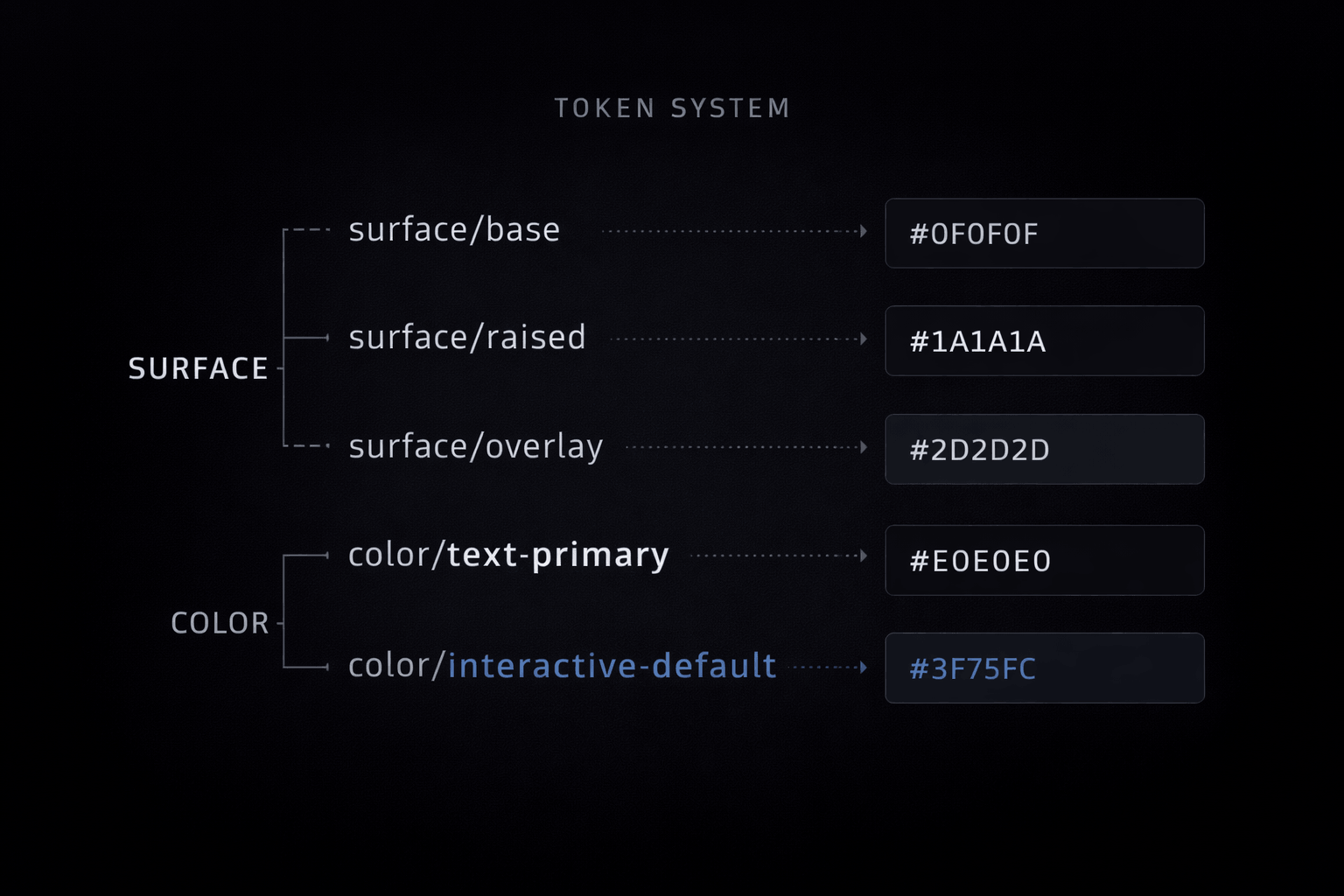
Ad hoc color decisions do not scale to dark mode. If your color system is a collection of hex values applied directly in component code, dark mode will require you to touch every component individually. Semantic tokens are the only approach that scales.
A semantic token is a named color that carries a role rather than a value: — color-surface-base, — color-text-primary, — color-interactive-default. The token name stays constant. The value it resolves to changes per theme.
In Figma Variables (the native system as of 2023), this looks like a single variable named surface/base with a light mode value of #FAFAFA and a dark mode value of #0F0F0F. Every component that references that variable automatically updates when the mode switches. The design system handles the translation. The designer does not touch individual components.
Accent colors require special attention. A saturated blue that reads as energetic on a white surface may read as washed out on a dark one. Each accent color needs a dark-mode variant that preserves the intended perceptual weight, which usually means shifting toward a lighter or more saturated version of the same hue. Test both modes every time you add a new color to the system.
Text color is where the most common mistake lives. Pure white (#FFFFFF) on a true dark background creates eye strain through excessive contrast. Off-white values in the #E0E0E0 to #F0F0F0 range read as “white” to users while significantly reducing glare. WCAG AA requires a 4.5:1 contrast ratio for normal text, not maximum possible contrast.
Design System Architecture for Dark Mode
Tokens alone are not enough. How you organize your design file, export structure, and mode switching logic determines whether dark mode scales across your team or becomes a maintenance burden. If you are building a design system from scratch, see How to Build a Design System in Figma for the full framework.
Modes vs. Variants: Which Should You Use?
In Figma and most design systems, there are two approaches:
- Mode-based (recommended): Create a single design file with “light” and “dark” modes. Every component has one library item. The mode changes all dependent tokens at once. This scales with zero duplication.
- Variant-based: Create separate component variants for light and dark. This requires maintenance discipline but gives visual preview of both states side-by-side. Use this for rapid exploration, not production.
Most teams should use modes for production libraries. The Arc Browser design system and Material Design 3 both use mode-based organization.
File Organization That Scales:
Structure your Figma file like this:
/Tokens/Surfaces— 4 elevation levels (base, raised, overlay, elevated)/Tokens/Colors— Surface, text, interactive, accent, semantic/Components/Surfaces— Card, Panel, Modal (all reference surface tokens)/Components/Text— Body, Label, Caption (all reference text tokens)/Components/Interaction— Button, Input, Toggle (all reference interactive tokens)
Each component references tokens by their semantic name, not hex value. The mode switch updates all tokens at once. No component needs editing.
Token Export Strategy:
Your tokens live in design, but code needs them too. Three export approaches:
- CSS Custom Properties (simplest for web):
:root {
  --color-surface-base: #FFFFFF;
  --color-text-primary: #000000;
}
@media (prefers-color-scheme: dark) {
  --color-surface-base: #0F0F0F;
  --color-text-primary: #E5E5E5;
}
2. Design Tokens JSON (standard format, tool-agnostic):
{
  "color": {
    "surface": {
      "base": { "light": "#FFFFFF", "dark": "#0F0F0F" }
    }
  }
}
Use tools like Tokens Studio for Figma to export directly to JSON.
3. Tailwind Config (if you use Tailwind):
module.exports = {
  theme: {
    colors: {
      surface: { base: 'var(--color-surface-base)' }
    }
  }
}
Key rule: Export tokens, not individual values. This means you maintain one source of truth in design, and code receives updates automatically.
Color Mapping: From Light to Dark (The Algorithm)
Most teams make the same mistake: they invert colors or shift them randomly. Smart teams use an algorithm.
The Color Inversion Trap:
Simply inverting hex values does not work. #0070F3 inverted is #FF8F0C (orange). That will not work in dark mode unless orange is your brand.
The Right Approach: Perceptual Mapping
Three steps:
- Preserve luminance intent (brightness):
- If a color is “dark and energetic” in light mode, it should be “bright and energetic” in dark mode
- If a color is “muted background” in light mode, it should be “muted surface” in dark mode
- Adjust saturation for readability:
- Saturated colors often look washed out on dark backgrounds
- Increase saturation by 10–20% when moving to dark mode
- Test the result. Does it feel like the same color?
- Test on target hardware:
- OLED screens and LCD screens display colors differently in dark mode
- A color that looks great on OLED may look dull on LCD
- Test on both
Example: Brand Blue (#0070F3 → Dark Mode)
Light mode: #0070F3 (saturated, bright, energetic)
Dark mode candidates:
- Simple inversion:
#FF8F0C(orange, wrong) - Luminance boost:
#4A9EFF(lighter blue, more saturated, right)
Why #4A9EFF works:
- Luminance increased (darker to lighter blue)
- Saturation increased (same energetic feeling)
- Hue preserved (still blue)
Test both on actual screens. If it feels like the same brand color in both modes, you got it right.
Accent Colors Require Special Care:
Your primary brand accent color will likely need adjustment for dark mode. Secondary colors often do not. Test each one:
- Does it maintain readable contrast?
- Does it feel like the same color family?
- Does it work in both hover and active states?
Create a token for each variant: --color-accent-default and --color-accent-dark-variant.
Building the Token System in Code
Your design tokens in Figma do nothing until code consumes them. This section shows how to implement them so dark mode toggling works reliably.
Step 1: Define Your Naming Convention
Good token names are semantic, not descriptive:
Bad: --color-blue-400, --color-light-grey
Good: --color-surface-base, --color-text-primary
Structure: --color-{role}-{state}
Common roles: surface, text, interactive, accent, semantic, status
Common states: default, hover, active, disabled
Step 2: Implement Mode Switching
CSS Custom Properties update automatically when prefers-color-scheme changes:
:root {
  --color-surface-base: #FFFFFF;
  --color-surface-raised: #F5F5F5;
  --color-text-primary: #1A1A1A;
}
@media (prefers-color-scheme: dark) {
  :root {
    --color-surface-base: #0F0F0F;
    --color-surface-raised: #1A1A1A;
    --color-text-primary: #E5E5E5;
  }
}
Browsers automatically switch when the system setting changes. Users do not need to click a toggle (though you can add one).
Step 3: Add a Manual Toggle (Optional but Recommended)
Some apps let users toggle dark/light regardless of system preference:
document.documentElement.setAttribute('data-theme', 'dark');
/* Then in CSS: */
[data-theme="dark"] {
  --color-surface-base: #0F0F0F;
  /* etc */
}
Step 4: Fallback for Older Browsers
Not all browsers support Custom Properties. Provide fallback values:
.button {
  background: #FFFFFF;
  background: var(--color-surface-base);
}
The first line is the fallback. Older browsers use it. Modern browsers use the variable.
What “Dark-First” Design Means in Practice
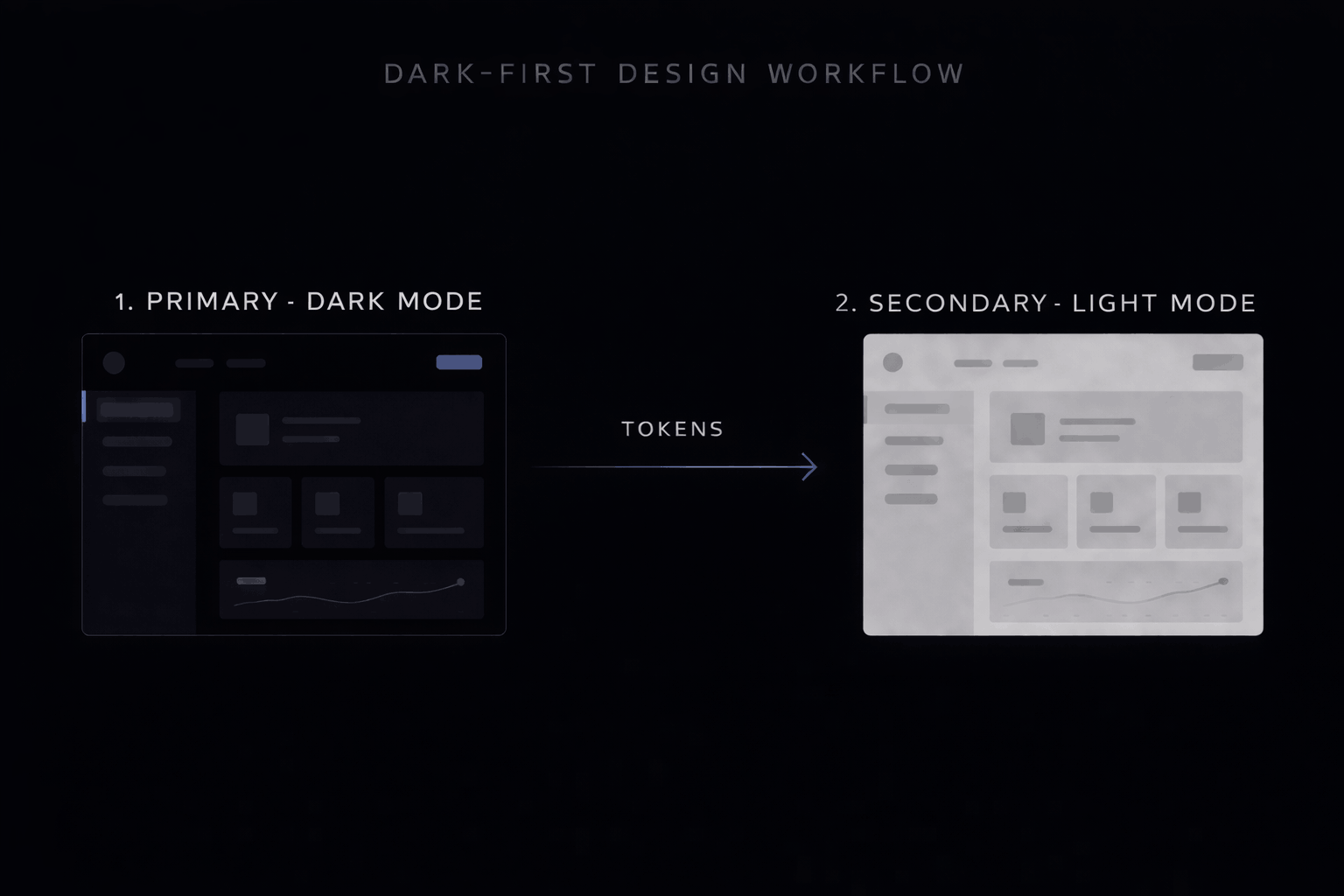
Dark-first is not a style. It is a workflow assumption. It means building your component library and token system with the dark canvas as the reference state, and creating light-mode overrides rather than dark-mode overrides.
The practical difference: when you add a new component to a dark-first system, you design it for dark and then verify it in light. In a light-first system with a dark variant, dark mode is always the afterthought that gets less design time, fewer edge cases tested, and lower visual quality. Dark-first inverts that priority.
Linear is the clearest example of this approach. Every component in Linear was designed for the dark surface. The light mode works, but the product reads as a dark product. The design language was built for that context.
Implementation Workflow: End-to-End
A complete dark mode implementation requires coordination across design and engineering. This is the workflow that works.
Phase 1: Foundation (Design)
- Define your 4 surface elevation levels with exact luminance values
- Extract semantic color tokens from your brand
- Create a light mode token set (your current design)
- Create a dark mode token set (new mode in design file)
- Test color mapping on OLED and LCD hardware
Deliverable: Figma file with both modes, exported token JSON
Phase 2: Architecture (Design + Engineering)
- Set up file organization (Tokens, Components, Variants)
- Choose token export method (CSS, Tailwind, JSON)
- Define mode switching mechanism (system preference, toggle, both)
- Set up fallback strategy for older browsers
Deliverable: Design system documentation + code architecture plan
Phase 3: Implementation (Engineering)
- Export tokens to codebase
- Update component library to consume tokens instead of hardcoded colors
- Implement mode switching (CSS, JavaScript, or framework-specific)
- Add fallback values for unsupported browsers
Deliverable: Components consuming tokens, mode switching works
Phase 4: Quality Assurance (Design + QA)
- Test all color combinations against WCAG AA
- Test on actual OLED and LCD hardware
- Test with color blindness simulators (Deuteranopia, Protanopia)
- Test animations and transitions in both modes
- Test edge cases: disabled states, transparency, gradients, overlays
Deliverable: QA report, bug fixes logged
Phase 5: Launch and Monitoring
- Ship dark mode as respects system preference (default)
- Monitor user feedback for accessibility issues
- Track performance (battery savings if applicable)
- Iterate token colors based on real usage
Deliverable: Dark mode live, system preference honored
Pre-Ship Checklist:
- Surface hierarchy defined (4 levels, documented luminance steps)
- Semantic tokens named consistently
- Dark mode color variants tested (perceptual mapping verified)
- Accent colors maintain perceptual weight in both modes
- Text-on-surface combinations pass WCAG AA (4.5:1 minimum)
- Tested on OLED hardware in dim lighting
- Tested on LCD hardware in normal lighting
- Color blindness simulation completed (all types)
- System preference respected (prefers-color-scheme)
- Manual toggle works (if implemented)
- Fallback values present in code
- Animation transitions smooth in both modes
- Edge cases tested (disabled, hover, active, focus states)
Accessibility and Dark Mode: Beyond WCAG
Dark mode and accessibility are not straightforward. There are myths. Know the facts. For a deeper dive into accessibility best practices, see How to Make Your UI Accessible.
Myth 1: Dark mode is more accessible
Reality: It depends on the user and their condition.
- Users with astigmatism often find dark mode harder (halation effect: light text on dark halos and appears heavier)
- Users with color vision deficiency sometimes benefit from dark mode, sometimes not
- Users with low vision may need to switch between modes depending on context
- Users with light sensitivity benefit enormously from dark mode
The implication: Dark mode should be an option, not the only mode. Respect system preference, provide an override, offer both.
Myth 2: Pure black (#000000) is the correct dark background
Reality: Pure black causes eye strain.
Black (#000000) on a light foreground creates extreme contrast. Our eyes are not designed for that sustained contrast. After 20 minutes of reading, most users experience fatigue.
Near-black (#0A0A0A to #161616 depending on design) provides sufficient darkness for OLED power savings while reducing eye strain. Test your specific color. If users report fatigue, go slightly lighter.
Myth 3: You can use lower contrast in dark mode
Reality: WCAG AA (4.5:1 for normal text) applies equally to both modes.
The contrast ratio is calculated the same way. Light text on dark background still needs 4.5:1 minimum. Your #E5E5E5 text on #0F0F0F background should measure at least 4.5:1.
Use WebAIM Contrast Checker to verify. Test both light and dark modes.
Myth 4: If users prefer dark mode, they want it everywhere
Reality: System preference does not equal context preference.
Users with prefers-color-scheme: dark still read long-form content better on light backgrounds (Apple Books data supports this). They may prefer dark UI chrome (navigation, sidebars) but light content areas.
Ask: What is the primary activity on each screen? If reading, offer the hybrid approach.
What Actually Matters for Accessibility:
- Test with real users, not just WCAG calculators
- Automated tools check contrast ratio
- Real testing reveals halation effects, eye strain, color blindness issues
- Test on actual hardware in target lighting
- OLED screens show colors differently than LCD
- Dim rooms show colors differently than bright rooms
- Your color choices matter in context
- Respect system preference
prefers-color-schemeis not a preference, it is an accessibility signal- Honor it by default
- Provide an override for users who need it
- Offer both modes
- Do not remove light mode if dark is your default
- Some users need it for medical reasons
- Some contexts (printing, archiving) require light mode
- Test color blindness
- Use Figma plugins or ColorBrewer
- Deuteranopia (green-red), Protanopia (red), Tritanopia (blue-yellow)
- If your accent colors work in all three, you are good
Common Mistakes to Avoid
Mistake 1: Using light-mode accent colors directly
Light mode: #0070F3 (bright, energetic blue)
Dark mode: Same #0070F3 (washed out, hard to read)
Fix: Map to dark variant. #4A9EFF (brighter, more saturated). Test.
Mistake 2: Not testing on OLED hardware
Your dark mode looks great on MacBook LCD. On user’s OLED phone, pure blacks are invisible. Gradients look weird. Animations have timing issues.
Fix: Test on actual OLED (iPhone, Android flagship) and LCD. Adjust if needed.
Mistake 3: Ignoring transparency and glassmorphism
Transparent elements look different on dark backgrounds. White overlay at 50% opacity is blinding. Adjust opacity and blur for readability.
Fix: Test all transparency values. Adjust opacity by mode if needed.
Mistake 4: Forgetting animations look different
Fade-in animations from transparent to opaque have different timing feel in dark mode. Hover transitions may be less visible on dark surfaces.
Fix: Test animations in both modes. Adjust timing or blur if needed.
Mistake 5: Treating dark mode as a variant, not a design system requirement
Light-first thinking: “Let’s add dark mode as an option.”
Dark-first thinking: “Dark mode is our system’s foundation. Light is the variant.”
First approach leads to lower quality dark mode. Second approach leads to premium dark and premium light.
Fix: Design for dark first. Verify in light. Ship both at equal quality.
Mistake 6: No manual override
System preference is great, but some users need to override it (accessibility needs, battery state, context). Do not force dark on users who need light. Do not lock users into light.
Fix: Respect system preference by default. Add a manual toggle.
The Readability Exception
Long-form reading is demonstrably better on light backgrounds for most users. Apple’s own data supports this, which is why Apple Books defaults to a light background even when the system preference is dark. The hybrid approach resolves this: dark chrome (navigation, sidebars, toolbars) with a light content well (article body, document canvas).
Notion uses this pattern. So does Readwise and several code editors that default dark but maintain a light document area. The rule is practical: dark for navigation and structure, light for sustained reading.
The exception matters most for any product where users spend extended sessions reading dense text. A documentation product, a long-form publishing tool, or a data-heavy report viewer should offer dark mode and respect system preference, but not force dark on the content reading area.
What You Ship Matters
Dark mode is no longer a nice-to-have feature. It is baseline infrastructure. But infrastructure only works when it is built as a system.
Teams that ship premium dark modes do not use a different process. They use a different starting assumption: dark is a first-class design context, not a variant of light.
This means semantic tokens that scale, surface hierarchy that respects physics, color mapping that preserves brand intent, and accessibility testing that goes beyond compliance. This means dark-first thinking, not dark-second thinking.
The implementation workflow in this guide is not theoretical. Linear, Arc, Raycast, and Material Design 3 all use versions of it. Your team can too.
Start with surface hierarchy. Add semantic tokens. Map colors systematically. Build the token system in code. Test on real hardware. Respect system preference. Ship both modes at equal quality.
The result is not just dark mode that works. It is a design system that works.
Next Step:
Review the pre-ship checklist. Set up your Figma file with modes. Export tokens to code. Test on OLED hardware. Your users are waiting for the premium version.
For more on the broader visual design direction shaping product UI this year, see the Web Design Trends 2026 breakdown.
Stay sharp. Explore daily design inspiration on Muzli.