Dark Mode Design Systems: A Complete Guide to Patterns, Tokens, and Hierarchy

A practical guide to building dark mode as a design system decision. Learn surface hierarchy, semantic tokens, color mapping algorithms, and implementation workflows that separate premium dark UIs from generic ones.

Most dark modes are bad. Not because dark mode is technically difficult, but because most teams approach it as an afterthought instead of a design system decision. The result: dark grey text on slightly-less-dark grey backgrounds, accent colors that were designed to pop on white and now look muddy, shadows that are invisible because physics does not work that way on dark surfaces, and no consistent token strategy across the codebase.

The teams shipping dark UIs that feel genuinely premium are not using a different process for dark mode. They are using a different starting assumption. Dark is not a variant of light. It is a first-class design system context with its own visual logic, its own elevation language, and its own token architecture.

This guide covers what separates professional dark mode implementations from the generic ones. You will learn surface hierarchy rules, semantic token strategy, color mapping algorithms, and an end-to-end workflow you can ship.

Why Dark Mode Is Now a Design System Priority

Hardware reality: OLED screens represent the majority of flagship phones sold since 2023. True black pixels consume zero power. Google’s measurements show YouTube in dark mode uses 43 percent less power than light mode on OLED hardware at full brightness. This is not a design preference anymore. It is infrastructure.

User baseline: System-level dark mode adoption across iOS and Android crossed into expectation territory. An app that breaks or degrades in dark mode is not a rough edge. It is a visible failure on a significant percentage of real sessions.

Design direction: Arc Browser, Linear, Warp, and Raycast all launched dark-first. Their light modes exist but feel secondary. The dark interface is the designed version, and it reads that way. This is now the premium standard.

The implication: If dark mode is baseline infrastructure, it cannot be treated as a variant or an afterthought. It requires systems thinking from the ground up. That means semantic tokens, surface hierarchy rules, and documented workflows.

Surface Hierarchy: The Thing Most Teams Get Wrong
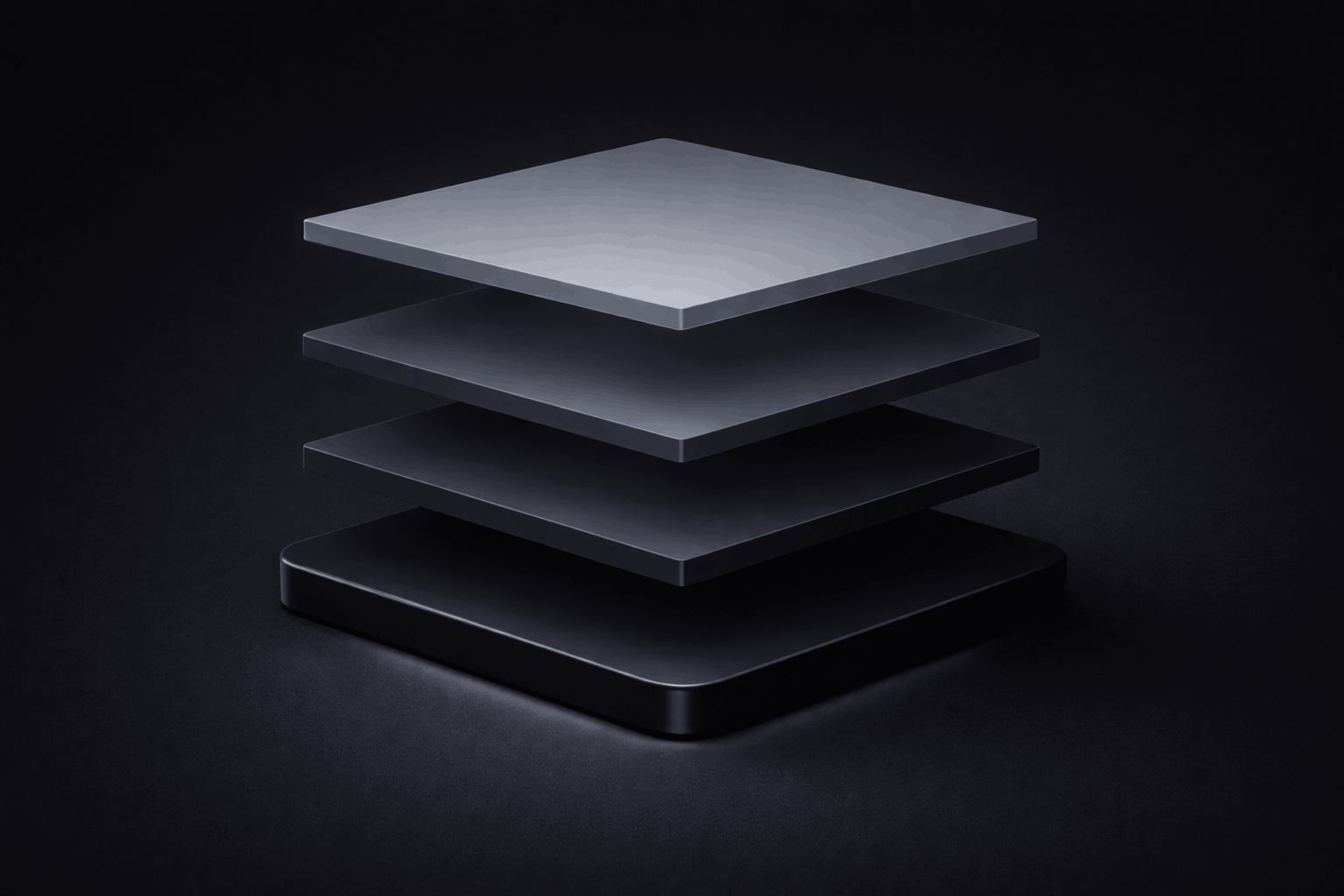
Four elevation levels showing luminance-based hierarchy instead of shadows*

One shade of dark grey is not a dark mode. It is a grey app.

A functional dark mode needs a minimum of four surface elevation levels, each with a distinct visual treatment: the base background (the darkest level, where content sits), the primary elevated surface (cards, panels, sidebars), the secondary elevated surface (nested cards, hover states, active states), and the overlay level (modals, tooltips, dropdowns that sit above all content).

The critical insight is that shadows do not read on dark backgrounds. Drop shadows work on light surfaces because they simulate light blocked by a raised object. On a dark surface, there is no meaningful contrast between a dark shadow and a dark background. The signal disappears.

The replacement is luminance hierarchy. As a surface elevates, it gets lighter, not more shadowed. Google’s Material You system formalizes this as tonal elevation: each elevation level is a slightly lighter version of the base color, tinted toward the primary brand color. The signal is still there. The physics make sense in context.

In practice: define your dark background as the starting point, then add three more surface values that step up in luminance by 5 to 8 percent each. Give each level a semantic token name (surface-base, surface-raised, surface-overlay) and apply them consistently. Every component that floats above content should use a demonstrably lighter surface than what it floats above.

Color Tokens for Dark Mode
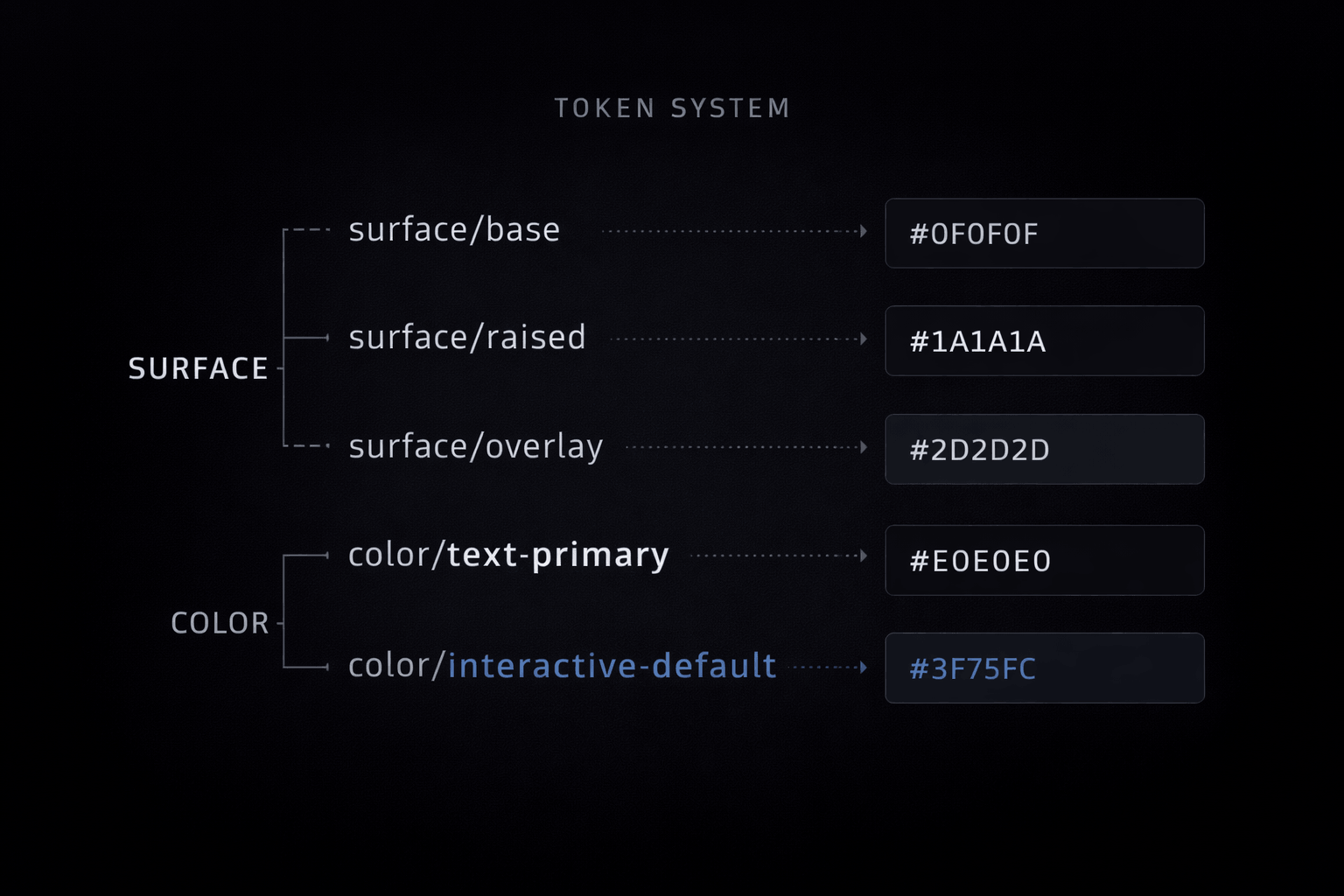
Surface tokens and color mappings showing how semantic naming scales across modes

Ad hoc color decisions do not scale to dark mode. If your color system is a collection of hex values applied directly in component code, dark mode will require you to touch every component individually. Semantic tokens are the only approach that scales.

A semantic token is a named color that carries a role rather than a value: — color-surface-base, — color-text-primary, — color-interactive-default. The token name stays constant. The value it resolves to changes per theme.

In Figma Variables (the native system as of 2023), this looks like a single variable named surface/base with a light mode value of #FAFAFA and a dark mode value of #0F0F0F. Every component that references that variable automatically updates when the mode switches. The design system handles the translation. The designer does not touch individual components.

Accent colors require special attention. A saturated blue that reads as energetic on a white surface may read as washed out on a dark one. Each accent color needs a dark-mode variant that preserves the intended perceptual weight, which usually means shifting toward a lighter or more saturated version of the same hue. Test both modes every time you add a new color to the system.

Text color is where the most common mistake lives. Pure white (#FFFFFF) on a true dark background creates eye strain through excessive contrast. Off-white values in the #E0E0E0 to #F0F0F0 range read as “white” to users while significantly reducing glare. WCAG AA requires a 4.5:1 contrast ratio for normal text, not maximum possible contrast.

Design System Architecture for Dark Mode

Tokens alone are not enough. How you organize your design file, export structure, and mode switching logic determines whether dark mode scales across your team or becomes a maintenance burden. If you are building a design system from scratch, see How to Build a Design System in Figma for the full framework.

Modes vs. Variants: Which Should You Use?

In Figma and most design systems, there are two approaches:

  1. Mode-based (recommended): Create a single design file with “light” and “dark” modes. Every component has one library item. The mode changes all dependent tokens at once. This scales with zero duplication.
  2. Variant-based: Create separate component variants for light and dark. This requires maintenance discipline but gives visual preview of both states side-by-side. Use this for rapid exploration, not production.

Most teams should use modes for production libraries. The Arc Browser design system and Material Design 3 both use mode-based organization.

File Organization That Scales:

Structure your Figma file like this:

  • /Tokens/Surfaces — 4 elevation levels (base, raised, overlay, elevated)
  • /Tokens/Colors — Surface, text, interactive, accent, semantic
  • /Components/Surfaces — Card, Panel, Modal (all reference surface tokens)
  • /Components/Text — Body, Label, Caption (all reference text tokens)
  • /Components/Interaction — Button, Input, Toggle (all reference interactive tokens)

Each component references tokens by their semantic name, not hex value. The mode switch updates all tokens at once. No component needs editing.

Token Export Strategy:

Your tokens live in design, but code needs them too. Three export approaches:

  1. CSS Custom Properties (simplest for web):
    :root {
    --color-surface-base: #FFFFFF;
    --color-text-primary: #000000;
    }
    @media (prefers-color-scheme: dark) {
    --color-surface-base: #0F0F0F;
    --color-text-primary: #E5E5E5;
    }

    2. Design Tokens JSON (standard format, tool-agnostic):

      {
      "color": {
      "surface": {
      "base": { "light": "#FFFFFF", "dark": "#0F0F0F" }
      }
      }
      }

      Use tools like Tokens Studio for Figma to export directly to JSON.

      3. Tailwind Config (if you use Tailwind):

        module.exports = {
        theme: {
        colors: {
        surface: { base: 'var(--color-surface-base)' }
        }
        }
        }

        Key rule: Export tokens, not individual values. This means you maintain one source of truth in design, and code receives updates automatically.

        Color Mapping: From Light to Dark (The Algorithm)

        Most teams make the same mistake: they invert colors or shift them randomly. Smart teams use an algorithm.

        The Color Inversion Trap:

        Simply inverting hex values does not work. #0070F3 inverted is #FF8F0C (orange). That will not work in dark mode unless orange is your brand.

        The Right Approach: Perceptual Mapping

        Three steps:

        1. Preserve luminance intent (brightness):
        • If a color is “dark and energetic” in light mode, it should be “bright and energetic” in dark mode
        • If a color is “muted background” in light mode, it should be “muted surface” in dark mode
        1. Adjust saturation for readability:
        • Saturated colors often look washed out on dark backgrounds
        • Increase saturation by 10–20% when moving to dark mode
        • Test the result. Does it feel like the same color?
        1. Test on target hardware:
        • OLED screens and LCD screens display colors differently in dark mode
        • A color that looks great on OLED may look dull on LCD
        • Test on both

        Example: Brand Blue (#0070F3 → Dark Mode)

        Light mode: #0070F3 (saturated, bright, energetic)

        Dark mode candidates:

        • Simple inversion: #FF8F0C (orange, wrong)
        • Luminance boost: #4A9EFF (lighter blue, more saturated, right)

        Why #4A9EFF works:

        • Luminance increased (darker to lighter blue)
        • Saturation increased (same energetic feeling)
        • Hue preserved (still blue)

        Test both on actual screens. If it feels like the same brand color in both modes, you got it right.

        Accent Colors Require Special Care:

        Your primary brand accent color will likely need adjustment for dark mode. Secondary colors often do not. Test each one:

        • Does it maintain readable contrast?
        • Does it feel like the same color family?
        • Does it work in both hover and active states?

        Create a token for each variant: --color-accent-default and --color-accent-dark-variant.

        Building the Token System in Code

        Your design tokens in Figma do nothing until code consumes them. This section shows how to implement them so dark mode toggling works reliably.

        Step 1: Define Your Naming Convention

        Good token names are semantic, not descriptive:

        Bad: --color-blue-400, --color-light-grey
        Good: --color-surface-base, --color-text-primary

        Structure: --color-{role}-{state}

        Common roles: surface, text, interactive, accent, semantic, status
        Common states: default, hover, active, disabled

        Step 2: Implement Mode Switching

        CSS Custom Properties update automatically when prefers-color-scheme changes:

        :root {
        --color-surface-base: #FFFFFF;
        --color-surface-raised: #F5F5F5;
        --color-text-primary: #1A1A1A;
        }
        @media (prefers-color-scheme: dark) {
        :root {
        --color-surface-base: #0F0F0F;
        --color-surface-raised: #1A1A1A;
        --color-text-primary: #E5E5E5;
        }
        }

        Browsers automatically switch when the system setting changes. Users do not need to click a toggle (though you can add one).

        Step 3: Add a Manual Toggle (Optional but Recommended)

        Some apps let users toggle dark/light regardless of system preference:

        document.documentElement.setAttribute('data-theme', 'dark');
        /* Then in CSS: */
        [data-theme="dark"] {
        --color-surface-base: #0F0F0F;
        /* etc */
        }

        Step 4: Fallback for Older Browsers

        Not all browsers support Custom Properties. Provide fallback values:

        .button {
        background: #FFFFFF;
        background: var(--color-surface-base);
        }

        The first line is the fallback. Older browsers use it. Modern browsers use the variable.

        What “Dark-First” Design Means in Practice
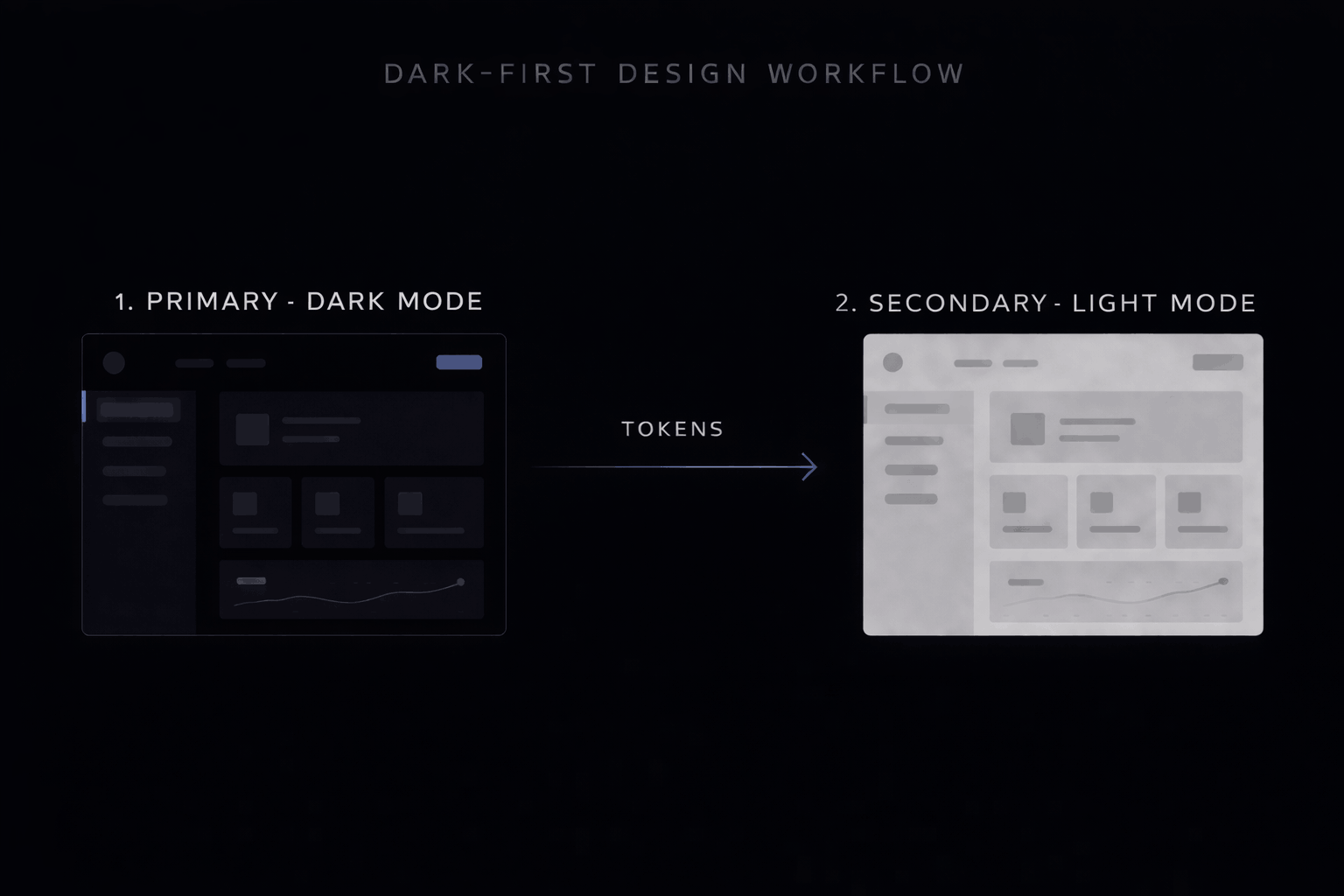
        Dark-first is not a style. It is a workflow assumption. It means building your component library and token system with the dark canvas as the reference state, and creating light-mode overrides rather than dark-mode overrides.

        The practical difference: when you add a new component to a dark-first system, you design it for dark and then verify it in light. In a light-first system with a dark variant, dark mode is always the afterthought that gets less design time, fewer edge cases tested, and lower visual quality. Dark-first inverts that priority.

        Linear is the clearest example of this approach. Every component in Linear was designed for the dark surface. The light mode works, but the product reads as a dark product. The design language was built for that context.

        Implementation Workflow: End-to-End

        A complete dark mode implementation requires coordination across design and engineering. This is the workflow that works.

        Phase 1: Foundation (Design)

        • Define your 4 surface elevation levels with exact luminance values
        • Extract semantic color tokens from your brand
        • Create a light mode token set (your current design)
        • Create a dark mode token set (new mode in design file)
        • Test color mapping on OLED and LCD hardware

        Deliverable: Figma file with both modes, exported token JSON

        Phase 2: Architecture (Design + Engineering)

        • Set up file organization (Tokens, Components, Variants)
        • Choose token export method (CSS, Tailwind, JSON)
        • Define mode switching mechanism (system preference, toggle, both)
        • Set up fallback strategy for older browsers

        Deliverable: Design system documentation + code architecture plan

        Phase 3: Implementation (Engineering)

        • Export tokens to codebase
        • Update component library to consume tokens instead of hardcoded colors
        • Implement mode switching (CSS, JavaScript, or framework-specific)
        • Add fallback values for unsupported browsers

        Deliverable: Components consuming tokens, mode switching works

        Phase 4: Quality Assurance (Design + QA)

        • Test all color combinations against WCAG AA
        • Test on actual OLED and LCD hardware
        • Test with color blindness simulators (Deuteranopia, Protanopia)
        • Test animations and transitions in both modes
        • Test edge cases: disabled states, transparency, gradients, overlays

        Deliverable: QA report, bug fixes logged

        Phase 5: Launch and Monitoring

        • Ship dark mode as respects system preference (default)
        • Monitor user feedback for accessibility issues
        • Track performance (battery savings if applicable)
        • Iterate token colors based on real usage

        Deliverable: Dark mode live, system preference honored

        Pre-Ship Checklist:

        • Surface hierarchy defined (4 levels, documented luminance steps)
        • Semantic tokens named consistently
        • Dark mode color variants tested (perceptual mapping verified)
        • Accent colors maintain perceptual weight in both modes
        • Text-on-surface combinations pass WCAG AA (4.5:1 minimum)
        • Tested on OLED hardware in dim lighting
        • Tested on LCD hardware in normal lighting
        • Color blindness simulation completed (all types)
        • System preference respected (prefers-color-scheme)
        • Manual toggle works (if implemented)
        • Fallback values present in code
        • Animation transitions smooth in both modes
        • Edge cases tested (disabled, hover, active, focus states)

        Accessibility and Dark Mode: Beyond WCAG

        Dark mode and accessibility are not straightforward. There are myths. Know the facts. For a deeper dive into accessibility best practices, see How to Make Your UI Accessible.

        Myth 1: Dark mode is more accessible

        Reality: It depends on the user and their condition.

        • Users with astigmatism often find dark mode harder (halation effect: light text on dark halos and appears heavier)
        • Users with color vision deficiency sometimes benefit from dark mode, sometimes not
        • Users with low vision may need to switch between modes depending on context
        • Users with light sensitivity benefit enormously from dark mode

        The implication: Dark mode should be an option, not the only mode. Respect system preference, provide an override, offer both.

        Myth 2: Pure black (#000000) is the correct dark background

        Reality: Pure black causes eye strain.

        Black (#000000) on a light foreground creates extreme contrast. Our eyes are not designed for that sustained contrast. After 20 minutes of reading, most users experience fatigue.

        Near-black (#0A0A0A to #161616 depending on design) provides sufficient darkness for OLED power savings while reducing eye strain. Test your specific color. If users report fatigue, go slightly lighter.

        Myth 3: You can use lower contrast in dark mode

        Reality: WCAG AA (4.5:1 for normal text) applies equally to both modes.

        The contrast ratio is calculated the same way. Light text on dark background still needs 4.5:1 minimum. Your #E5E5E5 text on #0F0F0F background should measure at least 4.5:1.

        Use WebAIM Contrast Checker to verify. Test both light and dark modes.

        Myth 4: If users prefer dark mode, they want it everywhere

        Reality: System preference does not equal context preference.

        Users with prefers-color-scheme: dark still read long-form content better on light backgrounds (Apple Books data supports this). They may prefer dark UI chrome (navigation, sidebars) but light content areas.

        Ask: What is the primary activity on each screen? If reading, offer the hybrid approach.

        What Actually Matters for Accessibility:

        1. Test with real users, not just WCAG calculators
        • Automated tools check contrast ratio
        • Real testing reveals halation effects, eye strain, color blindness issues
        1. Test on actual hardware in target lighting
        • OLED screens show colors differently than LCD
        • Dim rooms show colors differently than bright rooms
        • Your color choices matter in context
        1. Respect system preference
        • prefers-color-scheme is not a preference, it is an accessibility signal
        • Honor it by default
        • Provide an override for users who need it
        1. Offer both modes
        • Do not remove light mode if dark is your default
        • Some users need it for medical reasons
        • Some contexts (printing, archiving) require light mode
        1. Test color blindness
        • Use Figma plugins or ColorBrewer
        • Deuteranopia (green-red), Protanopia (red), Tritanopia (blue-yellow)
        • If your accent colors work in all three, you are good

        Common Mistakes to Avoid

        Mistake 1: Using light-mode accent colors directly

        Light mode: #0070F3 (bright, energetic blue)
        Dark mode: Same #0070F3 (washed out, hard to read)

        Fix: Map to dark variant. #4A9EFF (brighter, more saturated). Test.

        Mistake 2: Not testing on OLED hardware

        Your dark mode looks great on MacBook LCD. On user’s OLED phone, pure blacks are invisible. Gradients look weird. Animations have timing issues.

        Fix: Test on actual OLED (iPhone, Android flagship) and LCD. Adjust if needed.

        Mistake 3: Ignoring transparency and glassmorphism

        Transparent elements look different on dark backgrounds. White overlay at 50% opacity is blinding. Adjust opacity and blur for readability.

        Fix: Test all transparency values. Adjust opacity by mode if needed.

        Mistake 4: Forgetting animations look different

        Fade-in animations from transparent to opaque have different timing feel in dark mode. Hover transitions may be less visible on dark surfaces.

        Fix: Test animations in both modes. Adjust timing or blur if needed.

        Mistake 5: Treating dark mode as a variant, not a design system requirement

        Light-first thinking: “Let’s add dark mode as an option.”
        Dark-first thinking: “Dark mode is our system’s foundation. Light is the variant.”

        First approach leads to lower quality dark mode. Second approach leads to premium dark and premium light.

        Fix: Design for dark first. Verify in light. Ship both at equal quality.

        Mistake 6: No manual override

        System preference is great, but some users need to override it (accessibility needs, battery state, context). Do not force dark on users who need light. Do not lock users into light.

        Fix: Respect system preference by default. Add a manual toggle.

        The Readability Exception

        Long-form reading is demonstrably better on light backgrounds for most users. Apple’s own data supports this, which is why Apple Books defaults to a light background even when the system preference is dark. The hybrid approach resolves this: dark chrome (navigation, sidebars, toolbars) with a light content well (article body, document canvas).

        Notion uses this pattern. So does Readwise and several code editors that default dark but maintain a light document area. The rule is practical: dark for navigation and structure, light for sustained reading.

        The exception matters most for any product where users spend extended sessions reading dense text. A documentation product, a long-form publishing tool, or a data-heavy report viewer should offer dark mode and respect system preference, but not force dark on the content reading area.

        What You Ship Matters

        Dark mode is no longer a nice-to-have feature. It is baseline infrastructure. But infrastructure only works when it is built as a system.

        Teams that ship premium dark modes do not use a different process. They use a different starting assumption: dark is a first-class design context, not a variant of light.

        This means semantic tokens that scale, surface hierarchy that respects physics, color mapping that preserves brand intent, and accessibility testing that goes beyond compliance. This means dark-first thinking, not dark-second thinking.

        The implementation workflow in this guide is not theoretical. Linear, Arc, Raycast, and Material Design 3 all use versions of it. Your team can too.

        Start with surface hierarchy. Add semantic tokens. Map colors systematically. Build the token system in code. Test on real hardware. Respect system preference. Ship both modes at equal quality.

        The result is not just dark mode that works. It is a design system that works.


        Next Step:
        Review the pre-ship checklist. Set up your Figma file with modes. Export tokens to code. Test on OLED hardware. Your users are waiting for the premium version.

        For more on the broader visual design direction shaping product UI this year, see the Web Design Trends 2026 breakdown.

        Stay sharp. Explore daily design inspiration on Muzli.
        How to Build a Design System in Figma: A Practical Guide (2026)

        Most design systems become component graveyards. This guide shows how to build one in Figma that teams actually adopt: from tokens to theming to ship-ready components.

        Here’s a pattern you’ve probably seen: a design team spends three months building a component library. It’s beautiful. The spacing is perfect. The variants are thorough. Six months later, nobody uses it. Designers detach components “because it’s faster.” Engineers build their own versions because “the Figma one doesn’t match the code.” The system exists in Figma. The product exists somewhere else.

        This happens because most design system guides focus on what to build. The hard part was never building components. The hard part is building components that survive contact with real projects, real deadlines, and real people who didn’t design them.

        This guide starts from the real problem.

        Why Most Design Systems Fail

        They fail at adoption, not at craft.

        A design system succeeds when three things are true: designers use it by default (not by mandate), engineers trust it enough to not rebuild it, and it updates without breaking things. Everything else: the beautiful documentation site, the component showcase, the naming convention debate: is secondary.

        The most common failure modes:

        • The museum problem. The system is perfect but untouchable. Making a change requires three approvals, so designers work around it instead.
        • The translation gap. Figma components don’t match code components. Names are different, properties are different, states are different. Two systems pretending to be one.
        • The coverage trap. The system tries to cover every edge case before shipping. It takes so long that the product evolves past it.
        • The style guide disguise. What’s called a design system is actually a color palette and a font choice. There’s no structure underneath.

        If you’ve been through any of these, this guide is for you.

        The Foundation Layer: Tokens Before Components

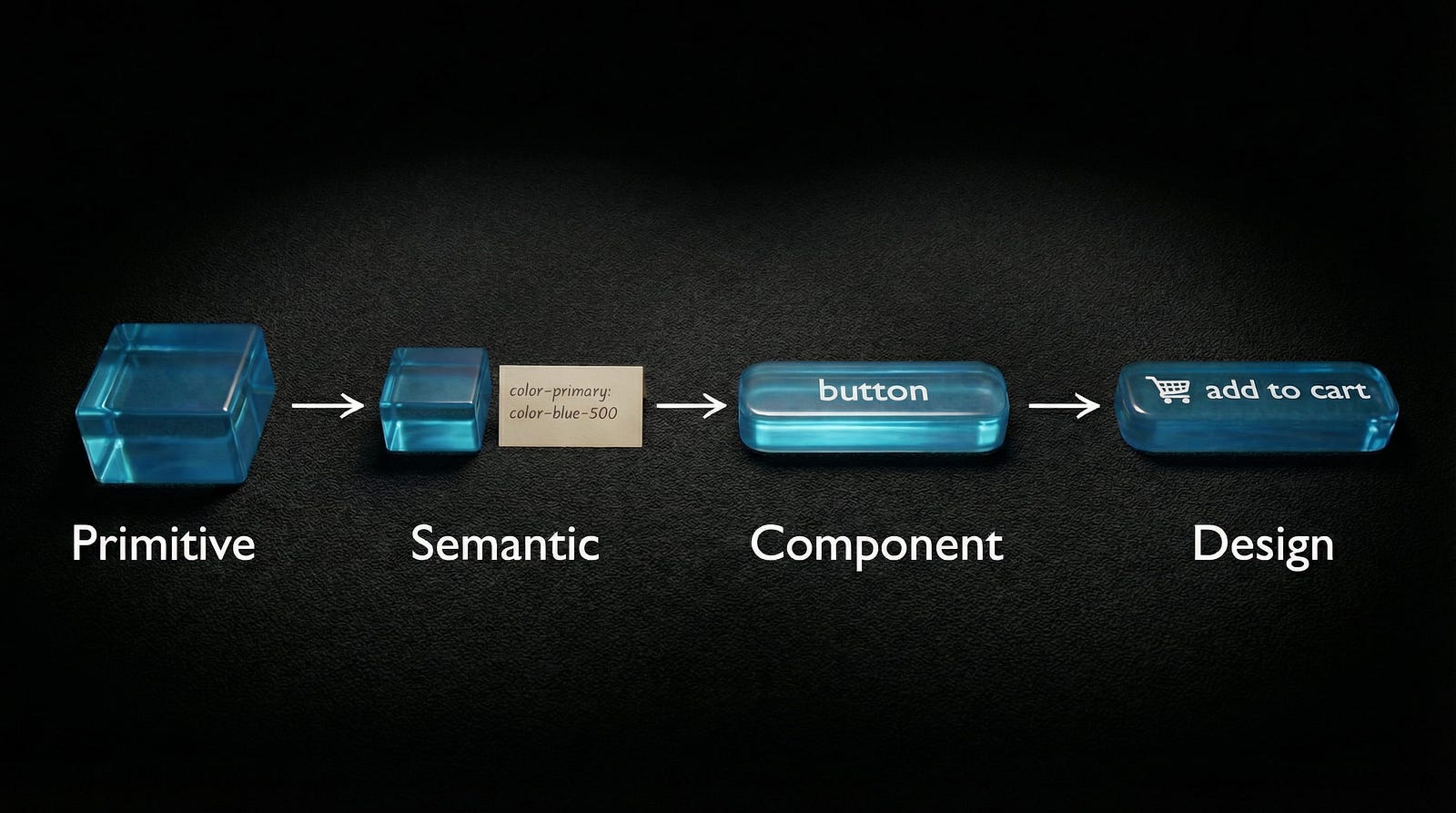
        A 3D visual diagram in a transparent glass style showing the chain of values in a design system: Raw, Core, Semantic, and Component, ending with a teal "Add to cart" button.

        Don’t start with buttons. Start with decisions.

        Design tokens are the atomic decisions that everything else is built from. Before you draw a single component, define the values that your entire system shares.

        The three-tier token architecture:

        Tier 1: Primitive tokens, the raw values.

        An open black professional display case containing neatly organized rows of material and color samples in smooth cube shapes, including textures of marble, wood, metal, and colored glass.


        These are your actual numbers and colors. They answer the question “what exists?”

        • color-blue-500: #0835fb
        • spacing-4: 16px
        • radius-sm: 4px
        • font-family-sans: Inter

        You never apply these directly to designs. They’re the ingredient list.

        Tier 2: Semantic tokens, the purpose layer.

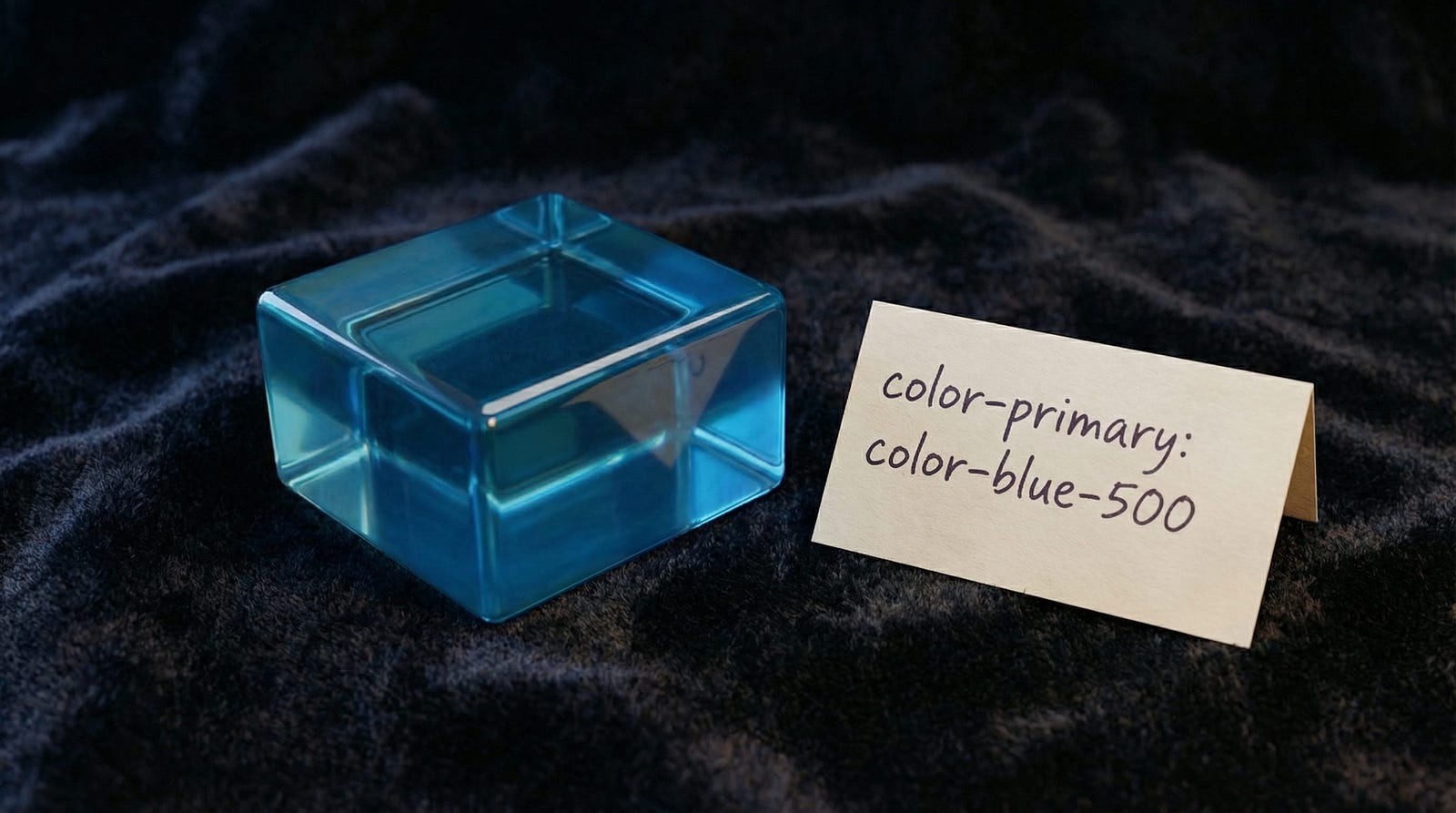
        A translucent blue glass cube placed on a dark fabric next to a note reading “color-primary: color-blue-500

        These reference primitives but add meaning. They answer “how should this be used?”

        • color-primary: color-blue-500
        • color-text-muted: color-gray-400
        • spacing-section: spacing-8
        • radius-input: radius-sm

        This is what you apply to designs most of the time.

        Tier 3: Component tokens, the specific layer.

        A high-quality 3D render of a rounded, rectangular translucent blue glass button with a shopping cart icon and the word "button" in white sans-serif typography.

        These reference semantic tokens and map to exact component properties. They answer “where exactly does this go?”

        • button-primary-bg: color-primary
        • input-border-color: color-border-default
        • card-padding: spacing-section

        You only need this tier if you’re building at enterprise scale. For most teams, semantic tokens are enough.

        Setting this up in Figma:

        Create three Variable Collections:

        1. Primitives, all raw color, spacing, and radius values
        2. Semantic, purpose-driven aliases that reference primitives
        3. Components (optional), component-specific aliases

        Name them clearly. Add descriptions to every variable. Future-you will thank present-you.

        Figma Variables in 2026: What Actually Changed

        Figma’s variable system has grown significantly. Here’s what matters for your design system:

        Extended variable types. Beyond Color and Number, you now have String for labels and paths, Boolean for toggles and states, and the new Composite type for grouped values like shadows and borders. This means fewer workarounds and more of your system lives in variables instead of loose styles.

        Modes got more powerful. More modes per collection means your Light and Dark themes, brand variations, and density options can all live in one structured system. Before, you’d create separate components for each theme. Now, one component switches modes.

        Variable import and export. This is the big one for teams. You can now sync tokens between Figma and your code repository. Changed a color in Figma? Export it. Your CI/CD pipeline picks up the change. This makes single source of truth an actual reality instead of a slide in a presentation.

        Component Slots. These let designers customize specific areas of a component instance without detaching it. Instead of building 15 variants of a card component for different content arrangements, you build one card with slots.

        AI features that help. Figma’s Check Designs catches inconsistencies, for example a text layer using Inter Regular 15px when your system defines 16px. Visual Search finds duplicate components hiding in your file. These are maintenance tools, not generation tools. They keep your system clean.

        MCP integration. Figma’s Model Context Protocol lets AI tools like Claude and Cursor read your design system directly. This means code generation tools can reference your actual tokens and components, not guess at them. If you use variable fonts in your system, MCP ensures the code inherits the right font settings.

        Building Components That Survive Real Projects

        Three rules. Every component should follow all three.

        Rule 1: Start with the states, not the default.

        Most designers build the default state first, then add hover, active, disabled, error, and loading as afterthoughts. Reverse this. Map out every state a component needs before you design any of them. If you start with the default and add states later, the structure breaks.

        States to define for every interactive component:

        • Default
        • Hover
        • Active or Pressed
        • Focused
        • Disabled
        • Loading
        • Error
        • Success

        Rule 2: Auto Layout everything.

        If a component doesn’t use Auto Layout, it will break the moment someone adds content that’s longer than your placeholder. Every single time.

        Auto Layout rules:

        • All spacing is defined by variables, not magic numbers
        • Padding uses semantic spacing tokens
        • Fill container for flexible-width elements, hug contents for fixed elements
        • Nested Auto Layouts for complex arrangements such as header, body, and footer

        Rule 3: Name it like a developer reads it.

        Your Figma layer names should match your code component names. If your button’s primary variant is called Type=Primary, Size=Medium, State=Default in Figma, that should map to <Button variant="primary" size="md" /> in code.

        Naming matters more than aesthetics in a design system. It’s the bridge between design and engineering.

        Component architecture tips:

        • Base components are private (prefixed with . or _). They contain the raw structure.
        • Composed components are public. They combine base components into what designers actually use.
        • Use component properties for simple variations (on/off icon, text content). Use variants for visual changes (primary/secondary/ghost).
        • The detach test: have someone unfamiliar with your system try to use it. If they detach a component to make it work, your system failed at that point. Fix the component, not the person.

        Theming: Light, Dark, and Multi-Brand

        A large translucent cube illuminated by a diagonal beam of light, casting soft gradients on its surface in a dark room.

        With Figma Modes, theming is finally structured instead of hacky.

        Setting up your first Light/Dark theme:

        1. In your Semantic color collection, create two modes: Light and Dark
        2. Map each semantic token to different primitives per mode:
        • color-bg-primary → Light: white, Dark: gray-900
        • color-text-primary → Light: gray-900, Dark: white
        • color-border-default → Light: gray-200, Dark: gray-700

        3. Apply semantic tokens to all components: not primitives

        4. Switch modes on any frame to see the theme change instantly

        The swap test: select any component instance, change the mode from Light to Dark. If anything breaks: wrong contrast, invisible borders, text that disappears: your token mapping has a gap. Fix it now.

        Multi-brand theming:

        For multi-brand systems, create a separate collection for brand tokens:

        • brand-primary, brand-secondary, brand-font-heading
        • Each brand gets its own mode in this collection
        • Semantic tokens reference brand tokens, which resolve to the correct brand values

        This lets one Figma file serve multiple brands. The structure is the same. The values change.

        The Adoption Problem (And How to Solve It)

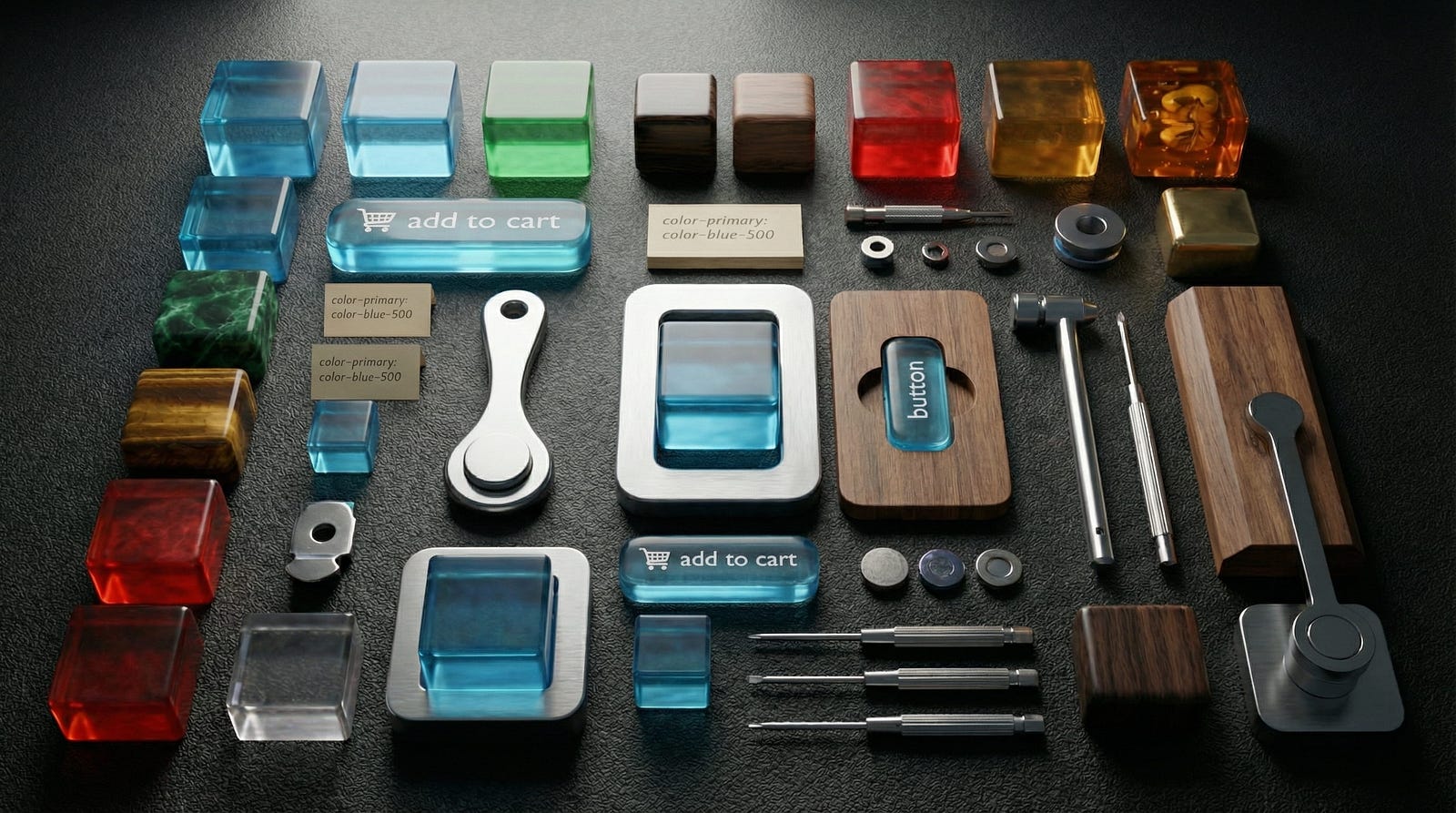
        A top-down view of a dark workbench featuring a precise arrangement of physical tools like screwdrivers and a hammer alongside digital UI components made of blue glass and geometric material samples.

        You’ve built the system. Now comes the part nobody writes about: getting people to use it.

        The 3-minute test. Sit a designer who’s never seen your system down in front of it. Time them. Can they find a button, place it, and configure it correctly in 3 minutes? If not, your system is too complex. Simplify the entry point.

        Documentation that people actually read:

        • One page per component, not one document for everything
        • Visual examples first, rules second
        • When to use and when not to use, the negative guidance is often more useful
        • Keep it inside Figma if possible. External docs get forgotten

        Getting buy-in from engineers. Speak their language:

        • Tokens equal CSS variables
        • Component properties equal props
        • Modes equal themes
        • If an engineer can look at your Figma system and immediately understand the code equivalent, adoption is almost guaranteed

        The one metric that matters: component usage rate. Track how many component instances versus detached components exist across your team’s files. If the detach rate is above 20 percent, something in your system isn’t meeting real needs. Find out what and fix it.

        According to Figma’s data, teams with mature component libraries see a 34 percent improvement in task completion speed. The ROI is real, but only if the system is actually used.

        The Ship-It Checklist

        Before you call it v1, make sure:

        • Token architecture defined, Primitive to Semantic at minimum
        • Core colors, spacing, radius, and typography as Figma Variables
        • Light and Dark modes working and tested
        • 10 core components built: Button, Input, Select, Checkbox, Radio, Card, Modal, Badge, Avatar, Toast
        • Every component uses Auto Layout
        • Naming convention documented on one page
        • At least one full page built using only system components
        • Engineer handoff tested, one developer can build from your system
        • Usage guidelines written, under 500 words per component
        • The detach test passed with a designer outside your team

        What not to do for v1:

        • Don’t build every component. Ship 10, learn, then build more
        • Don’t write perfect documentation. Write good-enough documentation and improve it based on real questions
        • Don’t wait for consensus on naming. Pick a convention, document it, move on

        A shipped system that covers 60 percent of cases beats a perfect system that covers 100 percent of cases but lives in a branch nobody merges.

        Design systems aren’t products you launch. They’re gardens you maintain. Start small, grow what works, prune what doesn’t. The teams that treat their system as a living thing, versioned, measured, iterated, are the ones whose systems survive year two.

        Looking for design system references and component libraries? Explore curated resources on Muzli.
        ……

        💡 Stay inspired every day with Muzli!

        Follow us for a daily stream of design, creativity, and innovation.

        Linkedin | Instagram | Twitter

        The Complete Vibe Coding Guide for Designers (2026)

        How to work smart with AI, maintain your Design System, and build products that feel real

        In 2026, nobody is impressed by “I made a prototype with AI” anymore.

        Everyone has seen stunning UI generated in an hour. Everyone has seen demos that look flawless on the first screen, then completely fall apart on the second.

        The questions that matter now are not “Does it work?” but:

        How was it built?
        Is it consistent?
        Can it scale?

        Will someone be able to continue from this in a month?

        What’s impressive today is a designer who can take an idea and turn it into something that feels like a real product: with rules, consistency, a Design System, proper behavior, and a process you can trust.

        This is exactly where Vibe Coding transforms from a trend into a real craft.

         — -

        What Is Vibe Coding (In Designer Terms)

        Vibe Coding is not “learning to code”, and it’s not classic No-Code either.

        It’s a workflow where you describe intent, and AI translates it into output: screens, flows, states, sometimes data, sometimes code.

        But the real story isn’t the tool.

        The real story is you.

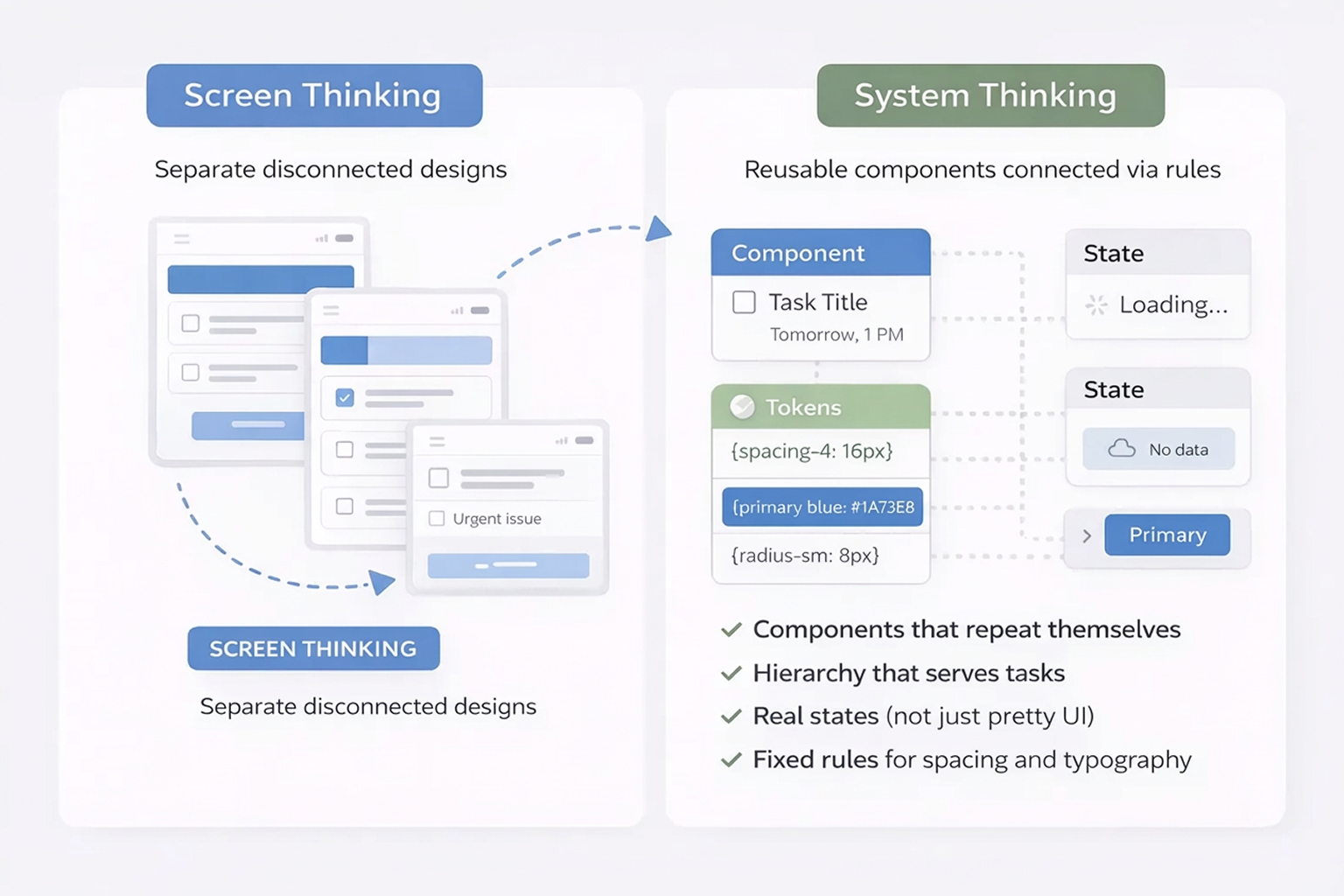
        Good Vibe Coding forces designers to shift from thinking in “screens” to thinking in “systems”:

        • Components that repeat themselves
        • Hierarchy that serves tasks
        • Real states (not just pretty UI)
        • Fixed rules for spacing and typography
        • Screens that feel like one product, not a collection of pages
        What Is Vibe Coding (In Designer Terms)

         — -

        How Designers Are Measured in 2026

        Tools change. The criteria stay the same.

        If you want to work properly with Vibe Coding, measure every tool by six questions:

        1. Speed to Demo

        2. Design System Fidelity

        3. Component Consistency

        4. States and Behavior

        5. Path to Continuation

        6. Data Connection

         — -

        The Biggest Advantage of 2026: Tools That Talk to Each Other (MCP)

        Today, the big difference isn’t “which tool is smartest”.

        The difference is whether your tools work like a team.

        MCP (Model Context Protocol) is what makes that possible.

        MCP in Plain Language

        MCP is a connection layer that allows AI tools to work with your sources of truth instead of guessing.

        Instead of every tool starting from zero and trying to “understand the design”, it can receive real context:

        • Components
        • Auto Layout
        • Variables and tokens
        • System naming conventions
        • Code project structure
        • Existing rules you’re already working with

        In designer terms: MCP transforms AI from someone trying to imitate your design into someone translating it.

        Without context, AI guesses:

        “I think this is an H1”
        “I think the spacing is 16px”
        “I think this is a Primary button”

        With real context, AI knows:

        “This is your system’s H1”
        “This is your spacing token”
        “This is your existing Button/Primary component”

        And that’s the difference between “same vibe” and “same product”.

        If you want to see what this looks like in a real workflow, I broke it down step by step in a separate article that follows design intent from Figma all the way to code, without losing context at handoff points.

        >>From Design to Code Without Losing Context: An MCP-First Workflow

         — -

        Connections That Actually Make a Difference

        MCP isn’t theory. It changes outcomes.

        Here are the connections that matter:

        Figma → Cursor

        Cleaner implementation, less guessing, more precision.

        Figma → Claude (or other models)

        Extract rules from the Design System: what exists, what’s allowed, what must stay consistent.

        Repo → Cursor

        Less duplication, fewer “new components by accident”, less spaghetti code.

         — -

        The Biggest Danger: Letting AI Replace the Designer’s Brain

        The most common bug in Vibe Coding isn’t technical.

        It happens in your head.

        AI can generate something that looks good, works, and runs fast.

        Then it becomes dangerously easy to say: “I trust it”, and stop thinking like a designer.

        At that moment, you stop designing and start approving.

        Symptoms appear fast:

        • Visual hierarchy that doesn’t support the user’s task (but “looks fine”)
        • Spacing inconsistencies that slowly creep between screens
        • Components that look similar but aren’t actually the same thing
        • A product that feels like a collection of pretty screens, not a real system

        There’s an even deeper layer.

        AI will generate a solution even when it has no idea if it makes sense UX-wise.

        It’s not worried about edge cases, cognitive load, emotional context, or user mental models.

        It’s committed to giving an answer.

        That’s why your job stays critical.

        Ask yourself:

        • Why is this element here, does it support the task or just fill space?
        • Is the sequence logical, or does it just “flow visually”?
        • What happens before, after, and in edge cases?
        • Would you defend this in a user interview?

        The right framing is simple:

        AI is the intern.

        You’re the Lead.

        It runs fast.

        You decide what ships.

        The Biggest Danger: Letting AI Replace the Designer’s Brain

         — -

        The 3 Layers of Vibe Coding (So You Pick the Right Tools)

        Don’t ask “What’s the best tool?”

        Ask:

        What stage am I working in right now?

        Layer 1: Exploration

        Experiments, variations, quick demos.

        Layer 2: MVP

        A small working product with real flows and basic data.

        Layer 3: Engineering

        Quality, consistency, cleanliness, components, Git, continuation.

        Most tools are great at Layer 1 or 2.

        The real advantage in 2026 is bringing work to Layer 3 without losing your mind.

        If you want a practical overview of which AI design tools actually hold up in real workflows, this guide breaks it down clearly: Best AI Design Tools for UI/UX Designers in 2026.

        The 3 Layers of Vibe Coding (So You Pick the Right Tools)

         — -

        The Tools That Actually Matter for Designers in 2026

        There’s no “one winning tool”.

        There’s a pipeline.

        Think like a small studio: pick tools based on the job, then move forward.

        Figma Make

        The most natural tool for designers because it starts from your language and your design files.

        Best for: Layer 1 → Layer 2

        Strengths: Native Figma flow, fast iteration, familiar mental model

        Limitations: Can get messy without system discipline

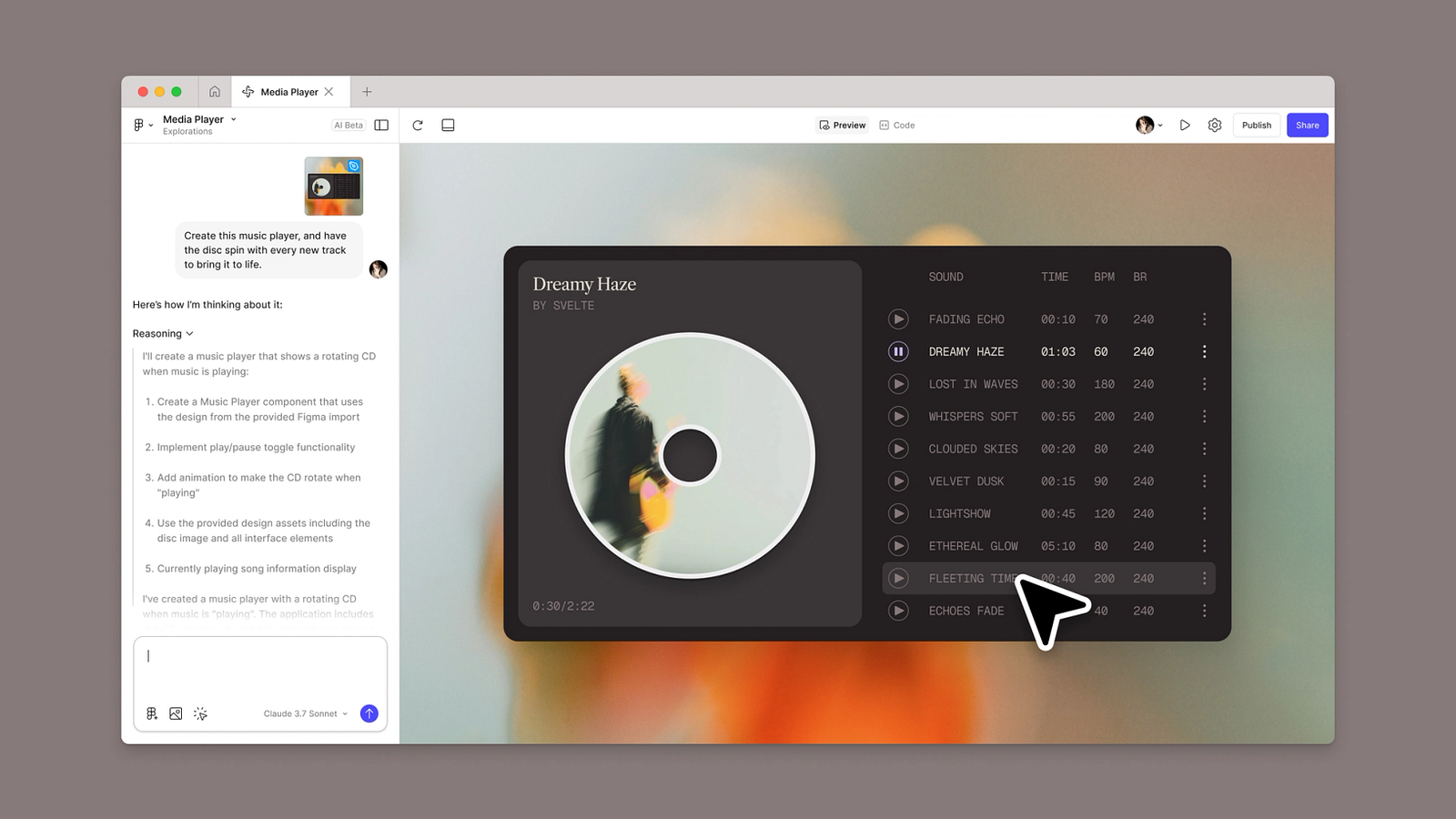
        Figma Make ui

        — –

        Lovable

        Excellent when you need a working MVP with logic and data.

        Best for: Layer 2

        Strengths: Full-stack generation, data integration, fast MVP velocity

        Limitations: Less control over pixel-perfect visual details

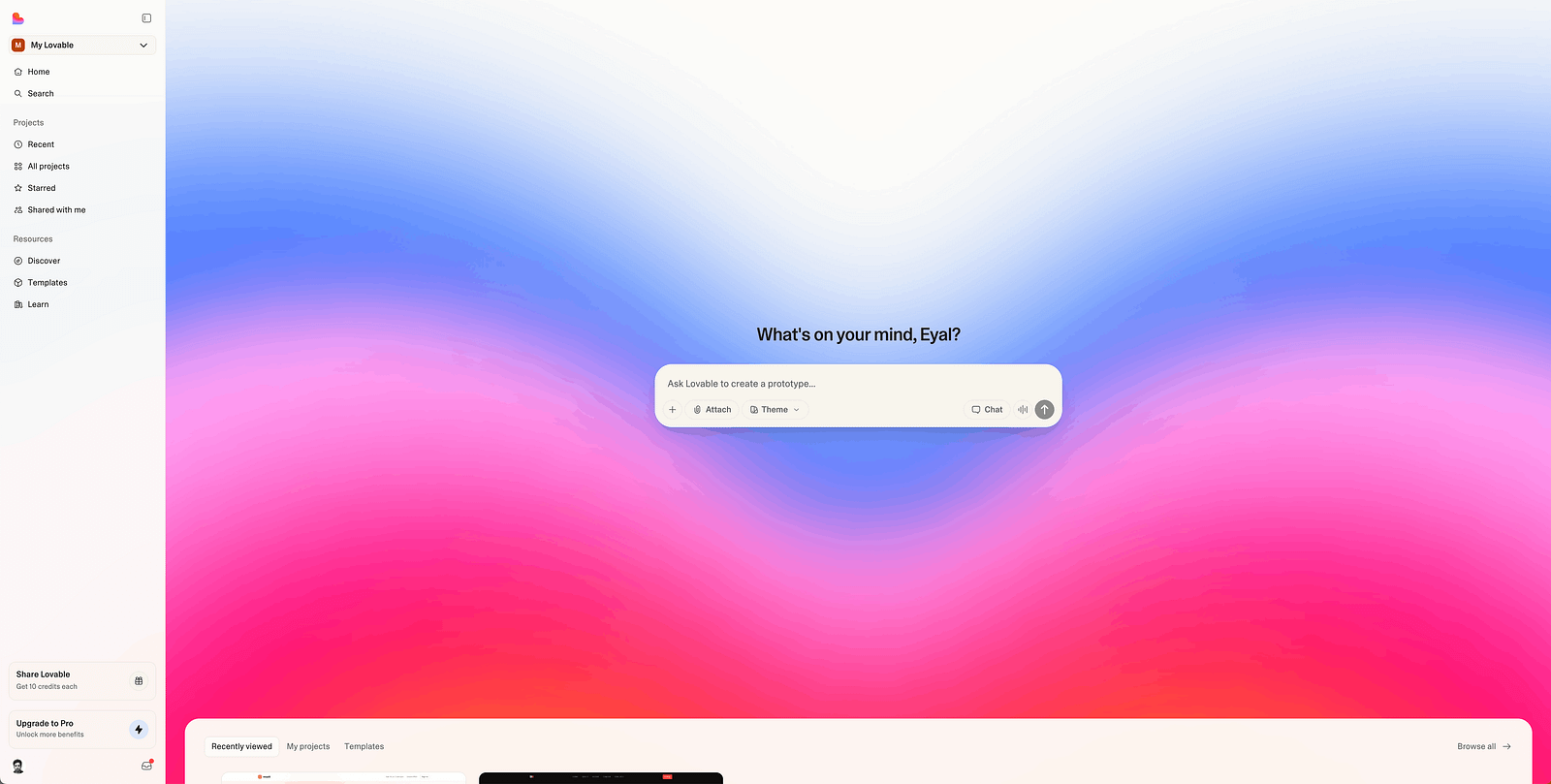
        Lovable UI

        — –

        v0 by Vercel

        Clean React components with a production-ready feel.

        Best for: Layer 2 → Layer 3 transition

        Strengths: High-quality code output, component-driven structure

        Limitations: Requires some technical comfort to customize deeply

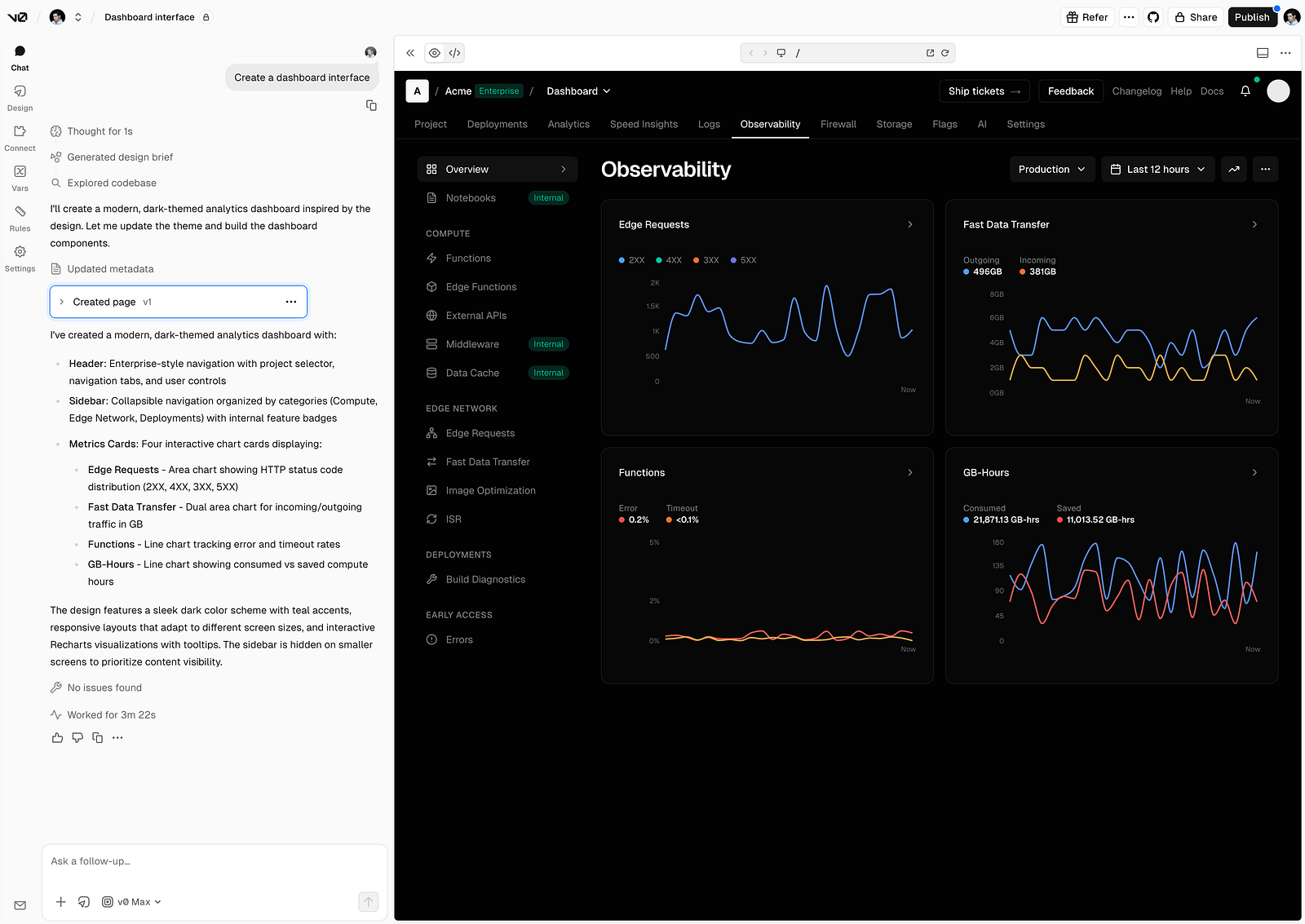
        v0 by Vercel ui

        — –

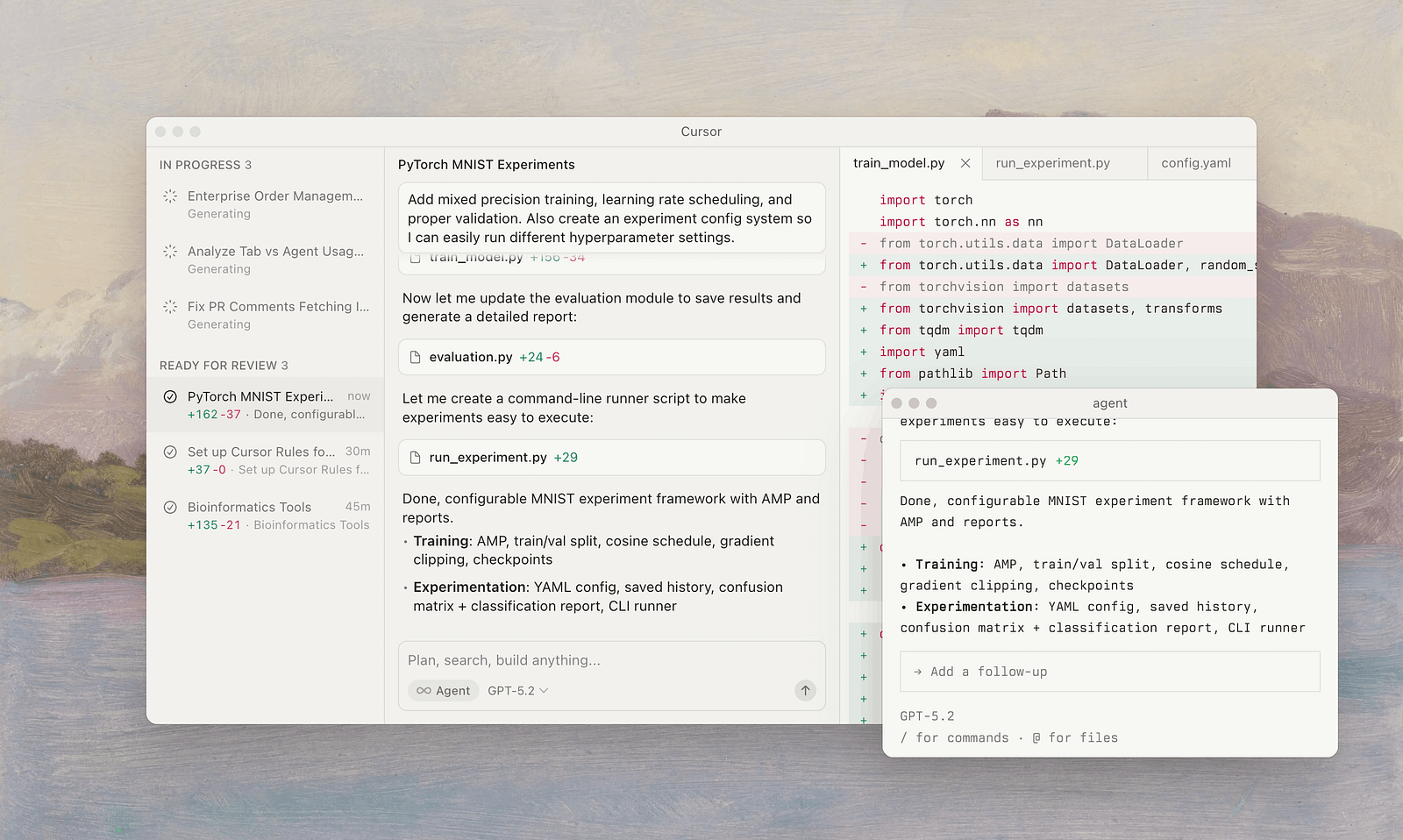
        Cursor

        Where everything becomes real: polish, consistency, unified components, and code you can continue from.

        Best for: Layer 3

        Strengths: Full IDE capabilities, codebase understanding, precise control

        Limitations: Steeper learning curve, requires basic coding literacy

        Cursor ui

        — –

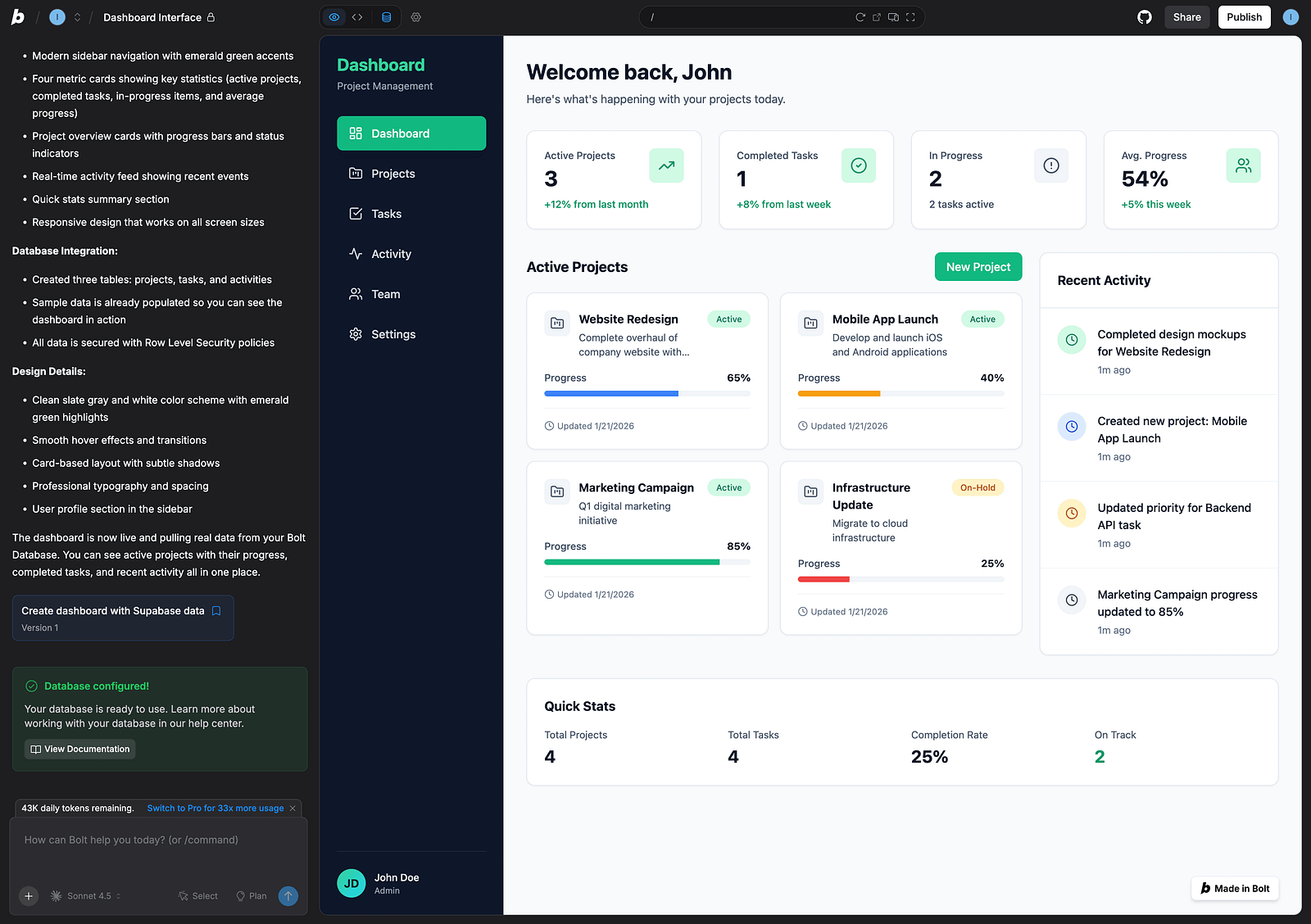
        Bolt

        A great exploration tool to find direction fast without commitment.

        Best for: Layer 1

        Strengths: Super fast prototyping, no setup

        Limitations: Not meant for production

        Bolt ui

        — –

        Claude Code (Optional)

        Powerful for cleanup, refactoring, structure, and reducing chaos in AI-generated code.

        Best for: Engineering support

        Strengths: Intelligent refactoring, consistency support

        Claude Code ui

         — -

        The Right Pipeline for Designers (2026)

        The biggest mistake is choosing one tool and locking into it forever.

        The right way is to move between stages.

        Figma-First Route (Maximum Fidelity)

        Figma → Figma Make → Cursor → Production

        Best when you have a detailed Design System and need pixel-perfect implementation.

        Fast MVP Route (Maximum Movement + Data)

        Figma as reference → Lovable → Cursor → Production

        Best when you need something functional quickly with real flows.

        Direction-Finding Route

        Idea → Bolt → Figma Make or Lovable → Cursor

        Best when you’re still exploring and need validation fast.

         — -

        How to Achieve Maximum Precision Without Fighting AI

        Precision doesn’t come from longer prompts.

        Precision comes from clearer rules.

        If you want output that feels like the same product:

        Start with a Golden Screen

        Pick one screen that perfectly represents your system. Use it as the reference point.

        Don’t Let AI Invent Components

        Always reference real components by name.

        Say: “Use Button/Primary”

        Not: “Make a blue button”

        Introduce States Early

        Loading, error, empty, success. From day one.

        Work With Tokens, Not “Make It Pretty”

        Say: “Use spacing-4 (16px)”

        Not: “Add some space”

        Do Polish Where You Have Full Control

        Usually that’s Cursor.

        Most importantly:

        AI doesn’t get anxious when something doesn’t make sense.

        You do.

        And that’s your advantage.

         — -

        Advanced Techniques: Using AI as Your Hands, Not Your Brain

        Build a System Prompt Library

        Reusable prompts that encode your system rules.

        Example:

        “All buttons use Button/Primary, Button/Secondary, or Button/Ghost.

        Never create new button variants.”

        Use Visual References

        Don’t just describe. Show.

        • Screenshot your Figma components
        • Include them in prompts
        • Reference component names

        Build Incrementally

        Start simple, then add complexity:

        1. Static layout with placeholder content

        2. Add one interaction

        3. Add states for that interaction

        4. Add the next feature

        5. Refactor when you see patterns

        Version Control Is Your Friend

        Even with AI-generated code:

        • Commit after each working feature
        • Write clear commit messages
        • Roll back when AI goes sideways

         — -

        Common Pitfalls (And How to Avoid Them)

        Pitfall 1: “Let’s Make Everything at Once”
        Build one flow completely before moving to the next.

        Pitfall 2: “The AI Should Just Know”
        Be explicit about your system every time.

        Pitfall 3: “This Demo Is Good Enough”
        Ship demos. Build for continuation.

        Pitfall 4: “I’ll Fix Consistency Later”
        Consistency is easier to maintain than to retrofit.

        Pitfall 5: “I Don’t Need to Understand the Code”
        You don’t need to write it, but you must be able to read the structure.

         — -

        If I Had to Pick Only 2 Tools to Cover 80% of What You Need

        If you’re starting today and you want the simplest setup that still gets real results, pick:

        1. Figma Make

        Fastest way to go from idea to a living demo, without switching mental models.

        2. Cursor

        The place where demos become a product foundation: consistent components, real structure, continuation-ready code.

        In short:

        Figma Make gets you to “this feels real” fast.

        Cursor gets you to “this is buildable” long-term.

         — -

        The Skills That Matter Most in 2026

        Technical skills are table stakes.

        What separates good from great:

        • Systems Thinking
        • Clear Communication
        • Knowing When to Stop
        • Quality Bar Maintenance
        • Comfort With Iteration

         — -

        In Summary: Vibe Coding Doesn’t Replace Designers, It Replaces Waiting

        The advantage of a designer in 2026 isn’t knowing one more tool.

        It’s knowing how to produce output that’s fast, precise, consistent, and feels like a real product.

        AI can generate UI.

        But only a designer can build a system with direction, rules, and logic.

        Tools used to be isolated.

        Now they’re starting to understand each other.

        And when tools stop guessing and start working from shared context, Vibe Coding stops being magic and starts being a craft.

        — –

        The Practical Playlist (Start Here)

        The Perfect Cursor AI Workflow (3 Simple Steps)

        — –

        I Built My Entire Design System in 4 Hours With AI. Full Tutorial (Claude + Cursor + Figma)

        — –

        Figma MCP + Cursor — Full Tutorial

        — –

        How To Move Your Lovable Project to Cursor (QUICK & EASY)

        — –

        DESIGN in v0, FINISH in Cursor | AI coding Tutorial

        2024 Black Friday + Cyber Monday Deals for Designers

        Ready to snag the best deals of the year?

        This Black Friday and Cyber Monday, digital designers, creatives, and artists can score incredible savings on the tools they love and need. From graphic design software to web design assets, creative resources, and more, we’ve rounded up the ultimate list of deals to fuel your inspiration without breaking the bank. 

        Stay tuned — many offers will go live closer to Black Friday & Cyber Monday, so bookmark this page and share it with your fellow creatives! Got a deal we missed? Let us know, and we’ll add it to the list.

        ….

        Atomize — The most advanced Design System for Figma

        84.75% OFF — code: BLACK9

        Atomize — The most advanced Design System for Figma

        .

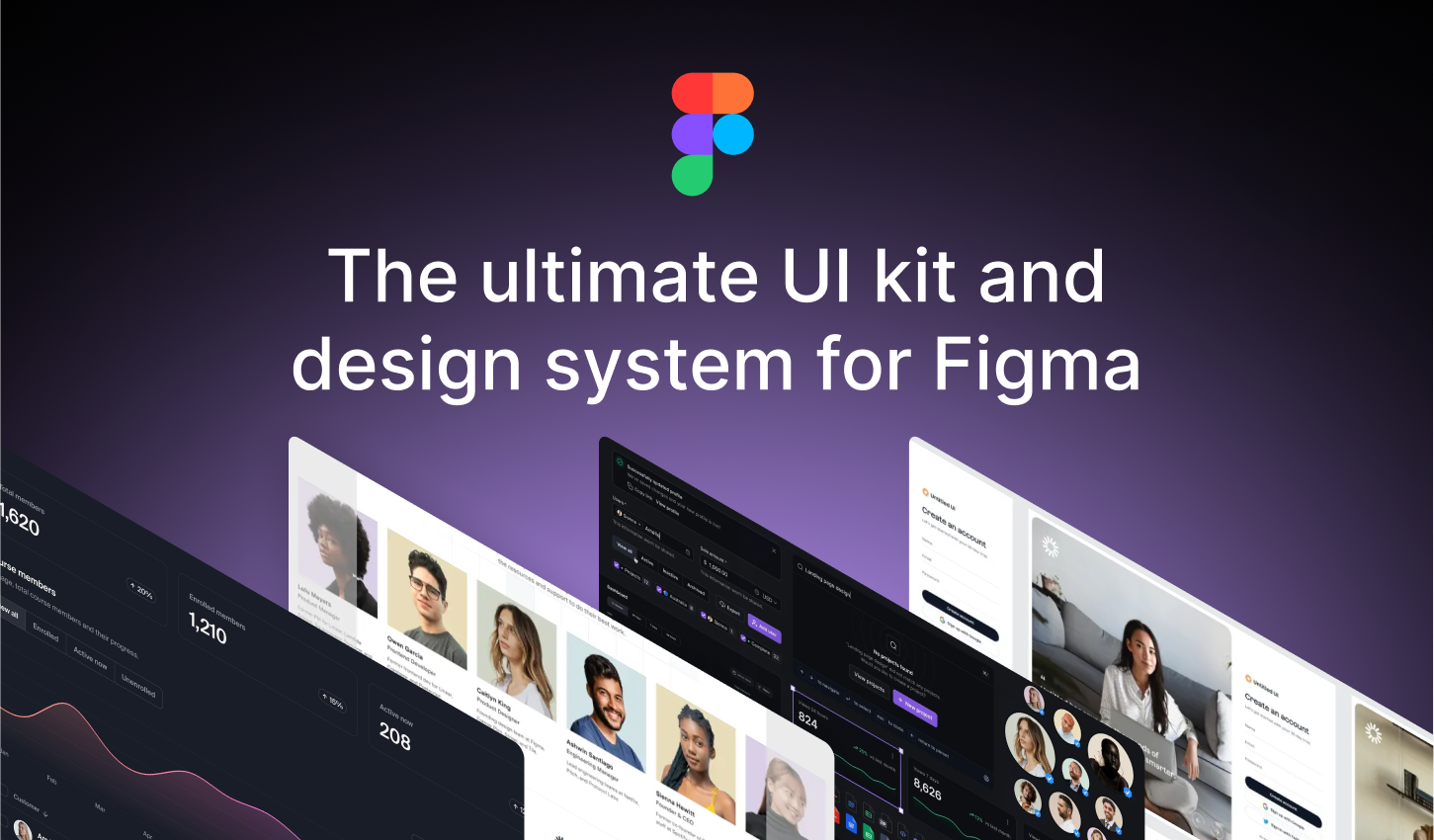
        Untitledui — The largest UI kit & design system in the world

        13.5% – 28% OFF

        Untitledui — The largest UI kit & design system in the world

        .

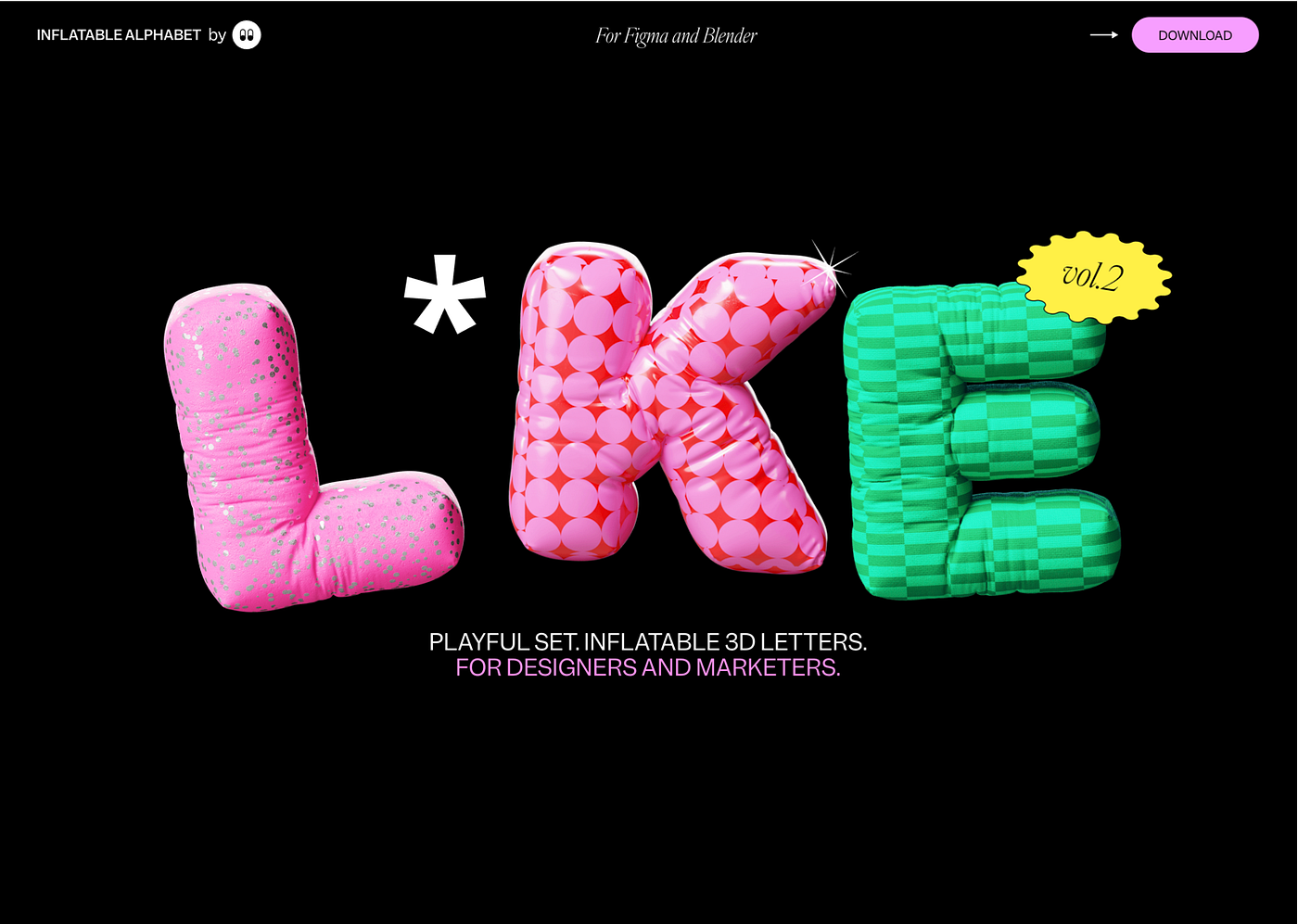
        Inflatable 3d alphabet vol.2

        Playful set. Inflatable 3d letters. for designers and marketers.

        50% OFF

        .

        Learn UX Design at Your Own Pace | Interactive Courses | Uxcel

        Accelerate your UX design career with guided, interactive learning. Learn key skills faster at your own pace in just 5 minutes a day.

        62.5 OFF

        .

        Frameblox – Ultimate Framer UI kit; design system & components library

        Frameblox is the ultimate Framer UI kit, design system, and component library. Build and launch your website faster, save countless hours, and elevate your website.

        30% OFF – code: BLACKFRIDAY30

        .

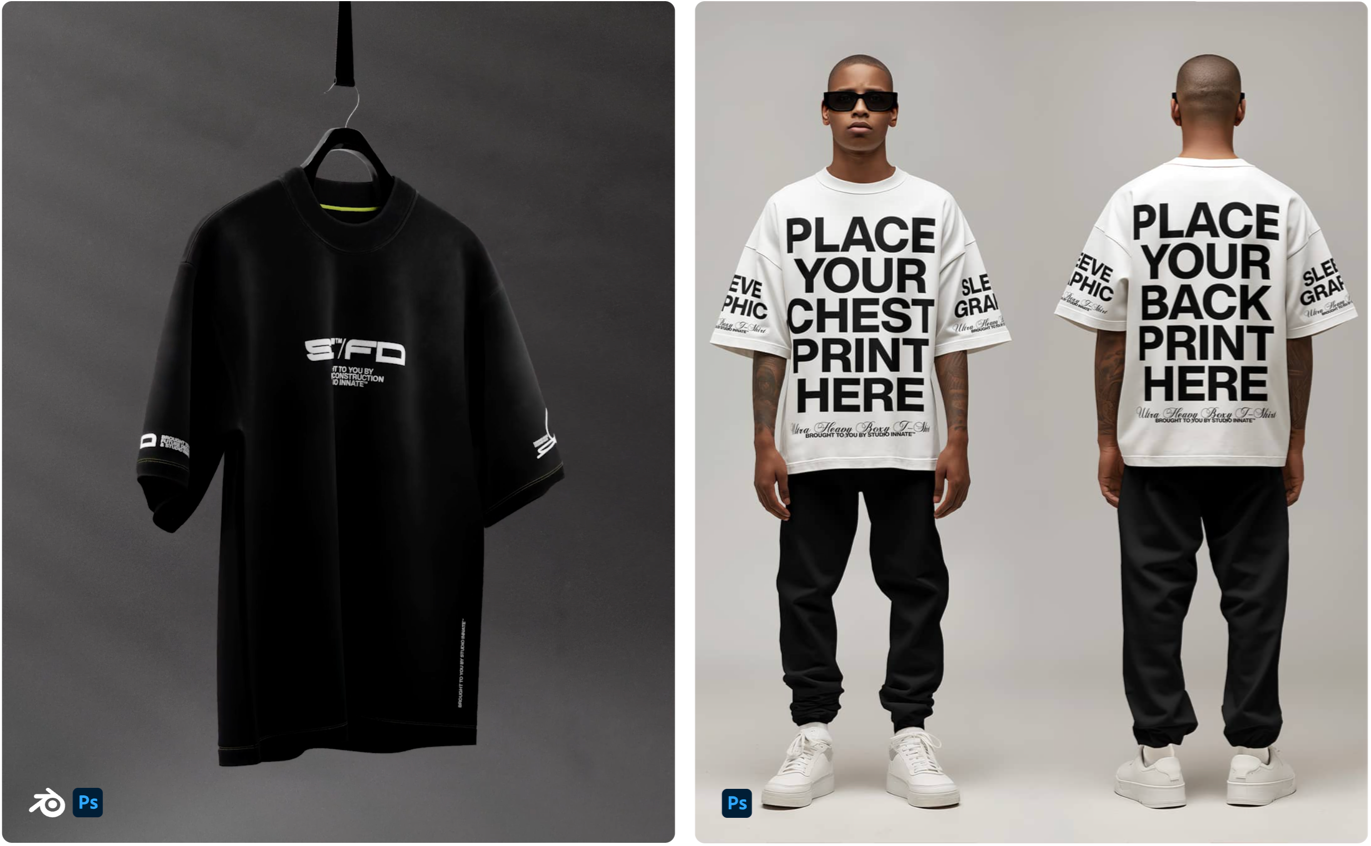
        Designer Grade Resources

        Discover high-quality mockups and design resources for your creative projects. Studio Innate offers a range of resources for your designs.

        20% OFF

        Designer Grade Resources

        .

        Css Hero — The Live WordPress Theme Editor. No code required.

        CSS Hero is the definitive WordPress plugin to easily customize the look of your site, with an easy and intuitive point and click interface.

        75% OFF

        Css Hero — The Live WordPress Theme Editor. No code required.

        .

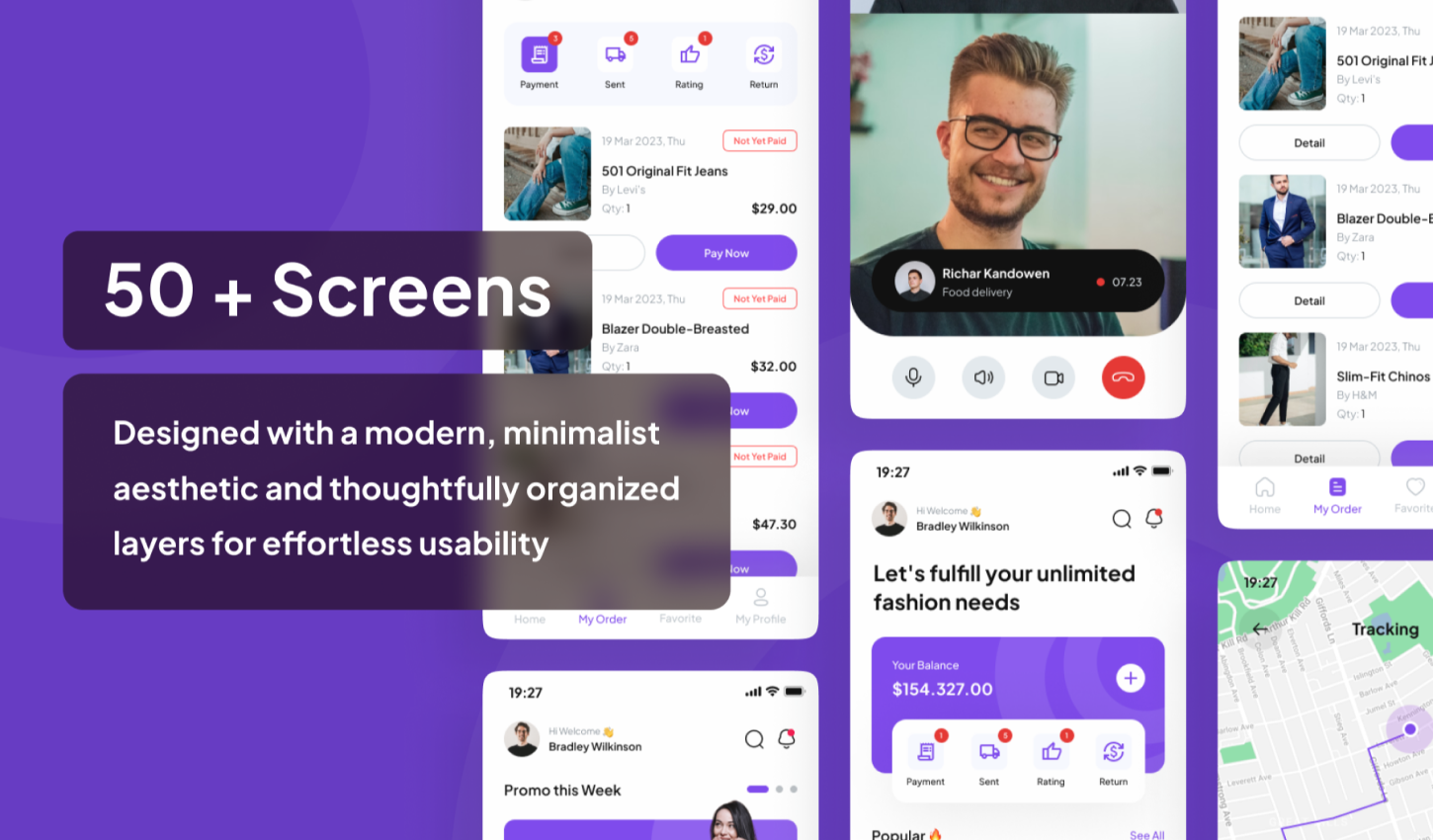
        Mall — E-Commerce Complete UI-Kit

        Mall is a minimalistic-design UI Kit for E-commerce app

        60% OFF — Promo code: K4MDM4NQ

        Mall — E-Commerce Complete UI-Kit

        .

        UI8 — All-Access Pass

        Boost your productivity with instant access to all 10,081 existing products and daily new releases.

        20% OFF

        .

        UI8 — Hundreds of premium products for up to 90% off until the end of the month

        90% OFF

        UI8 — Hundreds of premium products for up to 90% off until the end of the month

        .

        Getillustrations — Get vector illustrations for Websites and applications

        40% OFF

        Getillustrations — Get vector illustrations for Websites and applications

        .

        Designmodo: Create Email Newsletter Design & Website

        40% OFF

        Designmodo: Create Email Newsletter Design & Website

        .

        Pixpa— Create Your Awesome Portfolio Website

        Create stunning websites, portfolios, stores, and blogs — all in one place. Save time & money!

        55% OFF — code: BLFPIXPA5

        .

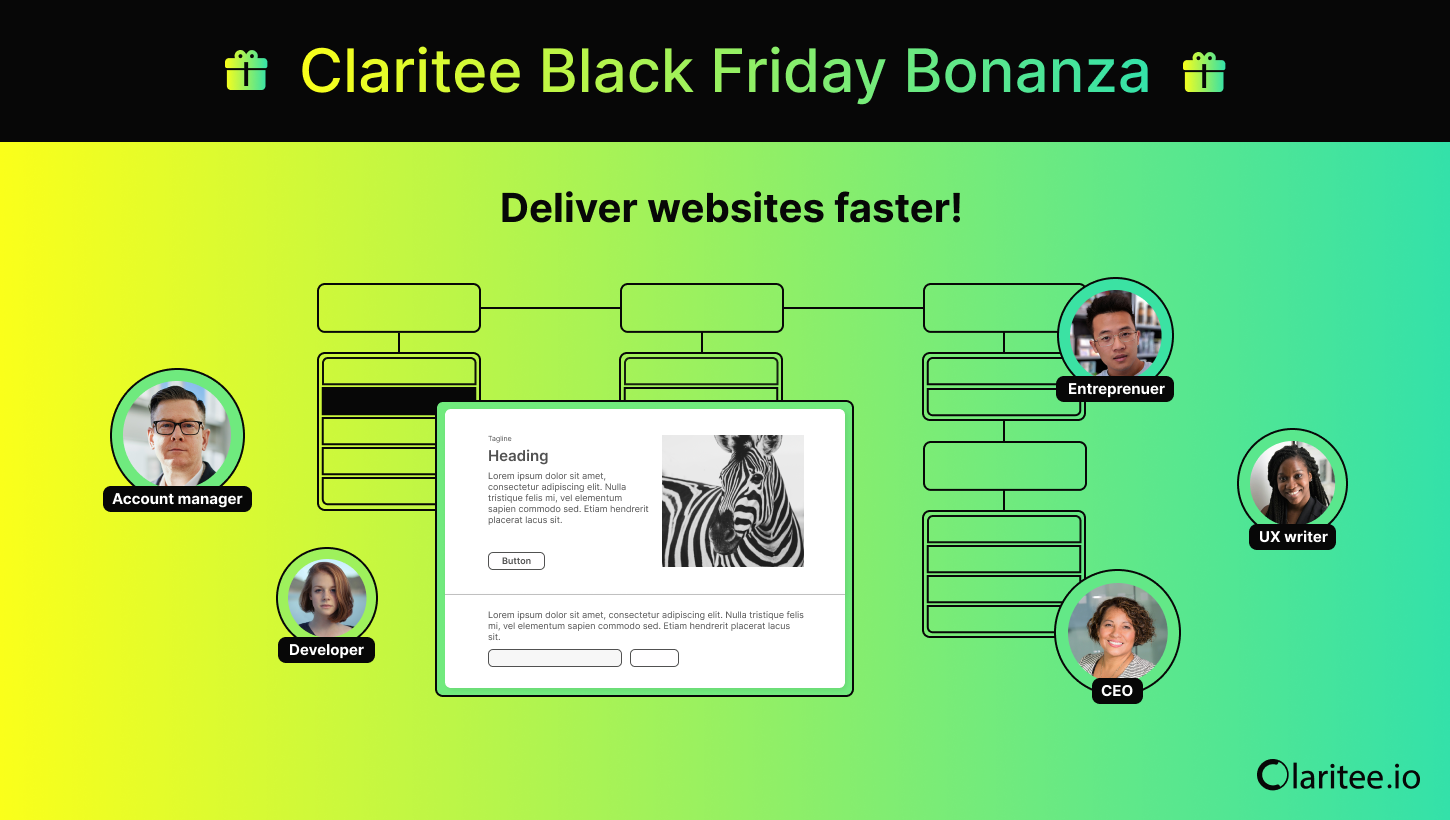
        Claritee — Speed through the planning phase of website design with AI-powered sitemaps and wireframes

        60% OFF

        Claritee: Visual ideation tool for planning digital assets and design projects

        .

        Envato — Unlimited creative assets, all in one place.

        30% OFF

        Envato — Unlimited creative assets, all in one place.

        .

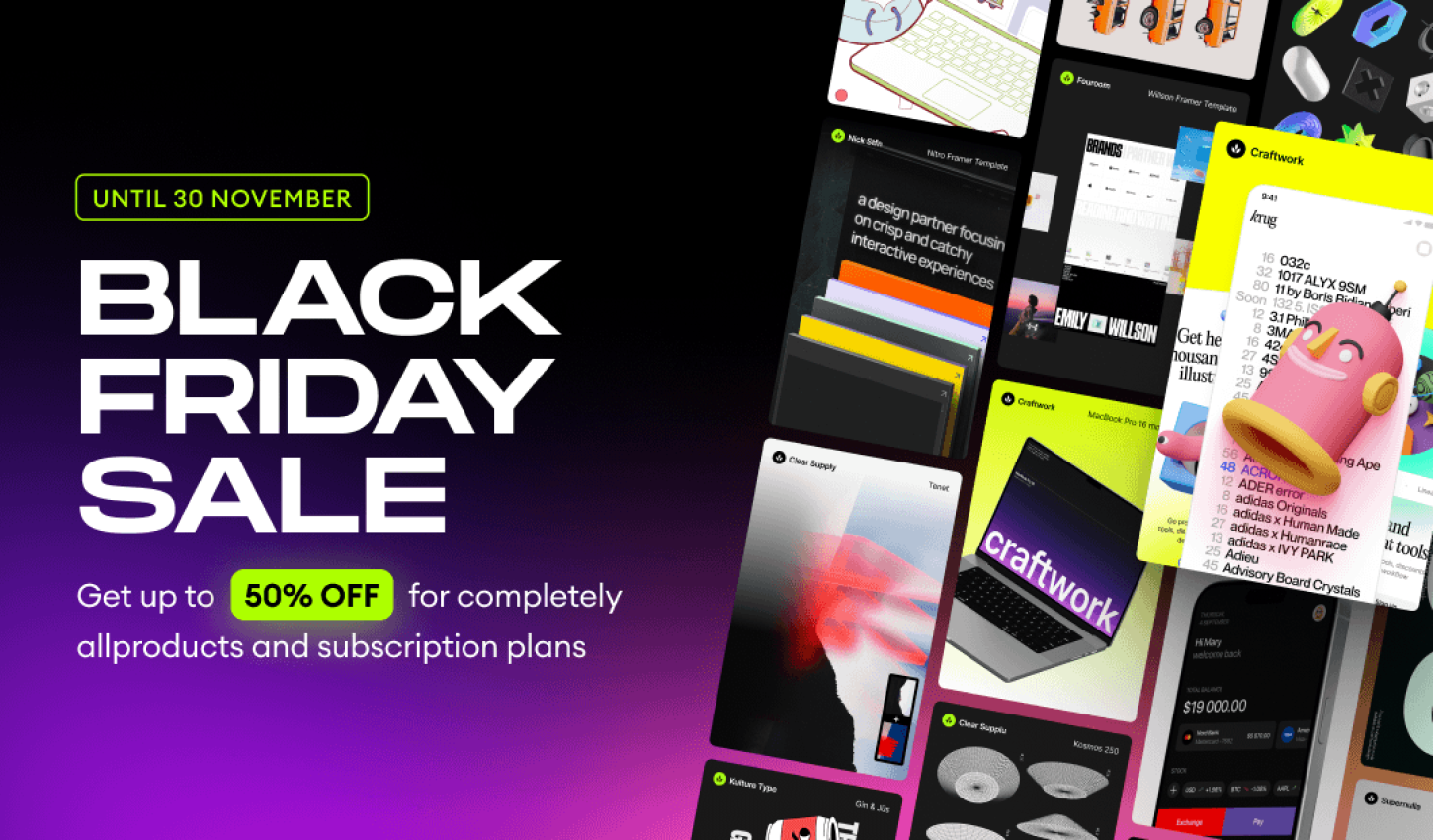
        Craftwork : UX/UI kits, illustrations, mockups, fonts and more 

        50% OFF

        Craftwork : UX/UI kits, illustrations, mockups, fonts and more 

        .

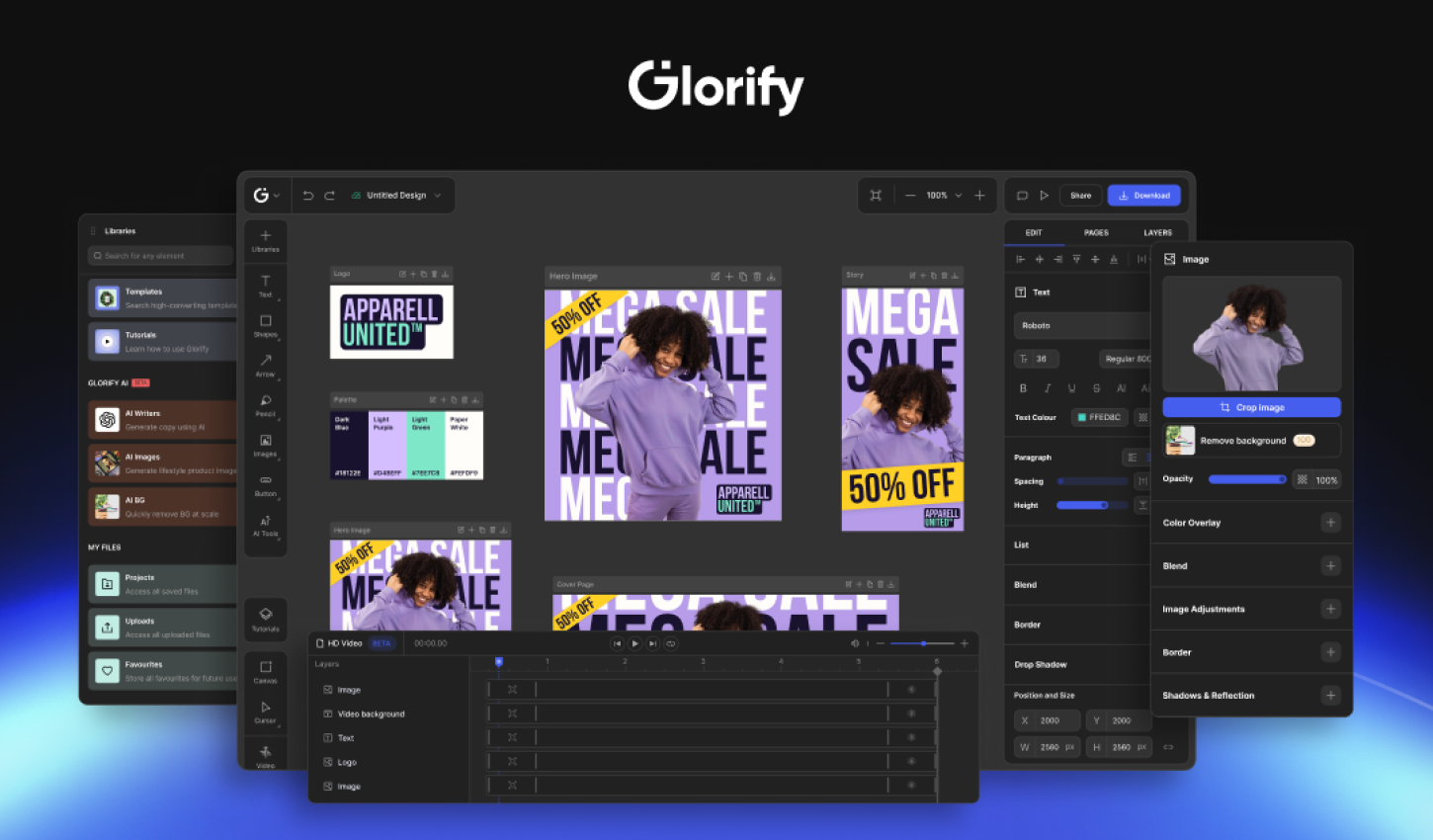
        Glorify — Online Graphic Design Tool for E-com Business Owners — Black Friday Lifetime Deal 

        78% – 89% OFF

        Glorify — Online Graphic Design Tool for E-com Business Owners — Black Friday Lifetime Deal 

        .

        Landingi — No-code Landing Page Platform for Data-Driven Digital Marketers

        29% – 36% OFF

        Landingi — No-code Landing Page Platform for Data-Driven Digital Marketers

        .

        whiteui.store — High-quality UI kits and design resources

        50% OFF

        whiteui.store — High-quality UI kits and design resources

        .

        Designerup — Product Design (UX/UI) Course

        Become the product designer you are meant to be with UX/UI courses, resources and community for mindful designers

        Coupon Code: BF24–20% OFF

        Designerup — Product Design (UX/UI) Course

        .

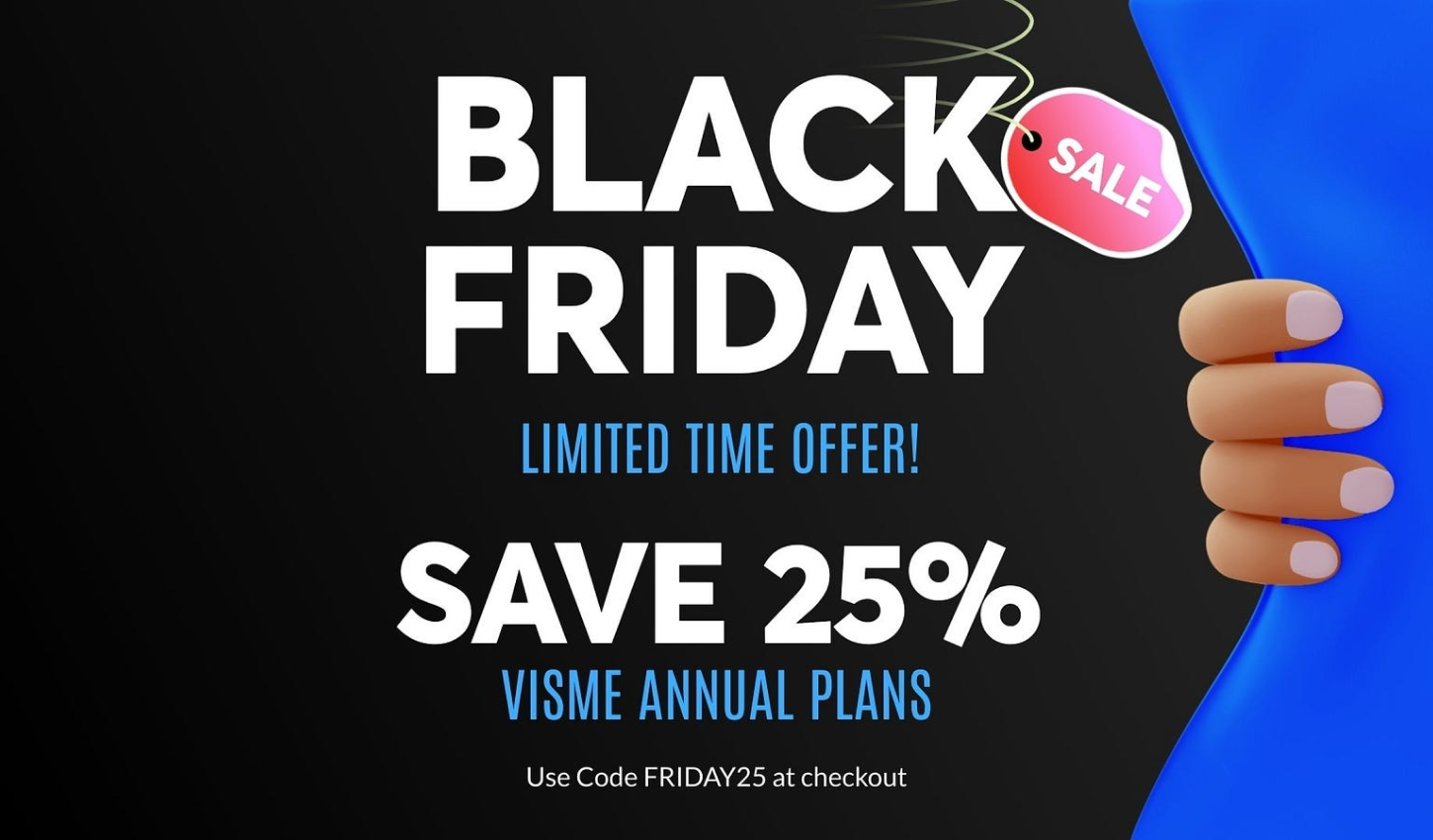
        Visme: AI Presentation maker, Infographics, and One pager templates

        25% OFF

        Visme: AI Presentation maker, Infographics, and One pager templates

        .

        UENI —  Stunning websites for your small businesses.

        67% OFF

        UENI —  Stunning websites for your small businesses.

        .

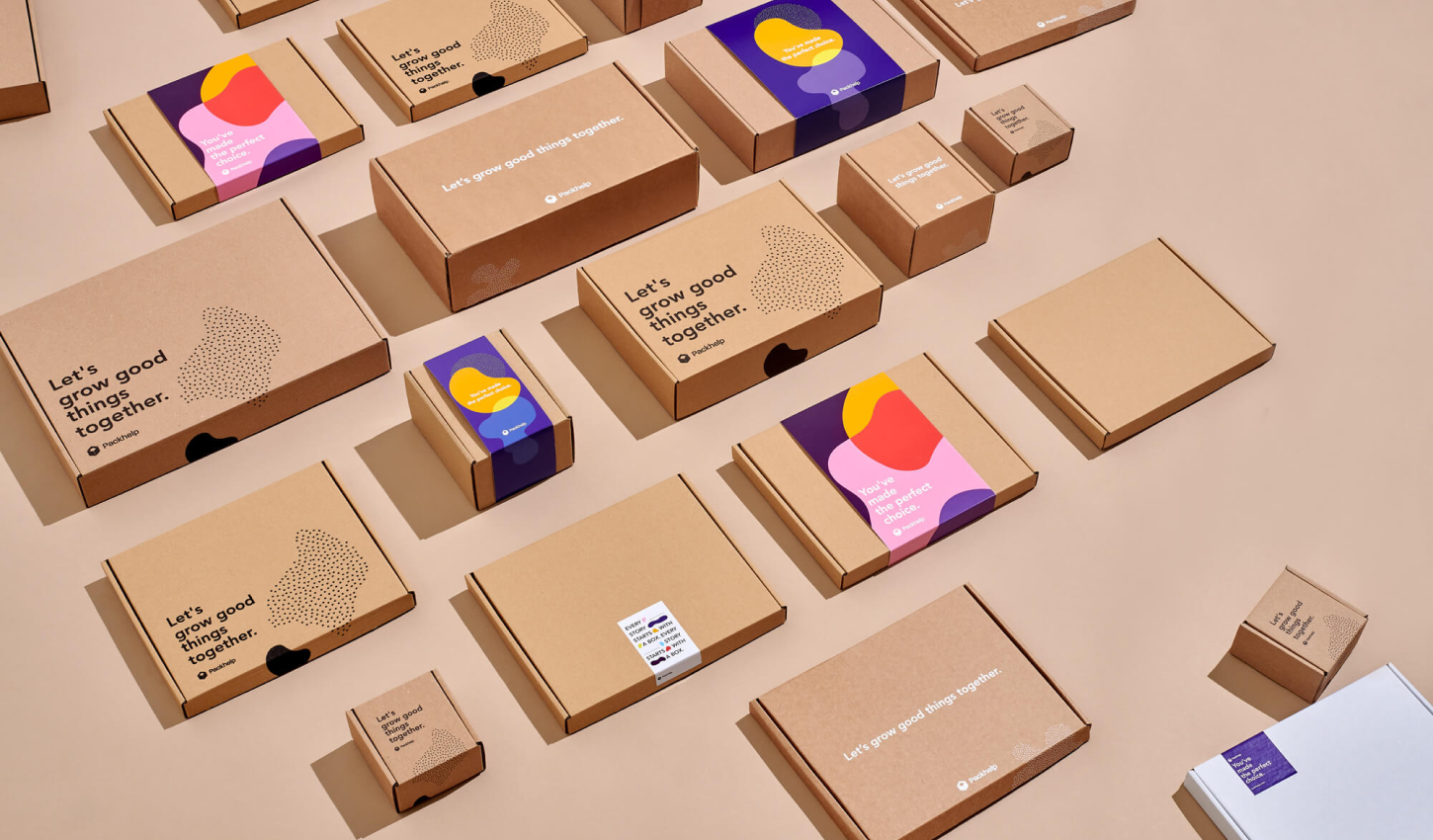
        Packhelp — Custom packaging designed to fit your business

        50% OFF

        Packhelp — Custom packaging designed to fit your business

        .

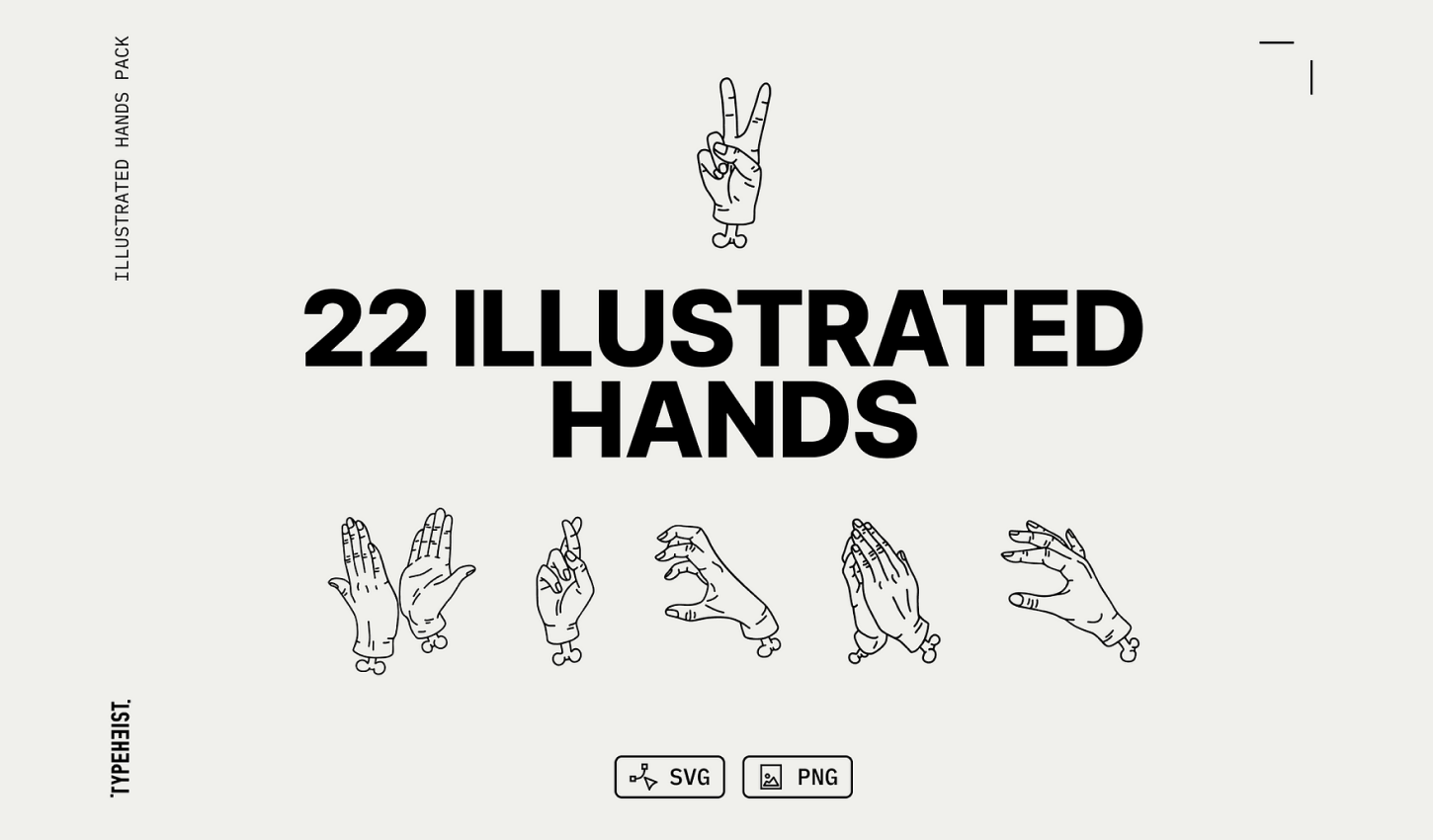
        Illustrated Line Hands Pack

        A vector pack with 22 hand-illustrated hand gestures in a fineline tattoo style. There are 22 common and quirky gestures in this pack, you’ll find something perfect for your unique designs.

        20% OFF

        Illustrated Line Hands Pack

        .

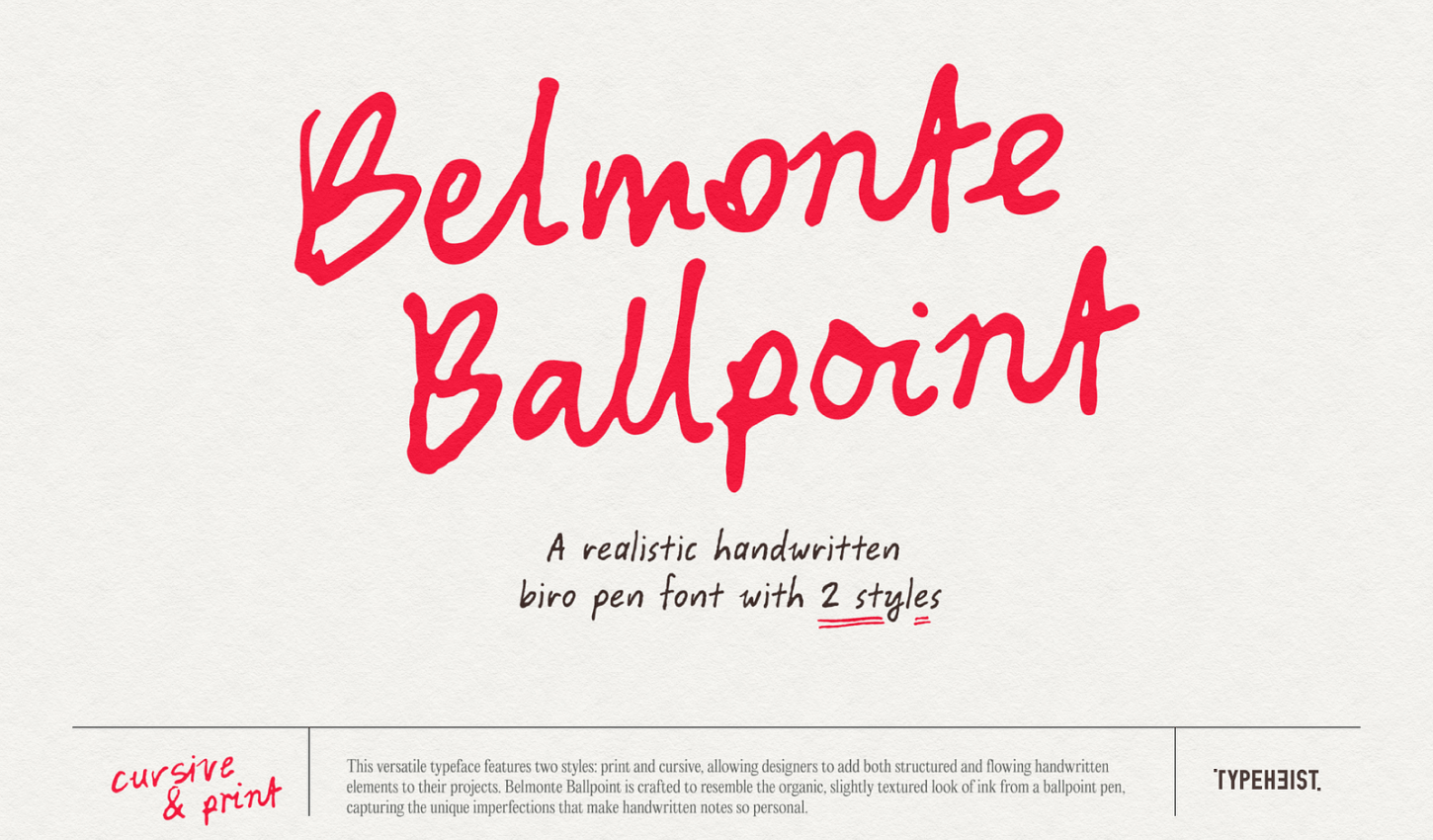
        Belmonte Ballpoint

        This versatile typeface features two styles: print and cursive, allowing designers to add both structured and flowing handwritten elements to their projects.

        20% OFF

        Belmonte Ballpoint

        .

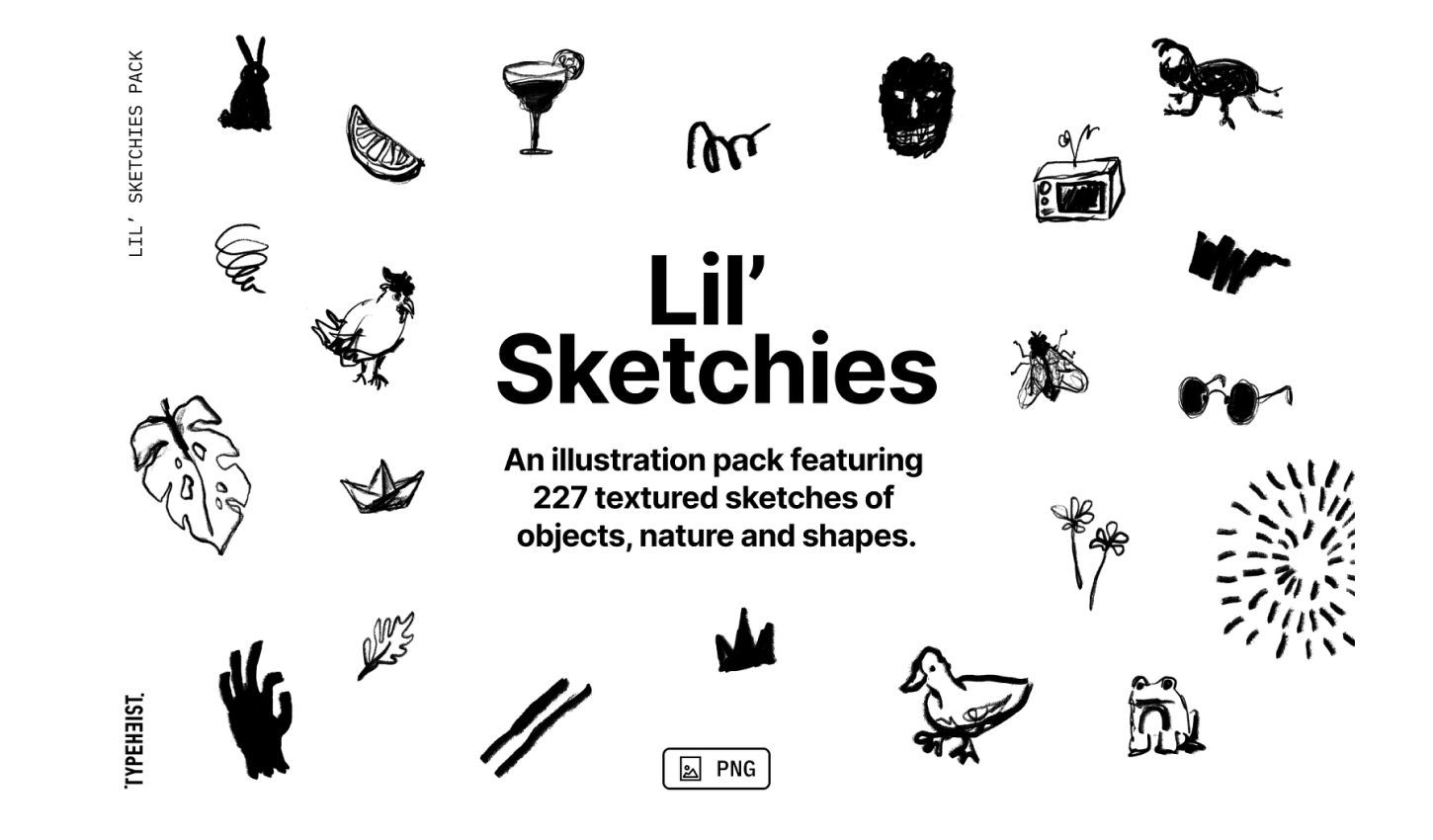
        Lil’ Sketchies

        Lil’ Sketchies is a scribbly illustration pack featuring 227 textured sketches of objects, nature, shapes and social icons.

        20% OFF

        Lil’ Sketchies

        .

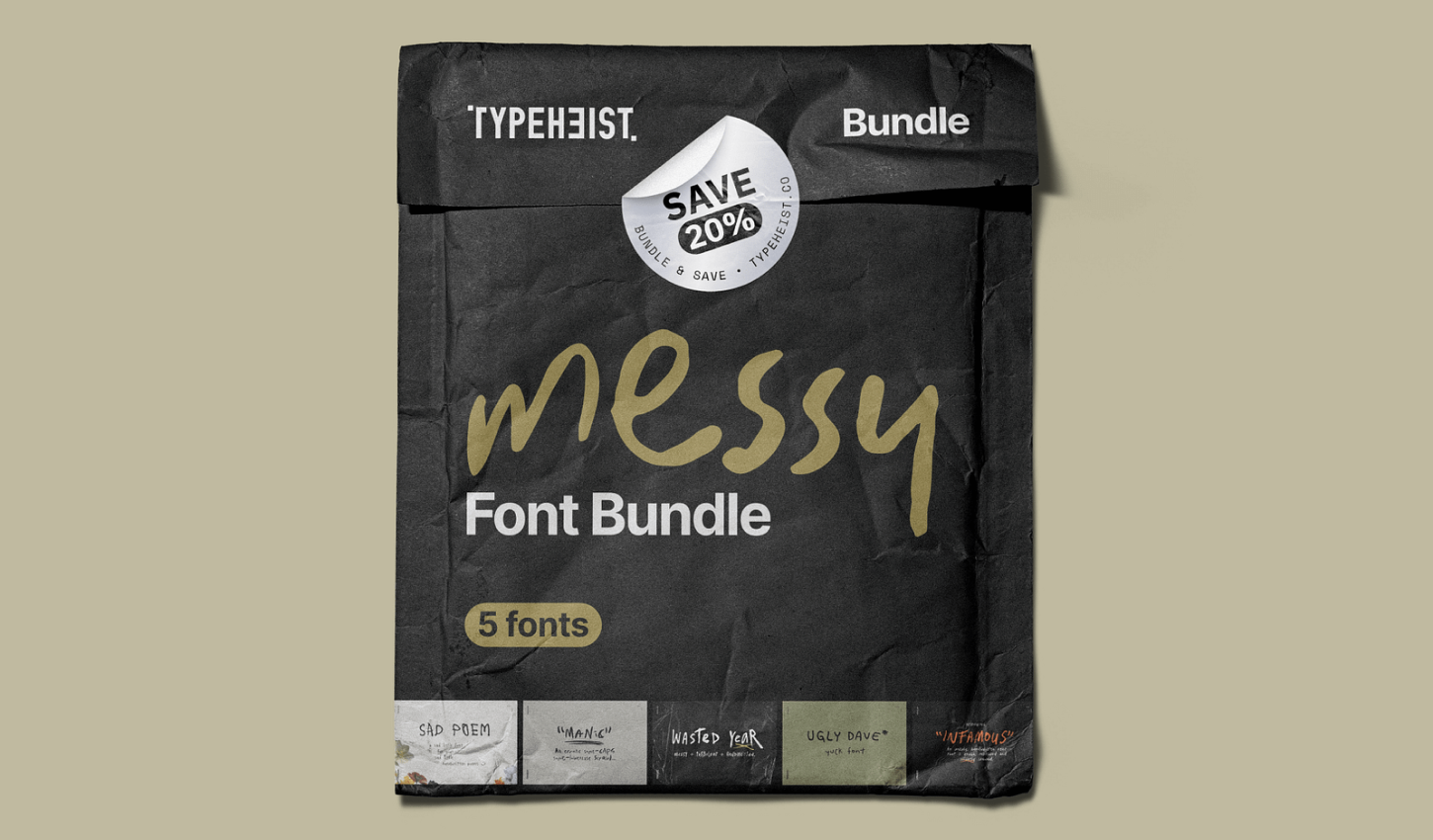
        Messy Font Bundle 

        What you’ll get in the Messy Font Bundle: — 5 messy handwriting fonts and up to 25% off (for desktop + web bundle) — Manic Erratic Handwriting Font — Ugly Dave Yuck Font — Infamous Unruly Font — Sad Poem Font — Wasted Year Font

        20% OFF

        Messy Font Bundle 

        .

        Channelwill: Trusted Shopify Experts for eCommerce Solutions

        Boost your BFCM sales with our powerful apps to enhance conversions and customer loyalty. Get 50% off and start your 14-day free trial now!

        50% OFF

        Channelwill: Trusted Shopify Experts for eCommerce Solutions

        .

        icons8 , Original stock graphics by our team, plus design apps and AI tools

        20% Off

        icons8 , Original stock graphics by our team, plus design apps and AI tools

        .

        ProtoPie’s — #1 advanced prototyping tool for dynamic & multimodal interactions

        up to 40% OFF – code:PRO40

        ProtoPie’s — #1 advanced prototyping tool for dynamic & multimodal interactions

        .

        More Black Friday & Cyber Monday Deal Coming soon

        Please share the love with your fellow designers!

        Copy and paste the below to share:

        2024 Black Friday & Cyber Monday deals for graphic and web designers! https://muz.li/blog/2024-black-friday-cyber-monday-deals-for-designers #BlackFriday #CyberMonday via @usemuzli


        Want even more inspiration?
        Follow us on social media for your daily dose of design, innovation, and creativity right in your feed!
        Linkedin | Instagram | Twitter

        5 professional, free & paid Figma Design Systems, 2024-2025

        A Design System is an invaluable resource for designers, serving as a single source of truth that ensures consistency, efficiency, and scalability throughout the design process.

        By providing a comprehensive library of reusable components, guidelines, and patterns, it streamlines collaboration across teams, eliminates redundant work, and fosters a unified visual language across projects. Designers can focus more on solving complex problems and crafting user-centric experiences rather than reinventing basic elements for every project.

        Additionally, a well-maintained Design System bridges the gap between design and development, making implementation smoother and reducing the risk of inconsistencies. It’s not just a tool—it’s a foundation that empowers designers to work faster and smarter while delivering cohesive, high-quality products.

        Untitled UI / $129

        Untitled UI is the largest UI kit and design system for Figma in the world.

        Untitled UI has been a staple in the market for years, earning its reputation as one of the most popular UI kits and design systems for Figma.

        It provides everything needed for any design project, from simple websites to complex web applications, all in one comprehensive package.

        Staying true to traditional component creation, Untitled UI is expertly built with 100% Auto Layout 5.0, intelligent variants, Figma’s latest variables features, and a strong emphasis on accessibility. Boasting over 10,000 components and variants, 900+ global styles for colors, typography, and effects, and an impressive library of 420+ beautifully designed mobile and desktop page examples, it stands out as one of the most extensive and versatile UI kits available.


        Detachless / Free

        The Detachless UI Kit for Figma is an excellent free resource designed to simplify and speed up web design. It offers a wide range of components and styles to help you craft stunning designs with minimal effort.

        Detachless allows you to kickstart your web projects effortlessly, providing all the essential tools for a seamless and cohesive design workflow. It’s a valuable asset for any designer looking to enhance their efficiency and unleash their creativity in Figma.

        Get Detachless here


        Frames X / $77

        Created by Dmitriy Bunin in late 2021, Frames X is a standout example of a mid-weight design system for Figma.

        Frames X includes over 5,500 reusable components and variants, all built with Auto Layout and supporting dark mode. It also features color styles, icons, and more than 420 “building blocks” to kickstart your website and app designs.

        Get Frames X here


        Keep / $99

        Keep is a streamlined design system that stands out by offering seamless integration for both Figma and React, bridging the gap between design and development. Unlike traditional design systems that often focus solely on design tools, Keep provides a cohesive framework that ensures consistency across design and code.

        With its dual compatibility, designers can effortlessly prototype and refine their ideas in Figma, while developers can implement those designs with precision using React components. This end-to-end solution not only accelerates the workflow but also reduces the risk of misalignment between design and implementation, making Keep an essential resource for teams aiming for efficiency and collaboration.

        Get Keep here


        Atomize / Free & $59

        Used by over 12,000 designers and teams from companies like Thoughtworks, Blurb, Latch, and more, Atomize empowers designers to create modern and visually appealing user interfaces and websites, while eliminating tedious tasks.

        Get Atomize here


        Bonus- All-In-One

        All-Access Pass to UI8.
        Instant access to all 10,006 existing products and daily new releases.
        Unlock $270,453 worth of assets including UI Kits, fonts, Design Systems, mockups, icons, illustrations, themes & templates.

        Get All-Access Pass Here


        Want even more inspiration?
        Follow us on social media for your daily dose of design, innovation, and creativity right in your feed!
        Linkedin | Instagram | Twitter