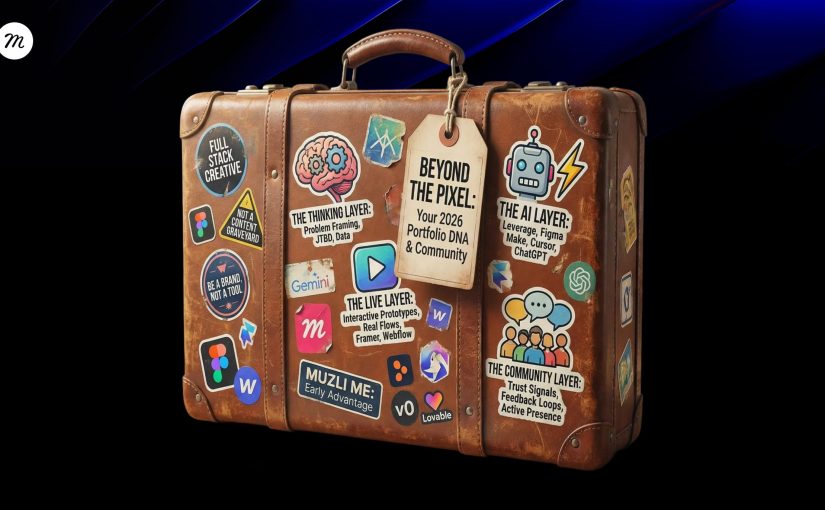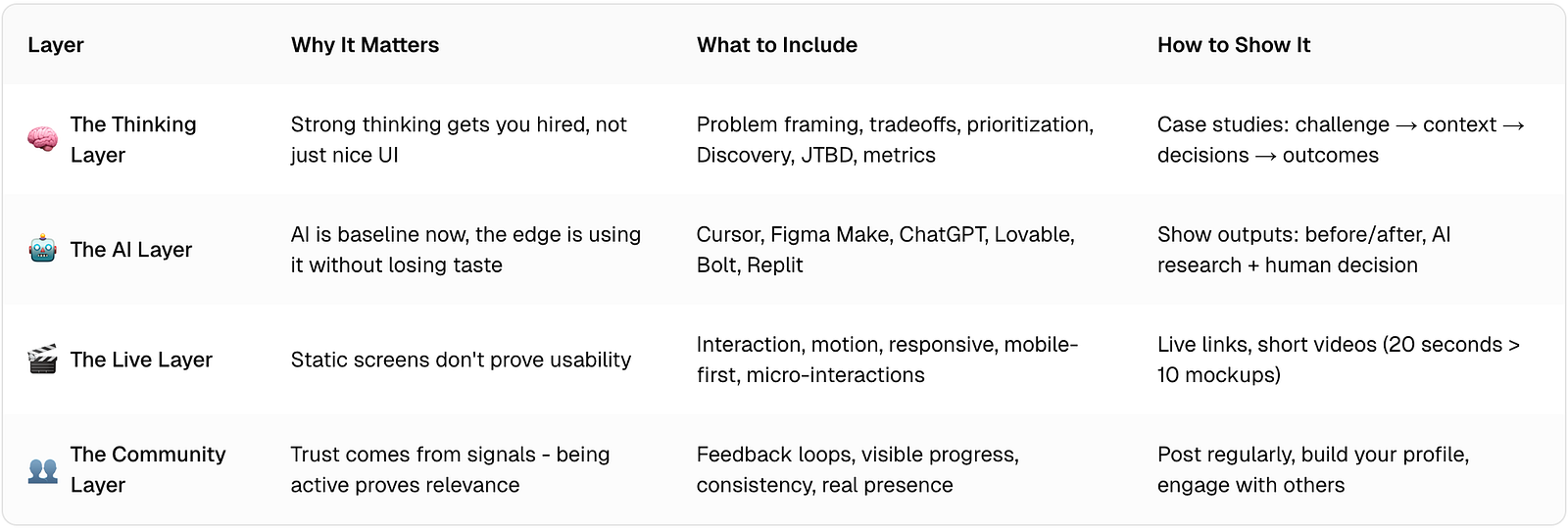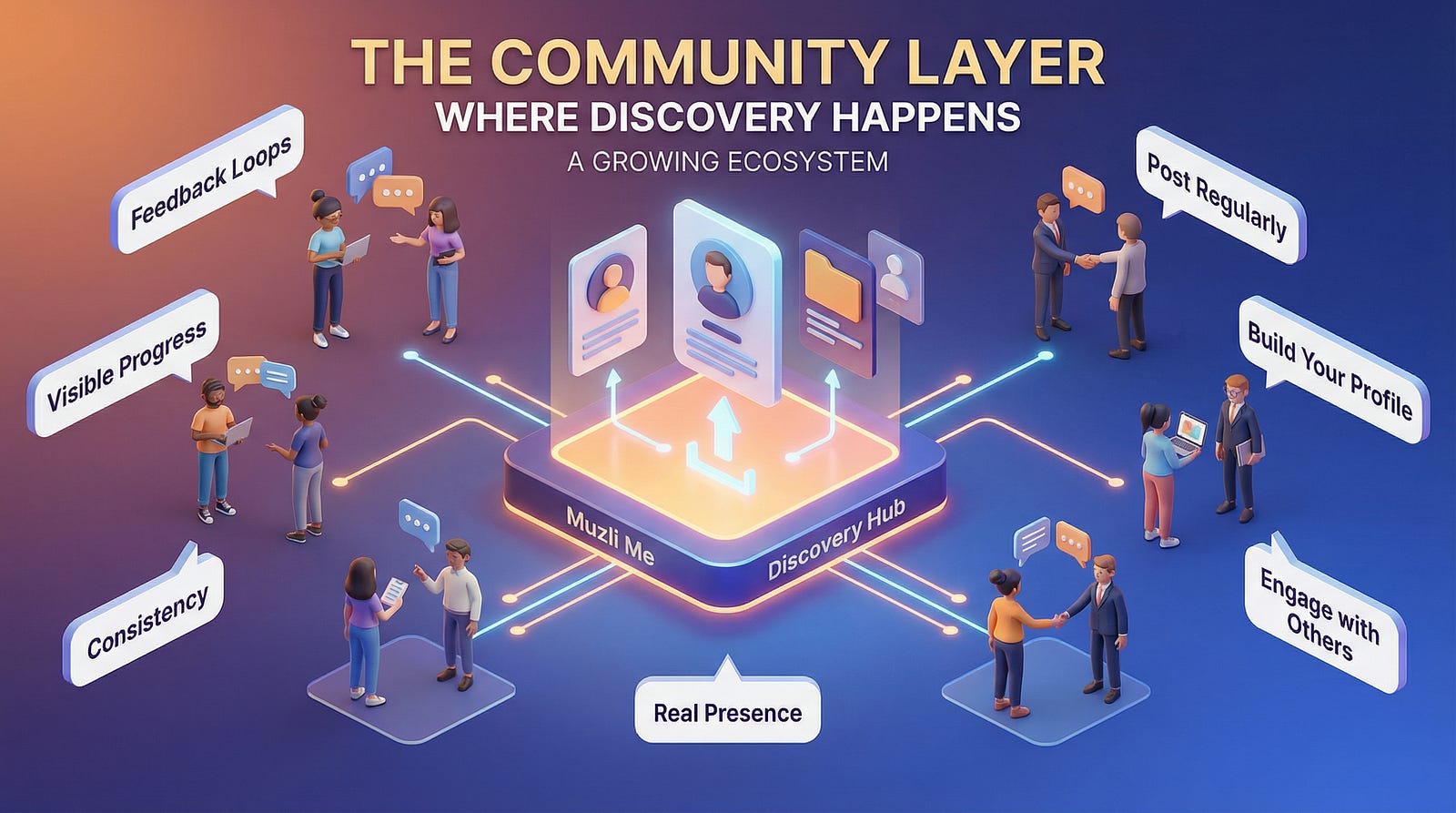
AI didn’t kill the design process. It made being dirt cheap. The new workflow, the tools, and what you should do today.

Grab a coffee, this one is long. Design process is a big subject and I have opinions about it. The TL;DR below doubles as a menu, so tap the part you came for.

TL;DR

OK. Let’s start by remembering what designers have actually been doing all these years.

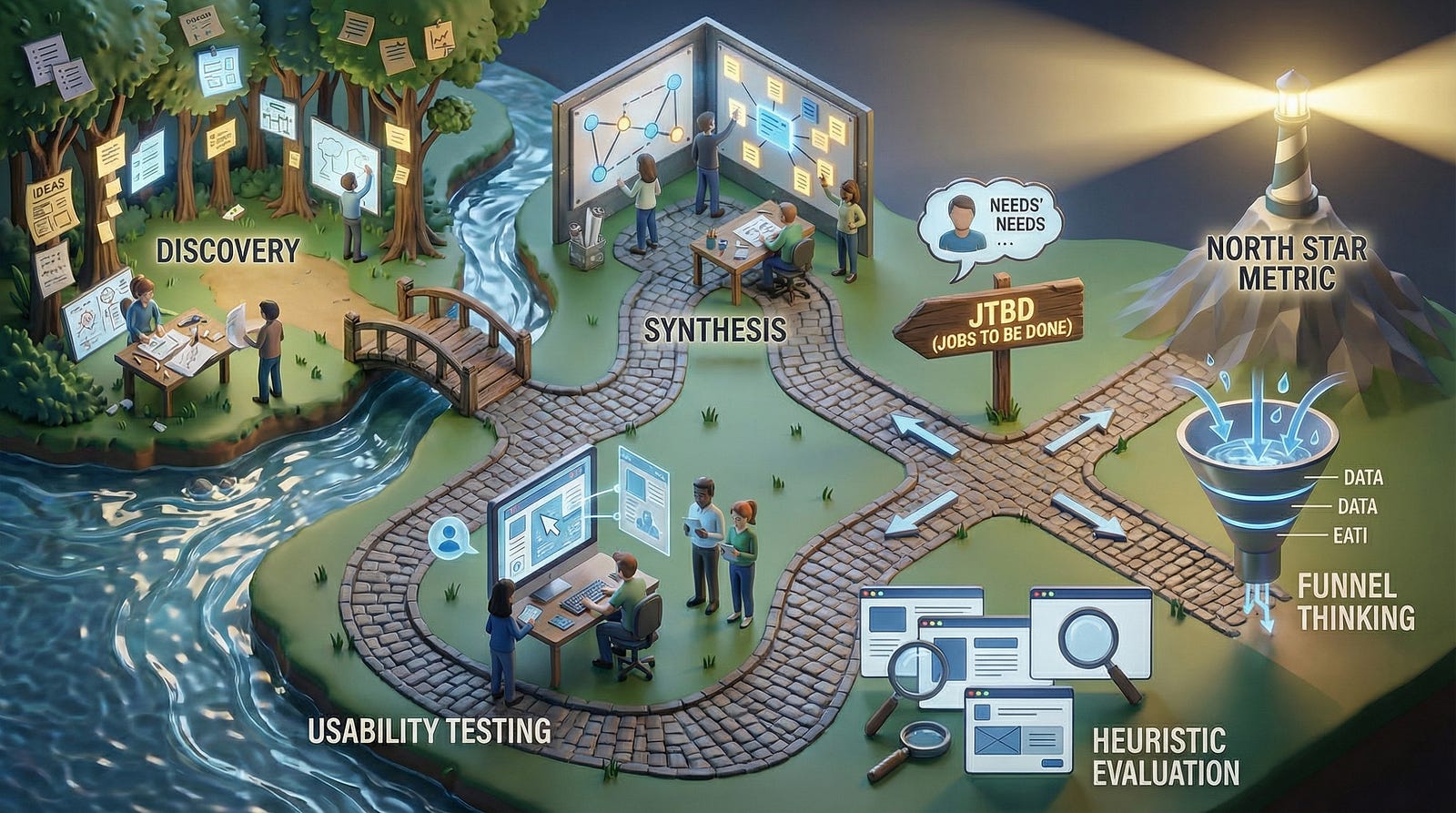
If you have worked in design for longer than a week, you have seen the picture. Two diamonds, side by side.

It is called the Double Diamond, and it is the best-known drawing of how design is supposed to happen. It has four steps, and all four start with a D:

  • Discover. Go and research the problem. Talk to people.
  • Define. Boil that research down to one clear problem.
  • Develop. Come up with lots of possible answers.
  • Deliver. Pick one, finish it, ship it.

Each diamond opens wide and then narrows. First you collect, then you choose. You do that once for the problem and once for the solution.
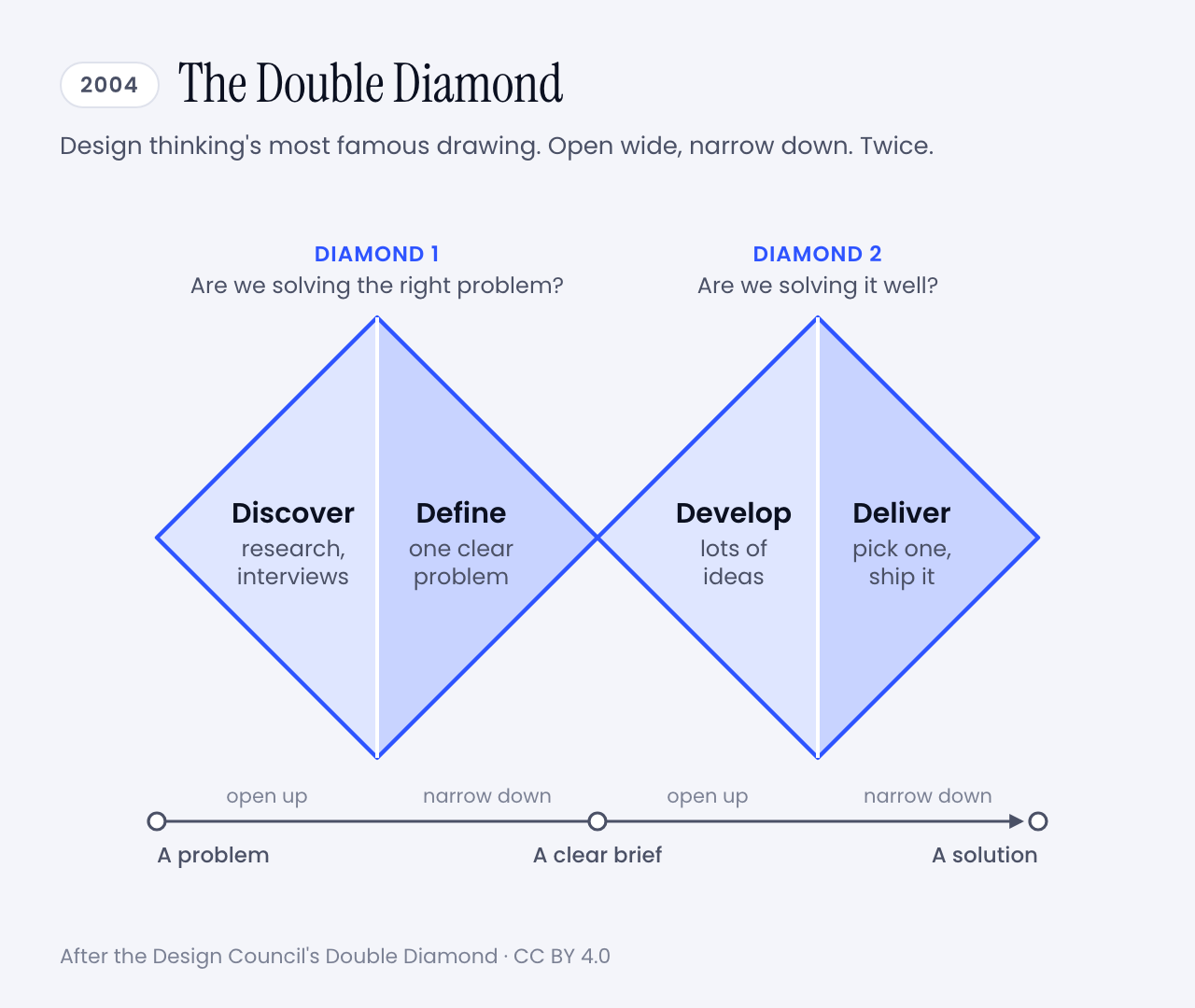
The Double Diamond: two diamonds side by side. The first covers Discover and Define and asks whether we are solving the right problem. The second covers Develop and Deliver and asks whether we are solving it well.
The whole method on one napkin. Image: Muzli, after the Design Council’s Double Diamond (CC BY 4.0)

This is design thinking in its most famous form, the method most of us were taught and have been using for years. I certainly have. Research first, sticky notes second, pixels much later. If your portfolio has a slide with personas on it, you know the family.

And it worked. For twenty years this was how we explained ourselves, planned projects and won budgets.

Then, one afternoon, a product manager typed a paragraph into a box and had a working prototype before the meeting ended. Nobody discovered or defined anything. The diamonds never came up.

I did not invent that scene. In Anthropic’s launch post for Claude Design, a product manager at Datadog says the team now goes from a rough idea to a working prototype before anyone leaves the room.

No wonder the question got loud. In March, Lenny’s Podcast, an interview show for people who build software products, gave an episode the title The design process is dead.

So is it? And is design thinking going down with it?

I have been designing and building software for more than twenty years, and I have seen a few tectonic shifts in that time. Flash died. Phones ate the desktop. Photoshop gave way to Sketch, and Sketch to Figma.

Each one felt like the end of the craft for about six months. Then it was simply how we worked.

So my short answer is no. The useful answer is longer, and it comes with a plot twist. The man who led the team that drew those diamonds stopped defending them three years ago.

Here is the route. First where the process came from and what broke it. Then how good designers work now, a new diagram to replace the old one, and how we do it at Muzli. Then advice, in two letters. One is for beginners and one is for people who remember slicing PSDs. Tools and prompts wait at the end.

Sixty seconds of vocabulary

One pit stop before the story, so nobody gets lost later.

  • Design thinking. The workshop method that IDEO and Stanford’s d.school spread in the 2000s: empathize, reframe the problem, brainstorm, prototype, test, implement. The one with the Post-its.
  • Mock and prototype. A mock is a picture of a screen. A prototype is something you can click. A code prototype is the real thing, unfinished.
  • Agent. An AI that takes steps on its own instead of only answering. It opens files, writes code, runs it, looks at the result and tries again.
  • Vibe coding. Building software by describing what you want to an AI and running the code it writes without reading every line.
  • Brief. What you hand the AI. The same thing you would hand a freelancer, and just as decisive.
  • Rules file. A plain text file that holds your design rules, so the AI reads them every time. You will meet it as CLAUDE.md, DESIGN.md or a skill.
  • Design system. The shared kit a product is built from: colours, type, spacing, components.
  • A/B test. Show version A to half of your users and version B to the other half, then see which half does better.
  • Telemetry. Counters built into a product that tell its makers what people did with it.

That is the whole glossary. Back to the diamonds.

💎 What changed: the diagram lost its author first

The origin story matters here, so bear with me for a minute.

In 2003 the UK’s Design Council had an awkward problem. It was telling businesses to take design seriously, and it had no standard way to describe what designers do.

Its new director of design and innovation was Richard Eisermann, a designer who had worked with Ettore Sottsass in Milan and then at IDEO and Whirlpool. He put the question to his team. They reviewed their own projects, borrowed from forty years of earlier models, and came back with two diamonds and four words picked to be easy to remember.

Now look at what it was for. Eisermann has written that the goal was a framework to help clients understand the work. It had to be quick to get through and easy to remember, and nobody was supposed to get precious about it.

Then the explanation became the job.
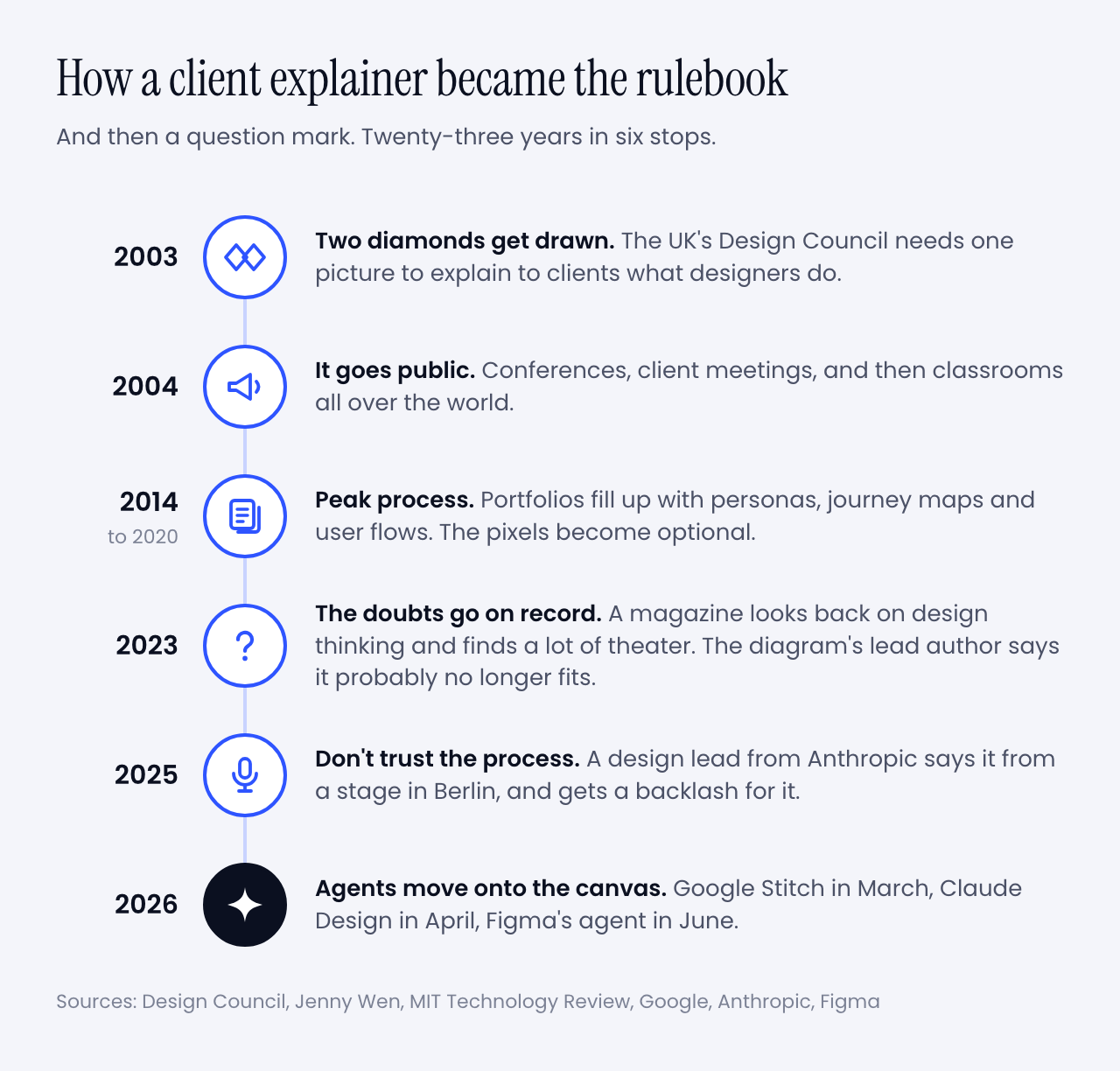
A timeline in six stops. 2003: two diamonds get drawn. 2004: the diagram goes public. 2014 to 2020: peak process. 2023: the doubts go on record. 2025: the Don't trust the process keynote. 2026: agents move onto the canvas.
From a team meeting to a question mark. Image: Muzli

I lived through the middle of that timeline. You probably did too.

Jenny Wen led design for Claude at Anthropic and ran the FigJam and Slides teams at Figma before that. In an essay from 2024 she dates the peak to 2014 through 2020. Portfolios stopped showing the product and started showing journeys, flows, personas and user stories. Proof that someone had followed the process. The pixels became the unserious part.

Design thinking was getting the same treatment. In February 2023, before any of today’s design agents existed, MIT Technology Review looked back on two decades of it. It found agencies that ran the workshops, handed over recommendations and left before anything shipped. It also had a name for box-ticking that changes nothing: innovation theater.

And now the twist I promised.

Three months later, for the diagram’s twentieth anniversary, the Design Council published a piece by Eisermann himself, asking whether the Double Diamond was still fit for purpose. His answer took two words: “probably not”.

His reasons read like a forecast. The diagram is a straight line. It has no step for measuring whether the design worked. And generative tools, he wrote, let you begin anywhere, by putting a finished-looking thing on the table and asking what if.

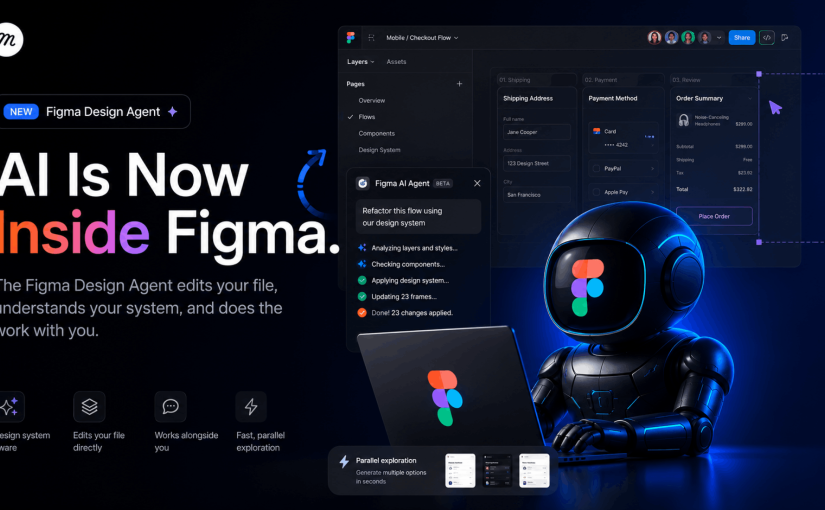
The tools he had in mind were ChatGPT and Midjourney, which tells you how long ago 2023 was. This year alone, Google Stitch became a design canvas with an agent in it, Anthropic shipped Claude Design, and Figma put an agent into every paid plan.

My favourite detail is in Google’s announcement for Stitch. It says you can skip the wireframe and start from the business goal and the feeling you are after. A company that size is now selling the reversed order as a feature.

So the diamonds were wobbling long before AI. Why did AI finish the job? Follow the money.

💸 The process was a price tag

Measure twice, cut once is good advice when wood is expensive. The Double Diamond is that advice with better typography.

You spent weeks discovering and defining because building was the costly part, and building the wrong thing meant months gone. The process was insurance.

Simon Willison did the arithmetic after watching Wen’s talk. A wrong direction used to waste months of development. With AI doing the building it wastes days, so you can afford more risk and more exploring.

For a first version, even days is out of date. I know because I timed it.

In September I wrote three briefs, the kind a studio gets from a client: a product website, a title sequence and a gesture prototype. Claude Opus 5.5 built each one in 50 to 81 minutes. A week later GPT-6.1 Sol built the same three in 17, 8 and 11 minutes, for $1.88 in total. Nobody at Muzli edited the results.

Here is one of them. Go on, scroll it.

Running live in this frame. One written brief, 81 minutes, no edits from me. Built by Claude Opus 5.5.

Vendors tell the same story through their customers. That Datadog product manager says a week of briefs, mockups and review rounds turned into a single conversation. It is a testimonial in a launch post, so season to taste. My stopwatch agrees with it anyway.

When the cut is nearly free, you stop measuring twice. You cut five times and keep the best one.

That is the whole change. Everything else in this article follows from it.

One caution before I get carried away. The wood got cheap, and the room it has to fit in stayed the same size. A user’s attention costs what it always did. So does the trust you burn by shipping something half right. I’ll come back to that, because it is the reason design thinking is not going anywhere.

But first, the fun part. What does a designer’s week look like now?

🔁 How people design now

Let’s start with one person’s week, because she was kind enough to put numbers on it.

Wen told Lenny’s Podcast that a few years ago 60 to 70% of her time went to mocking and prototyping. Now it is 30 to 40%. Another 30 to 40% goes to sitting with engineers while they build. And a new slice is writing code herself, the last-mile polish designers used to file tickets about.

Then: mocks 60-70% ¡ with engineers ~20% ¡ meetings ~10%

Now: mocks 30-40% ¡ with engineers 30-40% ¡ plus her own code

The rest of her picture is just as interesting:

  • Vision shrank. The two-to-ten-year vision deck became a direction for the next three to six months, often delivered as a prototype.
  • Research stayed. Her team has a researcher running studies and surveys, and everyone reads them. She still prototypes and still mocks. The proportions changed.
  • Figma stayed too. She uses it to lay eight or ten directions side by side. A coding tool pulls you down one path and you get attached to it.
  • Shipping moved earlier. Her team releases things early, labels them as previews and repairs them in public. She is blunt about the condition. It only works if the fixes keep coming.

She also says the classic process, the one designers were taught to trust, is basically dead, and that it was dying before AI arrived.

You could say that is one unusual team at an AI lab, and you would be partly right. So let’s look at everybody else.

Figma’s 2026 AI report draws on three years of surveys of designers, developers and product managers. In the last year the share of designers taking part in development doubled, to 41%. Developers doing design work went from 44% to 60%. Two years ago 7% said AI had meaningfully changed how their team works together. Now 41% say so.

Then there is the question of what designers open every week. UX Tools asked 1,478 of them this spring.
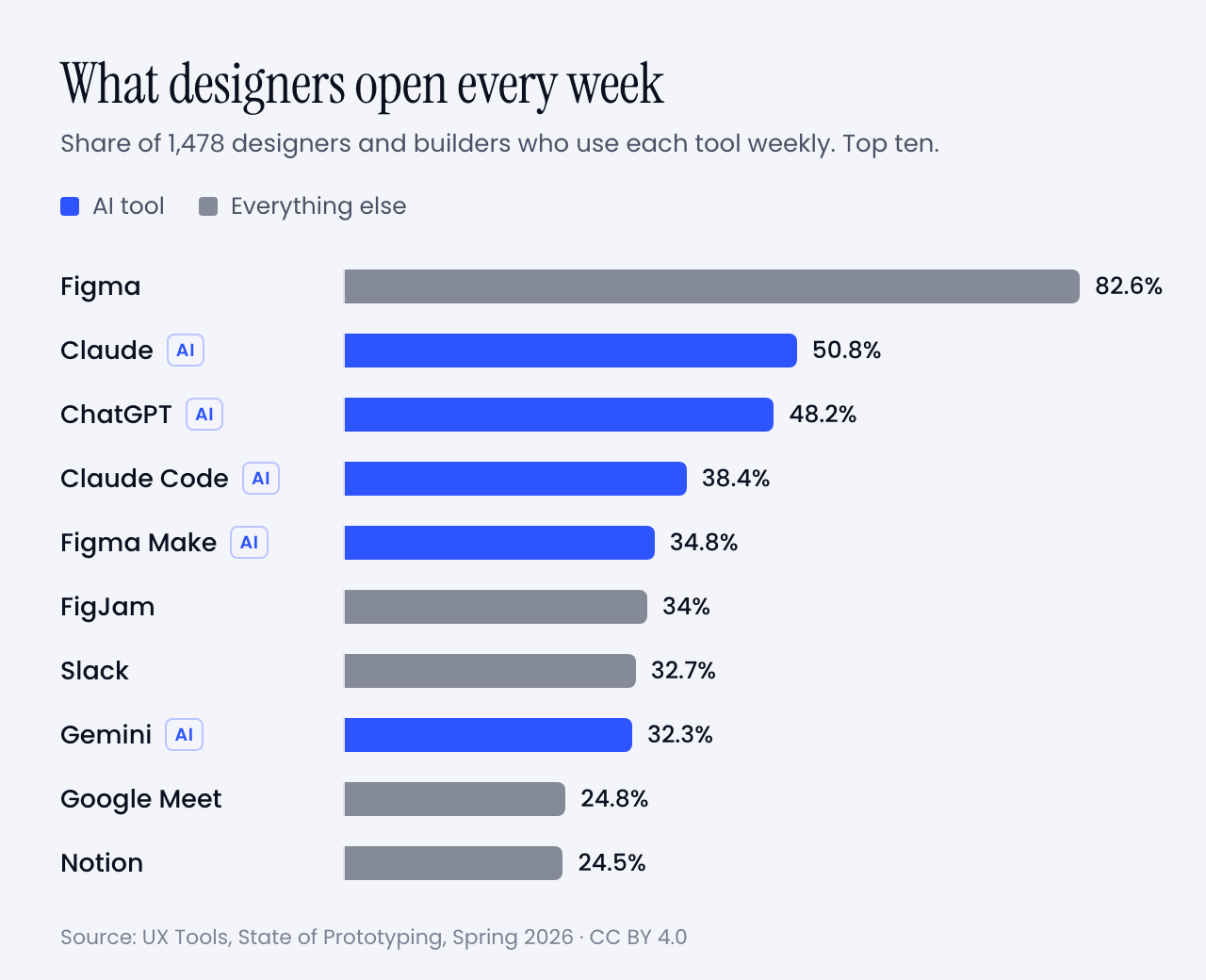
Bar chart of weekly tool use among designers: Figma 82.6%, Claude 50.8%, ChatGPT 48.2%, Claude Code 38.4%, Figma Make 34.8%, FigJam 34%, Slack 32.7%, Gemini 32.3%, Google Meet 24.8%, Notion 24.5%
Share of designers who use each tool every week. Five of the top ten are AI. Data: UX Tools, State of Prototyping, Spring 2026 (CC BY 4.0). Chart: Muzli

Read that sample with care. It came through a tools newsletter and its sponsors, several of which sell AI prototyping, so it leans toward the curious. Even so, a few numbers made me sit up:

  • 59.1% built their own tool or app with AI in the previous six months.
  • 71.1% added AI to their workflow or made it central in the same period.
  • 1.4% trust AI output with no oversight. The largest group, 34.2%, treats it as a first draft to edit heavily.
  • 37.7% have not started. Same companies, same Slack channels.

It is also messier than any of this sounds, and I would rather say so. Wen says keeping up is hard, for designers and engineers alike. In the same survey the top obstacle was time to learn the tools, at 55.7%. Too many tools came next at 53%, then the quality of what AI produces at 52.2%.

So the old diagram is retired and the new way of working is a bit of a blur. That felt like a job for a new diagram.

💍 So I drew a new one: the Diamond Ring

The Double Diamond got famous because it had a shape you could draw on a napkin and a name you could say in a meeting. The new way of working deserves the same courtesy. Here is my attempt.
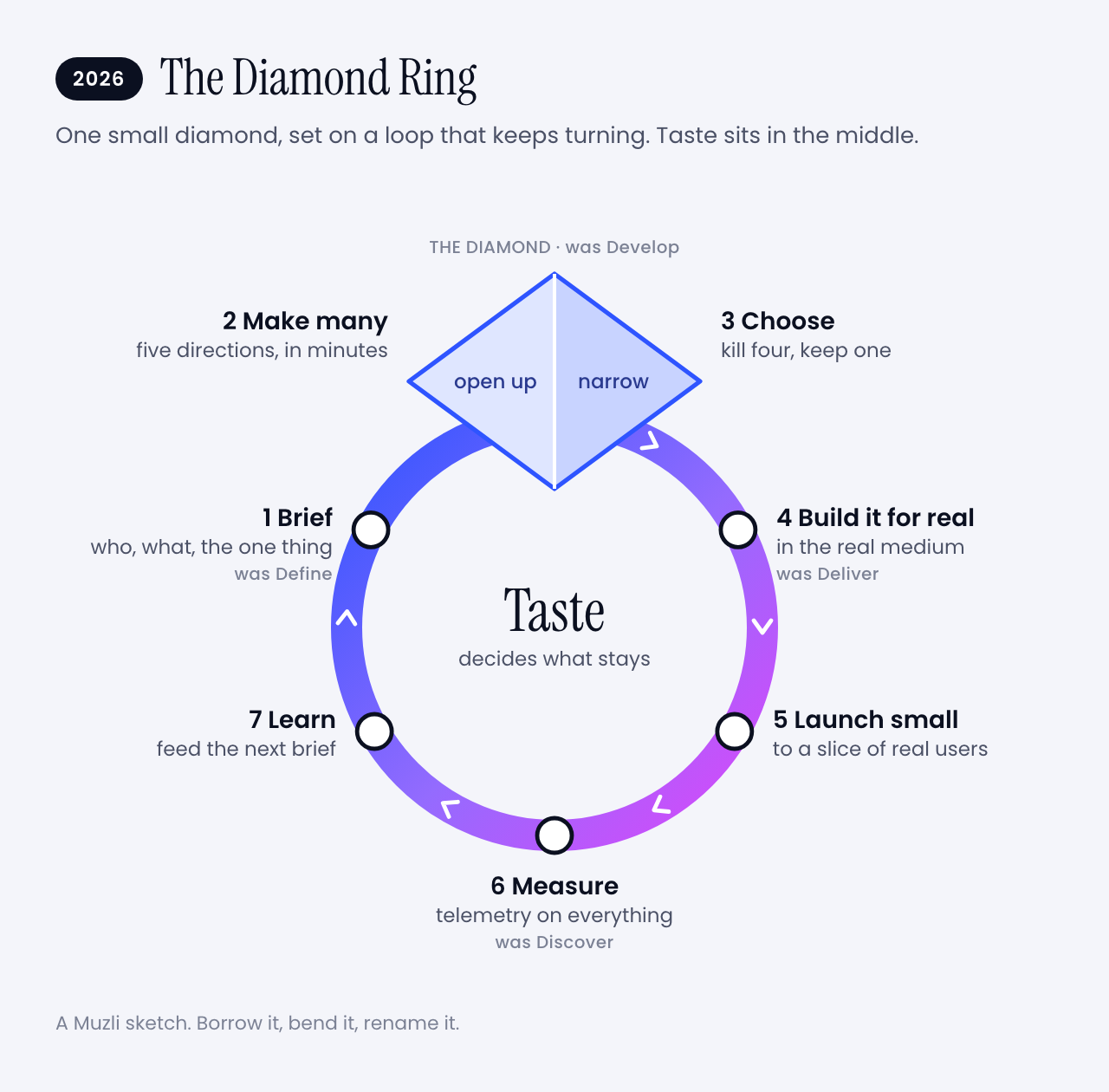
The Diamond Ring: a loop with seven stops. Brief, then a small diamond where you make many and choose one, then build it for real, launch small, measure and learn, and back to the brief. Taste sits in the middle.
After twenty years of two diamonds, design finally got a ring. Image: Muzli

I kept one diamond, because opening wide and then narrowing down is still how good ideas happen. I made it small, because it now takes an hour instead of weeks. And I set it on a ring, because the work never reaches the right-hand edge of the page any more. It goes round.

The four old words are all still in there. They changed places. Let’s walk the ring.

✍️ 1. Brief

You write down who it is for, what it has to do, the one thing people should remember and what you refuse to ship. Twenty minutes, one page. This used to be called Define and it came second. Now it comes first, and everything after it is only as good as this page.

🌀 2. Make many

Ask for five directions that disagree with each other. Then five more. This is the opening half of the diamond, and it used to be the part budgets killed. Anthropic pitches Claude Design on exactly this. Designers usually explore two or three directions because that is all the schedule allows.

✂️ 3. Choose

Kill four out of five. Wen’s thesis is that once making is open to everybody, the skill is in choosing and curating. Nobody can do this part for you, and it is where the design happens. The old diagram never drew it.

🔧 4. Build it for real

Take the survivor into the real medium. Fix the spacing yourself. Tune the motion in code. The handoff ceremony goes away because you are already standing in the code.

🚀 5. Launch small

Ship it to some of your users, with a label that says it is early. Wen’s team does this in public and keeps the fixes coming. At Muzli we show a new thing to half of new users and keep the other half as they were. More on that in a minute.

📏 6. Measure

Count what people do with it. This is the step Eisermann said his own diagram forgot.

🔍 7. Learn

This is Discover, moved from the first step to the last, and it never stops. The Design Council’s own updated guidance allows for it. Early ideas can be built and tested as a way of discovering. For AI products there is no alternative. Wen points out that you can’t mock every state of something that answers differently each time.

You still talk to people first when you know nothing about them. What stopped is waiting for the research to finish before anyone is allowed to make something.

Then you go round again, with a better brief.

And the middle of the ring? That is taste. It decides which of the five directions survives, which fix matters and when a thing is good enough to show. Hold on to that word. I am going to try to sell you something with it later.

It is a sketch, of course. Borrow it, bend it, rename it. Just please don’t turn it into a certification programme.

🏗️ How we build things at Muzli

That was the theory. Here is what it looks like in an ordinary week at Muzli, because we would feel like frauds selling you a ring we don’t wear ourselves.

1. We prototype in the real thing. Big changes still start in Figma. Small ones start as a working build, usually on the day the idea turns up, with Claude Code doing most of the typing. We review what runs. We rarely review a picture of it.

2. We launch to half. The Trending row in the Muzli new tab went from an idea to a live test in one day. Half of the people who installed Muzli after that got it. The other half did not, and they are our control group.

3. We test small things on purpose. Which category is ticked by default when you set up Muzli. Whether a row sits on the left or the right. Which store an install button opens. Usually a few of these run at the same time, and they are built so they don’t trip over each other.

4. Telemetry goes in before the feature does. Every experiment gets its own label in our analytics before the build ships. Every step of onboarding reports in. Every click knows which row and slot it came from. If we can’t measure a thing, it is not ready to launch.

5. We read the results like pessimists. Before a test starts, we work out how many people it needs and write down the date we will look. When a release seems to have helped, we run the same comparison on dates when nothing shipped. Embarrassingly often, nothing also gets a lift.

6. We let a flat result be an answer. One of our tests looked like a clear win after two weeks. Then we split it by install date, and the whole win came from three days of installs. It is still running. Plenty of tests simply come back flat, and that is fine. A flat result is a decision in three weeks instead of an argument for three months.

7. Where there is too little traffic for a test, we use judgment. Some pages will never get enough visitors. There we ship on taste, write down the numbers from before, and compare after.

None of this needs a big team. It needs the habit of asking what would prove you wrong before you get attached.

Which is, when you think about it, exactly what the two diamonds were trying to teach us.

🧠 Is design thinking still viable?

Time for the question in the headline. Yes, as a way to think. No, as a list of deliverables.

Being wrong got cheap in the prototype. It is as expensive as ever in production.

A wrong prototype costs you an afternoon. A wrong product still costs you users and their trust. NN/g, which is nobody’s idea of a hype shop, expects trust to be a major design problem for AI products this year, because people who were let down by one AI feature are slow to try the next.

That keeps the two questions at the centre of the diamonds alive. The first diamond asks whether you are solving the right problem. The second asks whether you solved it well. No tool has made either one optional.

What is dying is the paperwork around them:

  • The persona with a stock photo and an alliterative name. Goodbye, Busy Brenda.
  • The journey map made to be presented, then never opened again.
  • The rule that nothing starts until discovery is finished.
  • The handoff as a ceremony.
  • The five-year vision deck.

Now for the part I find funny. The two loudest camps in this argument agree with each other.

Wen’s talk is called Don’t Trust the Process, and the conference that hosted it describes it as no rejection of research or strategy. NN/g’s State of UX 2026 says the jobs that remain will ask for judgment and range more than deliverables, warns against performing the rituals of design without results, and calls research more important than before.

One side says the process is dead. The other says design deeper. Both are telling you to stop producing proof of process and start producing judgment.

Why judgment in particular? Because everyone now gets the same first draft.

  • Researchers have measured it. A study in Science Advances had 293 people write short stories, some of them with AI-generated ideas. Readers rated the AI-assisted stories higher, and the weakest writers gained the most, enough to catch up with the strongest. The strongest gained nothing. The AI-assisted stories were also more alike. It was stories, and interfaces may behave differently. The pattern will still look familiar.
  • I saw it in my own tests. Opus 5.5 and GPT-6.1 Sol got the same title-sequence brief a week apart. An easing curve is the shape of an animation’s acceleration, and both models named one of theirs shunt. Both read the festival’s name, Offset, as a printing term. Neither had seen the other’s work.
  • NN/g expects the same of interfaces. Before long, anybody will be able to produce one that looks fine until you get close.

AI raised the floor and left the ceiling where it was.

That is why 90% of the people Figma surveyed say design matters at least as much as it did before AI, and nearly six in ten say more.

One warning, from the person best placed to give it. Wen thinks AI will get better at taste, and that designers may be leaning on that word too hard. What she expects to stay human is narrower. Someone has to decide what gets built, and someone has to answer for it.

So don’t build a career on the claim that machines have no taste. Build it on being the one who decides.

Which raises a fair question. Where do you get the taste to decide with?

🏆 Where taste comes from (yes, this is where I sell you Muzli)

I have now used the word taste a dozen times, so let me be useful about it.

Taste is mileage. You get it by looking at a lot of good work, noticing why it is good, and doing the same again tomorrow. Nobody is born knowing why one landing page works and its neighbour does not.

That happens to be what Muzli has been doing for twelve years.

Muzli is a browser extension that puts design worth seeing into every new tab you open. It draws on Dribbble, Behance, Awwwards and hundreds of other sources, and people sort it every day. More than 900,000 people have signed up for it.

The sorting is the point. In 90 days this summer, 190,636 things came through Muzli’s pipes. Eyal Zuri, Muzli’s co-founder and creative director, gave 114 of them a Pick. The flood is the argument for the filter.

Put it next to the ring above. A model can make you fifty landing pages before lunch. Knowing which of the fifty is good is the part in the middle, and you train it one new tab at a time.

So yes, this is the ad break. It is also my honest answer to the question above.

Get Muzli, it is free. And when all these tools help you make something you are proud of, share it on Muzli Me and nominate it for a Pick. I care about the work far more than about which tool wrote the code.

Right. Two letters now. The first is for people at the start of the road.

🌱 If you are starting out

The market first, without sugar. NN/g says entry-level openings are still rare and hard to land, and that people hoping to get into UX will keep outnumbering them. It adds that if your work is assembling components from a design system, AI can already do it.

Now the good half of the story. Wen says most companies hire only seniors these days, and she thinks they are missing something. A newcomer who is humble, eager and has no rituals to unlearn is one of the three kinds of designer she most wants.

You have less to throw away than anyone else in the building.

Here is what I would do with that:

  1. Build real things and put them online. This is Wen’s whole advice to young designers: make a lot, share it, find people who do the same. A project that runs beats a case study about a project.
  2. Don’t let the tool do your learning. Ask it why, every time, and rebuild one thing by hand each week. The evidence for this one is below the list.
  3. Learn the fundamentals the tool can’t judge for you. Type, hierarchy, spacing, colour, accessibility. You can’t direct what you can’t name. If you can’t say why a layout feels off, all you can type is make it better, and so can everyone else.
  4. Look at great work every day. See the ad break above. I mean it, though.
  5. Learn the old process anyway, as questions. Know the Double Diamond. Run one real test with people who aren’t your friends. You will need the vocabulary in every interview, and the habit of asking who this is for never expires.
  6. Show the cuts. In your portfolio, show the five directions you killed and say why. Choosing is the skill nobody can generate. Keep the brief and the rejects.
  7. Go deep in one thing before you go wide. Wen’s other two profiles are the strong generalist and the deep specialist. Nobody starts as the first. Pick type, motion, illustration, research or code, get good enough that people notice, then widen.

About number 2. Anthropic ran a controlled experiment with 52 mostly junior engineers learning a new code library. The group with AI help scored 17% lower on a quiz about what they had just built, 50% against 67%.

The exception matters more than the average. People who used the AI to ask why and to get explanations averaged 65% or more. People who handed the whole task over averaged under 40%. Those groups were small, and the researchers call it a pattern rather than proof.

The trial also used code, so the jump to design is my bet. I would still make it. A gym only works if you lift the weight yourself.

One last number, and it is an encouraging one. In the UX Tools survey, students and people between jobs were the group least likely to call AI central to how they work, at 21.7%. At startups it was 38.8%. It is a small group in the sample, so hold it loosely. But the people competing for the scarcest jobs appear to be using the tools least, and that is a gap you can close in a month.

And now the second letter, for my own generation.

🎖️ If you have been doing this for twenty years

First, the irritation is reasonable. Wen says her talk drew a backlash from people whose careers rest on the old process. NN/g lists being told you will be replaced unless you vibe code among the things practitioners are tired of hearing. Both are fair. Neither changes the arithmetic.

Happily, the arithmetic is kinder than the mood. Seniority is no obstacle. In the UX Tools survey, 56.8% of leads and principals spend half or more of their building time on AI-generated code. Among designers without a lead title it is 35%. Managers sit at 46.6%.
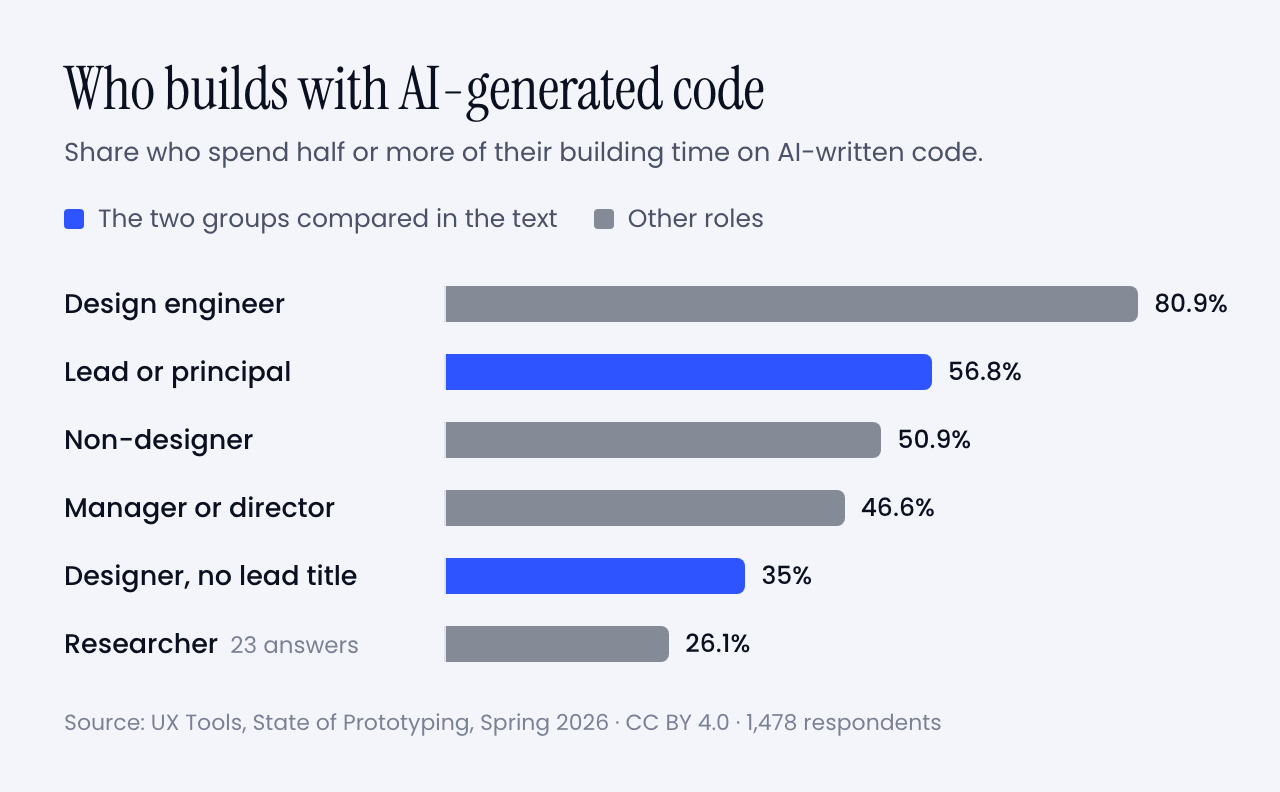
Bar chart of the share who spend half or more of their building time on AI-generated code, by role: design engineer 80.9%, lead or principal 56.8%, non-designer 50.9%, manager or director 46.6%, designer without a lead title 35%, researcher 26.1%
Share who spend half or more of their building time on AI-generated code, by role. Only 23 researchers answered, so treat that bar as a hint. Data: UX Tools, State of Prototyping, Spring 2026 (CC BY 4.0). Chart: Muzli

So the old dogs are learning the trick faster than the young ones. And look at what you already own that just went up in value:

  • A library of what good looks like, built from thousands of decisions.
  • The reflex to ask who it is for before asking what it looks like.
  • Scars. You know which pretty ideas die in production, and why.
  • The standing to say no in a room, and to answer for it afterwards.

What to put down: the handoff, the gate, the deck, and the belief that pixels in code are someone else’s job.

And what to pick up:

  1. Don’t learn React. Learn the tools. That is Wen’s advice to senior designers. You don’t need to build from scratch. You need the coding tools in your kit. Start with the last mile. Fix the spacing yourself and see what happens to your Tuesday.
  2. Write your taste down. Your instincts are an asset only when the machine and the team can read them. Put them in a rules file. Twenty years of opinions, finally in a format something will obey.
  3. Become the editor. You used to review one direction on Friday. Review ten on Monday morning. Critique is the skill you have practised longest, and the one the new workflow is shortest of.
  4. Keep one research habit and speed it up. A prototype in the morning, three users in the afternoon. You know how to run that session. Most people generating prototypes don’t.
  5. Hire the beginner. They bring no habits to unlearn. You bring the judgment. It is the fairest trade on the market right now, and Wen says most companies are passing it up.
  6. Buy yourself the time. The biggest obstacle in the survey was time to learn the tools. Block two hours a week and defend them like a client meeting.

That is the pep talk done. Let’s get practical.

🧰 Tools and hints

You don’t need twelve tools. Too many tools was the second-biggest complaint in the survey. You need one for each job on the ring.

🎨 For making many and choosing: Figma

Figma agent ¡ open beta on all paid plans since 24 June 2026 ¡ code layers on a waitlist

Still the weekly tool for 82.6% of the survey. The agent can draft and rework designs inside your file, take over the repetitive chores and critique what is there. You can give it your own files and rules to work from.

Open it when you need ten options side by side. The Muzli blog covered what the agent does inside a file in May.

🧪 For a first working version: Claude Design or Google Stitch

Claude Design ¡ included in all paid Claude plans

Stitch ¡ from Google Labs ¡ exports your rules as DESIGN.md

Describe the thing, get a first version, then comment on it the way you would comment on a junior’s work. Claude Design can read your codebase and design files to build a design system, so the output stays on brand. Stitch lets you talk to the canvas out loud.

Open one when the question is whether an idea deserves a second hour. The Muzli blog has a getting started guide and a one-week follow-up for Claude Design.

🛠️ For building it for real: Claude Code, Codex or v0

Claude Code ¡ included in Claude Pro, $20 a month ¡ runs in a terminal, a code editor, Slack or the desktop app

For the last mile, and for prototypes that have to behave like the product. Codex is OpenAI’s version of the same idea. v0 gives you a hosted app from a prompt with nothing to install.

Open one when a static frame can’t show what you mean. The setup is in my Opus 5.5 piece, start to finish.

🗣️ For thinking out loud: the assistant you already pay for

Claude and ChatGPT are the second and third most-used tools in the survey. Use one to pull themes out of interview notes, to argue against your concept, or to draft a test script.

Then do the interviews yourself.

Nine habits that matter more than the tool

1. Brief like a studio. Who it is for, the mood in three words, the one memorable thing, what moves. The full template is in my Opus 5.5 piece.

2. Ask for directions before you ask for a design. This is the fix for the one-path problem Wen describes.

Before designing anything, give me five different
directions for [what] for [who]. Make them disagree
with each other. For each one: a name, the idea it is
built on, who would love it and who would hate it.
Do not blend them. Wait for me to pick.

3. Ban the defaults by name. Left alone, a model falls back on a house style. List what you never want to see again, and add to the list every time it annoys you.

4. Put your taste in a file. Let the AI interview you for it.

Interview me to write my design rules. Ask ten
questions, one at a time, about type, spacing, colour,
motion, and what I never want to see. Push back when
I am vague. Then write the rules as a short file I can
give to any design or coding tool.

5. Make it look at its own work. In my model tests, this loop is the reason the builds worked.

Take screenshots at desktop and phone width. As an art
director, list the three weakest things you see and the
principle each one breaks. Fix only those. Then tell me
what you would still not show a client.

6. Ask why, every time. This is the habit that separated the people who learned from the people who didn’t in Anthropic’s trial.

Explain the five decisions in this design that a senior
designer would question. For each one: the principle,
why it matters here, and how I can check it myself next
time. Do not fix anything yet.

7. Test the real thing the same day.

Here is my prototype: [link or description]. Write a
20-minute test for three people who match [audience].
Five tasks, no leading questions, what to watch for in
each, and the result that would prove my idea wrong.

8. Decide what would prove you wrong before you ship. Write down the number or the behaviour that says it worked. Then go and look on the date you promised yourself.

9. Keep the receipts. Save the brief, the rejects and the reason for each kill. That is your case study now.

Try it this week

🌱 If you are new

  1. Pick one small real problem: a friend’s shop, a club’s sign-up page, your own portfolio. Write the one-page brief.
  2. Run the directions prompt in any tool above. Kill four. Write one sentence on each kill.
  3. Run the why prompt on the survivor. Then rebuild one section by hand in Figma, and put both versions online.

🎖️ If you are experienced

  1. Run the interview prompt and save the rules file it writes.
  2. Take one open ticket you would normally spec. Build it instead, with the rules file loaded.
  3. Sit with one engineer for an hour and finish the last mile together.

👥 If you run a team

  1. Replace one status meeting with a review of five generated directions.
  2. Give everyone two protected hours a week to learn one tool. One.
  3. Pick one thing you are about to ship to everyone. Ship it to half instead, and write down what you expect to see.

Worth bookmarking

📚 The argument, from the people making it

📊 The numbers

🧰 The tools

🧪 From Muzli

The landing

That was a lot, so let me land it.

My verdict: the design process is alive, and in better shape than it has been for years. It lost the paperwork and kept the thinking.

The detail I am watching is the word taste. It has become the profession’s safe room. The person who led design on Claude says the machines will get better at that too. That leaves a skill that is narrower and harder: deciding what gets made, and putting your name on the decision.

So skip the deck this week. Take the next thing you would normally spec. Before you write the spec, build three versions of it. Show them to one person who would use it. Then write two lines on which ones you killed and why.

Those two lines are your process now. And if anyone asks which method you follow these days, tell them you are engaged.

The diamonds were how we explained the work to the people paying for it. Now you can show them the work.


Sources: Design Council, Richard Eisermann, Jenny Wen, Lenny’s Podcast, Simon Willison, MIT Technology Review, Figma, NN/g, UX Tools, Anthropic, Google, Science Advances. Charts and diagrams: Muzli. Survey data: UX Tools (CC BY 4.0). Double Diamond: Design Council (CC BY 4.0).
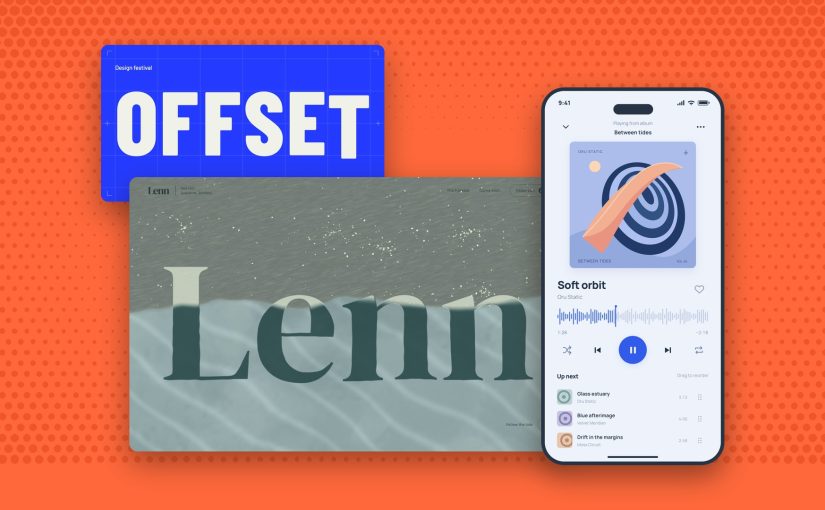
GPT-6.1 Sol built our 3 Opus 5.5 briefs for $1.88. Here are the live demos, the prompts and what else OpenAI’s DevDay gave designers.

This is a long one. Every point in the TL;DR links to its section, so skip to the part you came for.

TL;DR


A developer keynote has a script. A model gets cheaper. A model gets faster. A live demo misbehaves and somebody types instead.

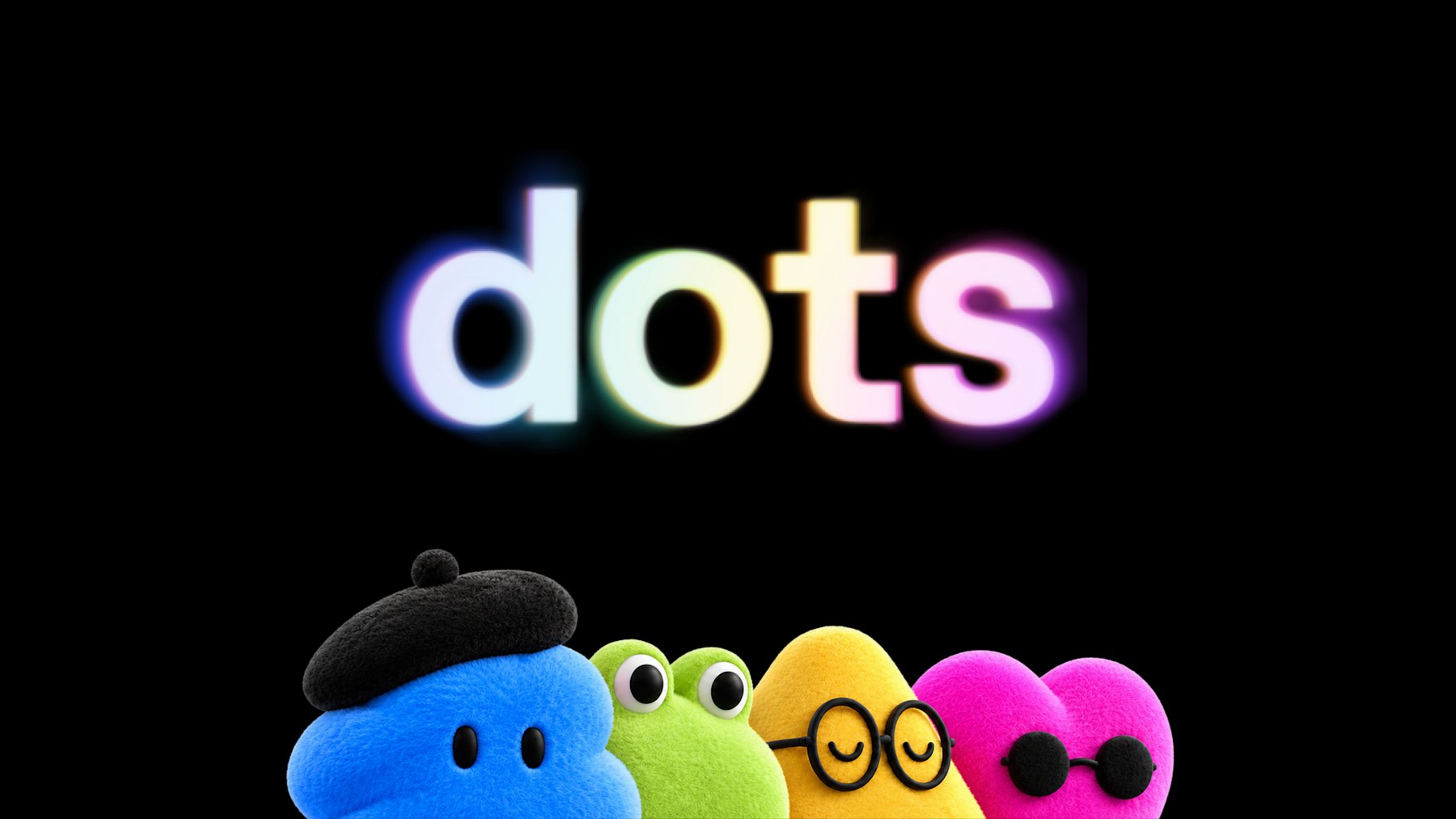
OpenAI’s DevDay hit all three in about 50 minutes, and opened with a plush blob in a beret.

It is called a dot. It is an AI agent with its own computer that keeps working after you close your laptop, and OpenAI drew it as a soft toy. TechCrunch’s headline settled on “bubbly agentic avatar”.

Four plush characters under a glowing dots wordmark: a blue one in a beret, a green frog, a yellow one in round glasses and a pink heart in sunglasses
The four dots from OpenAI’s launch art. Each stands for an agent with its own cloud computer. Image: OpenAI

Most of the day was not for us. OpenAI counted more than 20 launches, and its post about the new model never uses the words design, interface or visual.

Six of them matter anyway. One is that model, GPT-6.1 Sol, which costs half of what Opus 5.5 does. Last week we wrote three briefs to find out what Opus 5.5 could design, and published what came back. We still had the briefs.

So we ran them again. Below is what Sol built, live, next to the Opus versions, with the time and the bill.

After that comes the rest of DevDay, starting with my favourite launch. It’s a sign-in button. Stay with me.

Sixty seconds of vocabulary

  • GPT-6.1 Sol. OpenAI’s new mid-priced model. GPT-6 is the generation. Astra is the flagship, Sol sits under it, Luna is the small fast one.
  • Opus 5.5. Anthropic’s model from last week’s piece. The one we measure Sol against here.
  • ChatGPT Work. The part of ChatGPT that does tasks instead of chatting: documents, decks, sites. Sol lives there. It is not in the regular chat yet.
  • Codex. OpenAI’s coding agent, its answer to Claude Code. It now sits inside the ChatGPT desktop app.
  • Sites. ChatGPT’s own hosting. It builds a web page and gives you a link.
  • Dot. An agent that keeps running on its own computer in the cloud and messages you when it needs a decision.
  • Plugin. A connector between ChatGPT and another app, like Figma. A plugin extension lets that app show its own interface inside ChatGPT.
  • Tokens. The unit AI is billed in. Everything the model reads and writes costs tokens.
  • Effort. How long the model thinks before it answers. Sol defaults to medium. We ran it on high.
  • GSAP and Lenis. Two free libraries our briefs ask for by name. One animates, the other smooths scrolling.

That is the whole glossary.

🤖 The model: GPT-6.1 Sol

Released 29 September 2026 ¡ $2 in, $10 out per million tokens ¡ ChatGPT Work and Codex, Plus plan and up ¡ API name gpt-6.1-sol

OpenAI’s pitch fits in a heading: “Near-Astra intelligence for a fifth of the price”. Astra is the flagship, at $10 and $50. Sol is what the Plus plan gets.

Opus 5.5 costs $4 and $20, so Sol is half that. It is also exactly what Anthropic charges for Sonnet 5.5, the cheaper tier we told you to watch last week. That one shipped the day before DevDay. We have not run these briefs on it.

A cheaper model only matters once it is good enough that you stop rationing attempts.

The launch post will not tell you whether it is. It is charts about code, PDFs, business workflows and science. As with Opus last week, the evidence has to come from building things.

One tester got there before us. Ramanpal Singh at PromptsLove built five apps and gave his only perfect score to a watch page with a 3D model that comes apart as you scroll.

On motion he was blunt: “It struggled when I asked for cinematic motion design.” Our second brief is a title sequence. Good.

🧪 Same three briefs, different model

Each brief went to Sol once, word for word. It got the setup Opus had: the same design guidance file, a real browser it could drive and take screenshots with, and the standing instruction to check its work there and fix what it saw, at least twice. We told it the page would be embedded here, about 720 pixels wide.

The guidance file is Anthropic’s frontend-design skill. Yes, we handed OpenAI’s model its rival’s house rules. It is a text file. It worked.

Opus ran inside Claude Code. Sol ran through OpenAI’s API, the pay-per-use route developers use, in a small rig we wrote to give it the same abilities: read a file, write one, edit it, and use the browser. We set effort to high.

No references, no notes from us, one attempt each, and no person touched the files afterwards. One of our own tools hung during the title-sequence run. We fixed the tool, replayed that single check and left the stalled minutes out of its time.

🎨 A website: sea salt, and a hero made of water

The client every studio turns down, again. Two people, a great story, no budget.

Build a one-page website for Lenn, a two-person sea salt
harvest on the salt marshes of GuĂŠrande, in Brittany.
Visitors are chefs and food lovers who might order a tin
or come and visit.

Mood: quiet, tidal, tactile. Grey Atlantic light, not
beach kitsch. Pick distinctive type, one or two families.

The one memorable thing: the hero is water. A real-time
WebGL water surface fills the screen and ripples where the
cursor moves, with the Lenn wordmark under the surface,
refracting. As you scroll, the tide drains away and salt
crystals appear on the clay.

After that: how the salt is raked by hand (a short
scroll-driven story in three moments), the three salts and
what to cook with each, visiting the marsh, and ordering.

Motion: one orchestrated page load, then scroll-linked
scenes with GSAP ScrollTrigger and Lenis. No fade-up on
every section. Respect prefers-reduced-motion. It must work
on a phone. Quality bar: a site we would feature on Muzli
Picks. Single HTML file, libraries from a CDN.

GPT-6.1 Sol ¡ 17 minutes ¡ 3 fix passes ¡ 51 KB ¡ $0.98

Live demo. Move your cursor over the water, then scroll inside the frame. It holds on to your scroll wheel, so move the cursor out of the frame to keep reading. Open full screen, or open the Opus 5.5 version of the same brief. Built by GPT-6.1 Sol from the prompt above.
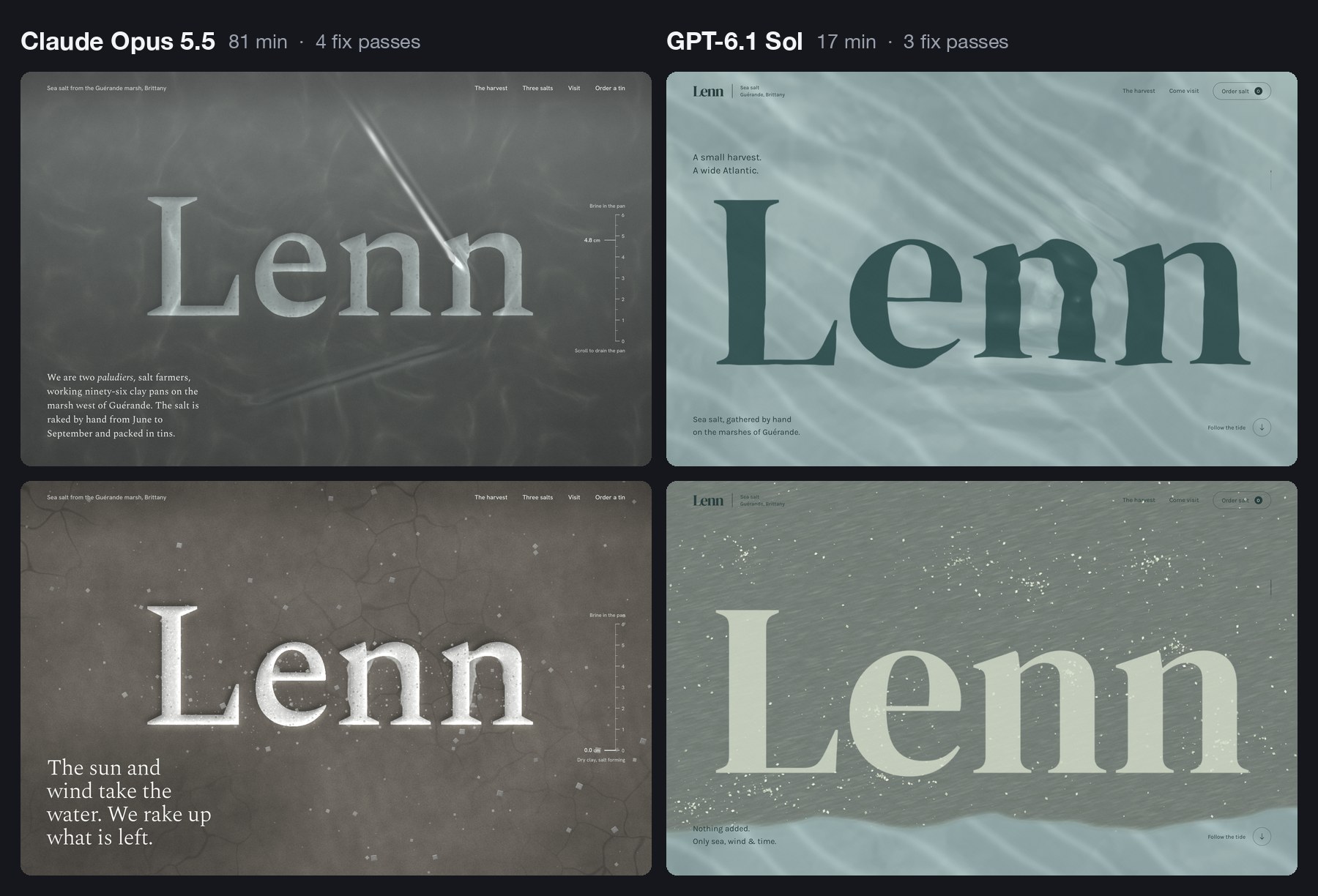
Two versions of the Lenn website side by side. On the left, by Claude Opus 5.5, a pale wordmark carved into dark grey clay under water, with a tide gauge. On the right, by GPT-6.1 Sol, a dark green wordmark under pale sea-green water. Below each, the same hero after scrolling, drained and scattered with salt
Same brief, two models. Top row, the hero under water. Bottom row, after you scroll. Image: Muzli, built with Claude Opus 5.5 and GPT-6.1 Sol

It did everything on the list. The hero is live water, drawn on the graphics card, with the wordmark lying under it. Move the cursor and the letters bend.

Scroll and a tide line travels down the screen. Above it the wordmark dries pale on grey clay while salt gathers in clusters.

Below the hero there is a pinned harvest story in three steps, drawn as the pans seen from above. Then three tins drawn in code and a map of the marsh. The type is DM Serif Display and Karla.

Nobody asked for the next part. The order form adds up and saves a summary, and a small planner lets you pick a month for a visit. Sol’s extras are practical ones.

Its notes show it read the same warnings Opus read. Before building, it wrote: “I’m avoiding the usual cream-and-terracotta craft-food look and photographic placeholders.” On the second pass it wanted the salt to “gather in natural clusters rather than read as scattered confetti”.

On its first look, the water was a black rectangle. A shader, the small program that draws the water, had failed to compile. Sol read the browser’s error log, fixed it and moved on. That loop is the reason any of this works.

Now put it next to the Opus version. Opus carved the wordmark into the clay, added a tide gauge that falls from 4.8 cm to zero, and wrote the harvest in the marsh’s own vocabulary. It took 81 minutes. Sol took 17 and made the site a client signs off. Opus made the one you screenshot.

One real flaw, and you may have just met it. Inside a frame like the one above, Sol’s page keeps your scroll wheel even when it has nothing left to scroll, so the article around it stops moving.

Opus hit the same trap last week, noted that “a blog reader could get stuck”, and handed the wheel back to the page. Sol checked that its page scrolls inside a frame. It did not check what happens at the end.

What it tells you: at 17 minutes and under a dollar, you stop asking for one site. You ask for three directions and pick.

🎬 Motion: a title sequence you can scrub

This is the brief I expected it to fumble.

Make a 12-second looping title sequence for a fictional
design festival called Offset, as a web page.

Think opening titles, not a website: kinetic type on a
strict grid. Letters slide in along the grid, the grid
itself rotates and stretches, colours swap in hard cuts on
the beat, and it resolves into the Offset lockup with the
dates (14-16 May, Vilnius) before looping cleanly.
Build it on one GSAP timeline. Add a small After Effects
style transport bar at the bottom: play/pause, a scrubber I
can drag, the current time, and 0.25x / 1x speed. Easing
should feel designed, so name the curves you use in a code
comment. Single HTML file. No stock fade-ins.

GPT-6.1 Sol ¡ 8 minutes ¡ 2 fix passes ¡ 16 KB ¡ $0.36

Live demo. Press play, drag the scrubber, switch to 0.25x. Open full screen, or open the Opus 5.5 version of the same brief. Built by GPT-6.1 Sol from the prompt above.
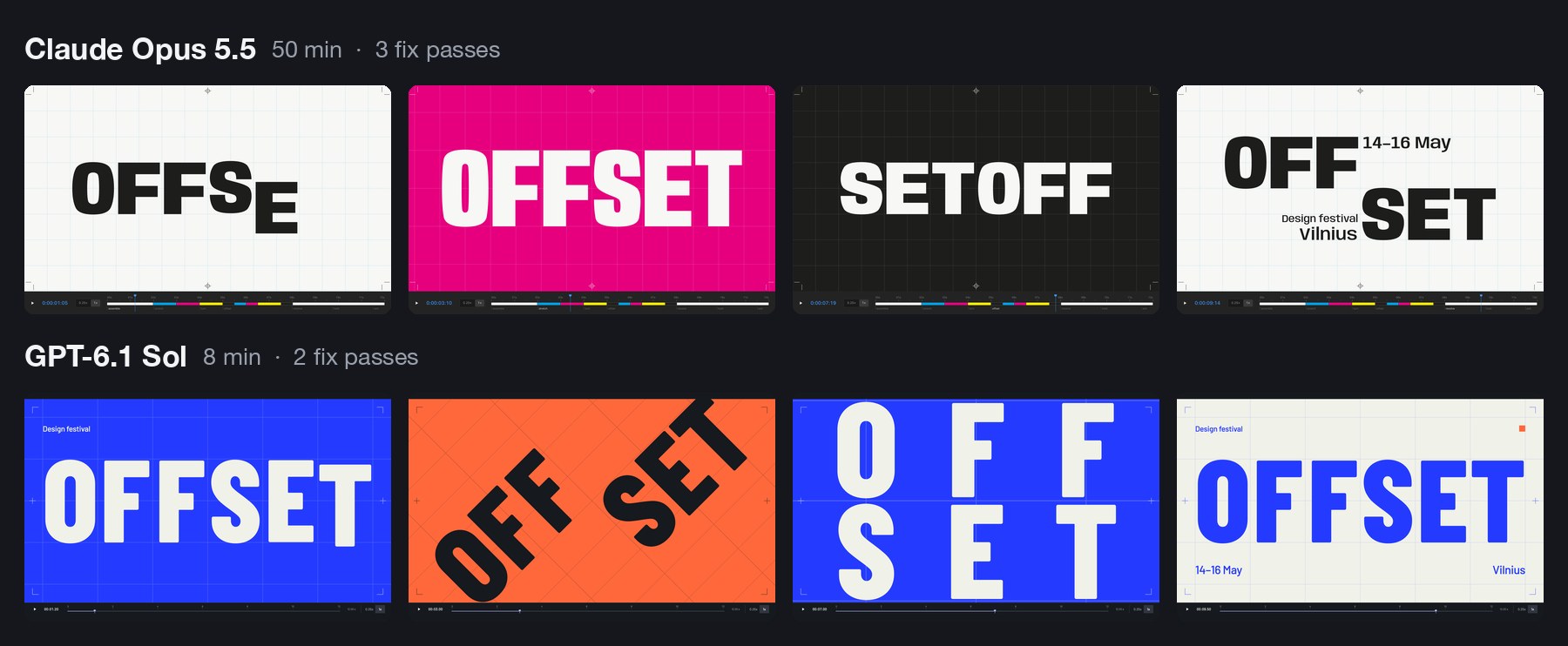
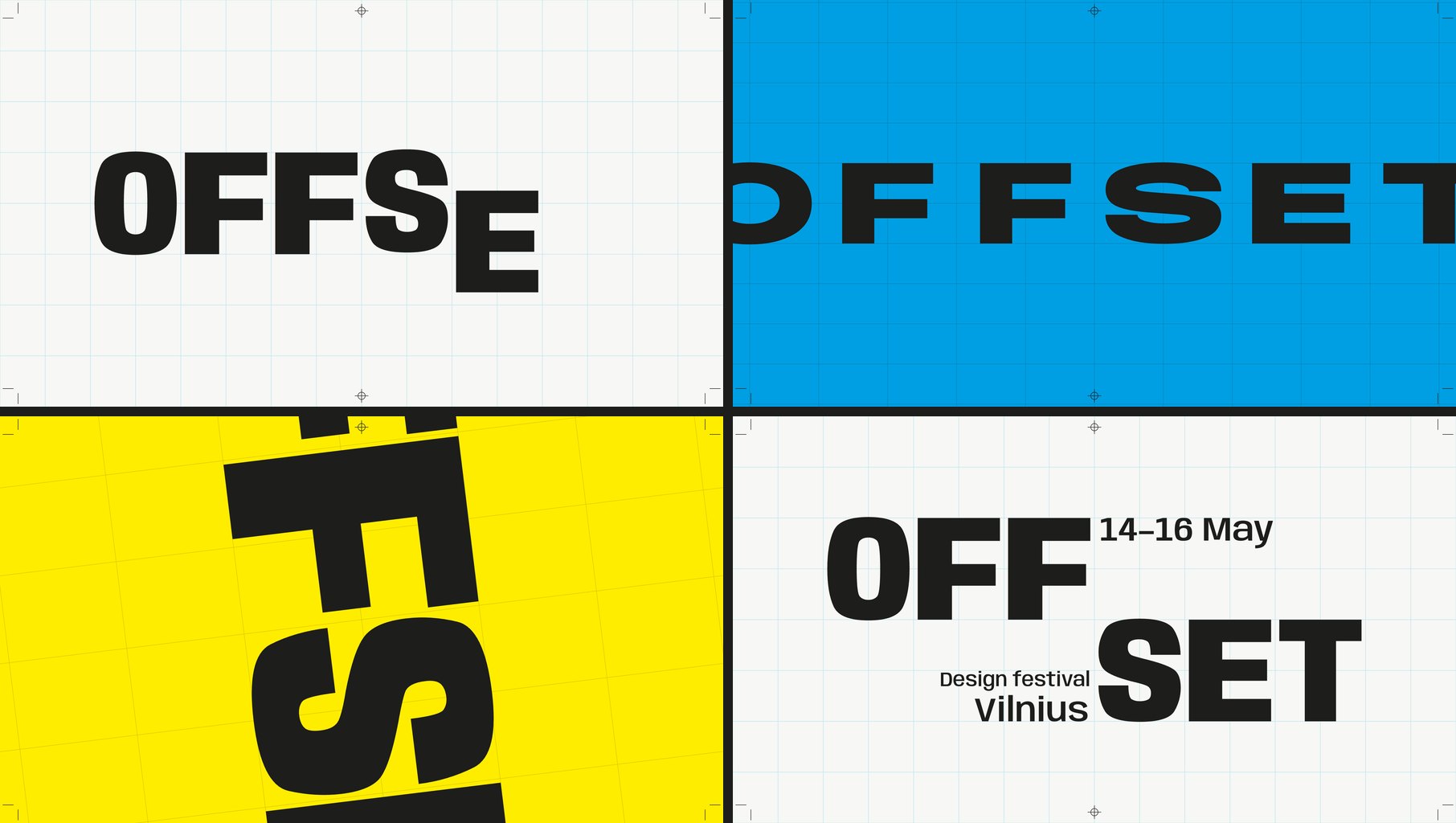
Two rows of four frames. Top, by Claude Opus 5.5: the word Offset on paper, magenta and black, reading SETOFF in one frame, then a stacked OFF SET lockup. Bottom, by GPT-6.1 Sol: Offset in white on ultramarine, tilted on orange, split into two rows, then a blue lockup on paper with 14-16 May and Vilnius
Four moments from each loop. Image: Muzli, built with Claude Opus 5.5 and GPT-6.1 Sol

It did not fumble. Twelve seconds on one GSAP timeline, and a last frame that matches the first. Barlow Condensed in ultramarine, paper, ink and orange.

The letters ride in on six columns. The whole grid swings through a quarter turn, the word blows up past the edges of the frame, splits into two rows and lands on the lockup with the dates. The colours change in hard cuts.

It named its curves, as asked:

register  (.16, 1, .30, 1)   a fast rail move, precisely
                             arrested.
torque    (.76, 0, .24, 1)   heavy symmetric acceleration
                             for grid pivots.
shunt     (.83, 0, .17, 1)   a short hold, then a decisive
                             regrouping.

Here is the strange part. Last week Opus named its curves rail, shunt and crank. Two models from two companies read one sentence about letters sliding along a grid, and both thought of a railway yard. Both called a curve “shunt”. The word is not in the brief or in the guidance file, and neither model saw the other’s work.

They also both read the festival’s name as a printing term. Sol planned “a moving print-registration system” and put crop marks in the corners. Opus went the whole way: four ink plates, a print run, and the word reeling round until it read SETOFF, which in printing is another word for offset.

That is the gap in one example. Sol used the idea as trim. Opus built the whole sequence out of it.

One requirement slipped. The brief wanted cuts “on the beat”. Sol’s cuts land at 2, 3, 4.5, 6, 7.65 and 11.5 seconds, which is nobody’s idea of a beat. Opus set a tempo of 120 BPM and cut on it.

What it tells you: bring the concept and Sol executes it in eight minutes. If you want the concept supplied, that is still the slower, more expensive model.

👆 Interaction: a player you can catch mid-spring

A Figma prototype shows where a screen ends up. It cannot show how it feels to throw it there.

Prototype the mini player to full player transition of a
music app, in a phone frame, as a web page I can use with
a mouse or a finger.

The mini player sits above a tab bar. Drag it up and the
album art grows out of it into the full player, following
my finger 1:1, then settles with a spring. Fling it down to
dismiss; the release speed decides whether it closes. In
the full player: a waveform I can scrub, a like button with
a small burst, and a queue I can reorder by dragging.

Everything must be interruptible: grab it mid-animation and
it stops where it is. Add a "slow motion" switch that runs
all motion at 10% speed so I can review the curves.
Draw the album art in code. Single HTML file.

GPT-6.1 Sol ¡ 11 minutes ¡ 3 fix passes ¡ 38 KB ¡ $0.53

Live demo. Drag the mini player up, fling it down, grab it halfway. Turn on slow motion. On a phone it fills the screen. Open full screen, or open the Opus 5.5 version of the same brief. Built by GPT-6.1 Sol from the prompt above.
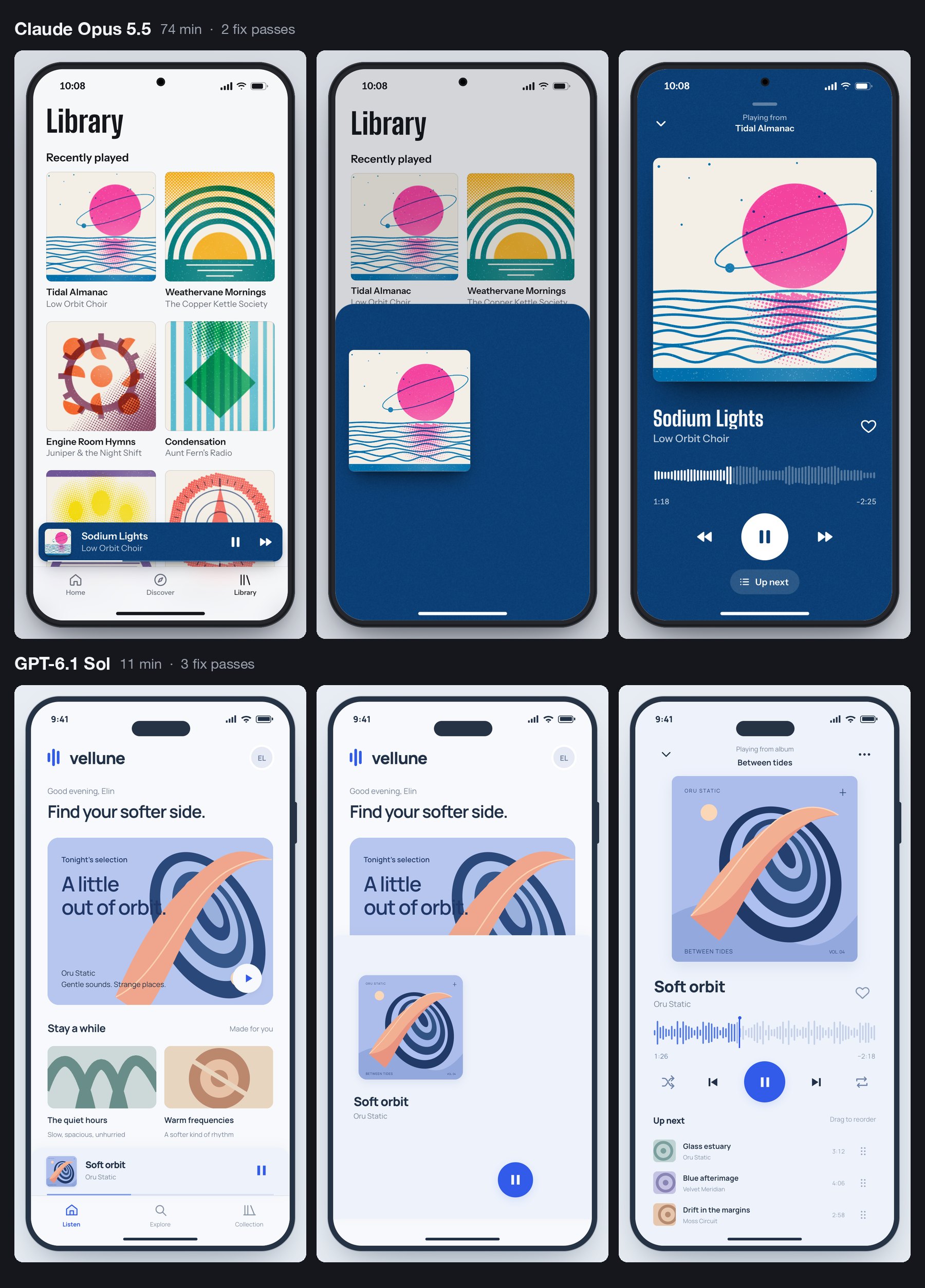
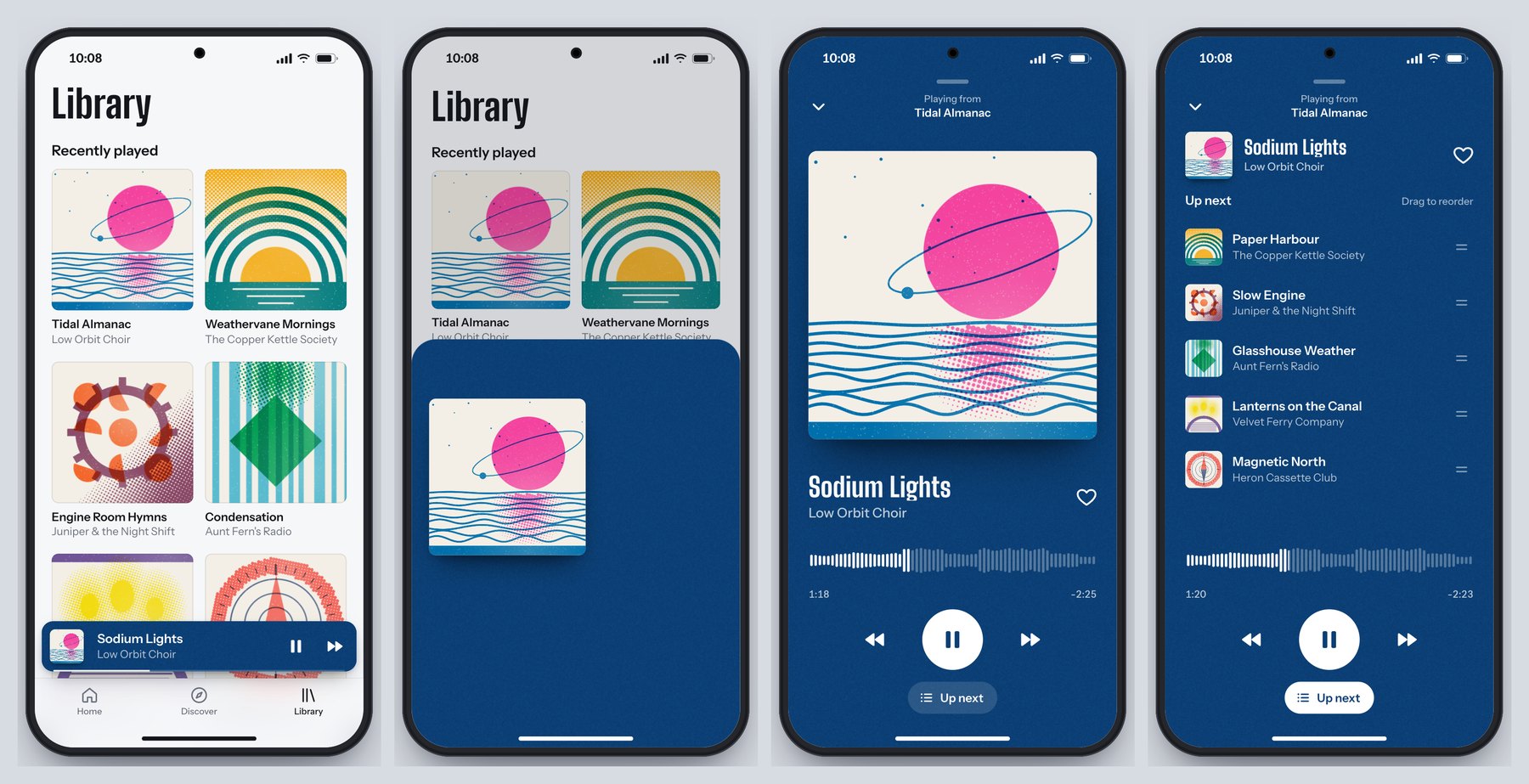
Six phone screens in two rows. Top, by Claude Opus 5.5: a library of risograph-style album covers, the cover growing mid-drag on a deep blue sheet, and the full player. Bottom, by GPT-6.1 Sol: a pale blue home screen, a small cover mid-drag, and a full player with a waveform and an Up next queue
Home, mid-drag and full player, from each model. Image: Muzli, built with Claude Opus 5.5 and GPT-6.1 Sol

Sol invented an app called vellune and one album, drew the cover in code, and built the whole transition around that one piece of art travelling from the mini bar to the full player.

The requirements hold. The sheet follows the pointer one to one, and Sol measured it: “a 33 px pointer move produced 33 px of sheet movement”. Let go and a spring takes over, written by hand with no library, at stiffness 230 and damping 25.

Fling down fast and it closes. Drag the same distance slowly and it springs back open. We tried both. The waveform scrubs, the heart throws a small burst, the queue reorders, and the slow-motion switch runs everything at a tenth of the speed. Grab the player mid-flight and it stops where it is.

It found its own bugs in the screenshots: a play button in the wrong place, the mini player covering the tab bar, a title colliding with the cover halfway through a drag.

It missed one. A press that does not move counts as a tap, and a tap toggles the player. So touching the album art in the open player closes it. The Opus version stays open.

A person finds that in ten seconds. A screenshot never will.

Against the Opus version, the difference is appetite again. Opus drew six albums as two-colour risograph prints and let the player take its colours from the cover. Sol drew one album cover, two simple playlist tiles and a clean pale-blue interface that could belong to any streaming app. Both would do their job in a design review. Only one gives the room something to talk about afterwards.

What it tells you: “does this gesture feel right” now costs 53 cents and eleven minutes to answer.

⚖️ What three runs add up to

Three briefs is a small test. One attempt each, in a rig we built, outside OpenAI’s own apps. Trust the pattern more than the decimals.

  • Speed changes the method. Sol needed about 35 minutes for all three. Opus needed about 205. When a build takes 80 minutes, you write one brief and wait. When it takes ten, you run three directions before lunch and give notes on the one that deserves them.
  • It builds the drawing. Sol is the builder who delivers exactly what is on the plan, plus a sensible extra socket. Opus is the one who phones at nine to say he had an idea about the staircase. Which one you want depends on the week.
  • It checks what it thinks of checking. Both models look at screenshots and fix what they see. Neither can feel a spring. Sol let two things through that Opus did not: the scroll trap and the tap that closes the player.
  • Good guidance travels. Anthropic wrote the skill file for Claude. Sol read it and avoided the same clichĂŠs by name. What you learned about briefing last week still applies.
  • Price is no longer a reason to skip the test. $1.88 bought three working builds, each about half the file size of its Opus twin. We can’t give you the same bill for Opus, because it ran on a Claude Code subscription and no invoice exists. On list price it costs twice as much per token, and it worked about six times as long.

All six builds are live, in pairs, further down.

🗓️ The rest of DevDay, sorted for designers

OpenAI’s recap runs to 25 entries. Besides the model, five are worth your time.

The first is the one I’m most excited about, and the one you can do least with this week. The other four follow in the order I would open them.

🔑 Sign in with ChatGPT: the one I’m most excited about

Sign-in: everyone ¡ spending your plan in other apps: Plus and Pro ¡ 16 launch partners, including Notion, Vercel and Devin ¡ other apps: a waitlist

An app with an AI feature pays the AI company for every request you make. So it eats the cost, asks you to paste in a developer key, or sells you its own credits on top of its subscription. Grant Harvey at The Neuron called these the “three ugly choices”.

Sign in with ChatGPT adds a fourth. The button itself has been on a few partner sites since July.

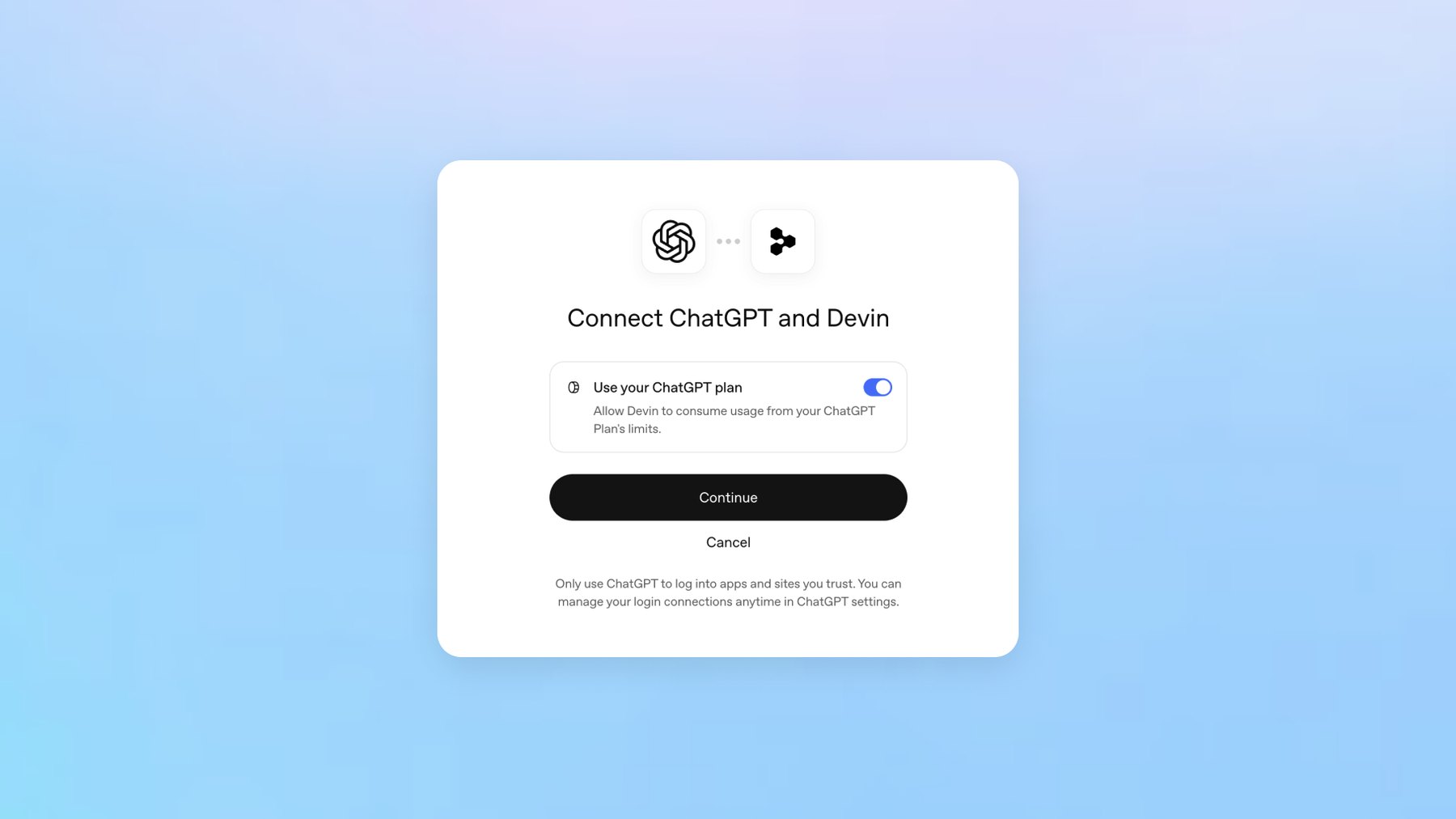
What DevDay added is the second step. After signing in, you can let the app spend from your ChatGPT plan. The consent screen has one toggle, labelled “Use your ChatGPT plan”.

It is bring-your-own-bottle for AI. The app provides the table, you bring the tokens, and the house may still charge corkage. OpenAI’s help page says the same in plainer words: the app “may charge separately for its subscription, infrastructure, services, or premium features”.

A consent dialog titled Connect ChatGPT and Devin, with one toggle labelled Use your ChatGPT plan, a Continue button and a Cancel link
One toggle decides whether an app may spend from your ChatGPT plan. Image: OpenAI

You decide how much each app may pour. In ChatGPT’s settings you give it a weekly share of your plan, from 10% to all of it. Sharing your plan does not show the app your chats.

For now the partners are mostly developer tools. Notion is on the list, Lovable is coming, and Canva takes only the sign-in.

My excitement is partly selfish. At Muzli we use a few AI design tools in-house that we have never shipped to you.

This button would let them run on your plan instead of our bill, inside a limit you set. I’m adding it to Muzli as soon as OpenAI lets us in.

That is the catch. Plan sharing is open to open-source tools and a few selected companies. Every other app, Muzli included, joins a waitlist.

And for now a plan cannot pay for image generation, which design tools will notice.

I also hope it doesn’t stay an OpenAI feature. Every’s DevDay review called OpenAI “the first major lab to take this step”. Anthropic’s help page still tells anyone building a product for others to “use API key authentication”.

I want this button from every AI company, so you pay once for the model you like and take it into every tool you open.

What it unlocks: AI features your company does not pay the model bill for, and fewer AI subscriptions for everyone using them. The screens it needs are below.

🌐 Sites: ChatGPT hosts what it builds

Public beta ¡ Plus, Pro, Business, Enterprise and Edu ¡ a chatgpt.site address or your own domain

You have a prototype in a chat window. Getting it to a link you can send a client still means a hosting account and a favour from a developer.

Sites removes that step. Ask ChatGPT for a website, or type @Sites. It builds, shows you a private preview, and publishes when you say so.

You pick who can open it: selected people, your workspace, or everyone. You can point your own domain at it.

It is not new. At the DevDay session, Simon Willison noted that it “launched earlier this year and is already hosting 8m sites”. What DevDay added is the layer around it: scheduled tasks that keep a Site current, Sites that read each visitor’s own connected apps on business plans, and shareable profiles.

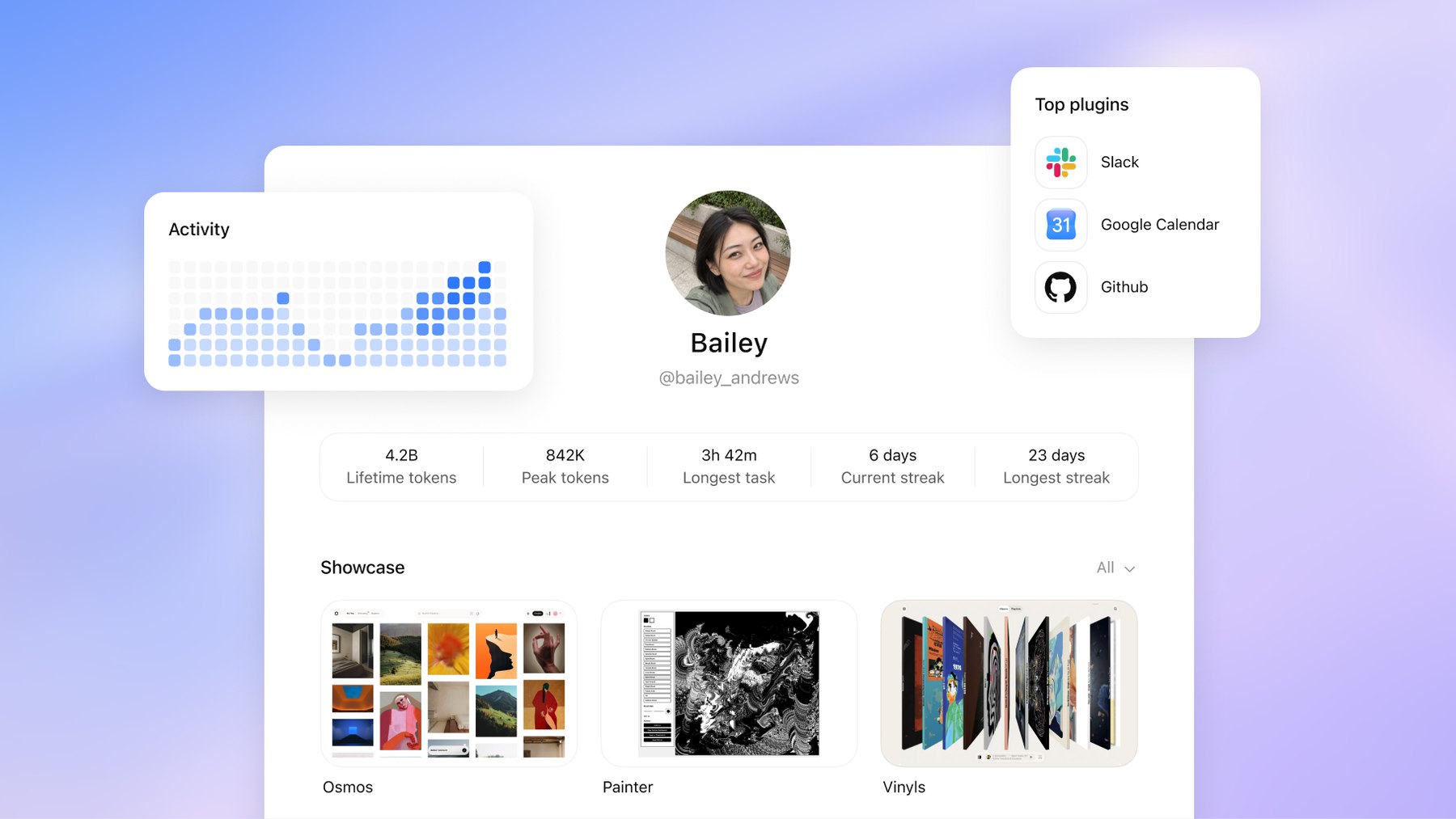
A profile is a page at chatgpt.com/u/your-name that shows up to 12 of your Sites. OpenAI’s mock-up also shows an activity grid and a count of lifetime tokens, which makes it the first portfolio I have seen that reports how hard you worked the machine. The catch is that people have to be signed in to ChatGPT to see it.

A mock-up of a ChatGPT profile page for a user called Bailey, with an activity grid, counters for lifetime tokens and streaks, a list of top plugins and a showcase of three Sites
OpenAI’s mock-up of a shareable profile: activity, token counts and a showcase of Sites. Image: OpenAI

OpenAI also publishes a showcase of Sites with the full prompts that built them. What those prompts teach is further down.

We did not publish through Sites for this piece. Our demos sit on our own server, so this section comes from OpenAI’s documentation. We have not used it ourselves.

What it unlocks: a brief becomes a link in one sitting, on the $20 Plus plan, which is €23 here in the EU. A pitch microsite. A case study with a working prototype in it. A client review that needs no deploy.

🧩 Plugin extensions: your tools move into the chat window

All plans, per OpenAI ¡ on the web, "coming soon" for Free and Go ¡ Figma mentions need the desktop app

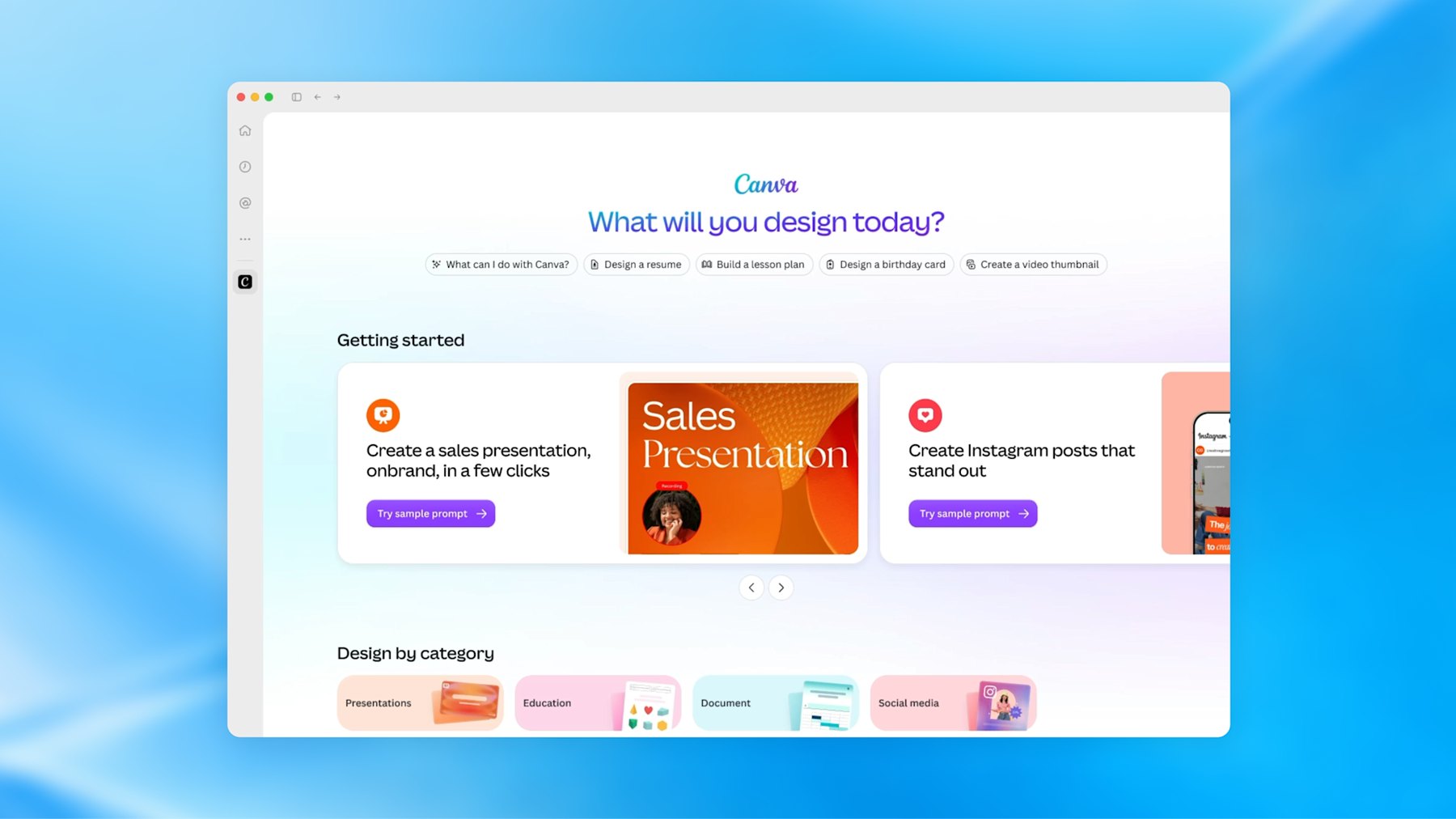
Until now an app inside ChatGPT was a connector. The chat could fetch things from Figma, and that was all. An extension gives the app its own interface in three places: an entry in the sidebar that opens it full screen, a panel beside the conversation, and a viewer that opens when you click a file the app owns.

OpenAI’s three launch examples are all design tools:

  • Canva builds and previews designs in a sidebar tab.
  • Figma lets you search for your files and mention them from the message box.
  • Adobe opens files for editing “with Acrobat and Photoshop directly in ChatGPT”.
The ChatGPT desktop app with Canva open as a full-screen sidebar app, showing the heading What will you design today and cards for presentations and Instagram posts
Canva running as a sidebar app inside ChatGPT. Image: OpenAI

Think of a brand’s corner inside a department store. You get the footfall. They own the floor plan.

What it unlocks: for you as a user, fewer trips between a chat and a canvas. For you as a designer of products, a new place to design for, with someone else’s rules. If your company ships a plugin, somebody has to design the version of your product that lives in a narrow panel beside a conversation.

🫧 Dots: the mascot and the agent

Rolling out now ¡ Pro and Business Premium ¡ on Pro, not in the European Economic Area, Switzerland or the UK ¡ runs on GPT-6 Astra

A dot is one never-ending conversation with an agent that has its own computer in the cloud. You give it a goal. It keeps going while your laptop is shut and messages you, in ChatGPT, Slack or Teams, when it needs a decision.

Think of a colleague who never closes the laptop and has read all your email. That is the promise, and also the worry.

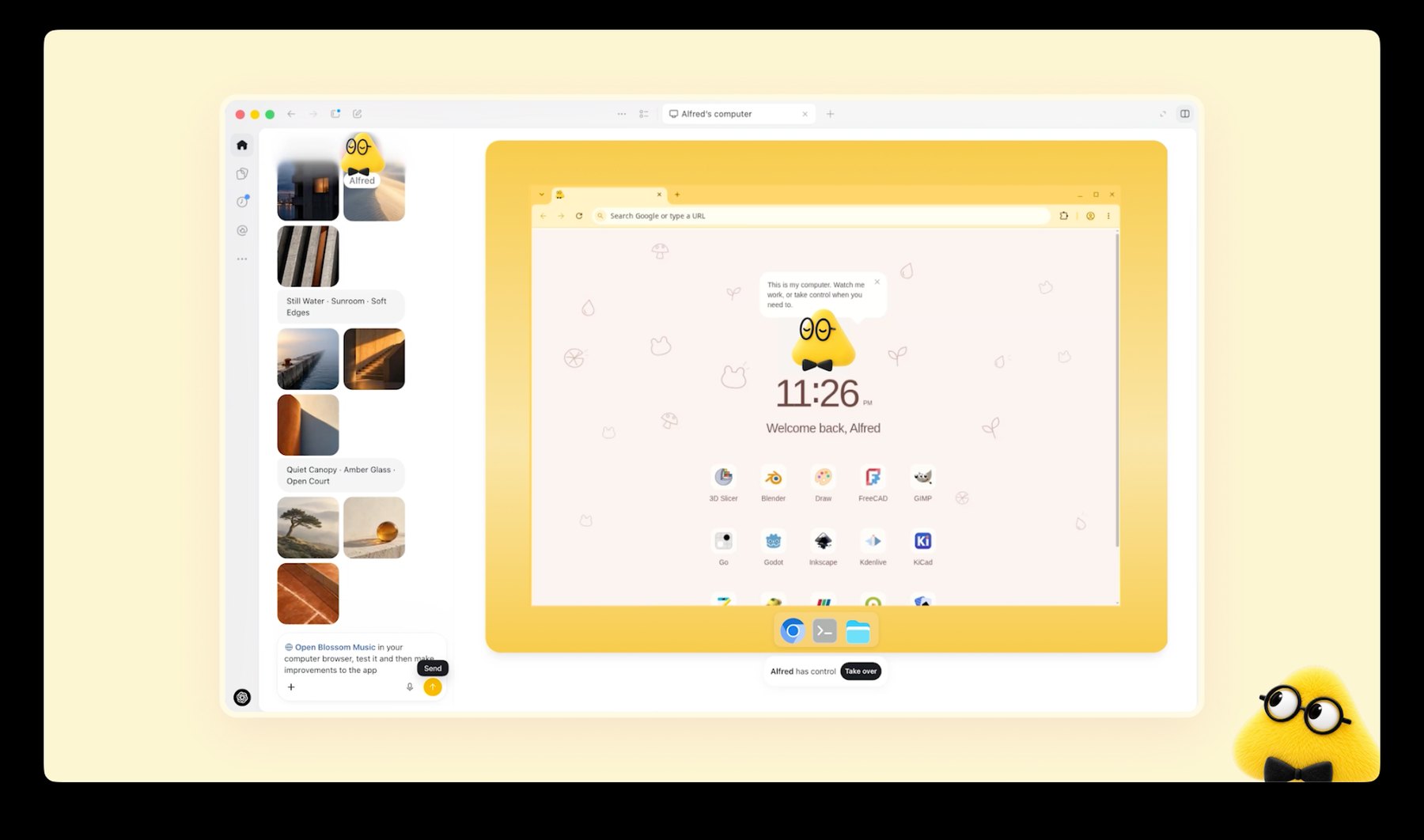
OpenAI’s own example for our trade: “A new design arrives, and dots turn it into a working app while the team focuses on customer feedback.” Look closely at the launch screenshot and the desktop of the dot’s computer holds Blender, GIMP, Inkscape and Kdenlive.

The ChatGPT app showing a dot called Alfred and its own computer: a browser window on a yellow desktop with icons for Blender, GIMP, Inkscape, Kdenlive and other apps
A dot’s own computer, from OpenAI’s launch post. Blender, GIMP and Inkscape are on its desktop. Image: OpenAI

Now the small print. Dots need a Pro plan, which starts at $100 a month, or Business Premium. On Pro, OpenAI does not offer them in the European Economic Area, Switzerland or the UK. If you are a designer in Europe on a personal plan, a dot is a screenshot for now.

And the one long hands-on review says wait. Dan Shipper at Every tested a dot for days. It “has become the main way I use ChatGPT”, he wrote, and it was “too buggy for me to recommend now”. His advice is to give it a week or two.

The design story is the blob itself. Meta’s Muse did it, Grok Bots did it, and now dots. The always-on agent keeps arriving as a soft toy.

TechCrunch called it “the latest example of a company attempting to make AI more relatable”. I would put it less kindly. The more access a product asks for, the softer its mascot gets.

What it unlocks: handing over the watching. The feedback channel. The launch whose scope keeps moving. Just not this month, and not in Europe.

📄 Space, Pages and slides

Space and Pages: Pro, Business and Enterprise ¡ slides: "in the coming weeks"

Space is where ChatGPT now keeps your files, shared with your team and its agents. A Page is a document that people and AI edit together. OpenAI’s list of uses includes turning “a teammate’s design into engineering tasks”.

The part for us is slides. OpenAI says you will “create interactive slides with ChatGPT and your team, from a conversation or your own template”, then present them in ChatGPT or “export to PowerPoint or Google Slides with formatting intact”.

What it unlocks: read “your own template” twice. When an agent builds the deck, the template is the only thing holding the brand in place. Name the layouts and lock the colours.

Last week Every watched Opus 5.5 turn its green into purple in a deck built from its own template. Nobody has shown this one doing better yet, so try it on a deck that does not matter.

The rest is plumbing and pricing. Ultrafast makes Astra write up to eight times faster for people on the new $500 plan. Codex runs in the cloud and takes orders by voice.

If none of that raised your pulse, you read it correctly.

What the room made of it

  • Read it as one move. Grant Harvey at The Neuron: “OpenAI spent DevDay assembling the pieces of an operating layer for AI agents.”
  • Impressive, and tiring. Dan Shipper closed Every’s review with: “I’d be even more excited if the next time I opened ChatGPT, there was less for me to figure out.”
  • Some of it was overdue. Simon Willison live-blogged from the room, failed demos included. On Sites getting sharing controls: “(I admit I thought they had that feature already.)” On signing in with ChatGPT: “I’ve wanted this one for years!” Sam Altman said as much in the closing session: “we should have done it a long time ago”.
  • The safety argument has not gone away. Axios noted that OpenAI said the same week it would hold back its newest flagship, GPT-6.1 Astra, over security concerns.

🧭 What changes in your work

  • Design the lending moment. If your product has AI features, someone will ask for “Sign in with ChatGPT”. OpenAI’s guidelines already sketch the screens: a ChatGPT button as prominent as your other sign-in options, a one-time “You’re using your ChatGPT plan” note, a “Using ChatGPT plan” label by the message box, and a “Usage limit reached” state whose main button opens ChatGPT’s settings, with your own credits second. Your pricing page has to say which of your plans include it. All of it still needs your product’s voice.
  • Design the side-panel version. A plugin extension is your product in a panel beside a chat. Decide which three tasks deserve that panel. Everything else stays a link.
  • Make screens an agent can read. Dots operate software by looking at it, the way our rig’s browser did. Icon-only buttons, hover-only actions and unlabelled states were always bad for people. Now they also stall your customer’s assistant.
  • Test what screenshots can’t see. Our two bugs were a scroll that would not let go and a tap in the wrong place. Both are invisible in a still image. Put your hands on every build before it leaves the room.

Try it this week

🛠️ If you do not write code: the fifteen-minute tour

  • Open the six demos in pairs, full screen. Scroll both salt sites. Scrub both title sequences at 0.25x. Fling both players shut. Decide which one you would have signed off, and notice why.
  • Open Frame Studio or Type Field in OpenAI’s showcase. Press “Try it live”, then read the prompt under “Build process”. Count the lines that forbid something.
  • If you have the Plus plan, open ChatGPT, switch to Work, pick GPT-6.1 Sol and paste a brief with the word “website” in it. Look at the private preview before you publish anything.

🛠️ If you build with AI tools

OpenAI’s own showcase prompts forbid different things than ours do. Ours ban looks: no fade-up on every section, no beach kitsch. Theirs ban fakes.

The Type Field prompt says: “Do not claim to have designed an existing font, fabricate unsupported variable axes, or simulate width by merely stretching every glyph.” Frame Studio wants real animation, “not stock footage or a screenshot pretending to play”. A good brief needs both lists.

So last week’s template grows two lines. We have not run this one through Sites ourselves:

Build a website for [who]. @Sites
Visitors are [audience] who want to [job].

Mood: [three words]. Not [the clichĂŠ you fear].
Type: [families, or "pick distinctive type"].

The one memorable thing: [the moment people will
screenshot]. Everything else stays quiet.

Sections: [in order].

Motion: [the one orchestrated moment]. Respect
prefers-reduced-motion. Works on a phone.

Do not use: [the looks you are tired of].
Do not fake: logos, awards, reviews, or a form that
pretends to send.

Save a version and show me the preview. Do not
deploy until I say so.

That last line matters. OpenAI’s docs warn: “Every Sites deployment URL is a production deployment.”

A build is cheap now, so ask for directions first:

Before building, give me three directions for this
brief: three palettes, three type pairings and three
versions of the one memorable thing. One short
paragraph each. I will pick one, then you build.

After the first build, send the follow-up aimed at the two bugs our screenshots missed:

Now use it like a visitor, not a camera. Scroll to the
very end and keep scrolling. Tap every element once
without dragging. Open it inside an iframe on a longer
page. Tell me what surprised you, then fix it.

🛠️ If you write code

The model name is gpt-6.1-sol. A first call looks like this:

import OpenAI from "openai";
const client = new OpenAI();

const response = await client.responses.create({
  model: "gpt-6.1-sol",
  reasoning: { effort: "high" },
  input: "Your brief goes here.",
});
console.log(response.output_text);

In Codex it is one flag: codex -m gpt-6.1-sol.

One call writes a page. What made ours work was the loop around it. The model gets a browser tool, loads its own page, looks at the screenshot, reads the error log and edits the file. Our rig is about 700 lines of Python on top of Playwright.

If you give the model tools, use the Responses API. OpenAI’s docs say Chat Completions does not support function calling for this model.

If you already have a project, OpenAI’s docs supply the prompt:

Deploy this project with Sites. Check whether it is
compatible, make any required changes, and give me
the deployment URL.

🆚 Opus 5.5 and GPT-6.1 Sol, side by side

Here are all six, in pairs. My verdict: the Opus versions are more creative and more refined. Sol’s are faster and far cheaper, and every requirement but one works.

🎨 Lenn, the sea salt website

  • Opus 5.5, live. 81 minutes, 4 fix passes, 97 KB. A wordmark carved into the clay, a tide gauge that drains from 4.8 cm to zero, and copy in the marsh’s own words. The water is the grey the brief asked for, and the page hands your scroll wheel back when it ends.
  • GPT-6.1 Sol, live. 17 minutes, 3 fix passes, 51 KB, $0.98. A flat wordmark under sea-green water, plus practical extras: an order form that adds up and a visit planner. It keeps your scroll wheel inside the frame.

🎬 Offset, the title sequence

  • Opus 5.5, live. 50 minutes, 3 fix passes, 31 KB. Four ink plates, the word turning into SETOFF, and a lockup with the dates tucked between OFF and SET. It cuts on a 120 BPM beat, and the transport bar shows timecode to the frame, with its sections named like markers in After Effects.
  • GPT-6.1 Sol, live. 8 minutes, 2 fix passes, 16 KB, $0.36. A grid that swings a quarter turn and a word that splits into two rows. The cuts miss the beat, and the transport bar is a plain scrubber.

👆 The music player

  • Opus 5.5, live. 74 minutes, 2 fix passes, 66 KB. Six albums drawn as two-colour risograph prints, and a player that takes its colour from the cover as it grows. Tap the art and the player stays open.
  • GPT-6.1 Sol, live. 11 minutes, 3 fix passes, 38 KB, $0.53. One album cover, two simple playlist tiles and a clean pale-blue app, with a measured one-to-one drag and a hand-written spring. On the home screen the artwork cuts through the headline, and a tap on the art closes the player.

All three took Opus about 205 minutes. Sol needed about 35, for $1.88.

So split the work. Ask Sol for the quick directions, then give the one worth keeping to Opus for the version with your name on it.

Worth bookmarking

🤖 The model

🔑 Sign in with ChatGPT

🌐 Publish

🧩 Inside ChatGPT

🫧 Agents

🧰 Carried over from last week

🏆 Get picked

The landing

Here is my verdict. DevDay’s gift to designers was not the blob. It was a second model that can build a real brief, at a price where trying costs next to nothing.

Last week each build took Opus between 50 and 81 minutes. This week all three cost $1.88 and were done before the coffee went cold. The idea stays your job.

The thing I’m watching is who pays. Sol made a build cheap. Sign in with ChatGPT moves the cost onto a plan the user already pays for, inside a limit they set.

If every AI company copies it, any small team can ship AI features without a token bill hanging over it.

So do the cheap thing. Take one brief and ask for three directions. Build the one you would defend in a review, then use it like a visitor: scroll past the end, tap what should not be tapped. Fix what you find and nominate it.

When a build costs 36 cents, the brief is the only expensive thing left.


Sources: OpenAI, DevDay 2026 recap, Introducing GPT-6.1 Sol, Introducing dots, ChatGPT Sites, ChatGPT Space, help center, release notes, developer docs, Sign in with ChatGPT docs and showcase. Anthropic, Claude Sonnet 5.5 and help center. Simon Willison, Every, TechCrunch, The Neuron, Axios, RuntimeWire, Ben’s Bites, PromptsLove. Test runs, timings and costs: Muzli, 2 October 2026, billed through OpenRouter at OpenAI’s list price. Demos and comparison images: Muzli, built with GPT-6.1 Sol and Claude Opus 5.5. Other images: OpenAI.

Opus 5.5 builds Muzli Picks-level websites. Here are 3 live demos, the prompts and how to make your own.

This is a long article about my week with Opus 5.5. Every point in the TL;DR below links to its section, so skip straight to the part you’re most interested in.

TL;DR


Every model launch comes with the same promise about the front end. Better at UI. More taste.

Then you ask for a landing page and get a cream background, one italic word in the headline, “01 / 02 / 03” above every section and pill-shaped buttons.

That list is not my opinion, by the way. It comes from Anthropic’s own documentation for Opus 5.5, which warns that without design direction the model “falls back on a few default styles”. Last November, Anthropic’s blog described the previous uniform: “Inter fonts, purple gradients on white backgrounds, and minimal animations”.

The uniform changed. The habit did not.

So when Opus 5.5 landed, I skipped the benchmark charts. We wrote three briefs, the kind a studio gets from a client, and gave each one to Opus 5.5 once.

Here is what came back, live, with the prompts. Then how to use it in your own work, what to install, what to know before you prompt, and what it means for a career a lot of designers are suddenly questioning.

Sixty seconds of vocabulary

  • Opus 5.5. Anthropic’s new model. Claude is the assistant, Opus is its big everyday tier, 5.5 is the release.
  • Fable 5.1. The Anthropic model Opus 5.5 gets measured against.
  • Claude Code. The version of Claude that works on files on your computer. It writes the code, opens it in a browser, looks and fixes. It runs in a terminal, a desktop app, your code editor or the browser.
  • Skill. Written instructions Claude loads when a task calls for them. A brand book it actually reads.
  • Plugin. A bundle of skills and tools you install with one command.
  • MCP. A connector that lets Claude drive another app, like Figma or a browser.
  • Effort. How long the model thinks before it answers. Opus 5.5 defaults to medium, and you can turn it up.
  • WebGL and shaders. How a web page draws with the graphics card. Every liquid hero and glass blur you have saved is a shader.
  • GSAP. The animation library behind a large share of award sites. Free, plugins included.

That is the whole glossary.

🤖 What actually changed in Opus 5.5

Released 22 September 2026 ¡ $4 in, $20 out per million tokens ¡ 30% faster output ¡ Claude apps, Claude Code, API

Tokens are the meter AI is billed by. The price matters less than what it buys. The same budget now gets you more attempts, and Anthropic also raised the five-hour usage limits on the Pro, Max and Team plans, which is the wall most designers actually hit.

Read the launch post and you would think this is a model for migrating codebases. It is almost all code, cost and safety. There is exactly one sentence about visuals: “A different tester had several Claude models build a game from a single prompt; Opus 5.5 scored higher than any other model on the strength of its graphics and polish.”

One customer line matters more for design work than any benchmark. Column’s Mitch Fierro says it “checks its own work in creative ways”. For us that means it can screenshot a page, notice the headline breaking badly on a phone, and fix it before you see it.

🤖 What the testers found

Anthropic’s 230-page system card does not test design at all. No layout, no motion, no taste. So the evidence comes from people who built things.

  • Every liked it for visual work. Anthropic gave Every early access, and its Vibe Check says to reach for Opus 5.5 if “you build things you can look at”. Tyler Nishida, a designer there: “My jaw dropped at least five or six times this week.”
  • Every also found the limits. A deck built from Every’s own template “used the wrong logo, replaced Every’s green with dark purple, added its own background art”. It is better at looking right than at being right about your brand.
  • Motion is the big jump. Charlie Hills built 16 motion graphics with it and called motion “the biggest jump”, while admitting “it wasn’t one prompt. I needed the exact states, a good reference and a few rounds of fixes to get there.”
  • Effort matters, up to a point. On threejseval, where people vote blind on 3D scenes built from the same prompt, Opus 5.5 on high effort ranks first on the board and on the default medium ranks fourth. At max, Simon Willison‘s pelican test ran nearly 20 minutes, cost $2.56 a try and returned nothing.
  • The long builds are real. Ryan Sael built The Plane of Focus, a camera lens you rack through a miniature valley, in “1 hour 26 minutes in one shot, $25.66 API cost”, by his own account.

🧪 Three briefs, one prompt each

Each prompt went to Opus 5.5 in Claude Code, in a fresh session, with three things set up. Anthropic’s frontend-design skill. A browser it could take screenshots with. And one standing instruction to check its work in that browser and fix what it saw, at least twice. We also told it the page would be embedded here, about 720 pixels wide.

No references, no Figma file, no notes from us. What you see is what came back.

🎨 A website: sea salt, and a hero made of water

Picture the client every studio turns down. Two people with a great story and no budget. The brief:

Build a one-page website for Lenn, a two-person sea salt
harvest on the salt marshes of GuĂŠrande, in Brittany.
Visitors are chefs and food lovers who might order a tin
or come and visit.

Mood: quiet, tidal, tactile. Grey Atlantic light, not
beach kitsch. Pick distinctive type, one or two families.

The one memorable thing: the hero is water. A real-time
WebGL water surface fills the screen and ripples where the
cursor moves, with the Lenn wordmark under the surface,
refracting. As you scroll, the tide drains away and salt
crystals appear on the clay.

After that: how the salt is raked by hand (a short
scroll-driven story in three moments), the three salts and
what to cook with each, visiting the marsh, and ordering.

Motion: one orchestrated page load, then scroll-linked
scenes with GSAP ScrollTrigger and Lenis. No fade-up on
every section. Respect prefers-reduced-motion. It must work
on a phone. Quality bar: a site we would feature on Muzli
Picks. Single HTML file, libraries from a CDN.
Live demo. Move your cursor over the water, then scroll inside the frame to drain the pan. Open full screen. Built by Claude Opus 5.5 from the prompt above.

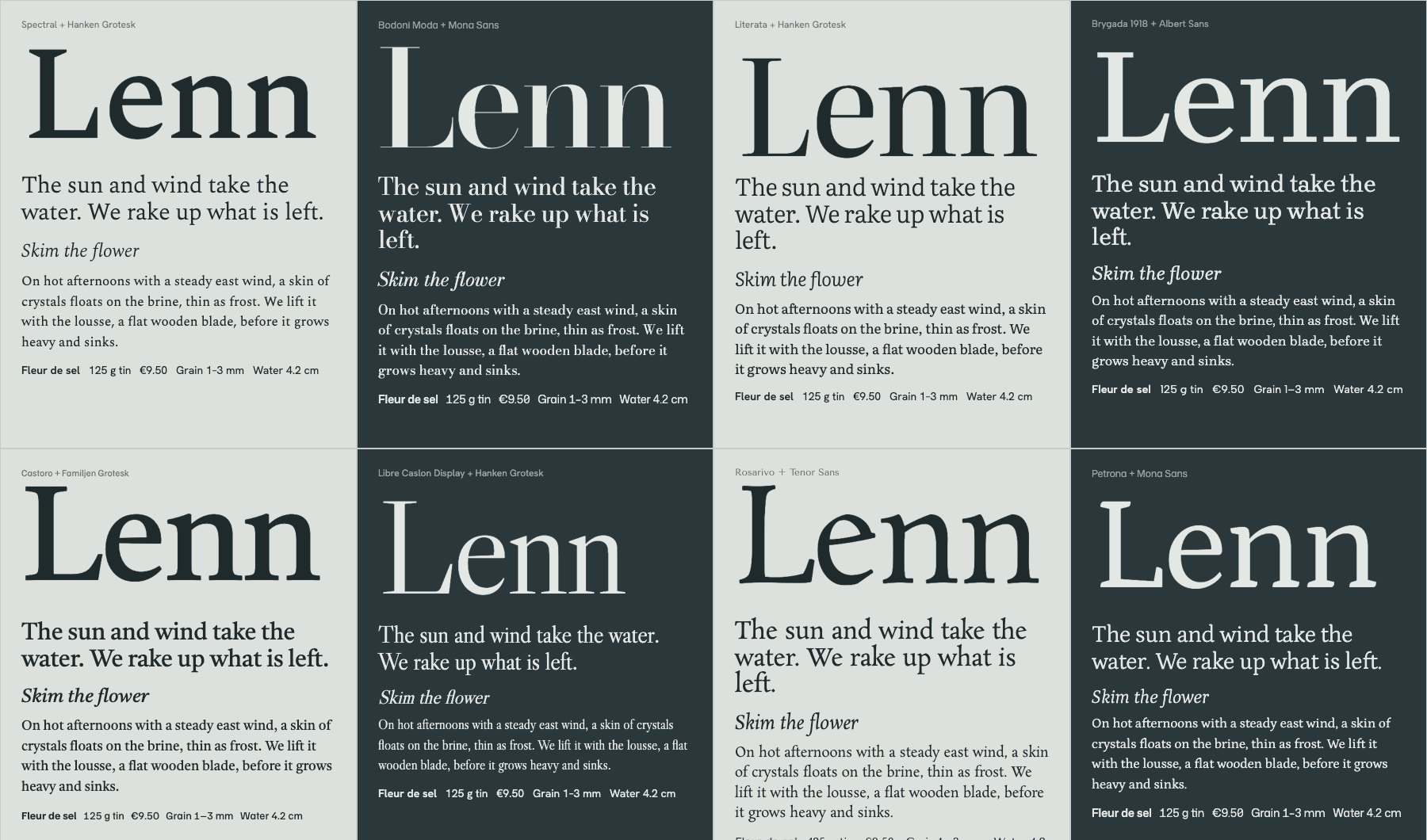
Before it wrote a line of the site, it did what a designer would do. It set the wordmark and real copy in eight type pairings, looked at them, ran a second round, and chose Spectral because its sharp serifs “echo salt crystals”.

A grid of eight type specimens, each setting the Lenn wordmark and a line of copy in a different serif and sans pairing
The specimen sheet Opus 5.5 made for itself before building. Nobody asked for it. Image: Muzli, built with Claude Opus 5.5

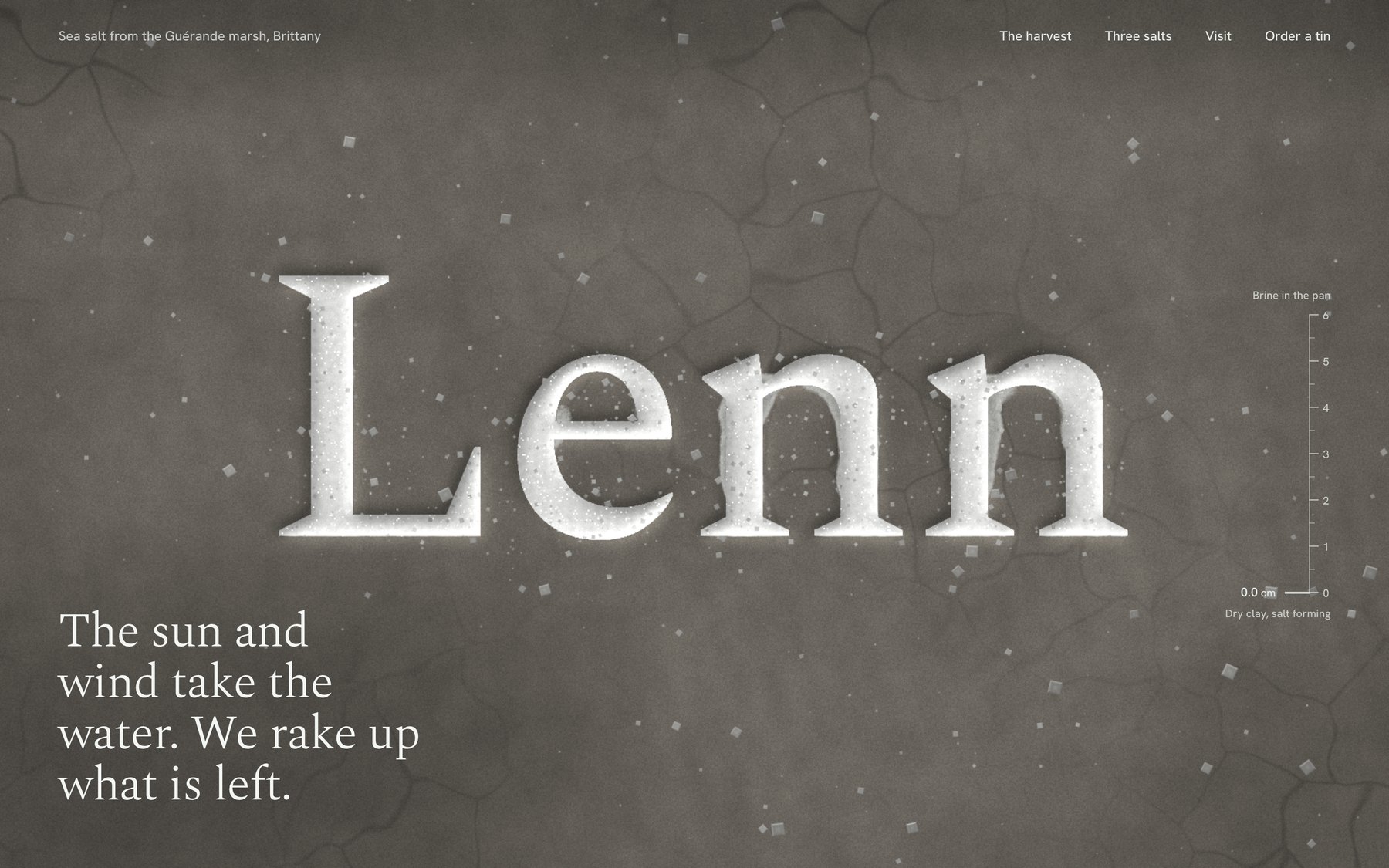
Then the hero. The water is a live simulation running on the graphics card. The wordmark sits under it, carved into the clay as grooves full of salt, and bends as the ripples pass. A tide gauge on the right reads 4.8 cm. Scroll and it falls to zero. The letters hold the last pools, then dry white while crystals grow out of them. The brief asked for one memorable thing, and it spent all its boldness there.

The Lenn hero after the tide has drained: the wordmark dried white in cracked grey clay, scattered salt crystals, and the line The sun and wind take the water. We rake up what is left.
The same hero after you scroll. The tide gauge reads 0.0 cm. Image: Muzli, built with Claude Opus 5.5

The harvest story is one pinned cross-section of the marsh, from the Atlantic through each basin to the pan, labelled with how salty the water gets. Then it zooms into a single pan for the two harvests. The vocabulary is real. Vasière, cobier, œillet, lousse, las, ladure: I checked every term against a GuĂŠrande salt maker’s own glossary.

It also caught what a reviewer would have caught. A tin it drew with two wavy lines “read as a beach logo”, the exact kitsch the brief banned, so it redrew it. In a blog embed its smooth scroll trapped the reader’s wheel, so now it hands the scroll back to the page.

It ran for about 80 minutes with nobody watching, through four rounds of screenshots and fixes, and listed what it could not check: how the scroll feels on a real phone, and how the water runs on an older laptop.

What it unlocks: the site you pitch with instead of a mood board. For a two-person brand, it might just be the site.

🎬 Motion: a title sequence you can scrub

Motion lives in After Effects, the product lives in the browser, and something always gets lost on the way. The brief:

Make a 12-second looping title sequence for a fictional
design festival called Offset, as a web page.

Think opening titles, not a website: kinetic type on a
strict grid. Letters slide in along the grid, the grid
itself rotates and stretches, colours swap in hard cuts on
the beat, and it resolves into the Offset lockup with the
dates (14-16 May, Vilnius) before looping cleanly.

Build it on one GSAP timeline. Add a small After Effects
style transport bar at the bottom: play/pause, a scrubber I
can drag, the current time, and 0.25x / 1x speed. Easing
should feel designed, so name the curves you use in a code
comment. Single HTML file. No stock fade-ins.
Live demo. Press play, drag the scrubber, switch to 0.25x. Open full screen. Built by Claude Opus 5.5 from the prompt above.
Four frames from the Offset loop: letters running in on a paper grid, the word stretched wide on cyan, a quarter turn on yellow, and the final OFF SET lockup with 14-16 May, Design festival, Vilnius
Four moments from the loop: paper, cyan, yellow and the lockup. Image: Muzli, built with Claude Opus 5.5

This is the part that made me sit up. It read the festival’s name and built a concept out of it. Offset is a printing method, so the loop became a print run. There is a paste-up board with crop and registration marks, and the hard cuts are the four ink plates, cyan, magenta, yellow and black. Halfway through, the word reels one letter per beat until it reads SETOFF, which in printing is another word for offset. None of that was in the brief.

The craft holds up. When the grid stretches, the letters are not squashed. It moves the width axis of Anybody, a variable font, so each letter is redrawn to fit its cell. The cuts sit on a 120 BPM grid, and the transport bar shows each ink plate as a coloured strip on the timeline.

It named its curves, as asked, at the top of the file:

rail   (0.16, 1, 0.30, 1)  arrivals. Leaves at full
                           speed, brakes hard into the
                           cell.
shunt  (0.80, 0, 0.12, 1)  lane changes. Heavy start,
                           fast middle, locked stop,
                           like a wagon being shunted.
crank  (0.72, 0, 0.18, 1)  grid rotation. Slow wind-up,
                           long mechanical settle.
cut    none                colour. Changes on the frame
                           of the beat.

That is a motion spec a developer can use. The numbers are the curve and the words are the intent.

One prompt, no notes. It ran three rounds of screenshots and fixes on its own and caught that the dates were still on screen when the loop jumped back to zero. It could not tell how the curves feel at full speed, and said so. That part is still your eyes.

What it unlocks: motion you design, review and hand off in one file. Scrub to the frame that bothers you, leave a note with the timecode, and the fix lands in the thing that ships.

👆 Interaction: a player you can catch mid-spring

A Figma prototype shows where a screen ends up. It cannot show how it feels to throw it there. The brief:

Prototype the mini player to full player transition of a
music app, in a phone frame, as a web page I can use with
a mouse or a finger.

The mini player sits above a tab bar. Drag it up and the
album art grows out of it into the full player, following
my finger 1:1, then settles with a spring. Fling it down to
dismiss; the release speed decides whether it closes. In
the full player: a waveform I can scrub, a like button with
a small burst, and a queue I can reorder by dragging.

Everything must be interruptible: grab it mid-animation and
it stops where it is. Add a "slow motion" switch that runs
all motion at 10% speed so I can review the curves.
Draw the album art in code. Single HTML file.
Live demo. Drag the mini player up, fling it down, grab it halfway. Turn on slow motion. On a phone it fills the screen. Open full screen. Built by Claude Opus 5.5 from the prompt above.
Four phone screens from the Hummock prototype: the library with the mini player, the album art growing mid-drag, the full player, and the Up next queue
Library, mid-drag, full player, queue. The second frame is a finger halfway up the screen. Image: Muzli, built with Claude Opus 5.5

It invented an app to prototype in. Hummock, six made-up bands, and album covers drawn in code as two-colour risograph prints, down to the slightly-off registration and the paper grain. The player takes its colours from the cover’s inks, and the mini bar and the full player are one surface, so the transition reads as one object growing instead of one screen replacing another.

The physics are real. It is a damped spring set by response and damping, the way SwiftUI describes springs: 0.52 seconds at 0.76 damping to open, about 2.5% overshoot. Your release speed comes from the last tenth of a second of movement. Everything runs on one clock, so grabbing it mid-flight freezes it exactly where it is, and slow motion slows every single thing at once.

It caught its own bugs, too. Fast flings sprang back open because its first speed estimate was fragile, so it rebuilt the estimate. Mid-drag, the player’s header faded in underneath the growing cover, so now the controls wait until the sheet is 62% open.

One prompt, no notes, two rounds of its own fixes. What it could not judge is how the spring feels in the hand. It had numbers, not a thumb.

What it unlocks: you stop writing “make it bouncy” in a ticket. You hand over a prototype and two numbers, and the developer builds the feel you signed off.

🧭 How to use it in your work

Forget “AI will design for you”. The useful question is which parts of your week just got cheaper. Six did.

  • Prototype what Figma can’t show. Springs, drag physics, scroll-linked scenes, a hover that reacts to speed. Send a link instead of a screen recording and a page of notes. Your developer gets a working reference, and your client gets something to touch.
  • Write motion specs that run. A timeline with named curves is a spec a developer can lift into the product. Review it at quarter speed and leave notes with timecodes.
  • Pitch the moment, not a mood board. Most concepts die at “imagine if the hero…”. Build the hero. One evening, one brief, and the room stops imagining.
  • Ship the portfolio you actually want. A lot of our recent Picks are personal portfolios, like Jesper Landberg, Mathis Biabiany and LĂŠo Parpeix. That level used to mean learning WebGL or hiring someone who knew it. The gap between a designer’s portfolio and a creative developer’s just got a lot smaller.
  • Build tools for yourself. A type tester with sliders, a grid generator, a palette explorer tuned to how you work. A stranger on Reddit makes this case better than I can, further down.
  • Keep your design system in charge. Claude Design reads your codebase and design files and builds a design system from them, so every prototype after that “uses your colors, typography, and components automatically”, per Anthropic’s launch post.

🧰 Skills, plugins and tools

You do not need all of it. Pick the row that fits how you work.

🧰 Where to work

  • Claude Design, if you never want to see code. You describe a visual, Claude builds a first version on a canvas, and you refine it by chat, comments or dragging things around. It exports PDF, PPTX and HTML and hands off to Claude Code when it is time to build. In beta on paid plans, and now it opens “from inside any conversation with Claude”.
  • The Claude Code desktop app, if you want real files. Claude Code “with a graphical interface”, in Anthropic’s words, so you can point it at a folder “without using a terminal”. Pro plan and up. Our demos were built in Claude Code.

🧰 Skills and plugins worth installing

Each is one command in Claude Code:

claude plugin install frontend-design@claude-plugins-official
claude plugin install playground@claude-plugins-official
npx skills add jakubkrehel/make-interfaces-feel-better
  • frontend-design, by Anthropic. The house rules against looking generated: a palette and type chosen for the subject, a plan before building, one bold moment, screenshots and self-critique. Over 1.1 million installs. Read the file even if you never install it. It is the best short brief on AI taste I have seen.
  • playground, by Anthropic. Builds single-file tools with controls on one side, a live preview on the other and a prompt you copy back out. It is the type tester the Reddit reply below describes.
  • make-interfaces-feel-better, by Jakub Krehel. The small stuff: concentric corner radii, optical alignment, press states, animation you can interrupt.

🧰 Give it eyes

  • Claude in Chrome. Start Claude Code with claude --chrome and it can open, click and screenshot pages in your own browser. Anthropic calls it “especially useful for design verification”, meaning a check of the Figma mock against the built page.
  • Chrome DevTools MCP, from Google’s Chrome team, does the same without the extension and adds console errors and performance traces: claude mcp add chrome-devtools --scope user npx chrome-devtools-mcp@latest.

🧰 Bring Figma in

  • The Figma MCP server lets Claude read your frames and, on a Full seat, write frames, components and variables back to the canvas. Install it with claude plugin install figma@claude-plugins-official.
  • Figma Motion, in open beta since June, adds a keyframe timeline to Figma. Through the MCP server, Claude gets your keyframes as ready CSS and motion.dev code, so the animation you designed is the one that ships.

🧰 Name these in your prompts

  • GSAP for scroll stories, pinned sections and kinetic type. It is “100% free for all users, thanks to Webflow’s support”, ScrollTrigger and SplitText included.
  • Motion for micro-interactions, layout animation and springs. Free and MIT licensed.
  • Three.js for 3D, particles and shaders. Our Three.js Conf piece covers what changed there this month.
  • Lenis for smooth scroll that keeps GSAP and WebGL in step.
  • Rive for interactive vector animation, and Remotion when the output is a video. Remotion is free for individuals and companies of up to three people.

🧠 What to know before you prompt

The model got better. Most bad results still come from a five-word prompt. This is what kept our demos out of the house style.

  • Write a brief, not a wish. Who the visitors are, the mood, the one memorable thing, the sections, how things move, and the quality floor: phone layout, reduced motion, keyboard focus. Each of our prompts is under 200 words, and every line is a decision.
  • Ban the defaults by name. Anthropic’s docs say a general “avoid a generic AI look” “mostly swaps one default for another”. Naming patterns works. Their frontend-design skill has a longer list that reads like a design critique: a warm cream background with a serif and a terracotta accent, near-black with one acid-green accent, identical rounded cards with “the same soft grey shadow”. Paste the ones you hate into your brief. When the first result finds a new default, add that too.
  • Ask for options, then pick. Nate Parrott, the Anthropic designer who built Claude Design, says to “ask for ten options, then remix. Most of them won’t be good, and that’s fine; one or two will be.” Our salt site did this unprompted with its type specimen.
  • Spend your boldness in one place. In the same skill’s words, a single orchestrated moment “lands better than scattered effects”. Fade-up on every section is the tell.
  • Name the tools. “Scroll-linked scenes with GSAP ScrollTrigger and Lenis” gets you a scroll story. “Make it animated” gets you fade-ups.
  • Let it look, then look slower. Connect a browser so it can screenshot its own page at desktop and phone size, because “a picture is worth 1000 tokens”, as Anthropic’s skill puts it. Then do what Jakub Krehel’s skill tells the model to do, and “replay motion at 10% speed”. That is why our player has a slow-motion switch.
  • Turn effort up, not to max. For the one hero you care about, type /effort high in Claude Code. Anthropic’s docs say to “reserve xhigh and max for work where you’ve measured a quality gain”, and Simon Willison’s empty max run shows why.
  • Tell it when to stop. Every’s advice is to “define what ‘done’ and ‘enough’ mean, set a budget, and impose a stopping point”. Left alone it keeps polishing on your usage.
  • Give notes like an art director. “The wordmark refracts too much at rest, halve it” works. “Make it pop” does not. A screenshot with an arrow on it beats three adjectives.
  • Check what you are shipping. GSAP and Motion are free for commercial work. Remotion needs a paid licence once your company has four people. Ask the model to list every font and library it pulled in.

😬 “Well, it’s awesome, but… I’m seriously questioning my whole career”

Five days after launch, someone posted the Claude logo to r/Design. No text, just a title: “Jokes aside, I’m seriously questioning my whole career as a designer!”

It is a fair question, and the demos above do not make it go away. Production work, turning a finished Figma file into a working page, just got cheap. If that was the whole job, the job changed this month.

The top reply is the best career advice I read all week. “Designer is unfortunately now a role that incorporates AI heavily. That’s why you’re seeing so much slop everywhere these days. On the other end of that is all of the pro designers using ai to build tools for themselves and clients that are actually useful and don’t look like ai slop.”

Then the practical part: “try vibe coding a tool (it is very easy) to let you play with type in a way you can’t with illustrator and then once you land on something cool in the tool you made, try recreating the effect in illustrator, the hard skills aren’t going away at all.”

Now look at what our three demos needed from a person. It was never the code. It was the decisions.

Every brief above is a stack of them. That the hero of a salt company is the sea. That the tide drains as you scroll. That titles cut on the beat instead of fading. That a prototype needs a slow-motion switch so you can judge the curve. Then someone had to look at what came back and decide it was good enough to show you.

Anthropic says as much, in its own way. In the system card’s section on the model’s character, it writes that Opus 5.5 “somewhat lags behind other models on measures like humor and creative mastery”. The people who built it are telling you the creative part is not where it leads.

And look at our side of the table. In the last 90 days, 190,636 items came through Muzli. Our editors picked 114.

The model can build the site. Deciding which site is worth building is still yours, and so is deciding which one deserves an audience.

🏆 Made something good? Nominate it

We love this stuff. In the last 30 days, 25 of our 40 Muzli Picks came from designers who shared their own work on Muzli Me. We do not care which tool wrote the code. We care whether it makes us stop scrolling and send it to someone.

Getting it in front of us takes three steps:

  1. Put it online. Drag the file or its folder onto Netlify Drop and you get a live link, no account needed. GitHub Pages is free for public projects.
  2. Share it on Muzli Me. Paste the link. If your site allows embedding, it comes in as the live site, not a screenshot, so people can scroll it right there.
  3. Nominate it for Muzli Picks at me.muz.li/nominate. Free accounts get one nomination, PRO accounts get three a month, and our team usually reviews within 24 hours.

Picks go into the Muzli new tab. Tell us how you made it in the description. The prompt is part of the craft now.

Try it this week

🛠️ If you do not write code: the fifteen-minute tour

  • Open the three demos above full screen. Scroll the salt site slowly, then fast. Set the titles to 0.25x and scrub. Grab the player halfway through its spring.
  • Open your current project and find one moment you explained with words or a screen recording because a static frame could not show it. A transition, a hover, a scroll.
  • Write it up like our briefs: who it is for, the mood, the one memorable thing, what moves and how. Paste it into Claude Design, which opens from any Claude conversation on a paid plan.
  • Judge the result the way you would judge a junior’s first pass. Then give it notes.

🛠️ If you build with AI tools

Install the three plugins above, start Claude Code with claude --chrome so it can see its work, and paste one of our prompts to see where you land. Then write your own. Fill the brackets and delete what you do not need:

Build [what] for [who].
Visitors are [audience] who want to [job].

Mood: [three words]. Not [the clichĂŠ you fear].
Type: [families, or "pick distinctive type"].

The one memorable thing: [the moment people will
screenshot]. Everything else stays quiet.

Sections: [in order].

Motion: [the one orchestrated moment, and the library,
e.g. GSAP ScrollTrigger]. Respect prefers-reduced-motion.
Works on a phone.

Do not use: [cream background, italic accent words,
01/02/03 labels, monospace labels, pill buttons, plus
anything the first attempt did that you hated].
Single HTML file, libraries from a CDN.

The follow-up that does most of the work:

Take screenshots at 1440 and 390 pixels wide and at
three scroll depths. List the three weakest things you
see, as an art director would, then fix them. Do not
touch anything I have not mentioned.

🛠️ If you write code

Put your taste where every session will read it. Claude Code loads a CLAUDE.md file from your project at the start of every session, so rules you write once stop being rules you repeat:

## Design rules
- Display: [family]. Text: [family]. Scale 1.25.
- Motion: one orchestrated moment per page. Entrances
  expo.out, 600ms max. Anything the user drags uses a
  velocity-aware spring and can be interrupted.
- Never: fade-up on every section, ALL-CAPS eyebrows,
  identical card grids, arrows appended to buttons.
- Always: prefers-reduced-motion, a 390px layout,
  visible focus. Screenshot at 1440 and 390 before
  calling anything done.

If you ask for GSAP and Lenis together, check it wired them the way the Lenis docs do, or smooth scroll and scroll triggers fight each other:

const lenis = new Lenis();
lenis.on('scroll', ScrollTrigger.update);
gsap.ticker.add((time) => lenis.raf(time * 1000));
gsap.ticker.lagSmoothing(0);

Worth bookmarking

🤖 The model

🧰 Install

🎬 Motion and graphics

  • GSAP. Timelines, scroll and text animation.
  • Motion. Springs, gestures and layout animation.
  • Figma Motion. Keyframes in Figma that hand off as code.
  • Lenis. Smooth scroll that plays well with the rest.

🏆 Get picked

The landing

Here is my verdict. Opus 5.5 is the first model I would hand a real brief. Not a wish. A brief with an audience and one idea worth building. What came back belongs in the same feed as the sites we pick every day.

The thing to watch is Sonnet 5.5, the cheaper tier, due “in the coming weeks” with “many of the same improvements”. When this level of build gets cheap, expect far more of these sites, most of them in the same cream-and-serif uniform. The ones that stand out will come from better briefs.

So do not wait for it. Take the idea you cut from your last project because nobody would build it. Write it up like our briefs. Run it tonight, give it two rounds of notes, and nominate it tomorrow.

Anyone can build a Pick now. Picking is still the job.


Sources: Anthropic, Introducing Claude Opus 5.5, Prompting Claude Opus 5.5, Claude Opus 5.5 system card, Anthropic, Improving frontend design through Skills, Every, Vibe Check, Charlie Hills, Simon Willison, threejseval, Ryan Sael, Anthropic, Claude Design, Nate Parrott, anthropics/skills, Figma, GSAP, Remotion, Les Artisans du Sel, r/Design. Muzli Picks figures from Muzli’s own data, 28 September 2026. Demos and images: Muzli, built with Claude Opus 5.5.

Figma AI Design Agent: What It Actually Does Inside Your Files

Figma’s new Design Agent lives on the canvas, knows your design system, and edits the same file you’re working in. We break down what it changes for designers, what it doesn’t, and the real question it forces every team to answer.


For two years, “AI in design” mostly meant a sidebar that generated a UI you would never actually ship. Pretty mockups, wrong components, no design system, no context, no use. Today Figma shipped something different. The Figma Design Agent is not a generator bolted onto the canvas. It is an agent that lives inside the file, reads your design system, and edits your work the same way a teammate would.

It is in beta starting today, May 20, 2026, on Professional, Organization, and Enterprise seats. During beta, it does not consume AI credits. After that, it will. The product leads are Rodrigo Davies (PM) and Tammy Taabassum (Product Designer).

That is the announcement. The interesting part is what it changes about the job.

What the Agent Actually Does

The Figma Agent operates from the left rail and acts directly on layers. You can prompt it from any selection. You can reference specific components, variables, and tokens with @ mentions. It runs alongside you in the same file, which means you keep editing while it edits, and neither of you blocks the other.

Three things it is built to do well:

Parallel exploration. Ask it for several stylistic directions to the same problem at once. Different information architectures for a settings page. Three checkout flows with different trust signals. Two onboarding patterns built from the same component library. You pick the direction before you commit hands-on time.

Bulk editing. Rename variables across a file. Swap components across many screens. Apply padding changes across a full flow. Populate frames with realistic content. Convert a flow to dark mode. Push design system updates through a sprawling file in minutes instead of an afternoon.

Feedback integration. Drop the agent into a file full of comments and it will cluster them by theme, surface the conflicts, and generate revisions that incorporate the feedback. It is not deciding for you. It is doing the part of design review that nobody wants to do manually.

The agent also talks to the Figma MCP server and the use_figma capability, which means design context can move between code and canvas without losing fidelity. That matters more than it sounds. The handoff layer is where most “AI design” demos quietly fall apart.

Why This Is Different From the Last Wave of AI Design Tools

The last 24 months of AI design tools mostly produced two patterns. Tools that generated images of interfaces (beautiful, unshippable). Tools that generated React code from a prompt (interesting, often disconnected from a real design system).

Both treat design as a one-shot generation problem. You type, you get an artifact, you start over.

The Figma Agent treats design as an editing problem on a file that already exists. The file has components. The components have tokens. The tokens have rules. The agent reads all of that as context before it touches a layer. When it produces a variation, the variation respects your system because it was generated inside your system.

That is the gap. Generation tools work on a blank canvas. The Figma Agent works on your canvas, which is the only canvas that actually ships.

This also reframes the partnership debate. Designers have spent the year arguing about whether AI replaces them or assists them. The Figma Agent is built around a third answer: AI does the parts of the file that are mechanical, repetitive, or exploratory, and humans do the parts that require taste and decision. It is not a co-pilot. It is more like a junior designer who can hold a hundred files in their head and never gets tired of renaming variables.

What About Claude Design?

One month before the Figma Agent launched, Anthropic shipped Claude Design, an Anthropic Labs product that lets you create prototypes, slides, one-pagers, and visual work from a prompt. It reads your codebase and design files during onboarding, builds a design system from that, and applies it to every project after. It is powered by Claude Opus 4.7 and available to Pro, Max, Team, and Enterprise subscribers. VentureBeat called it a challenge to Figma. That framing is understandable and mostly wrong.

Claude Design and the Figma Agent are aimed at genuinely different problems.

Claude Design is a creation tool. You start from nothing. You describe what you need, Claude builds a first version, you refine through conversation or direct edits, and you export to PDF, PPTX, Canva, or standalone HTML. When a prototype is ready to build, it packages into a handoff bundle for Claude Code. It is fast, it is good for stakeholder decks and quick prototypes, and it does not require a Figma seat or a design file to already exist. The design system promise is real, but it works by reading your codebase. Not by reading a Figma file that your design team has maintained for three years.

The Figma Agent is an editing tool. You start from a file that already exists, with components that already exist, with a system that the design team already owns. The agent does not build a design system from your codebase. It works inside the one you built.

The gap comes down to who is in the seat. Claude Design is genuinely useful for product managers, founders, and developers who need visual output quickly and do not live in Figma. The Figma Agent is for designers who do live in Figma and want mechanical work to take a fraction of the time it currently takes.

Both tools made the same promise: AI that understands your design system. They just answered it from opposite ends of the process.

What Changes for Designers Day to Day

Three workflows shift immediately.

Exploration gets cheaper. Most designers ship the second or third idea they had, not the eighth, because the eighth was too expensive to mock up. When the cost of exploring a direction drops to a prompt, the ratio of explored to shipped goes up. Teams will see more variations before lock-in. That is healthy if the team has taste. It is dangerous if the team treats “more options” as a substitute for opinion.

Design system enforcement stops being a chore. Every design system team has the same backlog: screens built before the system existed, components that drifted, padding that nobody updated. The agent collapses that backlog. Swap, rename, conform, repeat. The work that used to take a quarter takes a sprint.

Review cycles get tighter. The feedback summarization feature is small in description and large in practice. Design reviews drag because nobody wants to sit through 47 comments and decide which ones matter. If the agent clusters comments by theme and produces revisions that address them, the review meeting changes shape. You arrive with directions, not arguments.

The thing that does not change: the decision. The agent will not tell you which checkout flow is right. It will give you three. You still have to know why one of them is wrong.

What It Cannot Do (Yet, or by Design)

The announcement is honest about scope. The agent is a design agent. It is not a strategy agent, a research agent, or a product manager. It does not know what your users actually need. It does not know what your business is trying to prove next quarter. It does not know that the CEO hates the color teal.

It also operates inside one file at a time. It is not yet a cross-file refactor tool, and it is not a project-wide auditor. The dream of “agent, please audit every product surface for accessibility issues and fix them” is not what shipped today. What shipped is an agent that makes one file faster.

And, as with every AI editing tool, the risk surface is the same: confident edits that look right and are subtly wrong. Tokens applied to the wrong layer. Variables renamed in a way that breaks a downstream import. The agent does not absolve the designer of reviewing the diff. It just changes what the diff looks like.

The Real Question This Forces Every Team to Answer

If the mechanical 40 percent of design work compresses by 5x, what do designers do with the time?

That is the actual question. The optimistic answer is that designers go deeper on the strategic, conceptual, research-heavy parts of the job that they always claimed they did not have time for. The cynical answer is that org charts compress and three designers do what five used to do.

Both answers will be true at different companies. The teams that come out ahead will treat the agent as a multiplier on judgment, not as a replacement for it. The teams that come out behind will treat it as a way to ship more screens without thinking harder about them.

For anyone tracking the broader category, this announcement sits next to a year of AI design tools we have reviewed in Best AI Design Tools for UI/UX (2026). The shift is that the agent moved from a separate product to a feature inside the file where the work actually lives. That is a big move. The other tools now have to answer it.

The Figma Agent is in beta from today. Designers on eligible plans can opt in. The honest recommendation: try it on a real file, not a demo file. The interesting failures and the interesting wins both live in the messy, real-world projects, not in the toy ones.

Claude Design, One Week In: Hacks, Best Practices & Tips From Real-World Use

A follow-up to Getting Started with Claude Design– what designers, marketers, and indie builders have actually learned after seven days of pushing the tool to its limits.

 — -

It’s been a week since Anthropic Labs dropped Claude Design on April 17, and the design community has been busy. Pizza brands shipped in 30 minutes. Investor decks built in eight. Landing pages live in production by morning. Figma’s stock dropped 7% on launch day, and people are still arguing on X about what that means.

But the real story isn’t the headlines, it’s the patterns. The little workflow shifts that separate people who ship from people who burn through their weekly allowance in 30 minutes and rage-quit. After reading every hands-on review, every X thread, every Substack teardown, and every community gist I could find, here’s the distilled playbook.

If the first post was what Claude Design is, this one is how to actually use it well.

 — -

1. The single biggest realization: the Tweaks panel is not the chat

Most people use Claude Design like a chatbot. They type, regenerate, type, regenerate. Then they wonder where their weekly allowance went.

Here’s the secret veterans like Anthropic’s own Austin Lau have been demoing on launch day: the Tweaks panel doesn’t burn chat tokens.

Bali retreat website hero section with a sunset ocean view, luxury villa and infinity pool, large headline “Find your peace in Bali,” navigation menu, and a UI popup suggesting design tweaks.

Sliders for typography scale, color temperature, spacing density, and section ordering live in a side panel that adjusts the design without round-tripping through the model. Reorder hero sections. Swap variant cards. Tighten density. None of it costs you a chat turn.

The rule: Use chat for structural and conceptual changes (“add a testimonial section,” “make it feel editorial instead of corporate”). Use Tweaks for everything else. If you can move a slider to fix it, never type it.

 — -

2. Density beats brevity in your first prompt

The instinct from regular Claude chat , start vague, refine through conversation , is the wrong instinct here.

The pattern showing up across every walkthrough (Tom’s Guide, Peter Yang’s 16-minute everything-build, the Techsy 7-prompt teardown) is the same: dense, single-paragraph prompts that name the audience, the content, and the visual feel land usable first drafts roughly two-thirds of the time. Vague prompts land usable drafts roughly never.

A good first prompt looks like this:

 â€œDesign a 10-slide investor pitch deck for a pre-seed B2B fintech selling fraud detection to SMB lenders. Audience is sector-focused VCs at the early-stage stage. Tone: confident but not aggressive. Visual feel: editorial, restrained, type-led, no stock photos, no purple gradients. Use a serif display face with a geometric sans for body. Include problem, solution, market, traction, team, ask.”

Compare that to “make me a pitch deck” and you can see why density matters. Opus 4.7, the model under Claude Design , was specifically tuned to follow concrete specs and to need less hand-holding than 4.6. Use that. Front-load everything.

 — -

3. Kill the “AI slop” aesthetic before it lands

Design comparison graphic with bold headline “Kill the ‘AI slop’ aesthetic before it lands,” showing a generic light dashboard with purple gradients and standard UI patterns versus a refined dark dashboard with distinctive typography, cohesive palette, and purpose-built components, plus bullet points highlighting common design clichés versus better practices.

Without explicit constraints, Claude Design drifts toward what the community has named AI slop: Inter or Roboto, white-to-purple gradients, evenly-spaced cards, that vaguely-Linear-vaguely-Stripe SaaS feel.

The fix is documented directly in Anthropic’s own frontend-aesthetics cookbook. Drop something like this into your first prompt or your project’s CLAUDE.md / DESIGN.md:

“Avoid generic AI-generated aesthetics: overused fonts (Inter, Roboto, Arial, system fonts), clichéd color schemes (especially purple gradients on white or dark backgrounds), predictable layouts, cookie-cutter components. Make distinctive, context-specific choices. Pick one decisive font and use it confidently. Commit to a cohesive aesthetic with dominant colors and sharp accents rather than timid evenly-distributed palettes.”

Two follow-up tricks the community has converged on:

  • Specify a concrete alternative, not a negative. “Don’t use cream backgrounds” tends to push the model to a different default. “Use pale silver-gray tones deepening into blue-gray, with 4px corner radius and a square angular sans-serif” actually works.
  • Reference cultural aesthetics, not other websites. “Solarpunk,” “Swiss editorial,” “Japanese minimalism,” “early-2000s zine” gives the model a richer space to work in than “make it look like Linear.”

Opus 4.7 has its own house style it falls back to (warm cream backgrounds, Fraunces-style serifs, terracotta accents), beautiful for hospitality and editorial, wrong for fintech and dashboards. Override it explicitly.

 — -

4. Build your brand kit on day one, and treat it as the foundation

Design system setup screen with the heading “Your design system is ready,” showing published and default status, a “Use this system” section with a “New design” button, and a checklist of brand elements including colors, components, iconography, logos, spacing, and typography.

Every serious user who’s reviewed the tool independently arrived at the same conclusion: the brand kit is the highest-leverage thing you’ll do, and your first session should be dedicated to it.

Point Claude Design at your GitHub repo, your live site, or your existing slide deck. Let it explore the codebase, read your CSS files, identify your brand signatures (one reviewer’s heartbeat ECG motif from itbroke.dev got identified and turned into a live canvas component automatically). Let it generate the SKILL.md, the UI kit, the component patterns.

This will eat a chunk of your weekly allowance. That’s fine. It’s the most durable output you’ll make, every future project pulls from it, and the consistency it gives you across landing pages, decks, and emails is what makes Claude Design feel like a design system rather than a prompt-to-HTML toy.

A pro tip from Claudia + AI’s starter guide: if your assets are scattered, ask Cowork (Anthropic’s desktop product) to “produce a full design system document covering fonts, colors, graphical styles, component patterns, voice, and layout conventions, with anything missing flagged” first. Use the resulting clean DESIGN.md as input to Claude Design’s onboarding instead of feeding it raw assets. Coherent input, coherent output.

 — -

5. Watch the weekly allowance, and know its quirks

This is the #2 community complaint after AI slop, and it’s worth understanding properly:

  • It’s a separate meter from regular Claude chat. Burning your design allowance doesn’t affect your chat allowance and vice versa.
  • It’s per-user, not pooled. Teams cannot share. Admins can’t redistribute leftover budget from a coworker.
  • Weekly, not daily. Resets every seven days. There’s no dramatic warning when you hit the limit, the session just continues on paid overage credits if you have them enabled.
  • Promotional credit gets consumed first. Anthropic shipped paying users a one-time credit at launch (roughly equivalent to a typical $20 prompt, expiring 2026–07–17). Spend it on experiments. Save the recurring weekly allowance for production work.

Real number from the wild: Josua Golden posted on X that two full design sessions burned through 58% of his weekly Pro limit. Plan accordingly. Treat each session as a planned production run, not an open sandbox.

 — -

6. The comment-paste workaround (and why you’ll need it)

This is the single most-cited known bug, documented in the official help center and confirmed by basically every reviewer: inline comments occasionally vanish before Claude reads them.

The workaround is dumb but reliable: if a comment doesn’t get picked up after a beat, copy the text and paste it into the chat panel. Always works.

John Voorhees at MacStories went further and observed that “comment-on-element covered 95% of what I needed” once you adapt to it. The pattern that works:

  • Inline comments for targeted, component-level tweaks. “This button text should be white.” “Add 8px padding here.” “Change this card to a horizontal layout.” Click the element, comment, done.
  • Chat for structural changes, new sections, aesthetic shifts, or anything that requires explanation. “Save what we have and try a completely different approach” is a real command, Claude saves your current version and explores a new direction without losing the original.

 — -

7. The /packages/ui pro-tip nobody talks about

Surfaced in ADPList community threads and quietly powerful: when you link a codebase, point Claude Design at the `/packages/ui` subdirectory if your repo is a monorepo, not the root.

Claude Design’s design-system extraction works by reading actual code — colors, typography tokens, component patterns. Pointing it at the root of a 50-package monorepo means it spends tokens spelunking through unrelated services. Pointing it directly at your UI package gives it exactly the surface area it needs and produces a noticeably tighter, more brand-accurate kit.

 — -

8. Use the “show me three variations” command, always

Three dashboard UI styles side by side for a product called Northwind: a minimal light layout with large typography and imagery, a dark analytics-focused interface with detailed charts and data, and a colorful modular dashboard with card-based metrics and visual highlights.

Two-thirds of reviewers independently called this out. When you’re not sure what you want, and most of the time you aren’t, don’t refine in a straight line. Ask for variations.

“Show me three versions of this dashboard: one editorial and type-led, one dense and data-forward, one playful with strong color blocks.”

Claude keeps each version accessible. You can mix pieces from different variants. You learn what you actually want by comparing, and comparison is exponentially faster than guessing-and-iterating.

Same logic applies inside a single design: “Give me 3+ atomic variations of the hero section” is a documented pattern in Claude Design’s own system prompt. The product is built to explore, not converge. Use that.

 — -

9. Know what to skip Claude Design for

Honest constraints from a week of community testing:

  • No native image generation. Claude Design renders SVG and HTML drawings, not Nano Banana or Midjourney output. SVGs are great for icons, diagrams, and brand illustrations. They’re terrible for photographic realism. The community fix is the “Unsplash swap” prompt, generate the layout with placeholder SVG, then swap in real Unsplash imagery via prompt.
  • Video is weak. The feature exists and will produce a passable launch teaser. It’s nowhere near Veo or Runway. Don’t use it for assets that matter.
  • No real multiplayer. Figma’s killer feature, multiple designers in the same file in real time, isn’t here. Team plans add workspace-level sharing, not co-editing. If your workflow is two designers in a file together, stay in Figma.
  • No public API yet. As of launch, you can’t script generation, automate variant production, or embed Claude Design output programmatically. That’s coming “in the coming weeks” per Anthropic, but it’s not here yet.
  • Production handoff for mature design systems. Claude Design is a brilliant starting point. For anything landing in a 50-screen production system with strict component governance, the source of truth still lives in Figma.

Tom Warren’s rule of thumb that’s emerging across reviewers: Claude Design for speed and intent. Figma for systems and source-of-truth. They coexist.

 — -

10. The handoff to Claude Code is the actual superpower

If you take only one thing from this whole post, take this. The export options that get the most launch-week ink, PDF, PPTX, Canva , are useful but not new. Lots of tools do those.

The handoff to Claude Code is genuinely new. When you press “Hand off to Claude Code,” it doesn’t just dump HTML. It packages the design with the intent, component choices, and architectural decisions preserved as context. Claude Code then builds on top of the design instead of reinterpreting it.

Austin Lau’s launch-day workflow — recreate a live page in Claude Design, A/B test copy and layout in the Tweaks panel, hand off the winning variant to Claude Code, ship — is the single most production-ready demo of the tool I’ve seen. Marketing teams replacing the “designer + frontend dev + 2-week sprint” loop with “marketer + Claude Design + Claude Code + same afternoon” is happening right now, in production, at companies like Mercury and Datadog according to launch coverage.

This is the loop that makes Claude Design more than a prototype tool. It’s the design layer that finally talks fluently to the build layer.

 — -

11. Small workflow hacks worth stealing

A grab bag from the community gists, X threads, and Substack teardowns:

  • Edit your previous message instead of sending a new one. Same trick that works in regular Claude chat works here. Going back and editing a prompt replaces the old exchange instead of stacking it. Massive token savings on long iteration sessions.
  • Speak your prompts, don’t type them. Voice-dictated prompts are naturally denser than typed ones. You’ll give Claude more context per turn, which means fewer back-and-forth corrections.
  • Use “scrap this and try the elegant version, knowing what you know now” when a design is stuck in a mediocre place. Forcing a clean restart from accumulated context beats trying to push a bad version into a good one.
  • Generate speaker notes from a generated deck. Once a pitch deck is built, ask Claude Design to extract delivery-ready speaker notes for each slide. Free deliverable, almost nobody does it.
  • Always plan to rewrite the copy. Claude writes serviceable placeholder copy. Ship it as-is and you ship AI slop. The marketing-team consensus from Stack & Scale’s playbook: rewrite every word before publishing.
  • Compact view triggers save errors on certain layouts. Switch to full view if a save fails. Documented bug, easy fix.
  • Large codebases cause browser lag. Don’t link your entire enterprise monorepo. Link the UI package or a representative subset.

 — -

What actually changed this week

The interesting thing about Claude Design’s first week isn’t that designers love it or hate it. It’s that it surfaced a different question altogether: what is design for now?

When a non-designer running a plant nursery in Sri Lanka can produce a launch-ready brand kit and pitch deck in an afternoon, the ground shifts. Not because designers go away, every reviewer who actually shipped something noted that taste, judgment, and rewriting the AI’s mediocre defaults was where the real work lived. But because the bottleneck moved.

Tool fluency mattered for a decade. It mattered less this week than last.

The designers having fun with Claude Design, the ones publishing the best work, the ones whose threads keep getting screenshotted, aren’t the ones who memorized Figma shortcuts. They’re the ones who can describe what they want with enough specificity and taste that the model can actually execute.

That’s a different skill. It’s also a more interesting one.

 — -

What’s coming, what to watch

A few things on the watch list as Claude Design moves from preview to product:

  • The custom integrations / API surface Anthropic flagged for “the coming weeks.” Once you can script this, the workflow story changes substantially.
  • Export fidelity across PDF, PPTX, and Canva. HTML export is solid. The others have been spottier in community testing, fonts substitute on PPTX, individual slide export to Canva isn’t there yet.
  • Whether Figma ships its competitive answer. They acquired Diagram, they have Make, and there’s clearly an integration story coming. Whatever they ship will have the design-system-source-of-truth advantage.
  • Whether the weekly allowance gets reworked. The volume of complaints suggests pricing tweaks are likely.

This is a genuine version-one product. It shows in places. But the trajectory is right, the loop is real, and the design-to-code handoff is the first one that actually feels like it works.

The week-one verdict from the community is roughly: worth using now, worth planning your workflow around within a quarter, and a meaningful piece of how design happens in 2026.

Skip the hype. Pick three of the patterns above. Try them tomorrow. One that sticks is worth more than ten you bookmarked.

 — -

Found this useful? The first post in this series, Getting Started with Claude Design, covers the fundamentals, the dual-canvas interface, and where Claude Design sits in the broader Vibe Design movement. Read it first if you haven’t.

#ClaudeDesign #AIDesign #DesignTools #VibeDesign #ProductDesign #DesignWorkflow`

Getting Started with Claude Design: A Collaborator for Your Design Workflow


Claude Design, Anthropic’s new conversational design tool, removes the friction between thinking and making. Instead of bouncing between chat and canvas, explaining what you want in Slack and executing in Figma, you work in one place: describe your idea to Claude, watch it generate on the canvas, refine through conversation, and ship directly to code.

Try claude design

For designers tired of tool-switching and developers wishing they could express design intent without writing code, this changes how design happens. The real power: you can take your design conversation and turn it into working HTML or Claude Code. No handoff limbo. No “I built this in Figma, now someone needs to rebuild it in React.”

What Is Claude Design?

Claude Design is a research preview tool built by Anthropic Labs. It sits between ChatGPT’s pure conversation and Figma’s interface-first design. The dual interface works like this: chat window on the left, live canvas on the right. You describe a design problem. Claude generates working designs. You refine them through conversation (broad changes via chat) or precision editing (inline comments on components). The design updates in real-time as you talk.

claude design Blank canvas

The core idea is radical in its simplicity: design isn’t about learning tool shortcuts. It’s about articulating what you want and collaborating with intelligence that can execute.

Who is it for? Designers who spend more time context-switching than creating. Product managers who can’t quite explain their vision in Figma. Developers who want to design but don’t have a design background. Teams where design happens across too many tools.

What problem does it solve? The gap between intent and execution. Right now, you have to choose between tools. Use Figma to collaborate with designers, but communicate intent in Slack. Use Miro for brainstorming, but export to Figma to polish. Use Claude to iterate on copy, but nobody’s working on the canvas. Claude Design closes that gap. Your entire conversation becomes your design.

Key Features That Matter

Dual Interface: Chat Plus Canvas

The interface is clean. Left side is conversation. Right side is your design. You type a request. Claude generates components, layouts, or full screens. You ask questions. It adjusts. You comment on specific elements. It refines. There’s no “export design to code” step because the canvas is always renderable: PDF, PPTX, HTML, ZIP, Canva, or Claude Code.


Design System Integration

Here’s what makes this genuinely powerful: Claude Design reads your codebase. During setup, point it to your design files or repository. Claude analyzes your actual colors, typography, component patterns, and spacing rules. Not approximations. Your actual design system. Then it applies that to every design it generates.

This isn’t you uploading a Figma file and hoping it sticks. It’s Claude understanding your design language at the code level. Every design it creates respects your brand automatically. Consistency without manual enforcement.

If you’re designing for a client or building something standalone, you don’t need a pre-built system. One message sets it: “Use a blue and gray palette. Typography is Inter. Components include buttons, cards, and modals.” Claude holds it through the entire conversation.

The difference: Figma forces you to build the system first, then design within it. Claude Design reads your system as context and designs from day one.

Start with context

Iterative Workflow

Three ways to refine:

Chat-based iteration: “Make this form more compact.” “Change the hero section to a two-column layout.” “Add a sidebar navigation.” Claude rewrites the canvas without you leaving the conversation.

Inline comments: Click on a component, leave a comment. Claude sees it and responds. Precision beats bulk-editing for detail work.

Version management: Explore alternatives without losing work. Say “show me three variations of this dashboard.” Claude keeps each version accessible. Choose which to build on, or mix pieces from different versions.

Collaboration Built In

Unlike the isolation of a designer working alone in Figma, Claude Design treats collaboration as a core feature. Share designs with your organization. Set granular permissions: keep designs private, share view-only access for feedback, or grant edit access so multiple people can iterate with Claude in the same project.

This changes how teams work. Instead of “designer finishes, then shares to Figma, then engineers review,” everyone’s in the conversation. A product manager can jump in, leave a comment. An engineer can see the design and the rationale behind it simultaneously. The feedback loop collapses from days to minutes.

Export Flexibility

Once your design is done, you’re not locked in. Export as PDF for stakeholder presentations. PPTX for Powerpoint decks. HTML for usable prototypes. ZIP for files you can code from. Canva if you need quick social assets. Claude Code if the design is a starting point for building.

How to Get Started

Watch the official launch demo:

Claude Design Official Launch Video — Watch the full walkthrough

In 7 minutes, Anthropic walks through the entire workflow: describing an idea, Claude generating the design, iterating through conversation, and exporting to code. Watch this first if you want to see what you’re actually getting into.

Or dive straight into the official documentation.

Step 1: Access and Activation

Claude Design is available as a research preview on Pro, Max, Team, and Enterprise plans (Enterprise has it off by default, but your admin can enable it). Log into Claude.ai, and look for “Claude Design” in the apps menu. Click to create a new design project.

The onboarding asks one question: “What do you do?” Pick your role (Design, Engineering, Product, Sales, Data, Marketing, Other). Claude uses this to shape how it works with you.

Step 2: Define Your Context

Start with intent, not tooling. Your first message should answer: What are we building? Who uses it? What problem does it solve?

You can provide context multiple ways:

  • Type a description: “I’m designing an onboarding form for a SaaS product. Users are busy product managers. The form should ask for company name, role, and team size. It needs to feel fast and not overwhelming. Use a clean, minimal aesthetic.”
  • Upload reference files: DOCX, PPTX, XLSX, images, screenshots of your current product
  • Point Claude to your codebase: Claude reads your actual design tokens and components
  • Use the web capture tool: Grab elements directly from your existing website. Claude uses those as reference and builds prototypes that look like your actual product
  • Add a design system: Let Claude manage consistency automatically

Claude uses this context to make decisions about hierarchy, spacing, interaction patterns. You’re not describing buttons and boxes. You’re describing intent. Claude translates that to design. And it stays true to what already exists.

Start with context

Step 3: Iterate Through Conversation

Claude generates a starting design. Now the work happens through natural conversation.

“The company input should be a dropdown of pre-filled options.”
 â€œMake the progress indicator more obvious.”
 â€œCan we move the ‘Learn more’ link to the footer?”
 â€œShow me what this looks like on mobile.”

Each message updates the canvas. You’re having a design critique with someone who executes instantly. No Figma jumping. No waiting for a designer to implement your feedback.

Step 4: Use Inline Feedback for Details

For specific adjustments, click a component and leave a comment. “This button text should be white, not gray.” “Add 8px padding here.” Claude reads the comment and adjusts only what you flagged.

Step 5: Export and Ship (This Is the Game Changer)

This is where Claude Design becomes a development tool, not just a design tool.

Once done, choose your path. Sharing a concept with stakeholders? Export PDF or PPTX and they see exactly what you imagined. Needing social quick-assets? Canva export. But here’s the key: when you hand off to engineers, you’re not handing off a static Figma file asking them to “rebuild this in React.”

Export as HTML and they have a working prototype. Export as Claude Code and they have production-ready component scaffolding. The design becomes the starting point for development, not a specification to interpret. Engineers are writing features on top of your design, not rebuilding it from scratch. Fewer misunderstandings. Fewer “can you tweak the padding” rounds. Faster to ship.

This is the shift. Design isn’t the end of thinking. It’s the beginning of building.

Export options menu OR Send to Claude Code modal]

When Claude Design Shines

Rapid Prototyping

You have an idea. You need to see it in 10 minutes. Traditional flow: sketch in Figma (or pen and paper), refine, add polish. Claude Design flow: describe the idea, refine through conversation, export. The feedback loop is instant.

Cross-Functional Collaboration

Designer and product manager working together. Designer says “Here’s what I’m thinking.” They paste the Figma link. Silence. Nobody engages with the Figma file. Switch to Claude Design. Product manager sits next to designer. They iterate together in real-time through chat. Designer makes decisions faster because feedback isn’t async.

Design-to-Development Handoff (The Most Powerful Use Case)

This is where Claude Design shines hardest. Forget 40-page Figma files with pixel-perfect annotations that engineers then rebuild from scratch in code.

Export as HTML and the engineer has a working prototype. Export as Claude Code and they have component scaffolding that’s already in their language. The design is no longer a specification. It’s a starting point. They’re not asking “did you mean this padding?” They’re asking “should we add validation here?” They’re building features, not rebuilding designs.

The handoff isn’t a translation task anymore. It’s a collaboration continuation. Designers hand off working artifacts that engineers build on top of, not redesign from.

Design-to-Development Handoff (The Most Powerful Use Case)

Personal Projects and Experiments

You’re exploring a side project. You don’t need a full design system yet. Tell Claude what you’re building. It generates a cohesive design. You tweak it. You export. You build. No process overhead.

What takes weeks in Figma can happen in hours. Complex interactive visualizations. Data dashboards. Network maps. Anything visual, any complexity level. Claude handles the execution.

Network visualization

When You’re Not Sure What You Want

Ideation mode. You know the problem but not the solution. “I’m building a financial dashboard. Show me what that could look like.” Claude generates an option. You hate the layout but love the color scheme. “Keep the colors but try a sidebar navigation instead of top nav.” It adapts. You discover what you actually want through conversation.

What It Means for Designers

Claude Design doesn’t eliminate designers. It changes what design means.

Right now, design is expensive because it requires deep expertise in specific tools. You need Figma fluency to move fast. You need to know grid systems, shadow values, and spacing scales. You need to anticipate how design systems work. Those skills matter. They’re not going away.

But they shift from “how do I use this tool” to “do I know what good design looks like?”

Claude Design is part of a larger movement called vibe design. Vibe design is the practice of expressing design intent in natural language, letting AI handle execution. Instead of learning Figma shortcuts, you learn to articulate what you want. Instead of moving pixels, you move conversations. This isn’t less work. It’s different work, and it’s more interesting.

Claude Design hands off the execution. You handle the judgment. You decide what feels fast versus slow. You know when a form is intimidating and when it’s inviting. You recognize when spacing feels wrong. You catch inconsistencies. You direct the intelligence toward solutions that matter.

This is a small difference that compounds. Designers spend less time in menus and more time thinking. More time debating what a user actually needs. More time exploring alternatives because iteration is free. More time mentoring, because the tool gets the tedious parts.

For product teams without dedicated designers, Claude Design is the difference between “we can’t afford design” and “we can explore design ideas in the time we’d spend writing an email.”

For engineers, Claude Design bridges the design-to-code gap. You get HTML or component code that’s already been iterated on and approved. You’re not rebuilding a Figma mockup. You’re extending it. You’re implementing features, not reinterpreting specifications.

For design leaders, it changes hiring. You still need taste, judgment, and principles. You need people who understand human psychology and business strategy. You don’t need everyone to be a Figma expert. That bar moves. And the design-to-code handoff becomes a conversation, not a translation.

In 2026, this shift is already underway. Claude Design is one more piece of that puzzle. Tools get smarter. Design gets faster. The work becomes more interesting, not less.

Claude Design vs. Figma: The Real Story

Here’s what everyone’s asking: Does Claude Design kill Figma?

Short answer: No. But it will force Figma to evolve, which is healthy.

The distinction matters. Figma is a collaborative design system and source of truth. It’s where teams align on components, spacing rules, and brand standards. It’s built for precision, review, and long-term maintenance. If you’re managing a design system for a mature product with 50+ screens, you’re not moving away from Figma.

Claude Design is for speed and intent. It’s built for: “I have an idea and need to see it in 10 minutes.” Or: “I’m a product manager and I can’t express this in Figma but I can describe it.” Or: “I’m shipping an MVP and I don’t have time for design iteration theatre.”

In practice, they coexist. Design team uses Claude Design for rapid ideation, then brings approved designs into Figma for the design system. Engineers use Claude Design to export HTML, but designers manage the source of truth in Figma. Product manager rapid-tests ideas in Claude Design, then hands off production work to the Figma file.

What Figma could do. Figma will likely build something similar (they acquired Diagram for AI capabilities, and they have Make for some of this). When they do, they’ll have an advantage: integration with their existing design system tools. Figma is bigger and slower to move. Claude Design is newer and built specifically for this workflow.

What matters for you. Don’t think “Figma or Claude Design.” Think: “Which tool is right for this problem right now?” For ideation and rapid prototyping, Claude Design is faster. For systems and collaboration, Figma wins. For design-to-code, Claude Design has the advantage today. That could change.

The real winner in this competition is you. More tools that understand design intent. More options for different problems. More pressure on vendors to make design less about tool expertise and more about thinking.

My Take: Why This Matters More Than You Think

I’ve been watching design tools evolve for a while. Figma was the disruption that made design collaborative. Claude Design is the next disruption: making design conversational.

Here’s what bothers me about the last 10 years of design culture: we made design unbearable for most designers.

Let’s be specific. The last decade sold us a story. We need design systems. We need token architecture. We need component libraries with perfect specs. We need design-to-development handoff precision. All of that became the work. For many designers, it became almost all of the work.

And I watch designers drowning in this. Spending days building complex components in Figma. Managing spacing tokens that change every quarter. Maintaining design systems that become outdated before they’re finished. Creating intricate layouts that take hours to build and hours more to keep consistent. Arguing about whether a padding value should be 12px or 16px while the actual design problem goes unsolved.

This isn’t a complaint about tools. It’s a complaint about what we decided design is.

Design used to be about solving user problems. About thinking creatively. About seeing a gap and filling it. About getting excited when you find the right solution. That’s the core of what we do.

But we buried it. We got so focused on structure, tokens, components, and specifications that the actual design thinking became secondary work. Designers became operators of design systems instead of solvers of problems. The busywork expanded to fill the entire day. The creative thinking got squeezed into the margins.

Many designers are exhausted. Not because design is hard. But because we made it tedious.

Claude Design changes this. Specifically. It removes the actual burden.

You don’t spend hours building complex components in Figma and then maintaining them. You describe the component. Claude builds it. You iterate on whether it solves the problem, not whether the padding is correct. You don’t spend a week architecting a token system. You describe your design language once. Claude applies it everywhere. Automatically. Consistently.

The tedious structural work that’s been eating your time? It’s gone. You don’t build intricate layouts manually. You describe them. You don’t argue about spacing values. You express intent. The tool figures out the specs.

What this actually means: For the first time, designers can skip the busywork and go straight to the thinking. What does the user actually need? What problem are we solving? What should this feel like? Those are the questions that should take your energy. Not “how do I organize this 40-component library” or “is this token value consistent across 12 files.”

This is actually radical. It means you don’t have to be a Figma power user. You need to be able to think. To articulate what you want. To recognize when something feels wrong. To solve actual user problems. That’s it.

That scares some designers. It should. Because designers who’ve spent the last decade becoming expert Figma operators but never learned to think about design problems are about to learn that tool expertise was never the valuable part.

But if you’re good at the actual work — solving problems, thinking creatively, understanding users — you’re about to get your job back.

For the first time in years, you won’t spend your day managing tokens and components. You’ll spend it thinking about solutions. Your energy goes to the work that actually matters. The problem-solving. The thinking. The creativity. The excitement that made you a designer in the first place.

I’m genuinely excited about this. Not because Claude Design is a perfect tool. It’s not. It’s early. It’ll have gaps. But because it’s permission to stop doing the busywork. Because it gives us back design as thinking, not design as token management.

In 2026, we’re finally moving toward a place where design can be about what it should have always been about. Solving problems. Creating experiences. Thinking carefully about what users need.

Not spending eight hours managing a component library.

Resources and Next Steps

Official Resources:

What’s Coming:
 Over the coming weeks, Anthropic is making it easier to build integrations with Claude Design, opening the door for custom tool connections and workflows. Watch the announcement page for updates.

Related Reading:


Curious about other tools changing how designers work? Check out Muzli’s guide to design tools and workflows to stay ahead of what’s next. We track launches, test new platforms, and share what matters for your practice. 🎨

#ClaudeDesign #AIDesign #DesignTools #ProductDesign #DesignWorkflow

Vibe Design in 2026: What AI-Generated UI Means for Your Work

AI-generated interfaces are becoming a baseline. Here’s what actually shifts, what doesn’t, and what the designer’s role is when the machine builds the UI in 30 seconds.

In February 2025, Andrej Karpathy coined “vibe coding” to describe building software by directing an AI with natural language instead of writing code yourself. The UI equivalent followed within months. Type a description. Get a functioning interface. Adjust by prompting. The whole surface of the product exists in minutes.

The question is not whether this is real. It is. The question is what it actually changes for professional designers who know the difference between a UI that looks right and one that works for the right reasons.

What “Vibe Design” Describes

The term covers a set of behaviors rather than a single tool. At its core: natural language to rendered UI. Describe an interface, get an interface, iterate through description rather than direct manipulation.

The tool that put the phrase on the map is Google Stitch. Launched as a Google Labs experiment at I/O 2025 (and built from the team and IP of Galileo AI, which Google acquired and folded into the product), Stitch generates high-fidelity UI from prompts on an AI-native infinite canvas. It introduced “Vibe Design mode” as an explicit feature: input a business objective or a desired user feeling, and Stitch generates multiple design directions for exploration, skipping wireframes entirely. A March 2026 update added multi-screen generation (up to five screens at once), a Voice Canvas for spoken commands, and DESIGN.md, which extracts design rules from existing sites and saves them as portable files. It is still a Google Labs beta, free, with generation limits, and not yet at enterprise scale. But it is the product that named this shift.

The rest of the landscape is less designer-specific in origin but genuinely used by designers. Lovable takes a plain-language brief to a full-stack, deployable application. v0 from Vercel generates React and Tailwind components at the individual level: one component described, one component produced, paste into project. Both default to Shadcn/UI patterns, which is why every AI-generated product in 2026 reads as a variation of the same three SaaS templates.

Claude occupies two positions in this stack. As Claude Artifacts (claude.ai), it generates fully interactive React and HTML components directly in a chat window, no setup, shareable by link, running in an isolated preview. For quick concept exploration and stakeholder alignment, this is the lowest-friction entry point in the category. As Claude Code paired with the Figma MCP, it becomes a precision tool: Claude reads your Figma file directly, generates production-quality component code from your actual design system, and can push generated UI back into Figma as editable frames. These are meaningfully different use cases, handled by the same model at different levels of the workflow.

“Vibe design” as a practice, separate from any specific tool, is what you get when someone with no design background directs one of these tools without a considered brief. The output is the AI’s best guess at a SaaS product UI: a blue accent color, an Inter-like font at default weight, a sidebar with icons and labels, a card grid, a data table. It functions. It communicates nothing specific about the product, the users, or any intentional design decision.

This is the context that makes the designer’s role clearer, not more threatened.


muzli new tab

What Actually Changes

The floor rises. This is the most significant structural shift. A non-designer building an internal tool in 2026 produces something usable where they previously would have produced something broken. A PM building a product concept to test with users can now produce a clickable prototype without a designer’s time. The worst-case UI got substantially better.

Prototyping economics change. When a functional, clickable prototype costs 20 minutes instead of two days, the number of directions worth testing in a product cycle increases. This is a compounding advantage for teams that use it correctly. More directions tested means better decisions made before committing to implementation.

The volume expectation rises. When screens are cheap to generate, stakeholders will generate more of them. The “just mock up a few more ideas” request accelerates. This is a productivity pressure on design review and design critique processes that most teams have not yet adapted to.

The B2B SaaS baseline shifts. Every competitor has access to the same tools. The generic-looking product UI that used to distinguish a bootstrapped startup from a funded product no longer does. The floor of visual competence is higher everywhere, which means differentiation requires more intentionality, not less.

What Does Not Change

Interaction design requires understanding the user’s actual mental model. An AI has no mental model of your specific users. It has an averaged model of users in general, drawn from training data that skews heavily toward certain product categories and certain user behaviors. The precision required to design a workflow for a logistics dispatcher, a radiologist, or a commercial real estate broker is not approximated by average.

Design systems require intentionality about naming, consistency, token architecture, and the relationship between components. AI generation produces components per prompt. It does not produce a system. The button generated for screen A and the button generated for screen B may share a visual appearance without sharing a component, a token reference, or a maintainable relationship.

Edge cases are not vibe-designed. The happy path, yes. The empty state when the API returns nothing, the error state when the payment fails, the loading state for a table with 50,000 rows, the disabled state for a feature behind a paywall: these are designed by someone who thought about them, or they are absent. AI generates what was asked. Everything unasked is not there.

Brand differentiation is a human judgment. The product that feels unmistakably like itself, the interface with a visual character distinct enough to be recognized without a logo, the micro-interaction that communicates the brand’s personality in motion: none of these emerge from a prompt. They emerge from a designer with a clear point of view, making a series of decisions that compound into a distinct voice.

The Real Structural Shift for Careers

The more precise threat is not “AI replaces designers.” It is a compression of the entry-level design tasks that used to build foundational skills.

Wireframing, component exploration, quick prototyping, and translating stakeholder requests into a first-draft layout: these were the tasks that junior designers used to develop judgment. They are now generated. The apprenticeship model of design, where you develop taste by doing the low-stakes version of the work that senior designers do, is under pressure in a way it has not been before.

What this demands from senior designers: the ability to evaluate AI-generated output quickly and precisely. To identify which direction is worth developing and which is the AI’s default. To articulate what is wrong with a generated layout in terms specific enough to be corrected through prompting or redesign. This is a distinct skill from traditional design execution, and it is becoming as important as the execution itself.

How to Use These Tools Without Losing Design Control

The three-layer workflow that practitioners have settled into in 2026 is worth understanding as a pattern, not as a prescription.

The exploration layer uses Stitch or Claude Artifacts. No setup, no commitment. You are testing whether a direction is worth pursuing, not building the direction. Stitch is better when you want multiple screen concepts from a single brief. Claude Artifacts is faster when you want a single interactive component or a quick proof-of-concept you can share in the next 10 minutes.

The build layer uses Lovable or v0. Lovable when you need a full application with real data and real interactivity. v0 when you need a specific component built to React and Tailwind standards that you can drop into an existing project. Both produce rough design decisions that need a deliberate pass before anything is presented as finished work.

The precision layer uses Claude Code with Figma MCP, or Cursor. This is where AI-generated output comes back into your design system. Claude Code reads your Figma file directly, generates code that references your actual tokens and components, and pushes structure back into Figma when needed. This is not a prototyping tool. It is a production workflow for designers who are comfortable working across the Figma-to-code boundary.

The principle underneath all three layers: treat AI-generated output as a high-fidelity wireframe with incorrect design decisions embedded in it. The layout hypothesis may be worth examining. The type scale, the color application, the component states, and the spacing system are almost certainly wrong.

Build a prompt vocabulary that encodes your design principles. A prompt that specifies density, grid baseline, border radius limits, and font family produces materially better raw material than a generic description. “Dense information dashboard, 8px grid, neutral color palette, tabular numbers for all data cells, no decorative illustration” is a brief. “A dashboard for my analytics product” is not.

Never present AI-generated output as finished design work. Even 30 minutes of careful adjustment will surface the spacing inconsistencies, the wrong type hierarchy, the missing empty states, and the untested interactive states. Those 30 minutes are the design work. The generation is the starting material.

What Good Looks Like Now

The designers producing the best work with these tools are not using them to replace their design process. They are using them to accelerate the exploration phase, spend more time on the decision layer rather than the execution layer, and validate directions with stakeholders earlier and more concretely.

The workflow: use Stitch or Claude Artifacts to answer a layout hypothesis. Identify the direction closest to correct. Build it properly in Lovable or v0 if you need a working prototype, or directly in Figma with real tokens and components if you are headed to handoff. Annotate for engineering with real specs. Ship with confidence because the decision was tested, not just imagined.

That is not a vibe. That is design practice using better tools than were available two years ago.

For a deeper guide to integrating AI-assisted code into your design workflow, including how Claude’s Code to Canvas changes the Figma pipeline, see The Complete Vibe Coding Guide for Designers.

Stay sharp. Explore daily design inspiration on Muzli.

……

💡 Stay inspired every day with Muzli!

Follow us for a daily stream of design, creativity, and innovation.
Linkedin | Instagram | Twitter

Figma Just Opened the Canvas to AI Agents – Here’s What It Means for Designers

Published March 24, 2026 ¡ Muzli Design Inspiration – the design hub trusted by 800,000+ creative professionals


Something just shifted in how design gets made.

Figma announced today that AI agents can now work directly on the Figma canvas – not just read your files, but actually create and edit components, apply variables, and build designs using your own design system. AI-generated UI still feels generic, detached from the conventions teams spend months building. That’s the specific problem this announcement takes aim at.

Here’s what changed, what it enables, and why it matters.


The Problem With AI Design (Until Now)

Every design team knows the frustration. You prompt an AI to generate a screen, and what comes back looks like a wireframe assembled by someone who’s never seen your product. The right font isn’t there. The components don’t match. The spacing feels arbitrary.

At Muzli, we surface thousands of new designs every week from the world’s top creative sources – Dribbble, Behance, and 120+ others. The difference between AI-generated work and human-crafted design is immediately visible: one belongs to a system, the other doesn’t. The gap has always been context.

The core issue: AI agents have had no access to the decisions your team made. No knowledge of your color tokens, your component library, your spacing system, your voice and tone. They’ve been operating without context – which is exactly why the results look contextless.


What Figma Is Announcing

Through Figma’s MCP server, agents can now write directly to your Figma files using the new use_figma tool. That means Claude Code, Codex, Cursor, and other MCP-compatible agents can generate and modify design assets that are genuinely linked to your design system.

This is different from the existing generate_figma_design tool, which translates live HTML and websites into editable Figma layers. The two tools are complementary: when code and design drift apart, generate_figma_design brings the current UI into Figma. From there, use_figma can edit those designs – or create new ones – using your actual components and variables.

The result: agents that work inside your design system, not around it.


Skills: Teaching Agents How Your Team Works

The most interesting part of this announcement isn’t the use_figma tool itself – it’s Skills.

Skills are markdown files that define how an agent should behave on the Figma canvas. They encode your team’s conventions, sequencing, and intent – what steps to take, which components to reach for, how to handle edge cases. Instead of hoping an agent figures it out from a prompt, you teach it once, and it applies that knowledge consistently.

The foundational skill, /use-figma, gives agents a shared understanding of how Figma works structurally. Teams customize from there. Crucially, anyone can write a skill – no plugin development, no code required. It’s just a markdown file.

Nine community-built skills launched today:

  • /figma-generate-library – Create new components in Figma from a codebase
  • /figma-generate-design – Create new designs using existing components and variables
  • /apply-design-system – Connect existing designs to system components (Edenspiekermann)
  • /create-voice – Generate screen reader specs from UI specs (Uber)
  • /cc-figma-component – Generate Figma components from structured JSON contracts (One North)
  • /rad-spacing – Apply hierarchical spacing with variables and fallbacks (Rad Collab)
  • /sync-figma-token – Sync design tokens between code and Figma variables with drift detection (Firebender)
  • /edit-figma-design – Orchestrate design workflows using Warp (Warp)
  • /multi-agent – Run parallel workflows across Augment (Augment Code)

Self-Healing Loops

One of the quieter details in the announcement is worth paying attention to: agents can screenshot their output and iterate on what doesn’t match.

Because agents are working with real components, variables, and auto layout – not just drawing pixels – those corrections interact with your actual system. The agent isn’t patching an image. It’s adjusting a component property, updating a variable, changing a layout constraint. The structure remains intact.

This matters because AI models are non-deterministic by nature. The same prompt produces different results. Skills reduce that variance by encoding specific steps and guidelines. Your team’s conventions stop being documentation nobody reads and become rules the agent follows every time it runs.


What This Means for Design Teams

The shift here is subtle but significant. Design systems have always been written for humans – component libraries, usage guidelines, spacing scales. They’re how teams encode taste, decisions, and standards. Until now, agents couldn’t access any of it meaningfully.

Skills make design systems machine-readable in a more actionable way. Your Figma library isn’t just a reference anymore – it’s context an agent can draw on while it works.

Designers who regularly study what polished, mature design systems look like in the wild – the kind of work that appears daily in Muzli’s curated feed – will be best positioned to build skills that actually produce great output. Taste is still the input. The agent is just the output mechanism.

That opens up some genuinely interesting possibilities:

  • Spinning up new screen variants using existing components without manual assembly
  • Keeping code and design in sync as products evolve, automatically
  • Generating accessible annotations (VoiceOver, ARIA specs) directly from UI designs
  • Applying spacing systems and token hierarchies without manual component-by-component work

Who It Works With

The use_figma tool currently integrates with: Augment, Claude Code, Codex, Copilot CLI, GitHub Copilot in VS Code, Cursor, Factory, Firebender, and Warp.

It’s available free during the beta period. Usage-based pricing will follow.


The Bigger Picture

Figma has been steadily repositioning its canvas as shared infrastructure – the place where code and design meet, where decisions get made, where product work comes into focus regardless of where it started.

This announcement accelerates that thesis. When agents can operate directly in Figma with access to your design system, the canvas becomes less of a deliverable and more of a live artifact – something that agents and designers work in together.

The practical takeaway for teams: your design system quality just became significantly more important. The rigor you put into naming tokens, structuring components, and documenting patterns directly determines what agents can do with them. Messy systems will produce messy outputs. Mature, well-organized systems will produce something genuinely useful.

Figma is betting that teams who’ve invested in their design systems will get the most out of this. Based on how it’s been built, that bet seems well-placed.


Explore the skills library at figma.com/community/skills, or read Figma’s guide to getting started with the MCP server.

Stay on top of the tools and trends shaping the design industry – Muzli curates the best design, tech, and inspiration from 120+ sources, delivered fresh every day at muz.li.


Muzli is the design inspiration hub used by over 800,000 designers worldwide. We surface the best creative work, tools, and industry news – so you never miss what matters.

Lovable for Designers: The Complete Guide to Building Apps with AI (2026)

Every designer has prototyped something they believed in, then handed it to a developer and watched it become something else. Lovable is built for the moment you decide that handoff stops here.

Not a drag-and-drop page builder. Not a “design to code” converter that spits out spaghetti. A full AI app builder that takes your words and turns them into working, deployable software. The real question is whether it actually holds up for designers, or just sounds good in a demo. We mapped every feature, traced every recent launch, and filtered for what actually matters if you’re coming from a design background.

The short version: Lovable is not a design tool. It’s what comes after the design tool.

What Lovable Actually Is

Lovable is an AI-powered app builder. You describe what you want in plain language, and it generates a full-stack application: React + TypeScript on the frontend, Supabase-powered backend, database, authentication, the works. It started life as “GPT Engineer,” an open-source project that racked up 50,000+ GitHub stars. The commercial version launched as Lovable in November 2024, hit #1 on Product Hunt, and hasn’t slowed down since.

The numbers tell the story. Over 2.3 million users. $100M ARR. A $330M Series B in December 2025 at a $6.6B valuation, backed by Nvidia and Salesforce. This is not a side project. This is infrastructure.

For designers specifically, Lovable sits at an interesting intersection. It’s not trying to replace Figma. It’s trying to be what happens after Figma. The place where your designs become real, functional products you can deploy, test, and iterate on.

lovable logo

Visual Edits: The Figma-Like Layer

This is the feature that will feel most natural. Visual Edits lets you click on any element in your app and modify it directly: text, colors, spacing, padding, margins, borders, shadows, icons. No code required.

Think of it as a simplified version of Figma’s inspect panel, but instead of generating specs for a developer, your changes go straight into production code. Select multiple elements, edit text directly on the page, adjust properties through a visual panel. The second version (shipped August 2025) added a unified Design View with dedicated design tools that make the experience feel less like editing code and more like working in a design tool.

This is where designers will spend most of their time. Not in the chat prompt. Not in the code editor. In the visual layer, fine-tuning the details that make a product feel right.

Themes: Brand Control Without Touching Code

Themes: Brand Control Without Touching Code

The Themes feature gives you centralized control over your app’s visual identity. Colors, typography, spacing, all managed from one panel with live preview. If you’ve ever built a design system in Figma, this will feel familiar. Define your brand tokens once, and they propagate across every component.

For freelancers building client projects, this is a time saver. Set up the brand, build the app, and every new page automatically inherits the right visual language.

AI Image Generation: Built-In, No Credits

Lovable includes image generation directly in the builder. Describe what you need, and it creates images on the spot. No switching to Midjourney. No credit costs. Since March 2026, it even supports transparent backgrounds, which makes it useful for icons, illustrations, and UI elements.

It won’t replace a dedicated image tool for hero visuals or complex compositions. But for placeholder content, quick illustrations, and functional imagery inside your app, it removes a step from the workflow.

Voice Mode: Build by Talking

This one sounds gimmicky until you try it. Voice Mode lets you describe changes and features by speaking instead of typing. For designers who think visually and verbally (most of us), this can feel more natural than writing detailed prompts.

“Make the header sticky, add a subtle shadow on scroll, and change the CTA button to our brand blue.” That kind of conversational instruction works surprisingly well. It’s especially useful during early exploration when you’re iterating fast and don’t want to stop and type out every change.

File-to-App: Turn Anything Into a Working Product

Upload a spreadsheet, a PDF, a presentation, or even a resume, and Lovable converts it into a functional web application. For designers, the most practical use case is rapid prototyping. Got a content doc from a client? Turn it into a working landing page in minutes instead of mocking it up first.

The Figma Connection (And What Happened to It)

Lovable launched Figma Import in January 2025, built in partnership with Builder.io. It let you import Figma designs and convert them into working code inside Lovable. For designers, this was the dream feature: design in Figma, build in Lovable, skip the handoff.

Here’s what you need to know: the Figma Import feature was removed in November 2025. The current workflow is prompt-first or visual-edit-first. You can still use Figma as your design tool and reference your designs while building in Lovable, but the direct import pipeline no longer exists.

This matters because it changes how you approach the tool. Lovable works best when you think of it as a building environment, not a design-to-code converter. Start with a prompt, shape it visually, refine in the visual editor. The mental model is closer to “designing in the browser” than “exporting from Figma.” If you want the Figma-to-code route, that workflow lives elsewhere, and we covered it in The Complete Vibe Coding Guide for Designers.

Agent Mode: The Real Game Changer

Since July 2025, Lovable runs in Agent Mode by default. This is not just a chatbot that writes code. It’s an autonomous system that can research your existing codebase, search the web for solutions, debug errors on its own, generate images, and validate its own changes before presenting them to you.

The practical impact: you can describe a complex feature (“add a user dashboard with analytics charts, a settings page with profile editing, and email notifications”) and the agent will break it down, build each piece, test it, and fix issues without you babysitting every step. Lovable reports 91% fewer errors since Agent Mode launched.

For designers, this means you can think in features and flows rather than individual components. Describe the experience you want, and let the agent figure out the implementation details.

Lovable Cloud: No More Backend Setup

Lovable Cloud: No More Backend Setup

Before October 2025, using Lovable for anything beyond a static page meant connecting to Supabase manually. Lovable Cloud changed that. Database, authentication, file storage, all built in. No external accounts. No configuration. No environment variables.

This is a big deal for designers who want to build real products. Need user login? It’s there. Need to store data? Already set up. Need file uploads? Built in. The entire backend layer that used to require a developer (or hours of YouTube tutorials) is now handled automatically.

Lovable Cloud is built on Supabase’s open-source technology, so the quality is solid. And if you ever outgrow Lovable or want a developer to take over, the code exports cleanly to GitHub.

Lovable’s Biggest Updates in 2026

The first quarter of 2026 brought several updates worth knowing about.

  • Plan Mode (February 2026): Before the AI writes any code, it shows you a detailed plan of what it intends to build. You review, adjust, approve. This gives designers the kind of control they’re used to from design reviews, but applied to code generation.
  • Prompt Queue: Stack up to 50 prompts and let Lovable execute them in sequence. Useful for batch changes across multiple pages.
  • Browser Testing: A virtual browser environment where Lovable tests your app automatically, catching visual bugs and interaction issues.
  • Cross-project referencing: Use @ mentions to reference other projects. If you’ve built a component library in one project, reference it from another.
  • Shared Connectors: Slack, Twilio, Linear, Telegram, and Contentful integrations that let your app connect to external services through conversation.
  • Workspace Knowledge: Define rules and preferences that apply across all your projects. Set your standards once, and every new project follows them.

The Big Announcement: Lovable Goes Beyond App Building

On March 19, 2026, Lovable announced its expansion beyond app building. The platform now handles general-purpose tasks: data analysis, business intelligence, presentation decks, marketing workflows. In their words, Lovable is becoming “a general-purpose co-founder that can do anything.”

The Big Announcement: Lovable Goes Beyond App Building

What does this mean for designers? Two things.

First, your Lovable workspace is no longer just where you build apps. It’s where you can analyze user research data, generate pitch decks for client presentations, or run marketing analysis for a product you’re launching. The tool is positioning itself as an all-in-one work partner, not just a code generator.

Second, and this is the more interesting angle: it signals where AI builders are heading. The same prompt-to-output model that works for generating React components also works for generating spreadsheets, reports, and strategy documents. Lovable is betting that the interface (chat + visual editing + agent autonomy) is the product, not the output type.

For designers who freelance or run studios, this could consolidate several tools into one. Build the client’s app, analyze their analytics, create the investor deck. All from the same environment. Whether Lovable actually delivers on this ambition remains to be seen, but the direction is clear.

How Lovable Compares to Bolt, v0, and Figma Make

Lovable is not the only AI builder. Here’s how it compares to the tools designers are most likely to encounter. (For a broader roundup, see our guide to the best AI design tools in 2026.)

  • Lovable vs. Bolt.new: Bolt gives you more technical flexibility (multiple frameworks, direct code editing). Lovable gives you a more complete out-of-the-box experience with Cloud, visual editing, and agent mode. Designers will likely prefer Lovable. Developers might prefer Bolt.
  • Lovable vs. v0 (Vercel): v0 generates excellent UI components and deploys fast, but it’s designed for developers who know React. Lovable is more accessible for non-coders.
  • Lovable vs. Replit Agent: Replit offers a full development environment with mobile app support (React Native). If you need native mobile, Replit wins. For web apps with a designer-friendly workflow, Lovable has the edge.
  • Lovable vs. Figma Make: Figma Make stays inside Figma and converts designs to code. Lovable is its own environment. They solve different parts of the workflow and can actually complement each other.

What Lovable Gets Wrong

No tool review is honest without the friction points.

  • Web only. No native iOS or Android apps. If you need mobile, you’re building a responsive web app or looking elsewhere.
  • Error loops. Users report cases where the AI gets stuck in fix-break-fix cycles. Agent Mode reduced this significantly, but it still happens with complex logic.
  • Prompt skill matters. Vague prompts produce vague results. Designers who think in systems (define the structure, then the details) get better output than those who describe everything at once.
  • Complex logic struggles. Multi-step business logic, conditional workflows, and data transformations can confuse the AI. Simple apps work great. Complex SaaS features need more hand-holding.
  • No Figma import anymore. If your workflow depends on designing in Figma first, the removal of direct import means extra steps.

The Designer’s Playbook for Lovable

If you’re a designer approaching Lovable for the first time, here’s the workflow that actually works.

  1. Start with structure, not visuals. Describe the pages, the user flow, the data model. Let the agent build the skeleton.
  2. Use Visual Edits for refinement. Once the structure exists, switch to the visual editor for spacing, colors, typography, and layout adjustments.
  3. Set up Themes early. Define your brand tokens before building multiple pages. It saves massive time later.
  4. Think in features, not screens. Instead of “build me a dashboard page,” say “build me a dashboard with user activity charts, a notification feed, and quick-action cards for the three most common tasks.”
  5. Use Plan Mode. Review what the AI intends to build before it builds it. This is your design review moment.

Lovable is not replacing your design process. It’s extending it. The designers who will get the most out of this tool are the ones who already think in systems, understand user flows, and can articulate what they want clearly. That’s most of us. We’ve been doing it in Figma for years. Now we can do it in production.

The line between designing a product and building a product is getting thinner every month. Lovable is one of the clearest examples of where that line is heading.


Want to stay on top of the tools reshaping design? Muzli delivers daily design inspiration and the latest industry updates, right in your browser.

Google Just Introduced “Vibe Design” with Stitch. Here’s What It Means for UI Designers

Google just shipped something worth paying attention to.

It’s called vibe design.

And if you design digital products, it might change how you start every project.

The idea comes from the latest update to Stitch, Google’s experimental AI design tool. Instead of opening with wireframes, grids, or components, you now start with something far less structured:

A goal. A feeling. A product idea.

From there, AI generates high-fidelity UI , not sketches, not mood boards. Actual screens.

—

From wireframes to intent

The shift sounds small. It isn’t.

When you start with structure, you’re already making hundreds of micro-decisions: this grid, these columns, these breakpoints. Most of them happen before you’ve answered the most important question: *what should this feel like?*

Stitch flips that sequence.

A prompt like this:

“Design a landing page for a meditation app that feels calm and minimal, inspired by Apple Health and Headspace.”

produces multiple full UI directions instantly. You explore a dozen variations before committing to any structure at all.

That’s vibe design. And it’s a meaningful departure from how every major design tool has worked for the last 20 years.

If you want to try it: https://stitch.withgoogle.com

—

An AI-native canvas — not just a smarter Figma

An AI-native canvas — not just a smarter Figma

The biggest update to Stitch is the canvas itself, and it doesn’t work like anything you’ve used before.

No panels. No layers. No component tree.

Instead, it’s an infinite thinking space. Drop in whatever you have:

– Prompts
– Screenshots of interfaces you like
– A paragraph describing the product
– Code snippets
– Reference UI from competitors

The AI uses all of it as context simultaneously, so you’re not just prompting, you’re painting a richer picture that the model interprets as a whole. The practical result: moving from raw inspiration to first-draft UI takes minutes instead of days.

—

A design agent that actually remembers the project

A design agent that actually remembers the project

Most AI tools answer one question and forget it.

Stitch’s design agent is different. It holds the entire project context while you work — so when you ask for a new screen, it’s not starting from scratch. It already knows your design system, your existing flows, the constraints you’ve established.

From that base, it can:

– Suggest improvements without being asked
– Generate variations that fit the existing visual language
– Critique a layout against the stated goal
– Propose what the next screen in a flow should look like

Google also added an Agent Manager, essentially git branching for creative directions. Run multiple explorations in parallel without losing the original concept.

—

DESIGN.md: your design system as a portable file

Here’s a practical one.

Stitch can extract design rules from any existing website, colors, typography, spacing, components, and save them as a file called `DESIGN.md`. That file travels: across projects, between design and development, into a new Stitch canvas where the AI picks up the system immediately.

For teams who’ve rebuilt the same design tokens in every new tool, this isn’t theoretical productivity. It’s a day of setup work gone.

—

Prototypes that suggest what comes next

Prototypes that suggest what comes next

Stitch converts static designs into clickable prototypes in one step. Connect screens, hit Play, walk the user journey.

The more useful feature is what happens when the AI is watching those interactions.

When a user clicks a button, Stitch can suggest what the next screen should look like, drawing on the context of the whole product, not just that one transition. It’s not autocomplete. It’s closer to having a second designer in the room who’s been following the entire project.

—

Designing with voice

Designing with voice

The most experimental feature: you can talk to the canvas.

Say “give me three menu variations” and three appear. Say “darker palette” and it updates in real time. Say “make this feel more playful” and the layout shifts.

The first time it works, it’s disorienting. The line between directing a design and having a conversation starts to dissolve.

Whether that’s the future of design tools or just a compelling demo remains to be seen. But it points somewhere worth watching.

—

What this actually means for designers

Here’s the honest version.

The role that’s changing isn’t “designer.” It’s “person who spends three hours on wireframes before anyone’s agreed on a direction.” That low-value exploration phase is what AI is absorbing, and most designers won’t miss it.

What’s left is harder to describe but easy to recognize when you see it: the judgment to know which direction is right, the taste to sense when something’s off, the experience to see what breaks at scale.

Those aren’t skills. They’re sensibilities. And they become *more* valuable when anyone can generate a screen in 30 seconds, because the question stops being “can you produce this?” and becomes “do you know which one is good?”

—

The bigger trend: idea to product in minutes

The gap between an idea and a working prototype is closing.

A founder can describe an app. A designer can generate the first twenty screens. A prototype can exist before the second meeting.

That changes the economics of early-stage design. It also raises the bar for what counts as a real contribution.

Less drawing. More directing. Less production. More judgment.

Try Stitch: https://stitch.withgoogle.com 

Weekly Designers Update #543

Your weekly dose of design inspiration, featuring the hottest projects, must-have tools, and game-changing products.

Want a daily boost of creative energy? Install the Muzli extension, your nonstop source for design inspiration, right in your browser!

🔥 Must-See Design Picks

SuperSkills

JP Silva took on the hardest design brief there is: redesigning your own portfolio. SuperSkills is a refined agency showcase that proves attention to detail truly pays off — an investment that yielded nearly 10,000 clicks from Muzli and counting.

🔗 Explore this

SuperSkills

.

Unseen Studio — 2025 Year in Review

Unseen Studio’s 2025 recap is anything but a typical year-in-review. The site walks through months of work for clients like Netflix, L’Oreal, and Klook with interactive hover effects, embedded motion demos, and scrollable galleries that blur the line between portfolio and experience.

🔗 Explore this

Unseen Studio — 2025 Year in Review

.

Google Cloud x Team USA

Google built an AI platform that turns standard video of winter athletes into detailed 3D performance data. The site visualizes spinning trajectories, skeletal tracking, and rotational velocity through custom graphics that make invisible physics visible. Interactive, technical, and beautifully executed.

🔗 Explore this

Google Cloud x Team USA

.

AW25 Earth — PSN/OWN

PSN/OWN’s autumn/winter collection site channels 90s rave culture into a high-energy e-commerce experience. The site blends a gritty, editorial aesthetic with modern functionality, creating a digital space that feels more like a fashion lookbook than a standard shop. It’s a bold, immersive tribute to underground culture that keeps the momentum going from top to bottom.

🔗 Explore this

AW25 Earth — PSN/OWN

……

🏆 Muzli Community Uploads

Want to get featured? Upload your work to Muzli.me

Zapatero TV — Portfolio Showcase

by Julio Aragoza

A bold, high-impact digital experience that pushes the boundaries of cinematic storytelling on the web. Zapatero TV is more than just a portfolio; it’s an immersive environment that captures the energy of motion design and video production, proving that a strong visual identity can turn a personal brand into a full-scale experience. 

🔗 Explore this

Zapatero TV — Portfolio Showcase

.

ATEEZ — Concept Album Experience

by Artemii Lebedev

This project explores the visual identity of the band ATEEZ through a dedicated digital space. It’s a powerful example of how a website can extend an album’s reach, pulling the audience deeper into the artist’s universe. By focusing on high-energy compositions and a dynamic layout, the design creates a bold, immersive environment that perfectly complements the music.

🔗 Explore this

ATEEZ — Concept Album Experience

.

Effortless Living — Robot Companion App

by Wang

An intuitive look into the future of human-tech interaction. This companion app design balances advanced functionality with a user-friendly interface, turning complex robotics management into an effortless daily routine. 

🔗 Explore this

Effortless Living — Robot Companion App

.

Meebits — Interactive Web Experience

by Cameron Duncalfe

A vibrant and dynamic digital hub that brings a 3D universe to life. The Meebits site excels at creating a sense of community and play through an interactive environment where character and identity take center stage. It’s a prime example of how web design can evolve into a living, breathing digital world.

🔗 Explore this

Meebits — Interactive Web Experience

……

💡 Tools/Assets/Learn

Best Color Palette Tools and Generators for Designers (2026)

A roundup of the best color tools available right now, from AI-powered generators to accessibility checkers. Whether you’re building a design system or just need a quick palette for a side project, this list covers the full range.

🔗 Explore this

Best Color Palette Tools and Generators for Designers (2026)

.

Best AI Design Tools for UI/UX Designers in 2026

A curated list of AI tools that actually hold up in production UI/UX work. No hype, just tools that are shipping real value for designers right now.

🔗 Explore this

Best AI Design Tools for UI/UX Designers in 2026

.

NexLabs — Framer Template

A SaaS-ready Framer template by Framerdot with dark mode, smooth animations, and a modular layout that fits AI products, dev tools, and tech startups. One of the most clicked templates on the Muzli feed this week.

🔗 Explore this

NexLabs — Framer Template

.

MagicDraft — AI & SaaS Dashboard

A cutting-edge UI kit designed for the next generation of AI-powered platforms. MagicDraft offers a sophisticated dark-mode environment that seamlessly integrates complex data visualization with intuitive SaaS workflows. It’s a comprehensive resource for building modern, scalable dashboards where high-level functionality meets a sleek, future-ready aesthetic.

🔗 Explore this

MagicDraft — AI & SaaS Dashboard

.

Colors & Fonts MCP — Generate Color Palettes in Your IDE

A free MCP tool that generates color palettes inside your code editor using plain language. Ask for a “warm sunset palette” or a “corporate blue scheme” and get export-ready values in Tailwind, SCSS, JSON, or Swift. Works with Cursor, VS Code, and Claude Desktop.

🔗 Explore this

Colors & Fonts MCP — Generate Color Palettes in Your IDE

……

💡 Stay inspired every day with Muzli!

Follow us for a daily stream of design, creativity, and innovation.
Linkedin | Instagram | Twitter

15 AI Design Tools That Actually Change How You Work in 2026

The most useful AI design tools for product designers in 2026 fall into four categories: UI generation (Lovable, v0, Bolt), image and asset creation (Midjourney, Firefly), design workflow automation (Figma AI, Magician), and code-to-design bridging (Claude Code to Canvas). This list covers 15 tools tested in real production contexts.

A curated list of AI design tools that actually hold up in production UI/UX work. Tested, compared, and filtered for 2026.

Every week there’s a new “AI design tool” on Product Hunt. Most of them disappear within three months. Some of them were never really design tools. They were demos wearing a landing page.

This list is different. We filtered for tools that real teams are using in real workflows. The test was simple: does it save time without creating more cleanup work? If the answer was “sort of,” it didn’t make the cut.

Here’s what survived.

AI for UI Generation

A futuristic illustration of a humanoid robot interacting with a digital control panel, pressing a highlighted interface element, with the text “AI for UI Generation” overlaid on a bold red and purple background.

Figma AI / Make:

Figma’s native AI layer that generates designs inside your existing workflow. Best for teams already deep in Figma.

  • Works within your design system, respects your tokens and components
  • First Draft and Auto Layout suggestions reduce blank-canvas paralysis
  • The “Check Designs” linter catches inconsistencies before handoff
  • Skip if: you’re looking for wild creative exploration. It’s systematic, not generative art.

UX Pilot:

Generates complete screens from text prompts with built-in research validation. Best for product designers who want generation + testing in one tool.

  • Describe a screen, get multiple layout variations instantly
  • Predictive heatmaps show where users will look before you build anything
  • Figma plugin for export and design system import
  • Pricing starts free (7 screens), $19/mo for Standard

Uizard:

Turns sketches, screenshots, and text into editable UI. Best for non-designers and rapid wireframing.

  • Hand-drawn sketch to digital wireframe in seconds
  • Screenshot-to-editable-design works better than expected
  • Acquired by Miro in 2024, still actively developed
  • Skip if: you’re a senior designer. It’s built for speed, not craft.

Flowstep:

Conversational UI generation on an infinite canvas. Best for product managers and designers who think in words first.

  • Describe what you need, it generates editable vector screens (not PNGs)
  • Copy straight into Figma with ⌘C/⌘V, no plugin needed
  • Code export to React, TypeScript, and Tailwind CSS
  • Recently raised $2.6M seed round. Still early, but the interaction model is interesting.

AI for Prototyping and Code

A stylized illustration of a human hand adjusting controls on a futuristic machine panel with glowing indicators, set against a purple interface background, with the text “AI for Prototyping and Code” overlaid.

Cursor:

AI-powered code editor that understands design intent. Best for designers who ship code (or want to start).

  • Reads your codebase and suggests changes in context
  • Pair it with a Figma MCP connection and it builds from your design tokens
  • The closest thing to “designer-friendly coding” that actually works
  • We wrote about this workflow in detail in The Complete Vibe Coding Guide for Designers (2026).

Lovable:

Text-to-full-app builder. Best for MVPs and quick functional prototypes.

  • Generates working React apps from descriptions
  • Surprisingly good at forms, dashboards, and CRUD interfaces
  • Skip if: you need custom animation or complex interactions. It handles structure, not motion.

v0 by Vercel:

Generates UI components from prompts using shadcn/ui. Best for frontend-aware designers building component libraries.

  • Clean, production-grade React/Next.js output
  • Components match modern design system conventions
  • Skip if: you don’t work in React. It’s framework-specific.

Emergent:

Full-stack AI builder with visual and code views side by side. Best for designer-developers who want to see both layers.

  • Multi-agent architecture: a Planner breaks down your prompt, a Coder writes it, a Tester verifies
  • Edit the UI visually while the code updates underneath
  • One-click deployment to a live URL
  • Supports React and Next.js with Supabase, Stripe, and GitHub integrations

AI for Research and Testing

A detailed illustration of a person examining and adjusting the internal components of a humanoid robot, with exposed mechanical parts and circuitry, set against a purple background, with the text “AI for Research and Testing” overlaid.

Maze:

AI-powered usability testing and research analysis. Best for product designers running user tests.

  • Automated test report generation from recorded sessions
  • Smart audience targeting and question suggestions
  • Skip if: you need deep qualitative insights. It’s fast, not deep.

Attention Insight:

Predicts where users will look before you test. Best for landing page and ad design validation.

  • Heatmap predictions trained on 5.5 million eye-tracking fixations (90-96% accuracy)
  • Figma, Adobe XD, Photoshop, and Sketch plugins
  • Fast enough to test 10 layout variations in the time one user test takes
  • Skip if: you need behavioral data. Predicted attention is not confirmed attention.

AI for Visual Assets

A stylized illustration of a person seated in a large room filled with rows of computers, facing a screen displaying a robotic figure, with a red and purple color palette, and the text “AI for Visual Assets” overlaid.

Midjourney:

The reference standard for concept art, mood boards, and visual exploration. Best for creative direction and ideation.

  • Consistent aesthetic quality that other generators haven’t matched
  • v6 handles typography and composition better than earlier versions
  • Skip if: you need exact, editable outputs. It’s inspiration fuel, not a production tool.

Adobe Firefly:

AI generation inside the Adobe ecosystem. Best for teams standardized on Creative Cloud.

  • Trained on licensed content, safer for commercial use
  • Generative Fill and Expand in Photoshop are genuinely useful daily tools
  • The “commercially safe” angle matters if your legal team is involved

Runway:

AI video generation and editing. Best for motion designers and teams creating short-form video content.

  • Gen-3 produces usable video clips from text and image inputs
  • Motion Brush lets you animate specific elements in still images
  • Skip if: you need long-form or narrative video. It’s great for clips, not stories.

AI for Writing and Content

A stylized illustration of a person typing on a futuristic workstation with a large console and screen, surrounded by tools and equipment, rendered in bold pink and purple tones, with the text “AI for Writing and Content” overlaid.

Frontitude:

AI-powered UX writing tool with a Figma plugin. Best for product designers writing microcopy and interface text.

  • Generates contextual copy variations for buttons, errors, and empty states
  • Respects character limits and design context (not just a generic text generator)
  • Developer Pack for automating UX content handoff to CI/CD pipelines
  • Product Hunt #1 Product of the Day. Pricing: free tier available, paid plans for teams.

Khroma:

AI that learns your color preferences and generates palettes. Best for designers who know what they like but can’t articulate why.

  • Train it by choosing 50 colors you’re drawn to
  • Generates infinite palettes, gradients, and type pairings based on your taste profile
  • Skip if: you need precise brand work. It’s exploratory, not systematic.

How to Build Your AI Design Stack

A stylized illustration of a humanoid robot and a human figure facing each other in profile, both wearing futuristic headgear, set against a vivid blue sky with pink clouds, with the text “How to Build Your AI Design Stack” overlaid.

Not every tool belongs in your workflow. Here’s a decision framework:

If you’re a solo product designer:

Start with Figma AI + Cursor. You get generation, iteration, and code output without leaving your core tools.

If you lead a design team:

Add Maze for research and Frontitude for copy consistency. Your leverage is in the compound effect across the whole team.

If you’re a creative director:

Midjourney + Firefly for visual exploration, UX Pilot for rapid concept screens. Your job is to explore more directions faster.

If you’re a designer who codes:

Cursor + v0 + your design system. The stack is small because the integration is tight.

One rule applies to all stacks: if a tool creates more review work than it saves production work, drop it.

Key Patterns

Looking across all the tools that made this list, a few things stand out:

  • Integration beats isolation. The best tools work inside Figma, inside your editor, inside your existing workflow. Standalone AI tools that require copy-pasting between tabs are dying.
  • “Good enough fast” is the product. None of these tools produce perfect output. All of them produce 70-80% output in 10% of the time. The designers who benefit most are the ones comfortable with that tradeoff.
  • Research AI is behind generation AI. Generating screens is easier than understanding users. The research tools are useful but require more human judgment on top.
  • The code gap is closing. Two years ago, “designer to code” was a fantasy. Now Cursor + Figma MCP + a good design system gets you surprisingly close. This is the trend with the most momentum.
  • Commercial safety matters now. Adobe’s “trained on licensed content” pitch sounded like marketing in 2024. In 2026, with actual lawsuits settled, it’s a real differentiator.

Discover more tools like these on Muzli. Curated design resources, updated daily.

From Design to Code Without Losing Context: An MCP-First Workflow

Looking for a seamless way to turn AI-generated code into real design assets? Continue with our follow-up guide, Claude Code to Figma: How the New “Code to Canvas” Integration Works, and see how the MCP-first workflow evolves into a fully visual pipeline.


A practical example of preserving design context across AI and development tools

AI tools are now involved in every stage of product development, but most workflows still break at the handoff points. This article presents a practical example of an MCP-first design to development workflow, showing how design, AI, and development tools can work together as one continuous system.

The process described here is one example among many. Its purpose is not to define a single correct workflow, but to demonstrate how shared context and clean handoffs can turn disconnected tools into a coherent product process.


Why this matters now

Over the past year, AI has quietly entered almost every part of the product lifecycle.

Design teams experiment with AI inside design tools.
Developers rely on AI-assisted coding environments.
Product teams look for ways to speed things up across the board.

And yet, the biggest problem has not been capability.

It has been fragmentation.

Design intent gets lost between tools.
AI reinterprets decisions instead of continuing them.
Development often starts with partial context and missing assumptions.

This is where an MCP-first approach becomes useful.


MCP as a connective principle

MCP, Model Context Protocol, is not a specific product or platform.

It is a way of thinking about how context moves between tools.

Instead of each tool starting from scratch, MCP enables tools to share structured context such as:

  • component structure
  • naming conventions
  • design rules
  • system constraints
  • decisions already made

The goal is not more automation.
The goal is continuity.

Each step should continue the previous one, not reinterpret it.


Starting point: a finalized design in Figma

This workflow begins after exploration and discovery.

At this stage, there is a finalized Figma file that represents real product decisions:

  • defined components
  • a connected design system
  • design tokens
  • a clear hierarchy
  • states and behaviors

Figma acts here as a source of intent.

Not only how the interface looks, but how it is meant to behave, scale, and remain consistent.

For an MCP-based workflow to work well, the design needs to be reasonably structured and system-aware.
AI does not fix messy foundations. It amplifies them.


Connecting Figma to a language model via MCP

The next step is creating an MCP connection between Figma and a language model.

The model does not receive screenshots or flattened exports.
It receives structured design context:

  • component names
  • hierarchy
  • relationships
  • tokens
  • references to the design system

Claude is used here as an example, but it is not a requirement.
The same approach can be applied with other language models, including internal or open-source ones.

What matters is the model’s ability to read structured context, reason about design decisions, and produce precise, execution-oriented output.


The language model as a design interpreter

In this workflow, the language model is not acting as a designer.

Its role is to interpret the existing design and translate it into explicit instructions.

Using a dedicated skill or structured process, the model produces a specification that describes:

  • component structure
  • rules and constraints
  • token usage
  • interactions and states

This is not a creative prompt.
It is a specification.

This step is the core of the workflow.
It turns visual intent into something downstream tools can execute reliably.


Creating a prototype in Figma Make using the specification

Figma Make is used next, but not in isolation.

It is already connected to:

  • the design system
  • the token setup
  • the same naming conventions used in the design

The specification produced by the language model is provided as input.

This means the prototype is not generated directly from the design file itself, but from a clear interpretation of it.

The result is a prototype that is consistent, aligned with prior decisions, and suitable as a foundation for further development.


Moving the result into GitHub

Once the prototype is created, it needs to become part of the broader product workflow.

With a single push, the output of Figma Make is moved into GitHub as part of the existing project.

The key idea here is the transition itself.

What was created in a design-driven environment becomes a shared technical baseline that development tools can work with and build upon.

GitHub serves as the meeting point between design, AI, and development, and allows the work to continue without losing context.


Continuing development in Cursor

From GitHub, the workflow continues in Cursor.

Cursor does not start from a blank state.
It works with an existing structure that already reflects:

  • design intent
  • system rules
  • previous decisions

At this stage, teams can add logic, connect data, refine interactions, and move closer to a production-ready product.

AI here is not inventing the product.
It is continuing it.

MCP setup between GitHub and Cursor

Pulling a project from GitHub into Cursor


The workflow at a glance

At a high level, this MCP-first design to development workflow looks like this:

  • Figma defines intent
  • a language model interprets that intent
  • a structured specification bridges design and execution
  • Figma Make generates a prototype
  • GitHub becomes the shared baseline
  • Cursor continues development

MCP is what keeps this chain intact.


Why this approach works in real teams

The value of this workflow is not speed.

It is alignment.

Design decisions are preserved instead of reinterpreted.
AI works with context rather than guessing.
Development continues from a shared understanding instead of reconstructing intent.

Each step hands over context, not just output.

The tools can change.
The order can evolve.
The models can be replaced.

What should remain is the principle that tools should continue each other, not reinterpret each other.

That is the difference between experimenting with AI and actually building products with it.

……

💡 Stay inspired every day with Muzli!

Follow us for a daily stream of design, creativity, and innovation.
Linkedin | Instagram | Twitter

The Complete Vibe Coding Guide for Designers (2026)

How to work smart with AI, maintain your Design System, and build products that feel real

In 2026, nobody is impressed by “I made a prototype with AI” anymore.

Everyone has seen stunning UI generated in an hour. Everyone has seen demos that look flawless on the first screen, then completely fall apart on the second.

The questions that matter now are not “Does it work?” but:

How was it built?
Is it consistent?
Can it scale?

Will someone be able to continue from this in a month?

What’s impressive today is a designer who can take an idea and turn it into something that feels like a real product: with rules, consistency, a Design System, proper behavior, and a process you can trust.

This is exactly where Vibe Coding transforms from a trend into a real craft.

 — -

What Is Vibe Coding (In Designer Terms)

Vibe Coding is not “learning to code”, and it’s not classic No-Code either.

It’s a workflow where you describe intent, and AI translates it into output: screens, flows, states, sometimes data, sometimes code.

But the real story isn’t the tool.

The real story is you.

Good Vibe Coding forces designers to shift from thinking in “screens” to thinking in “systems”:

  • Components that repeat themselves
  • Hierarchy that serves tasks
  • Real states (not just pretty UI)
  • Fixed rules for spacing and typography
  • Screens that feel like one product, not a collection of pages
What Is Vibe Coding (In Designer Terms)

 — -

How Designers Are Measured in 2026

Tools change. The criteria stay the same.

If you want to work properly with Vibe Coding, measure every tool by six questions:

1. Speed to Demo

2. Design System Fidelity

3. Component Consistency

4. States and Behavior

5. Path to Continuation

6. Data Connection

 — -

The Biggest Advantage of 2026: Tools That Talk to Each Other (MCP)

Today, the big difference isn’t “which tool is smartest”.

The difference is whether your tools work like a team.

MCP (Model Context Protocol) is what makes that possible.

MCP in Plain Language

MCP is a connection layer that allows AI tools to work with your sources of truth instead of guessing.

Instead of every tool starting from zero and trying to “understand the design”, it can receive real context:

  • Components
  • Auto Layout
  • Variables and tokens
  • System naming conventions
  • Code project structure
  • Existing rules you’re already working with

In designer terms: MCP transforms AI from someone trying to imitate your design into someone translating it.

Without context, AI guesses:

“I think this is an H1”
“I think the spacing is 16px”
“I think this is a Primary button”

With real context, AI knows:

“This is your system’s H1”
“This is your spacing token”
“This is your existing Button/Primary component”

And that’s the difference between “same vibe” and “same product”.

If you want to see what this looks like in a real workflow, I broke it down step by step in a separate article that follows design intent from Figma all the way to code, without losing context at handoff points.

>>From Design to Code Without Losing Context: An MCP-First Workflow

 — -

Connections That Actually Make a Difference

MCP isn’t theory. It changes outcomes.

Here are the connections that matter:

Figma → Cursor

Cleaner implementation, less guessing, more precision.

Figma → Claude (or other models)

Extract rules from the Design System: what exists, what’s allowed, what must stay consistent.

Repo → Cursor

Less duplication, fewer “new components by accident”, less spaghetti code.

 — -

The Biggest Danger: Letting AI Replace the Designer’s Brain

The most common bug in Vibe Coding isn’t technical.

It happens in your head.

AI can generate something that looks good, works, and runs fast.

Then it becomes dangerously easy to say: “I trust it”, and stop thinking like a designer.

At that moment, you stop designing and start approving.

Symptoms appear fast:

  • Visual hierarchy that doesn’t support the user’s task (but “looks fine”)
  • Spacing inconsistencies that slowly creep between screens
  • Components that look similar but aren’t actually the same thing
  • A product that feels like a collection of pretty screens, not a real system

There’s an even deeper layer.

AI will generate a solution even when it has no idea if it makes sense UX-wise.

It’s not worried about edge cases, cognitive load, emotional context, or user mental models.

It’s committed to giving an answer.

That’s why your job stays critical.

Ask yourself:

  • Why is this element here, does it support the task or just fill space?
  • Is the sequence logical, or does it just “flow visually”?
  • What happens before, after, and in edge cases?
  • Would you defend this in a user interview?

The right framing is simple:

AI is the intern.

You’re the Lead.

It runs fast.

You decide what ships.

The Biggest Danger: Letting AI Replace the Designer’s Brain

 — -

The 3 Layers of Vibe Coding (So You Pick the Right Tools)

Don’t ask “What’s the best tool?”

Ask:

What stage am I working in right now?

Layer 1: Exploration

Experiments, variations, quick demos.

Layer 2: MVP

A small working product with real flows and basic data.

Layer 3: Engineering

Quality, consistency, cleanliness, components, Git, continuation.

Most tools are great at Layer 1 or 2.

The real advantage in 2026 is bringing work to Layer 3 without losing your mind.

…

If you want a practical overview of which AI design tools actually hold up in real workflows, this guide breaks it down clearly: Best AI Design Tools for UI/UX Designers in 2026.

The 3 Layers of Vibe Coding (So You Pick the Right Tools)

 — -

The Tools That Actually Matter for Designers in 2026

There’s no “one winning tool”.

There’s a pipeline.

Think like a small studio: pick tools based on the job, then move forward.

Figma Make

The most natural tool for designers because it starts from your language and your design files.

Best for: Layer 1 → Layer 2

Strengths: Native Figma flow, fast iteration, familiar mental model

Limitations: Can get messy without system discipline

Figma Make ui

— –

Lovable

Excellent when you need a working MVP with logic and data.

Best for: Layer 2

Strengths: Full-stack generation, data integration, fast MVP velocity

Limitations: Less control over pixel-perfect visual details

Lovable UI

— –

v0 by Vercel

Clean React components with a production-ready feel.

Best for: Layer 2 → Layer 3 transition

Strengths: High-quality code output, component-driven structure

Limitations: Requires some technical comfort to customize deeply

v0 by Vercel ui

— –

Cursor

Where everything becomes real: polish, consistency, unified components, and code you can continue from.

Best for: Layer 3

Strengths: Full IDE capabilities, codebase understanding, precise control

Limitations: Steeper learning curve, requires basic coding literacy

Cursor ui

— –

Bolt

A great exploration tool to find direction fast without commitment.

Best for: Layer 1

Strengths: Super fast prototyping, no setup

Limitations: Not meant for production

Bolt ui

— –

Claude Code (Optional)

Powerful for cleanup, refactoring, structure, and reducing chaos in AI-generated code.

Best for: Engineering support

Strengths: Intelligent refactoring, consistency support

Claude Code ui

 — -

The Right Pipeline for Designers (2026)

The biggest mistake is choosing one tool and locking into it forever.

The right way is to move between stages.

Figma-First Route (Maximum Fidelity)

Figma → Figma Make → Cursor → Production

Best when you have a detailed Design System and need pixel-perfect implementation.

Fast MVP Route (Maximum Movement + Data)

Figma as reference → Lovable → Cursor → Production

Best when you need something functional quickly with real flows.

Direction-Finding Route

Idea → Bolt → Figma Make or Lovable → Cursor

Best when you’re still exploring and need validation fast.

 — -

How to Achieve Maximum Precision Without Fighting AI

Precision doesn’t come from longer prompts.

Precision comes from clearer rules.

If you want output that feels like the same product:

Start with a Golden Screen

Pick one screen that perfectly represents your system. Use it as the reference point.

Don’t Let AI Invent Components

Always reference real components by name.

Say: “Use Button/Primary”

Not: “Make a blue button”

Introduce States Early

Loading, error, empty, success. From day one.

Work With Tokens, Not “Make It Pretty”

Say: “Use spacing-4 (16px)”

Not: “Add some space”

Do Polish Where You Have Full Control

Usually that’s Cursor.

Most importantly:

AI doesn’t get anxious when something doesn’t make sense.

You do.

And that’s your advantage.

 — -

Advanced Techniques: Using AI as Your Hands, Not Your Brain

Build a System Prompt Library

Reusable prompts that encode your system rules.

Example:

“All buttons use Button/Primary, Button/Secondary, or Button/Ghost.

Never create new button variants.”

Use Visual References

Don’t just describe. Show.

  • Screenshot your Figma components
  • Include them in prompts
  • Reference component names

Build Incrementally

Start simple, then add complexity:

1. Static layout with placeholder content

2. Add one interaction

3. Add states for that interaction

4. Add the next feature

5. Refactor when you see patterns

Version Control Is Your Friend

Even with AI-generated code:

  • Commit after each working feature
  • Write clear commit messages
  • Roll back when AI goes sideways

 — -

Common Pitfalls (And How to Avoid Them)

Pitfall 1: “Let’s Make Everything at Once”
Build one flow completely before moving to the next.

Pitfall 2: “The AI Should Just Know”
Be explicit about your system every time.

Pitfall 3: “This Demo Is Good Enough”
Ship demos. Build for continuation.

Pitfall 4: “I’ll Fix Consistency Later”
Consistency is easier to maintain than to retrofit.

Pitfall 5: “I Don’t Need to Understand the Code”
You don’t need to write it, but you must be able to read the structure.

 — -

If I Had to Pick Only 2 Tools to Cover 80% of What You Need

If you’re starting today and you want the simplest setup that still gets real results, pick:

1. Figma Make

Fastest way to go from idea to a living demo, without switching mental models.

2. Cursor

The place where demos become a product foundation: consistent components, real structure, continuation-ready code.

In short:

Figma Make gets you to “this feels real” fast.

Cursor gets you to “this is buildable” long-term.

 — -

The Skills That Matter Most in 2026

Technical skills are table stakes.

What separates good from great:

  • Systems Thinking
  • Clear Communication
  • Knowing When to Stop
  • Quality Bar Maintenance
  • Comfort With Iteration

 — -

In Summary: Vibe Coding Doesn’t Replace Designers, It Replaces Waiting

The advantage of a designer in 2026 isn’t knowing one more tool.

It’s knowing how to produce output that’s fast, precise, consistent, and feels like a real product.

AI can generate UI.

But only a designer can build a system with direction, rules, and logic.

Tools used to be isolated.

Now they’re starting to understand each other.

And when tools stop guessing and start working from shared context, Vibe Coding stops being magic and starts being a craft.

— –

The Practical Playlist (Start Here)

The Perfect Cursor AI Workflow (3 Simple Steps)

— –

I Built My Entire Design System in 4 Hours With AI. Full Tutorial (Claude + Cursor + Figma)

— –

Figma MCP + Cursor — Full Tutorial

— –

How To Move Your Lovable Project to Cursor (QUICK & EASY)

— –

DESIGN in v0, FINISH in Cursor | AI coding Tutorial

How to Build a 2026 Design Portfolio: Why You Need More Than Just Pixels

In 2026, a portfolio is no longer just a folder of “my best screens.”
It’s proof of how you think, how you build, how you adapt, and whether you can actually operate in the real world.

And yes, let’s put this on the table: great-looking design is still important.
Strong visuals open doors, create an instant first impression, and they will always help you stand out.

But in 2026, that’s only step one.

Today, clients and recruiters want to see beyond the screens: how you make decisions, how you move fast without losing quality, and what it looks like when your work has to function in real life, not just in a polished portfolio grid.

Because here’s the shift no one can ignore:
AI is making “good-looking UI” cheaper and more accessible.
So the market moved up the stack.

Teams aren’t only hiring pixel-perfect executors anymore. They’re looking for Full Stack Creatives, people who can design, write, prototype, prompt, and connect product goals to real user needs.

In other words:
They’re looking for your professional DNA.


Why Your Personal Website Might Be a Content Graveyard

A personal website can still be a great home base.
But for most designers in 2026, it quietly turns into a museum.

Not because the work isn’t good.
But because nobody sees it.

Designers spend weeks crafting custom portfolio sites, only to launch into silence:

  • No traffic
  • No shares
  • No real discovery

Discoverability is currency now, and most hiring managers aren’t Googling your name. They’re scouting talent inside communities, in living feeds, where you can instantly see who’s active, who’s building, and who’s consistently delivering quality.

In 2026, a strong portfolio isn’t judged only by how it looks. It’s judged by how well it proves real working ability: product thinking, communication, AI collaboration, fast prototyping, and the ability to build consistency through a real design system, including day-to-day design system management and long-term maintenance across design and development.

A portfolio without distribution is like a great product without a launch.


The Anatomy of a Winning 2026 Portfolio: Your DNA Checklist

The Anatomy of a Winning 2026 Portfolio: Your DNA Checklist

A strong portfolio today is layered.
It shows outcomes, but it also shows the system behind the outcomes.

Here are the four layers that turn “nice work” into “we should hire this person.”


The Thinking Layer

The Thinking Layer

Why it matters in 2026

Great execution gets attention.
Strong thinking gets you hired.

Today, it’s not enough to show beautiful UI. Teams want to see if you can think like someone building real products:

  • Can you frame real problems?
  • Can you separate “looks good” from “works well”?
  • Can you prioritize under constraints?
  • Do you understand usability, data, and business impact?

This is where methodologies become a real advantage: Discovery, Synthesis, Usability Testing, Heuristic Evaluation, working with JTBD, funnel thinking, and even concepts like a North Star Metric.

How to show it on Muzli Me

Give your screens a story.

Upload case studies that explain the problem, the constraints, and the reasoning behind your decisions, not just the final visuals. If you write on Medium or Substack, sync it and let your writing carry your strategic depth.

A simple structure that works every time:

What was the challenge?
What did you know (and what didn’t you know yet)?
What options did you explore?
What did you choose, and why?
What changed after it shipped?


The AI Layer

The AI Layer

Why it matters in 2026

AI alone won’t impress anyone.
But knowing how to work with it well absolutely will.

Hiring teams don’t ask if you “use AI.” They look for whether you can produce high-quality work faster, without losing clarity, originality, or taste.

That often means being comfortable working inside modern workflows and tools like Figma Make, Cursor, Lovable, Bolt, Replit, v0 and using ChatGPT, Gemini and Claude as a real partner for research, ideation, writing, and rapid iteration.

The point isn’t the tool.
The point is leverage.

How to show it on Muzli Me

Don’t post “I used AI.”
Show what it enabled you to do.

Examples that actually work:

  • Short iteration clips (before and after)
  • AI-assisted research followed by a clear human decision
  • Small product experiments that turned into something real

The goal is simple: show leverage, not gimmicks.


The Live Layer

The Live Layer

Why it matters in 2026

Static images don’t prove functionality.

A UI can look perfect in a screenshot and still fall apart the moment someone clicks. Teams want to see that you can build complete experiences:

  • interaction
  • responsiveness
  • motion
  • flow
  • micro-interactions
  • mobile-first thinking

How to show it on Muzli Me

Link to live websites and interactive prototypes (Framer, Webflow, Figma), and upload short screen recordings that show real flows in action.

Sometimes a 20-second video builds more trust than ten polished mockups, because it proves the work actually works.


The Community Layer

The Community Layer

Why it matters in 2026

Trust is built through signals, not claims.

When you’re active inside a real design community, it tells people a lot:

  • you’re not working in isolation
  • you’re exposed to feedback
  • you’re improving in public
  • you’re connected to what’s happening right now

It’s one of the fastest paths from “unknown designer” to “someone worth talking to.”

How to show it on Muzli Me

When you build your presence inside Muzli Me, your work doesn’t just sit somewhere online. It becomes part of a growing ecosystem where designers, teams, and decision makers actually browse.

You’re not only uploading a portfolio.
You’re placing yourself where discovery happens.


The Advantage of Joining Early (And Growing With the Platform)

In 2026, most major platforms feel like huge crowded cities.
There’s a lot of talent, but also a lot of noise, a lot of competition, and a lot of great work that disappears in minutes.

That doesn’t mean those platforms aren’t good.
It just means they’ve reached a stage where it’s harder to stand out.

Muzli Me is in a different phase.

It’s a young, growing platform, and that changes the game:
there’s more space for new names to rise, get discovered, and build momentum faster.

When an ecosystem is still growing, great work has more room to breathe. A profile can become something people genuinely discover, not because it’s from “the biggest creator,” but because the work is simply strong.

And the feed experience itself is built to give creators a fairer chance, not just the people who already have years of advantage. Our algorithm is designed to balance exposure across creators, styles, and content types, so strong work can reach the right people earlier.

One of our early members described it perfectly:

“Your platform is working great, I just got a client from it! I once tried using â€Śâ€Ś.. , but it required me to sign up for a Pro account just to boost my visibility. Before I knew it, I had already spent over $165 and did not land a single client after more than 6 months. Your platform, on the other hand, feels much fairer for newcomers.”

That’s the early advantage.
You’re not arriving into a world that’s already divided between stars.
You’re growing with the platform.


Bottom Line: Don’t Be a Tool, Be a Brand

The designers who win in 2026 won’t be defined by the software they use.
They’ll be defined by what they consistently produce:

  • how they think
  • how they communicate
  • how they execute
  • how they evolve

Muzli Me lets you pull all of that into one place:
your shots, your stories, your live work, your experiments, your voice, and your momentum.

And if you’re building your identity in a new space, timing matters.

The earlier you show up, the easier it is to claim your name before it gets crowded.

Check if your professional username is still available, and start building your DNA today.

https://muzli.me

Muzli Me Profile

Top AI Tools for UX/UI Designers in 2025: The Comprehensive Guide

The artificial intelligence revolution is reshaping the world of UX/UI design. If you’re aiming to boost productivity, streamline workflows, and unlock new creative possibilities, AI tools can offer a serious edge.

From wireframing and prototyping to motion design, accessibility audits, and user research, this guide covers the most powerful AI tools for designers.


AI Tools for Design Ideation & UI Generation

AI Tools for Design Ideation & UI Generation

Figma AI

What it does: Built-in AI tools for copywriting, translation, automation, and image generation.
Key Benefit: Speeds up daily design tasks inside Figma.
Official site

Figma Make

What it does: Transforms prompts into working UI and prototypes using your Figma assets.
Key Benefit: From idea to interactive prototype fast.
Official site

Framer AI

What it does: Builds websites from a prompt, with animations and live publishing.
Key Benefit: Instantly launch responsive websites.
Official site

Webflow AI

What it does: Generate layout, text, and designs with full customization.
Key Benefit: Efficient site building with creative freedom.
Official site

Wix Studio AI

What it does: Smart suggestions and layout generation for pros.
Key Benefit: Quick setup of complex responsive sites.
Official site

Relume Library + AI

What it does: Generate sitemaps, components, and content.
Key Benefit: Accelerate design system creation.
Official site

Lovable.dev

What it does: Generate UIs and frontend code from text.
Key Benefit: Skip mockups and go straight to code.
Official site

Bolt.new (Bolt AI)

What it does: Full-stack MVPs from prompt.
Key Benefit: Build apps and interfaces quickly.
Official site

Vercel v0

What it does: Build UIs in React/Next.js from text prompts.
Key Benefit: Clean code and fast deployment.
Official site

Galileo AI

What it does: Converts ideas into high-fidelity mockups.
Key Benefit: Visualize designs quickly.
Official site

Magician for Figma

What it does: Generate icons, text, and images inside Figma.
Key Benefit: Streamlines asset creation.
Official site

Uizard

What it does: Converts wireframes and text into UI layouts.
Key Benefit: Fast mockup generation.
Official site

Visily

What it does: Create mockups from sketches or templates.
Key Benefit: Smart design suggestions with fast output.
Official site

UX Pilot

What it does: Generate mockups and user flows with prompts.
Potential Benefit: All-in-one early-stage design platform.
Official site

Polymet

What it does: Convert sketches into interactive UIs.
Potential Benefit: Visualize concepts rapidly.
Official site

FlutterFlow AI

What it does: AI for mobile UI generation and logic.
Key Benefit: Build cross-platform apps faster.
Official site

Softr AI

What it does: App creation from databases and prompts.
Key Benefit: Combine data and design effortlessly.
Official site

DhiWise

What it does: Convert Figma to production code.
Key Benefit: Automate the design-to-code pipeline.
Official site

Motiff

What it does: A next-gen UI design tool focused on responsive, component-based design systems. Great for professional product teams.
Key Benefit: A serious alternative to Figma with powerful design system logic.
Official site

HeroUI

What it does: Generates beautiful React-based UI components and app screens using simple prompts or screenshots.
Key Benefit: Quickly go from prompt to developer-ready code.
Official site

Creatie

What it does: Translates simple ideas into UI designs within seconds, focusing on ease of ideation and speed.
Key Benefit: Perfect for early-stage product exploration and visual brainstorming.
Official site

Figr

What it does: A collaborative design tool for building scalable products and design systems, with a strong focus on tokens and constraints.
Key Benefit: Lets you design modern UI architecture in days, not months.
Official site


AI for Visual Content & Graphic Creation

AI for Visual Content & Graphic Creation

  • Tome: Presentations from text prompts. tome.app
  • Khroma: AI-generated color palettes. khroma.co
  • Illustroke: Convert text into SVG graphics. illustroke.com
  • Iconify AI: Create custom icon sets. iconify.ai
  • Lummi AI: Browse 3D, icons, and illustrations. lummi.ai
  • Adobe Firefly: Generative AI tools for creating images, text effects, and vector graphics inside Adobe tools. adobe.com
  • Spline AI – Generate: Turn text prompts into 3D shapes, animations, and interactions. spline.design

AI for User Research, Testing & Personas


AI for Motion & Interaction Design

  • LottieFiles – Motion Copilot: Prompt-based animations. lottiefiles.com
  • Rive: Advanced interactive animations. rive.app
  • ProtoPie: Realistic, code-free prototypes. protopie.io

AI-Powered Accessibility Tools

How to Choose the Right AI Tool?

How to Choose the Right AI Tool?

  • Define your need: What do you want to automate or enhance?
  • Check integrations: Make sure it fits your workflow (e.g., Figma, Webflow).
  • Test it: Most tools offer free trials—try before committing.
  • Measure ROI: Will this save time or improve output?
  • Keep exploring: The AI landscape evolves fast.

AI Is Your Design Partner – Not Your Replacement

AI tools empower you to do more of what matters. They free up time from repetitive tasks, allowing you to focus on strategy, creativity, and problem-solving. Adopt the right tools, and you’ll find yourself working smarter—not harder.

Know a tool we missed? Let us know in the comments — we’ll update this list regularly.


💡 Stay Inspired Every Day!

Follow us for a daily stream of design, creativity, and innovation.
Linkedin | Instagram | Twitter

AI and accessibility: The tools shaping a more inclusive world

Canvs Editorial
Meaningful stories and insightful analyses on design


Did you know that over 1 billion people worldwide live with some form of disability? Yet, accessibility often gets overlooked in design.

That’s starting to change. The core of this understanding is that addressing the “lowest” common denominator by virtue addresses the total pool.

Thanks to AI, we’re moving from just meeting basic accessibility standards to actually creating better, more inclusive experiences.

With tools like voice assistants and real-time captions, AI is helping people interact with the world in ways that feel more natural and intuitive.

Let’s take a closer look at some products that are leading the way.

1. Voice interaction: From convenience to necessity

Voice assistants like Alexa, Google Assistant, and Siri have shifted from being just convenient tools to essential ones, especially for people with physical disabilities. They offer a way to interact with devices without the need for touchscreens or keyboards, which can be limiting.

For instance, someone with limited mobility, with voice commands, can control their environment — adjust the thermostat, turn off lights, or set reminders — without needing to move.

It isn’t just convenience, it’s independence.

For designers, this shift means rethinking navigation. Interfaces built around voice interaction need to be simple and intuitive, without relying on visual or tactile elements. Traditional buttons and menus become secondary as spoken commands take the lead.

Voice-first interaction demands an experience where users can access information or complete tasks without ever needing to look at or touch a screen.

In this context, design becomes about listening rather than seeing.

Voice-controlled apps in niche spaces

Voiceitt app helping a child
Voiceitt (Source)

Voice-controlled apps are making a real impact in areas where traditional tech falls short.

For example, in healthcare, voice-activated medical devices allow patients with limited mobility to interact with their environment. It can be be either to adjust their hospital bed or calling for help — useful for those who can’t use their hands.

In education, voice technology gives children with physical disabilities a hands-free way to engage with lessons, leveling the playing field.

Another good example of such product is Voiceitt. This **app is designed for people with speech impairments, using AI to recognize and adapt to non-standard speech patterns.

It helps users who may struggle with mainstream voice assistants, communicate better.

2. Real-time captioning: Making sound visible

Google Live Transcribe transcribing speech onto notes for the user
Google Live Transcribe (Source)

Real-time captioning has become an essential tool for people with hearing impairments.

AI-driven tools like Google Live Transcribe now transcribe conversations, meetings, and even background sounds instantly, in real-time. This opens up access to everyday interactions that were once difficult or impossible for those with hearing loss.

Picture someone attending a business meeting or participating in a social gathering. Real-time captioning enables them to follow conversations, no matter the noise level or complexity of the discussion.

It’s especially useful in environments like classrooms or live conferences, where important information is conveyed verbally and needs to be understood on the spot.

Multi-language and contextual captioning

Google translate
Google Translate (Source)

AI is making real-time captioning more practical by adding multi-language support, so people in international events or workplaces can follow along, no matter the language.

Tools like Google Translate or Microsoft Translator can instantly convert speech into captions in different languages.

For example, at a conference, captions can be translated live, allowing non-native speakers to fully participate.

Some tools also go a step further, picking up on tone and emotion, so captions aren’t just about words — they give a fuller picture of what’s being said.

3. Object and scene recognition: More than just descriptions

Seeing AI describing the picture to the user
Seeing AI (Source)

AI tools like Seeing AI and Google Lookout are giving people with visual impairments a better sense of their surroundings, not just by identifying objects but by helping them understand entire scenes.

Someone using Seeing AI to walk down a busy street gets more than just a list of objects. The app might describe people nearby, alert them to cars at a crosswalk, or even note store signs along the way.

Google Lookout describing the pictures
Google Lookout (Source)

In a store, Google Lookout can read product labels aloud, helping users find what they need without asking for help. It’s about more than identifying things; it’s about helping people make sense of the world around them.

AI-powered tools for visual storytelling

Be My Eyes app describing the scene to the user
Be My Eyes (Source)

Be My Eyes, originally, connected visually impaired users with sighted volunteers to help with tasks.

Now, with AI stepping in, it’s doing more than just identifying objects. It’s helping narrate experiences in ways that add meaning.

For instance, it can describe not only what’s in front of a person but also capture subtler details — like recognizing someone’s facial expression or sensing the mood in a room.

Imagine someone using an AI tool that detects that the person in front of them is smiling, or that the room feels warm and inviting based on the lighting and sounds.

4. AI’s role in user-centered design

Samsung’s Good Vibes app
Good Vibes (Source)

Samsung’s Good Vibes app, is designed for deaf-blind users to communicate through vibrations, offering a lifeline where traditional communication falls short.

The app uses Morse code — simple taps and vibrations — to send and receive messages.

A sighted person types a message that gets translated into vibrations, and the deaf-blind user responds using touch patterns.

More accessibility, one interaction at a time

From voice control to real-time captions and everything in between, these tools are helping people interact with their surroundings in ways that feel more natural.

For designers, it’s a chance to rethink how we build, not just for screens, but for real-world spaces. The goal is simple: create environments that adapt to everyone, not just a few.


……

Want even more inspiration?
Follow us on social media for your daily dose of design, innovation, and creativity right in your feed!
Linkedin | Instagram | Twitter

How AI can help with testing products before accessing real users

Canvs Editorial
Meaningful stories and insightful analyses on design


In design, AI has shifted from being a buzzword to an essential tool in daily workflows. Agentic AI, a newer development, goes beyond simple automation. It’s a system that works independently, handling tasks that designers once had to oversee themselves. This is especially useful during early-stage product testing, where catching issues early can save a lot of time and effort down the line.

When applied to design, agentic AI can review prototypes, identify potential problems in a flow, or flag areas where the user experience might break.

It acts as an extra layer of validation before human testers even get involved.

The practical shift from human-driven to AI-assisted testing

The practical shift from human-driven to AI-assisted testing

In the past, product testing meant relying on human testers. It was a necessary but slow and expensive process that often stretched out product timelines. Designers would build, wait for feedback, and then go back to tweaking and reworking the designs, creating delays.

With agentic AI, this cycle looks different.

Instead of waiting for human input at every stage, AI tools built into design platforms can step in early. They catch things like layout misalignments, buttons that don’t work, or accessibility issues, acting as a first line of defense.

They can now spot inconsistencies in design systems or check if a design sticks to brand guidelines without anyone having to manually go over it.

How agentic AI handles objective validation

How agentic AI handles objective validation

Let’s look at how it works in real-world tools.

Take Maze, for example. It allows designers to simulate user journeys and spot friction points before human testers are involved.

Maze screenshot
Source: Maze

Designers can run tests on their prototypes and get immediate feedback on potential issues. The tool can flag usability problems, such as unclear navigation or broken interactions, making it easier to refine the user flow early on.

This means that before any human testing happens, designers already have a clear picture of how well their product holds up.

It’s like having an automated second set of eyes.

How agentic AI handles subjective validation & current limitations

How agentic AI handles subjective validation & current limitations

AI excels at objective validation but still has limitations with subjective elements like visual aesthetics and user experience.

AI tools can suggest functional improvements, like recommending alternative button placements for better usability or adjusting the layout for smoother navigation. But these suggestions are based on algorithms and patterns, not on the nuanced design choices a human designer makes.

For example, AI might recommend shifting the positioning of a call-to-action button for better flow, but the final decision on its placement — whether it feels intuitive, balanced, or aligned with the brand’s identity — still lies with the designer.

While AI handles technical aspects, the emotional and visual nuances of design still require a designer’s creative touch. Right now, AI and human designers complement each other — AI ensures functionality, while designers bring the human insight needed for impact and aesthetics.

How agentic AI is benefitting design teams

How agentic AI is benefitting design teams

1. Faster feedback, less waiting

Agentic AI helps catch basic issues early on, so teams can resolve problems before they get bigger. This keeps the feedback process moving faster and designs on track.

2. Cutting costs in the early stages

With AI handling initial checks, there’s less need for human testers at the start. This helps cut down on early testing costs, freeing up resources for later stages.

3. Smoother testing as you go

Catching structural problems earlier means fewer revisions in later testing. This smooths out the process and helps avoid delays when you’re closer to launch.

4. More space for creative thinking

Automating the routine tasks — like checking alignment or links — gives designers more mental bandwidth for strategic, creative decisions, letting them focus on what really matters.

Agentic AI, the first line of defense

As AI tools continue to improve, there’s real potential for them to handle more subjective testing — like evaluating overall user experience or aesthetics. This will give designers even more space to focus on high-level decisions, while AI tackles the more time-consuming tasks.

Design teams should start integrating these tools into their workflows now. The sooner they do, the quicker they can take advantage of more efficient testing and validation before products hit the market.

……

Want even more inspiration?
Follow us on social media for your daily dose of design, innovation, and creativity right in your feed!
Linkedin | Instagram | Twitter

Just imagine it. Just do it.

Marten Kuipers.
Senior Designer & Art Director at DEPTÂŽ


My love for sneakers started at a young age. When I was still at school I had a side job at a basic footwear store. As a teenager I didn’t have the money to buy lots of sneakers, but my interest in the footwear culture was very high. Since that moment there always was one brand I admired the most; Nike.

My first pairs were white Nike AF 1’s in high and low. And there it started. For me it wasn’t only the look or fit, but also the brand itself. It felt like they did things differently. Their visual brand communication and campaigns were always next level and on point, I loved NikeID (now Nike by You), the SNKRS app, the interactive store windows and installations, their mind blowing collaborations and ofcourse one of the most beautiful logos ever created. For already 12 years I’m only wearing Nike. Mostly AM 1’s and AF 1’s, but lately also Jordan’s and Nike x Off White models.

When I was a kid I also was drawing sneakers all the time. The fact I could create my own sneaker the way I liked was fun to play with. Later I turned these drawings into Adobe Illustrator, which made it even more fun to work on.

Visualising imagination

Nowadays I’m working in the creative industry as a designer and art director. Visualising my imagination is my job so with all this background information you can imagine I got pretty excited when I heard about the benefits and possibilities of generative AI for the first time. (thanks Tim Dekens)

Images made with Midjourney

Back in 2022 the first tool I experimented with was MidJourney, one of the best platforms out there for image generation. Because Midjourney just started, it wasn’t that qualitative, comprehensive and refined as it is now. Creating a sneaker with a simple prompt was already a huge challenge in the beginning. And then we haven’t even talked about getting the Nike swoosh right.

Image made with Midjourney

In the early stages of Midjourney I was playing with lots of objects and subjects in my prompts but sneakers were my absolute favourite. I started posting them on my socials and because generative AI wasn’t that mainstream as it is now, my generations got a lot of attention. They even went a little viral on various social platforms and I got interviewed by a bunch of sneaker and AI blogs.

Sneaker Freaker

Sneakersquad

Made by AI

But not everyone was that positive. I got some critics here and there about the fact we shouldn’t underestimate the real crafted people out there, who are actually designing and creating sneakers for a living. And as a designer myself, I obviously couldn’t agree more to that.

“ShoeBakery actually makes these for real, give him his props.”

When the legendary footwear artist Daniel G. from Mache commented this below the Instagram post by Sneaker Freaker International about my first set of AI generated sneakers in the style of chocolate and icecream, I heard about the work of ShoeBakery for the first time. I felt a bit offended when I red this comment… Dan, ShoeBakery and probably others as well would maybe have thought I stole the idea from ShoeBakery. But I didn’t.

Instead of feeling sad I decided to contact Chris Campbell from ShoeBakery. Not only I liked his work a lot, he actually also did like my work. After a few conversations we agreed on starting a collaboration. We both were curious if we actually could create world’s first AI generated shoe for real.

Photo: ShoeBakery

Behind the scenes

“As an artist who hand designs shoes inspired by the delightful world of desserts, I constantly seek new ways to blend creativity with innovation” says Chris. â€œWhen I met Marten who is an AI artist, he created a set of  AI-generated images, this sparked my curiosity and imagination, offering a fresh perspective on my artistic process.

“As an artist who hand designs shoes inspired by the delightful world of desserts, I constantly seek new ways to blend creativity with innovation.” – Chris Campbell

The intricate patterns and vibrant colours produced by AI presented an exciting challenge and opportunity to push the boundaries of my designs. This project allowed me to merge my passion for dessert-themed artistry with cutting-edge technology, creating a unique and captivating shoe that celebrates the fusion of tradition and modernity.”

Video: ShoeBakery

“The AI-generated image depicted a whimsical dessert-themed sneaker adorned with colourful sprinkles, wafer textures, and playful confectionery elements. This visual inspiration was the perfect catalyst for my creative process, allowing me to transform a digital concept into a tangible piece of wearable art.”

Photo: Harmen Nanninga

GOT ‘EM!

A few months back I finally had the pleasure to actually wear this piece of art myself; GOT ‘EM! It’s a child’s dream to wear a pair of sneakers I ‘created’. And yes, I’m aware it’s not really created by me but with AI, by Midjourney. But without my imagination and prompt, I never would have get this outcome. Let’s say that human imagination and creativity are still needed to create something unique and qualitative with generative AI.

Would I feel more proud if my drawings from my teenager years turned into real shoes? Yes, definitely. But let’s enjoy the little things and let’s look at it from another perspective. We created a shoe with AI. I say we, but ofcourse all the credits are going to the talented people from ShoeBakery. They did an absolutely amazing job and I really enjoyed the collaboration. We both did, so we’re also working on some high heels and AF 1’s for the future.

“AI won’t replace us, people who are using AI will.” – Marten Kuipers

In my opinion this process is the future of (generative) AI in a nutshell. We use human craft, creativity, experience, emotion, imagination and ideas as the foundation for our artificial output to reach the level of quality and personality we need. Our focus, work, role and jobs will change, our craft will stay. AI won’t replace us, people who are using AI will.

Follow the ShoeBakery on Instagram

Just imagine it. Just do it.

Photo: ShoeBakery

Photos by Harmen Nanninga & Chris Campbell.


Want even more inspiration?
Follow Muzli on social media for your daily dose of design, innovation, and creativity right in your feed!
Linkedin | Instagram | Twitter

Collaborative UX: Integrating AI into design thinking

Article by Letitia Rohaise

When searching for resources on UX and AI, I found it surprisingly difficult to find any writing beyond advice and software to make the design process more efficient. While efficiency tips are valuable — don’t get me wrong- my deeper interest lies in understanding how designing with and for AI systems will shape the very foundations of UX.

After doing some research and taking a very useful course pitched for developers and not designers: “UX for AI: Design Practices for AI Developers”, I wanted to share my findings, stripping away the jargon and technical terminology that often excludes designers from the conversation.

I’d like to point out that my insights are driven by curiosity, not expertise. Yet, what I do think is evident is that there is a growing need for designers to work more closely with AI engineers and AI itself. Such collaboration is key to keeping our products aligned with user needs, ensuring they continue to be both accessible and impactful.

Designing for uncertainty

Traditionally, UX design has been about creating predictable, reliable products, where specific actions lead to expected outcomes. A product should be consistent — this is a design principle that ensures that users can navigate products with expectations and ease. In the design process itself, we meticulously map out all possibilities in user flows (A-B) and prototypes to design products that are predefined.

However, AI introduces an element of unpredictability, challenging us to design for variable outcomes. With AI, particularly when dealing with sophisticated language models (like ChatGPT), the same input can lead to multiple outputs, and there are infinite inputs. John Maeda, VP of Design and AI at Microsoft, does a really good job of explaining this shift. So how do we design for the unpredictable?

In this new context, designers are tasked with embracing an adaptive design, one that responds to AI’s fluidity in the same way that responsive design responds to different screen sizes. This adaptation will mean dynamic interfaces that can intelligently respond to AI’s unpredictable outputs — probably using AI themselves. We will no longer be designing for fixed pathways but a landscape where user flows are fluid and outcomes unknown. This transition is paradoxical: As the role of AI grows, maintaining consistency in design becomes both increasingly critical and complex. We are challenged to redefine our strategies, ensuring that despite the unpredictability of AI, the principle of consistency remains at the heart of user-centred design.

A collage image with an old computer in the middle. Once side reads “Before Ai: Deterministic, Precise, Predicatable, Static.” the other side “After AI: Probalistic, Variable, Unique and Adaptive”.Image by Author, made on Canva. Based on a slide from UX for AI: Design Practices for AI Developers
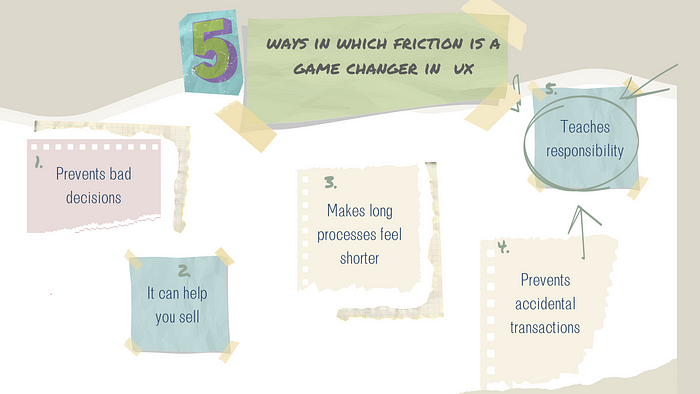
Redefining User Trust

Over the past three decades, the goal has been to establish absolute trust in technology; it has been a long game and in no way a smooth journey. However, AI has meant absolute trust might be counterproductive. The uncertainty and potential errors within AI systems, especially at the fringes of their capabilities, demands an “appropriate trust” (this is one of the modules in John Maeda’s course), an understanding that encourages users to maintain a critical perspective on AI’s abilities.

The current state of user trust in AI is diverse and complex. While some individuals readily integrate AI into their lives without hesitation, others approach it with caution or even fear. Achieving the delicate balance of healthy scepticism and recognition of its value is essential for developing “appropriate trust” and remains a significant challenge for designers.

In sociology, trust is based on the expectation that the trustee (the AI system) will act in a manner beneficial to the trustor (the user). Honesty and reliability form the bedrock of this relationship. Therefore, while reliability cannot be guaranteed (due to the unpredictability of AI), ensuring honesty is essential. Products need to be transparent, with their capabilities and limitations clearly laid out for everyone to see. Designers play a key role in delineating the boundaries of AI abilities and working to demystify AI to ensure this appropriate level of trust is met.

Introducing Thoughtful Friction

“Usability,” characterised by the ease with which tasks can be completed, remains a fundamental principle in UX design, where the reduction of friction is typically the overarching goal. However, when fostering “appropriate trust”, introducing deliberate friction can prompt users to reflect before taking actions, improving the precision and effectiveness of their outcomes. When usability is so seamless that users are not even aware of their actions they enter an “auto-pilot” mode, devoid of conscious decision-making. This is the time when you unknowingly commit to choices, agree to terms or share misinformation with your thousands of Instagram followers. Given AI’s capacity to further streamline tasks, it’s ever more important that we thoughtfully design friction into the user experience.

For some designers, introducing friction is not alien and has been a way to create an immersive experience, much like ‘The Ikea Effect’. The idea here is keeping the user more engaged. Although our primary aim might not be to create immersion per se, our objective aligns with it: to heighten user engagement, ensuring they are alert and can identify when AI does not meet expected standards. Appnova explores 5 simple ways friction can be a game-changer in design, from preventing bad decisions to giving user responsibility.

A collage diagram titled “5 ways in which friction is a game-changer in UX”. 1. Prevents bad decisions 2. It can help sell 3. Makes long processes feel shorter 4. Prevents accidental transactions 5. Teachers responsibility.Image by Author, made on Canva. Based on “5 simple ways friction can be a game-changer in design”

Some ways in which we can create friction for a more engaged experience include AI notices and prompts. Here, AI notices refer to the use of visual cues or contextual signals that indicate AI-generated content, prompting users to review AI outputs. This simple moment of reflection can have a big impact.

Striking a balance between seamless interactions and intentional friction is key for creating user experiences that are both intuitive and impactful. Monitoring this balance, gathering user feedback, and analysing time spent interacting with the product are important steps to iteratively refine, design and sustain this balance.

Usability Testing Reimagined

With AI’s inherent variability, usability testing can no longer follow task completion and assessment at key points in the design process. By using AI in the usability testing process, we are able to address the need for ongoing, adaptive testing that can be integrated into the product itself. This more continuous refinement, reflecting the principles of iterative, user-centred design, is what usability testing has always wanted to be.

Using AI in this testing phase allows us to take advantage of its analytical potential. Unlike traditional hands-on techniques in controlled environments, we are now able to use vast amounts of data across the product’s real lifetime. The improvement process can also be built into the model itself, improving the effectiveness and efficeny. “This transition not only accelerates the testing process but also provides more comprehensive insights because AI systems can analyse user interactions at levels of depth and at scales that are unattainable by human testers alone.” That being said, while we should undoubtedly use AI to help us test non-deterministic products, there is still a need for human involvement and strategy.

Beyond the Interface

Where does the future of UI sit within this? It seems like there may be a trend towards an interface-less design, influenced by not just AI but also the advancements in voice interaction. This presents a new challenge for designers — particularly for those who thrive on visual creativity (me!). With AI, it is likely that even less of the interface is needed because a single function can serve far more wide purposes. Or perhaps it doesn’t mean no interface, but the nature of the interface will dramatically change in favour of VR/AR — or perhaps brain-computed interfaces?! Alex Jewell gives a very interesting, if not a little scary, discussion on what the end of the interface will look like. He does suggest that there will still be a place for designers but it will be more strategic and less aesthetic. It almost seems paradoxical that as what’s going on under the hood is becoming more complex, what’s on the outside shrinks away.

The Future of Collaborative UX

Our discussion has only scratched the surface of how AI will change our design thinking. I am in no way an expert on this topic and in early stages of exploring AI and UX integration, but one opinion stands firm: UX needs to evolve into a more collaborative discipline. Microsoft coined the term ‘Collaborative UX’, where designers work more closely with AI engineers but also in collaboration with AI itself. We need to shift away from our siloed, compartmentalised workflows, where designers and developers have distinct roles and processes, towards a more unified, collaborative process. In this new model, designers are important at every stage of development. For instance, their involvement is critical in training the models and designing the system architecture, since these elements are fundamental in shaping the delivered user experience. Likewise, incorporating feedback mechanisms directly into products requires designer input to understand what data and feedback is needed to drive future product changes.

We need to start to also see AI as a co-creator — or perhaps better a co-pilot. We need to ensure that we are strategic in our use of these systems, prioritising design thinking and principles so that AI enhances rather than dictates the user experience. In this collaboration, there is the potential to design more responsive experiences that support rather than overshadow human creativity.

For us as designers, mastering AI is essential, recognising it as a core component of our design toolkit that enhances efficiency and precision. While AI transforms how we design, the user remains our core priority — and that, I believe, will never change.

More resources:

UX design in AI: A trustworthy face for the AI brain.

UX design: a new way of designing ft. ChatGPT and Midjourney

Revolutionising usability testing with machine learning

Also check out John Maeda’s youtube channel “Design & AI”

Linkedin learning course: “ UX for AI: Design Practices for AI Developers”

Article Written by Letitia Rohaise (letitiarohaise.co.uk). Product Designer with a Masters’ in Psychology. Letitia is an advocate for integrating cultural psychology into design, ensuring products are meaningful and accessible across diverse cultural contexts.


Want even more inspiration?
Follow Muzli on social media for your daily dose of design, innovation, and creativity right in your feed!
Linkedin | Instagram | Twitter

AI image generator - Sketch-to-Image for designers

Updated: March, 2024

AI image generators are revolutionizing the industry by taking simple sketches and transforming them into breathtaking images. 
This groundbreaking technology is reshaping the way designers bring their visions to life. 
Powered by ever-evolving algorithms, AI image generators harness the vast potential of machine learning to generate high-quality images from basic sketches. 

Designers can now experiment and iterate with ease, exploring diverse styles and aesthetics, all with the click of a button. 
This innovation not only speeds up the design process but also opens up a world of possibilities, allowing for more experimentation and pushing the boundaries of creativity. 
Gone are the days of spending hours meticulously refining sketches. AI image generators provide designers with a powerful tool that not only enhances their productivity but also encourages exploration and empowers them to create stunning visualizations like never before. 
With this game-changing technology at their fingertips, designers can now bring their ideas to fruition with unparalleled efficiency and finesse. 

We’ve found 5 of the best sketch-to-image generators, using the latest AI models that you can immediately start to experiment with.

NVIDIA Canvas

NVIDIA Canvas leverages AI to transform basic brushstrokes into lifelike landscape images. Accelerate background creation or hasten concept exploration, allowing you to dedicate more time to envisioning your ideas.

After crafting your perfect image, Canvas enables you to export your creation into Adobe Photoshop for further refinement or integration with additional art pieces. Moreover, with Panorama, your images can be transferred to 3D software like NVIDIA Omniverse™ USD Composer (previously known as Create), Blender, and beyond, for expanded creative possibilities.

Roughly

Still in limited access, Roughly is an AI-powered web application that allows anyone to easily create beautiful art, even if they don’t have artistic skills. It uses AI to turn rough doodles and sketches into polished illustrations.

Tailored for both beginners and professionals, Roughly features an intuitive interface, making it accessible to creators at all skill levels.

Draw3D

Draw3D is an AI image generator designed to turn sketches and drawings into lifelike images. 

Users simply upload their sketch, and the tool seamlessly renders it into a realistic image. Compatible with various detailed sketches or drawings, from natural to mountain landscapes, Draw3D excels in transforming these into photorealistic visuals. 

Additionally, it has the capability to vividly realize animals, preserving the intricacies of their facial structures.

Vizcom AI

Vizcom uses cutting-edge AI technology to convert sketches and drawings into attractive concept illustrations. This platform enables users to either import their existing drawings or craft new ones directly within the app. To guarantee data security, all user files are securely stored in a dedicated cloud environment, protected with encryption during both transit and storage. Vizcom provides a range of access options, including both free and premium subscriptions, catering to the diverse needs of its user base.

Transform ideas to photorealistic renderings. Add a layer of realism that elevates your design concepts to a whole new level, at a speed that will amaze.

Canva — Generate art from sketch

Canva is a popular graphic design platform, renowned for its Sketch to Life app, a feature that employs artificial intelligence to convert drawings into realistic images. 

The app meticulously generates the details of a drawing and transforms it into a lifelike image. 
Designed for ease of use, this user-friendly app is readily accessible from within the Canva platform.

Stable Doodle

Stable Doodle is a cutting-edge sketch-to-image tool powered by Stability AI, designed to transform sketches and drawings into incredible art or photos. 
It utilizes the advanced Stable Diffusion XL image generating technology along with the T2I-Adapter, a condition control solution developed by Tencent ARC, for precise AI image generation. 

The tool features a simple drawing interface and allows users to create basic sketches, choose an art style, and generate visually appealing concept drawings. Stable Doodle is available on the Clipdrop website and app, offering both free and paid options, and aims to cater to a wide range of users, from novices to professionals​

AI image generators keeps updating

We will continuously update this list whenever new generators are available.


Want even more inspiration?
Follow Muzli on social media for your daily dose of design, innovation, and creativity right in your feed!
Linkedin | Instagram | Twitter